How to add and manage targets
Last updated: November 3, 2026
A target is one asset that Astra scans or pentests, such as a web app, an API, a cloud account or a mobile app. This article explains where targets come from, the stages a new target goes through, and links to the steps for each stage.
Target types
Targets are bought by type in the checkout.
| Type | Bought online |
|---|---|
| Web App, APIs, Cloud Infra | Yes, in the checkout |
| iOS, Android, Network Device, Others | Through Astra's sales team, because the price depends on the scope |
For what each type covers and what to provide during setup, read Target types in Astra. For the purchase steps, read How to buy a target.
Where a new target shows up
The Targets page groups every target by what it needs next.
| Section | What it means | Button on each row |
|---|---|---|
| Pending Verification | Astra needs proof that the team owns the web app or API. | Verify |
| Pending Setup | The target needs its details before the first scan. | Setup |
| Active Targets | Setup is complete and the target can be scanned. | Scan |
| Deactivated Targets | The subscription behind the target is no longer active. | — |
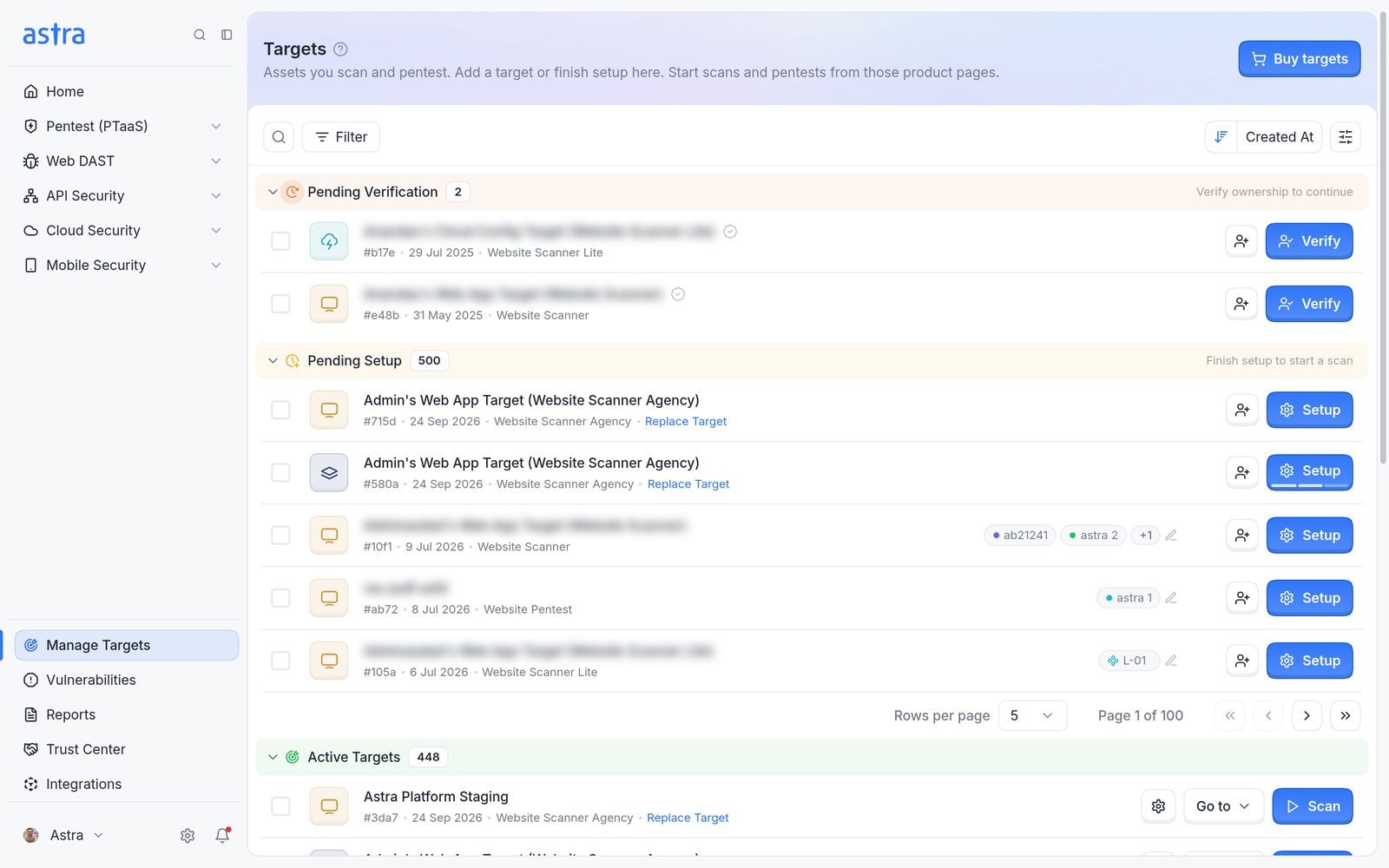
The Targets page, with targets grouped into Pending Verification, Pending Setup and Active Targets.
From purchase to first scan
A new target goes through these stages.
- Buy the target. Choose the type and quantity in the checkout and pay. Read more in How to buy a target.
- Verify ownership, if asked. Only web app and API targets on a free trial need this. All other targets go straight to Pending Setup. Read more in How to verify target ownership.
- Finish setup. Enter the target's URL, scope and login, then click Activate Target. Read more in How to finish setting up a target.
- Start a scan. Click Scan on the target's row. Read more in How to start an automated scan.
Change a target later
A target's URL is locked once it's saved on a verified or set-up target. To scan a different address, replace the target. Read more in How to change a target's URL or replace a target.
FAQ
Why am I asked to buy a new target when adding one?
Each target comes from a subscription. When every target on the workspace's subscriptions is already in use, a new one has to be bought. On the Scanner Agency plan, a target in the pool can be replaced instead. Read more in How to change a target's URL or replace a target.
I've set up my target. How do I start the scan?
After Activate Target, the target appears under Active Targets. Click Scan on its row. Read more in How to start an automated scan.