How to start an automated scan
Last updated: November 3, 2026
An automated scan can be started at any time on one or more active targets. Each scan uses one from the target's scan quota.
Start a scan
Scans are started from the DAST Scans page.
- Go to Web DAST → DAST Scans and click Start a Scan.
- Under Select Scan, choose Automated Scan.
- Under Scan Type, choose the scan type. For Automated Scan (Full), also choose Full Coverage or Delta Coverage.
- Click Select Target.
- Tick one or more targets. Each row shows how much of that target's scan quota is used, for example 0 of 1000 used. The Scan Name can be edited on selected rows.
- Click Start Scan.
- For web app targets, Astra asks Have you whitelisted our scanner IPs? Click Yes, Start Scan to continue, or No to go back.
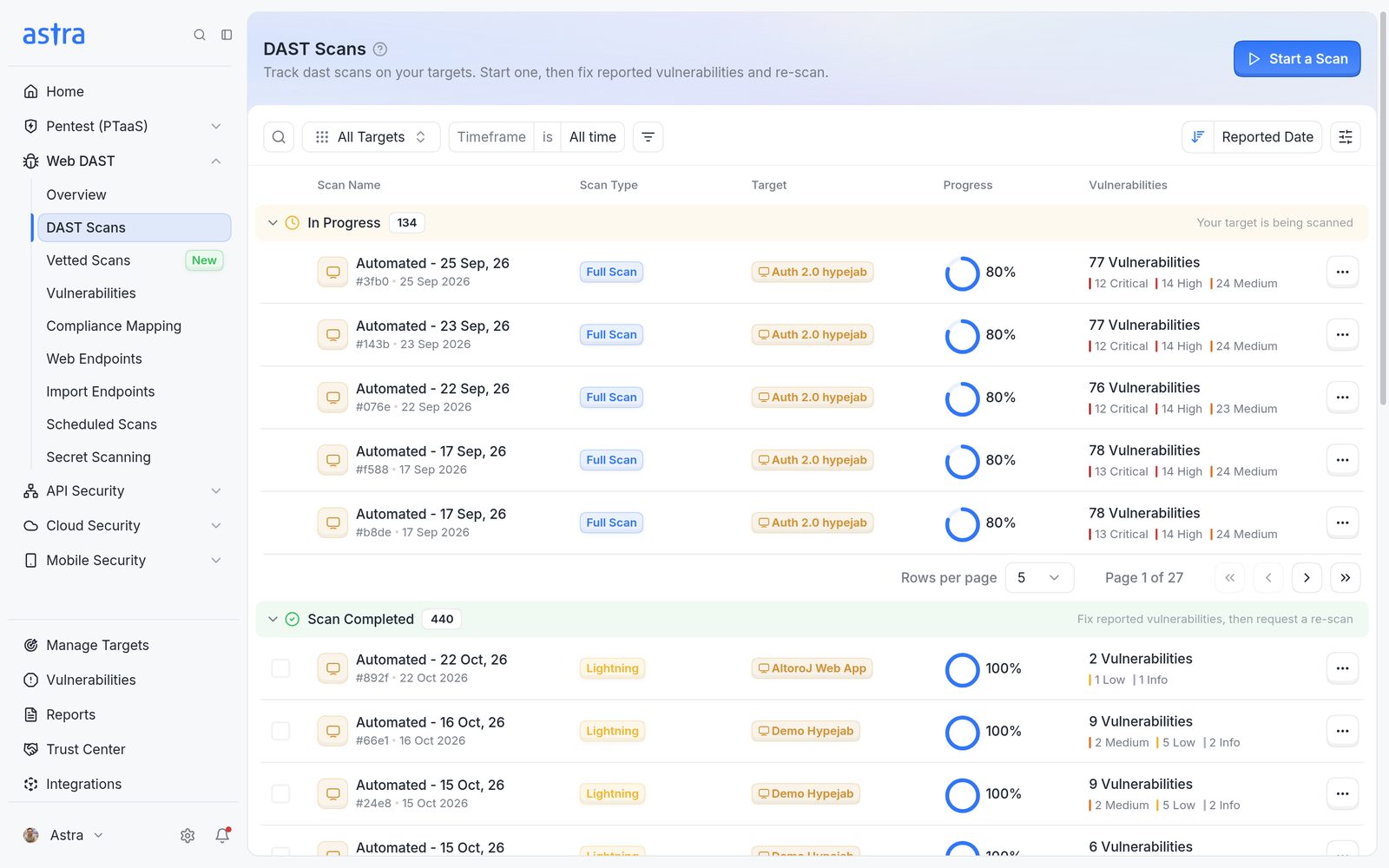
The DAST Scans page, which lists scans by stage.
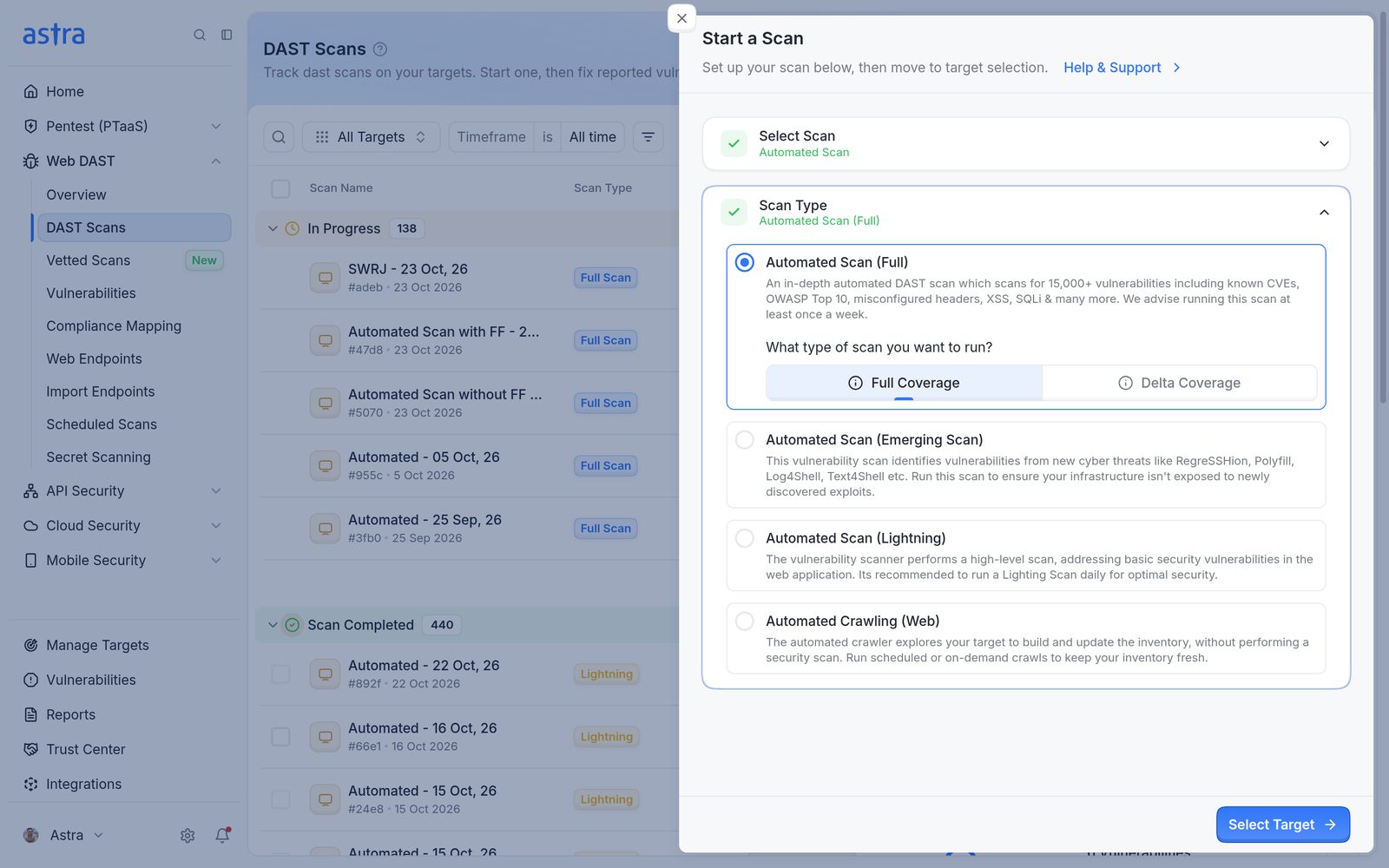
Start a Scan, with Automated Scan selected and the scan types listed.
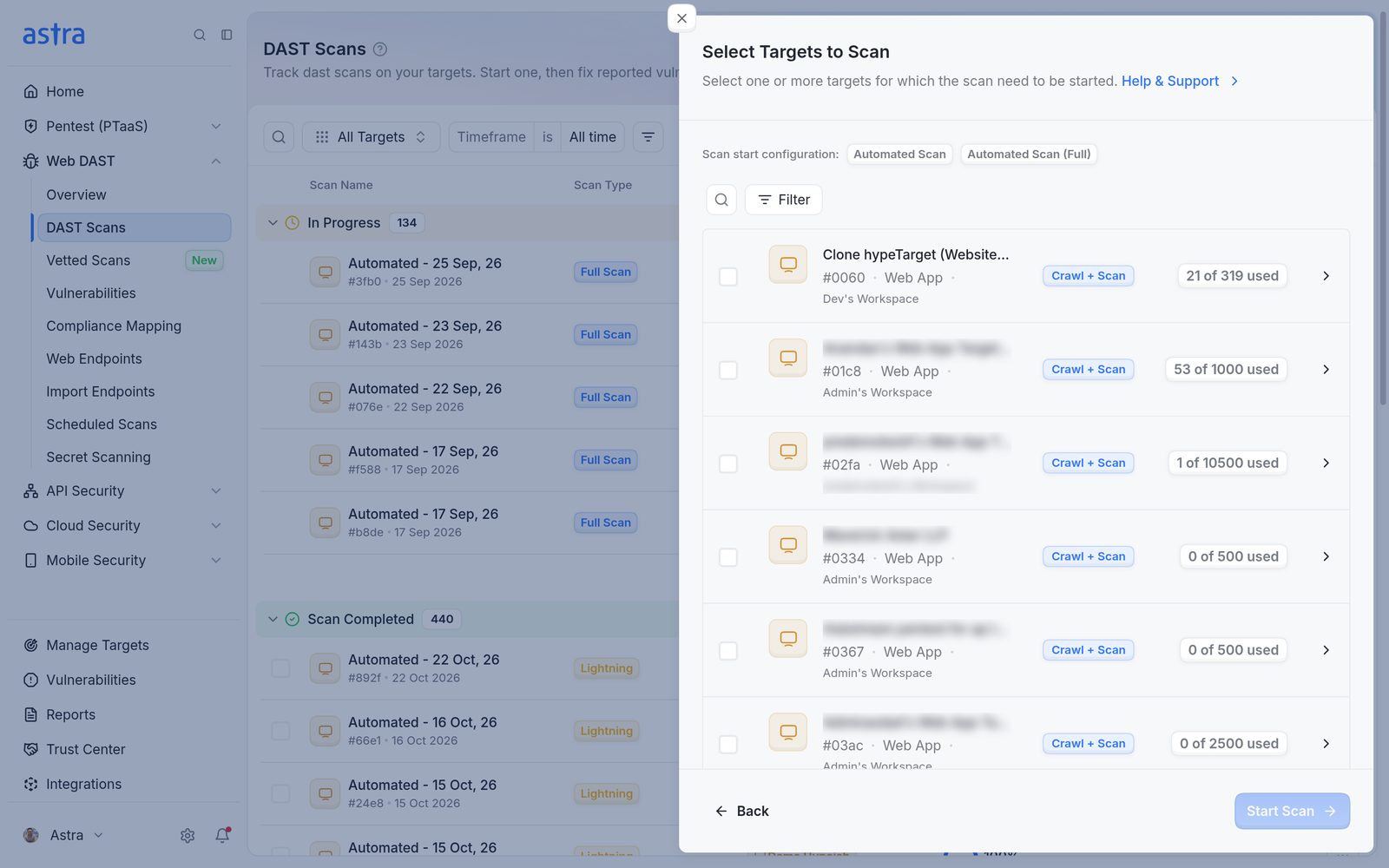
Select Targets to Scan, showing how much scan quota each target has used.
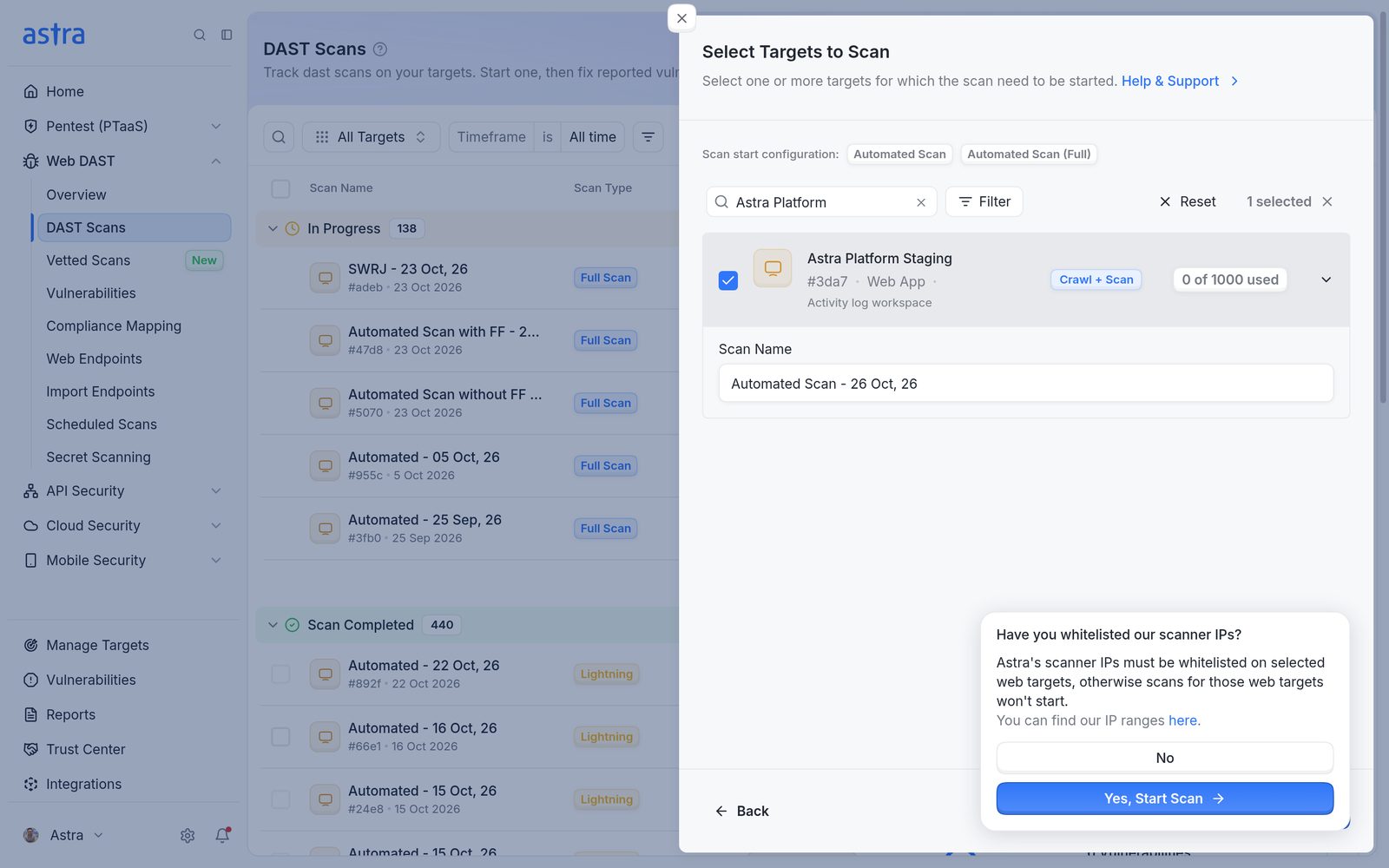
The prompt to confirm that Astra's scanner IPs are allowlisted.
Read more about each scan type in How to run and manage automated scans.
What happens next
Astra checks the connection to each web target first.
- Scans start on targets that respond, and All Scans Started Successfully lists them.
- A target that doesn't respond is skipped with "Target is unreachable, ensure Astra's scanner IPs are whitelisted." No scan is created for it, so no quota is used. Read more in How to make sure Astra's scanner can reach your application.
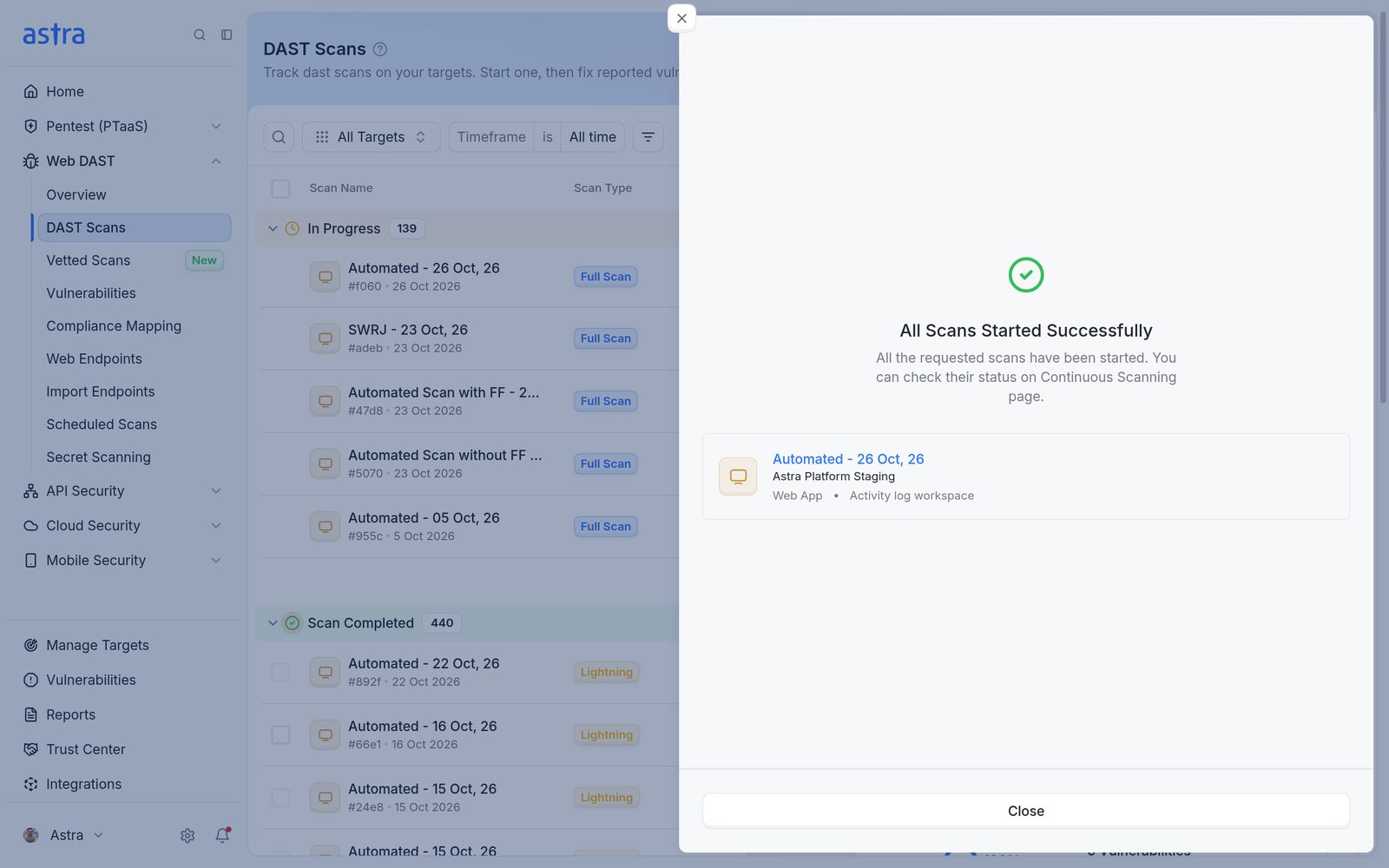
All Scans Started Successfully, listing each scan and its target.
Open a scan to follow it. The Progress card on the right shows the current step, starting with "Setting up your scan".
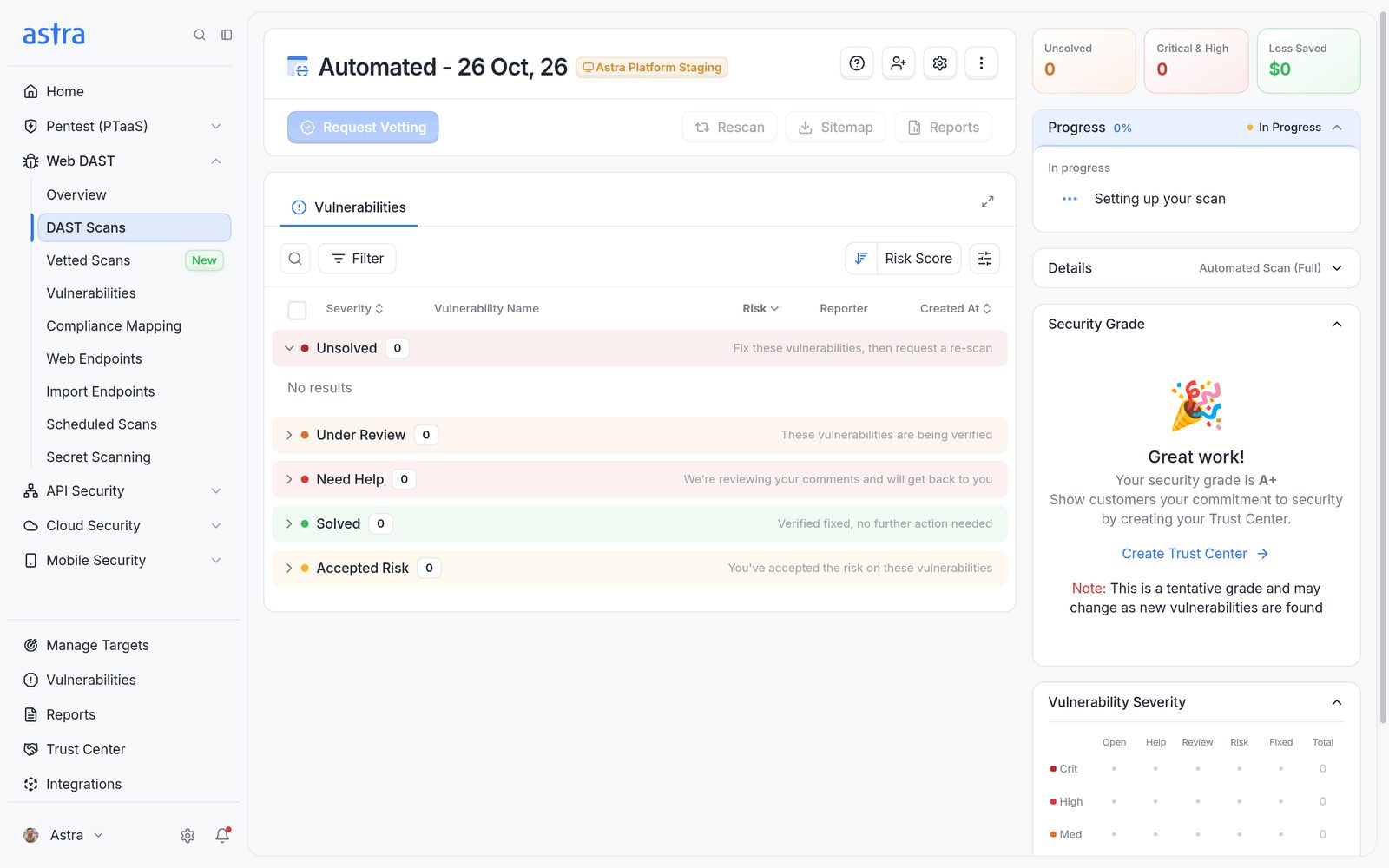
A scan that has just started, with the Progress card on the right.
Note
Only one automated scan can run on a target at a time. Starting another while a scan or rescan is running shows "A scan is underway, please try again once it is completed."