How to set up an API target
Last updated: November 12, 2026
An API target's setup page is a single checklist. It tells Astra where the API lives, which endpoints to test and how to sign in. Three sections are required: Target identity, API definitions and Authentication. The rest add coverage.
Set up an API target
On the Targets page, click Setup on the API target's row.
In Target identity, enter the API base URL, the Target Name and the Business Name, and then choose the Environment: Staging or Production.
In API definitions, choose the tool you use for your API collection: Postman, Hoppscotch or HAR file. Upload the collection, and for Postman or Hoppscotch, its environment file.
In Authentication, choose the Authentication type and enter the details Astra uses to sign in to the API: No Auth, Basic Auth, OAuth 2.0, JWT Bearer, Bearer Token or API Key.
Optional: open Improve coverage to add Additional hosts, Custom HTTP headers and Excluded URLs, or to get the scanner IPs under IP whitelist.
Optional: in When to scan, choose what runs when the target is activated, such as a Weekly automated scan or Daily emerging scans.
Click Activate target.
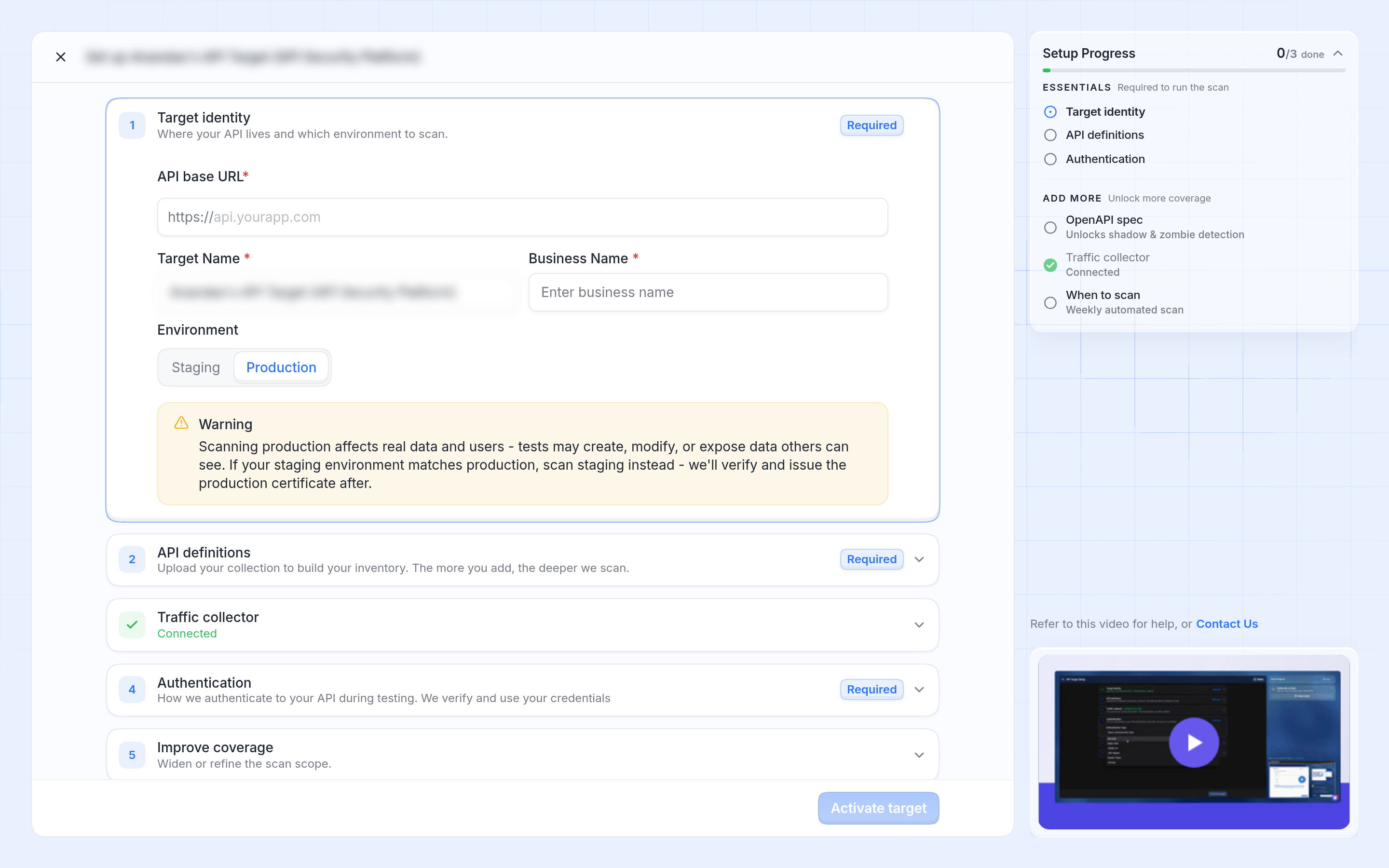
The API target setup page with Target identity open and the Setup Progress panel on the right.
The Setup Progress panel shows which required sections are done. The Activate target button stays unavailable until all required sections are complete.
Important
Scanning production affects real data and users, because tests may create, change or expose data. If the staging environment matches production, scan staging instead.
Add an OpenAPI spec
An OpenAPI spec isn't required, but it unlocks shadow and zombie API detection and helps Astra classify and prioritize findings. In API definitions, click Add an OpenAPI spec and upload the file.
Check that the API credentials work
After you upload a Postman collection, Astra can check that the credentials in it sign in to your API. Read more in How to verify API credentials in a Postman collection.
Connect a traffic collector
A traffic collector keeps the API inventory current from live traffic, and detects shadow, orphan and zombie endpoints. Click Set Up Collector in Traffic collector. When it's connected, the section shows Connected.
Next steps
Allow Astra's scanner IPs through your firewall. Read more in How to make sure Astra's scanner can reach your application.
Start a scan. Read more in How to start an automated scan or How to start a pentest.