How-To: Starting a Scan
Last updated: August 17, 2026
Introduction
Starting or bulk-starting a scan in Astra can be done from the dashboard. Use it to run a pentest, an automated vulnerability scan, a web crawl, or a mobile static analysis on one or more Active targets.
The side section walks you through Select Scan, the scan or pentest type, optional objective and testing approach (for pentests), then Select Targets. You can add or update login credentials from that target list before you start.
Prerequisites
Active Target: Ownership must be verified and target setup complete. The target must be marked Active. See How-To: Completing Target Setup and How to Verify Ownership of a Target.
Scan Quota: Your subscription must have remaining quota for the assessment you choose (pentest type and automated scans can have separate limits).
Reachability (web): For web targets, Astra scanner IPs should be allowlisted so the scan can start. See Astra IP Ranges.
Credentials (grey box / authenticated testing): Grey box pentests need login credentials or a session recording on every selected target. You can add or update these in the wizard.
Instructions
1. Locate the "Start a Scan" button
Click Start a Scan. It is available across the dashboard (including Targets, Pentests, and Scans) for quick access.
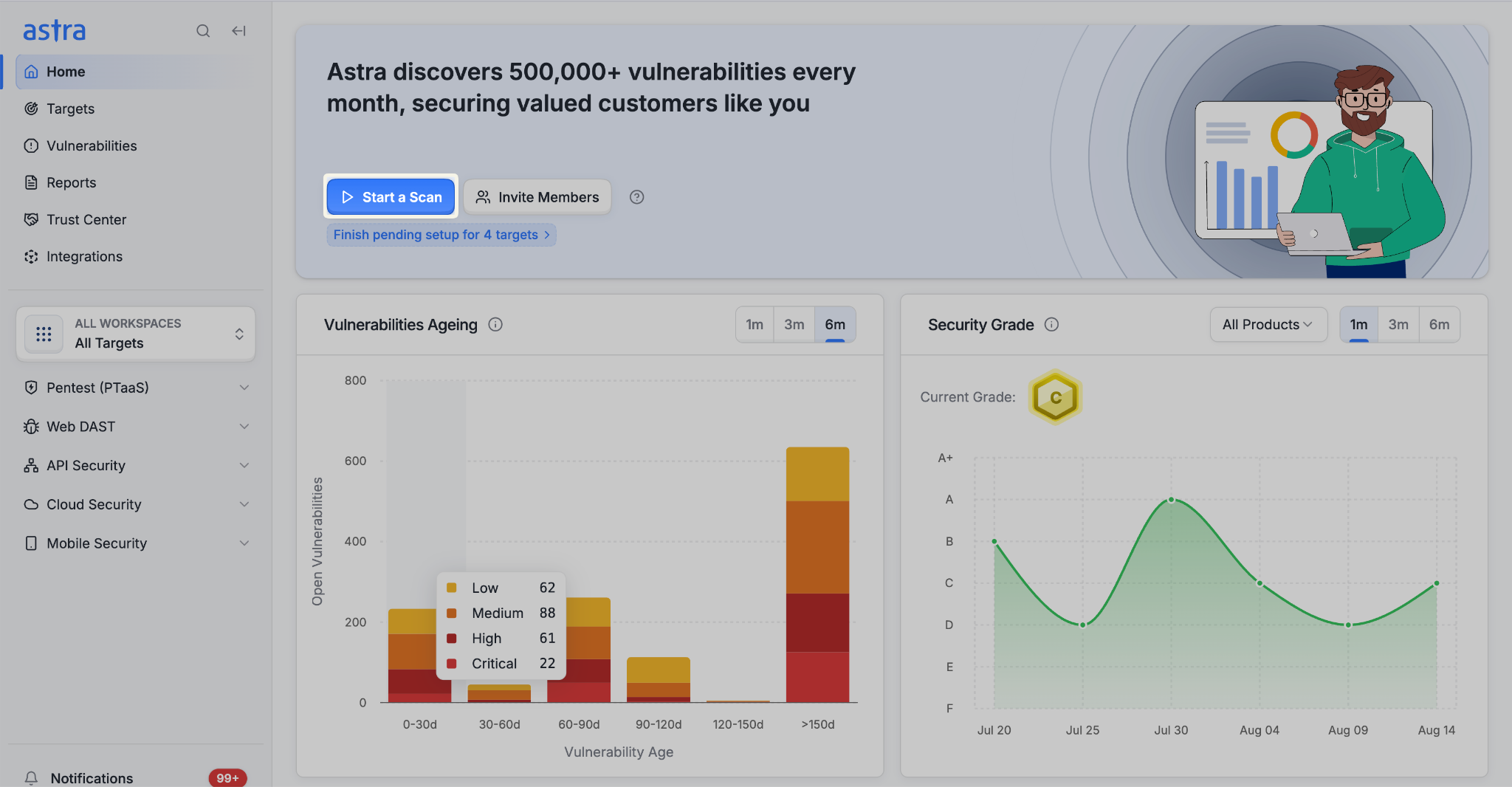
2. Open the "Start a Scan" side section
A side section titled Start a Scan opens. Select the scan as required, then click Select Target.
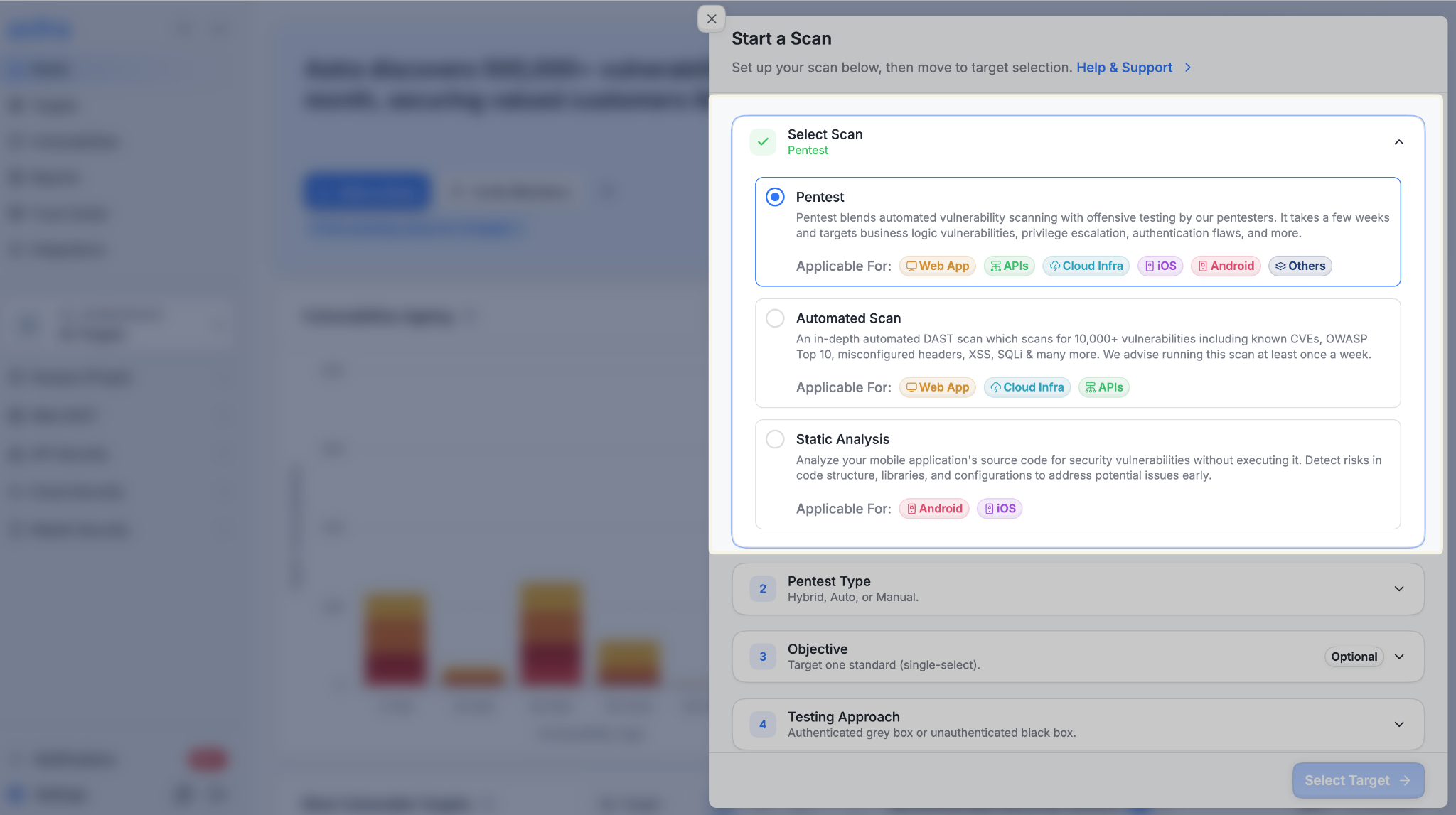
3. Select Scan
Choose a scan category:
Pentest: Blends automated scanning with offensive testing by Astra pentesters (and, depending on type, autonomous pentest). Typically takes a few weeks. Focuses on business logic, privilege escalation, authentication flaws, and similar issues.
Automated Scan: An in-depth automated DAST scan covering 10,000+ checks, including known CVEs, OWASP Top 10, misconfigured headers, XSS, SQLi, and more. Recommended at least once a week.
Static Analysis: Analyzes a mobile app (iOS or Android) for security issues in code structure, libraries, and configuration without executing the app. Shown when your plan includes mobile targets.
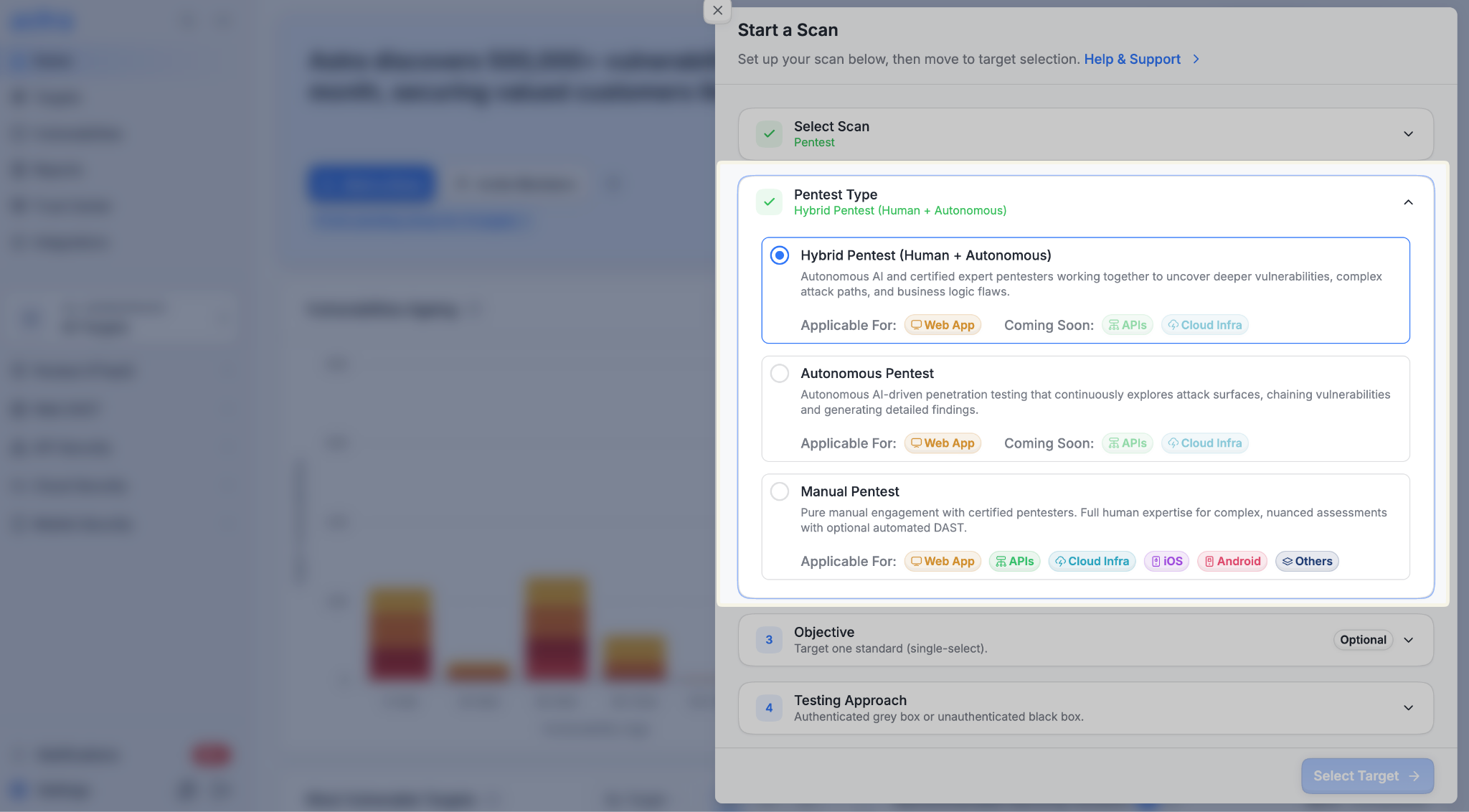
4. Choose the pentest type or automated scan type
This step depends on the category you picked.
If you selected Pentest
Choose a Pentest Type:
Hybrid Pentest (Human + Autonomous): Autonomous AI and certified expert pentesters together. Uncovers deeper issues, complex attack paths, and business logic flaws. Currently available for web targets (API and Cloud coming soon).
Autonomous Pentest: AI-driven penetration testing that explores the attack surface, chains issues, and produces detailed findings. Currently available for web targets (API and Cloud coming soon).
Manual Pentest: A human-led engagement by certified pentesters, with optional automated DAST. Available for web, API, cloud, iOS, Android, and other target types.
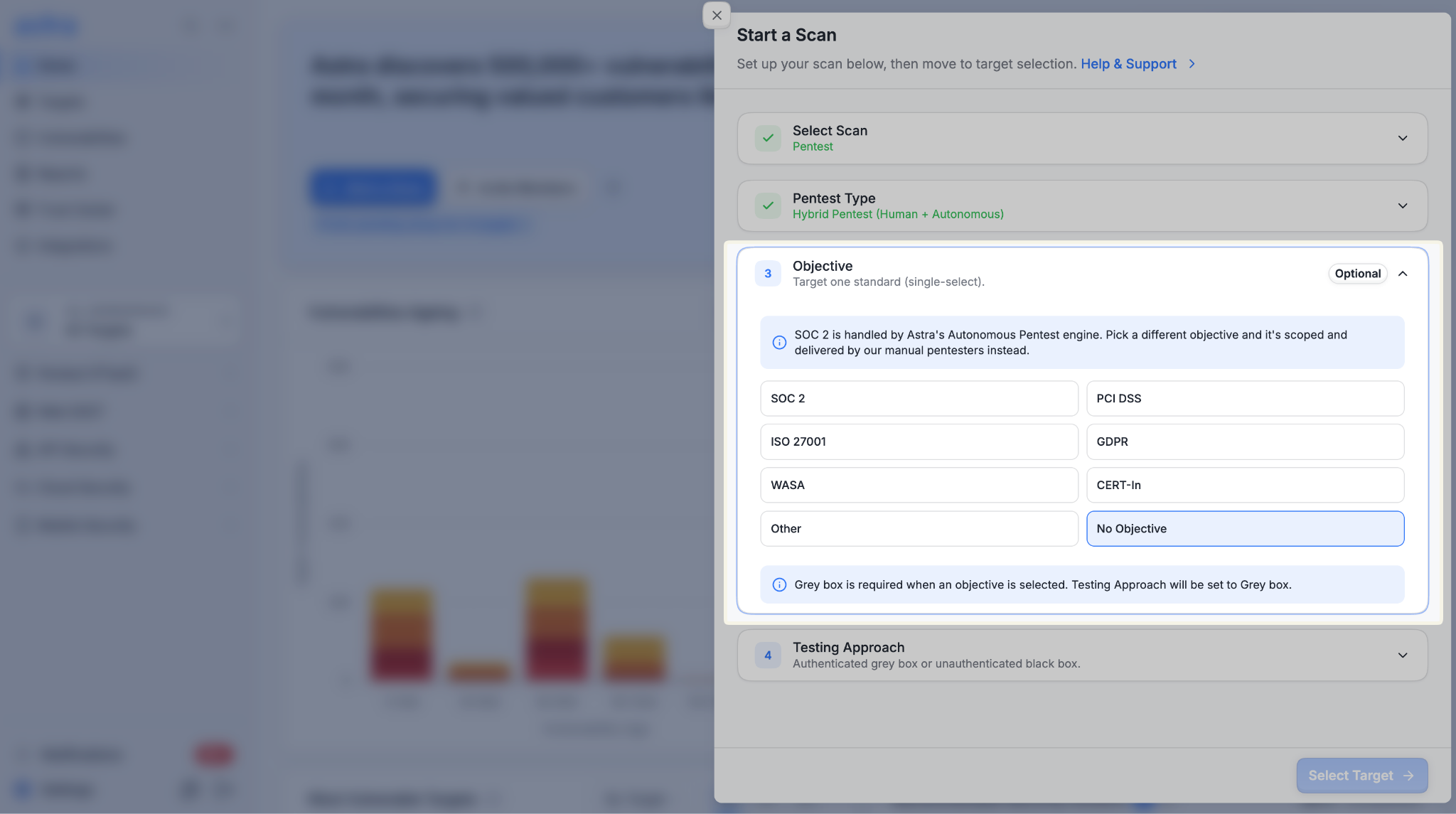
Objective (optional)
If this pentest is being conducted to meet a specific compliance standard, select the corresponding objective below. This step is optional.
Notes:
Selecting any objective (other than No Objective) sets Testing Approach to Grey Box. Black box is not available when an objective is selected.
For Autonomous Pentest, only SOC 2 and No Objective are available. Other compliance types show as not supported yet.
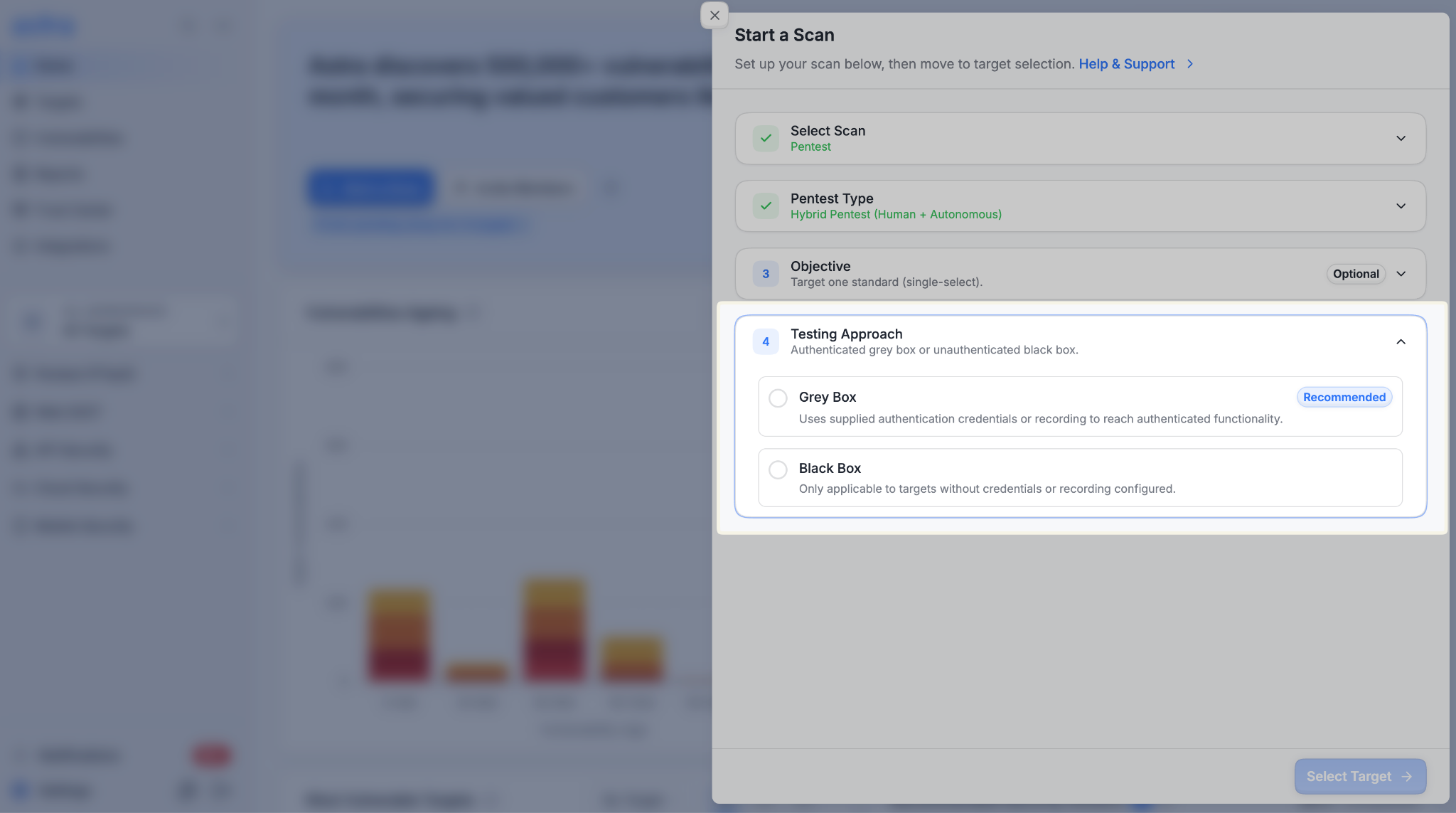
Testing Approach
Choose how testers (and scanners) access the application:
Grey Box (Recommended): Uses the authentication details you provide such as login credentials or a session recording to let testing reach authenticated functionality. Required when an objective is selected.
Black Box: Unauthenticated testing. Use this when the target has no credentials or recording configured, and you have not selected an objective.
If you selected Automated Scan
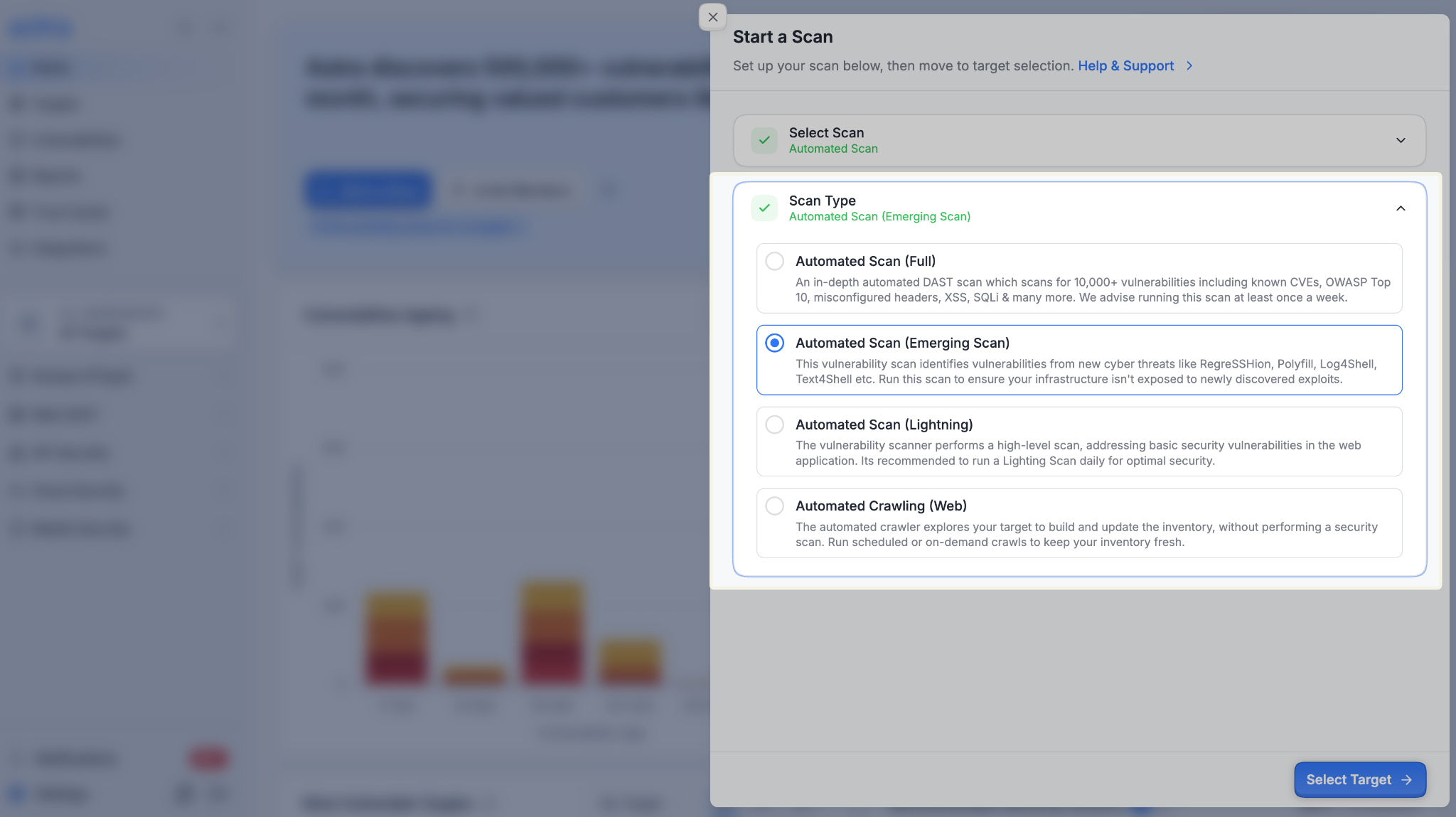
Choose a Scan Type:
Automated Scan (Full): Comprehensive DAST across endpoints — header issues, sensitive data leaks, SSTI, XSS, SQLi, RCE, and more. Typically 12–24 hours, depending on scope.
Automated Scan (Emerging Scan): Focused on newly discovered threats (for example RegreSSHion, Polyfill, Log4Shell, Text4Shell). Typically under 1 hour. Available for web, API, and cloud.
Automated Scan (Lightning): Fast, high-level scan for basic web application issues. Typically 10–15 minutes. Recommended daily. Available for web, API, and cloud.
Automated Crawling (Web): Builds or updates the endpoint inventory. It does not run a security scan. Use on-demand or scheduled crawls to keep inventory fresh before a Full or Delta scan. Web targets only. Crawls can take up to about an hour.
If you selected Static Analysis
No extra type is required. Static Analysis runs on iOS and Android targets. The app file (IPA or APK) or store URL must already be on the target.
5. Select targets
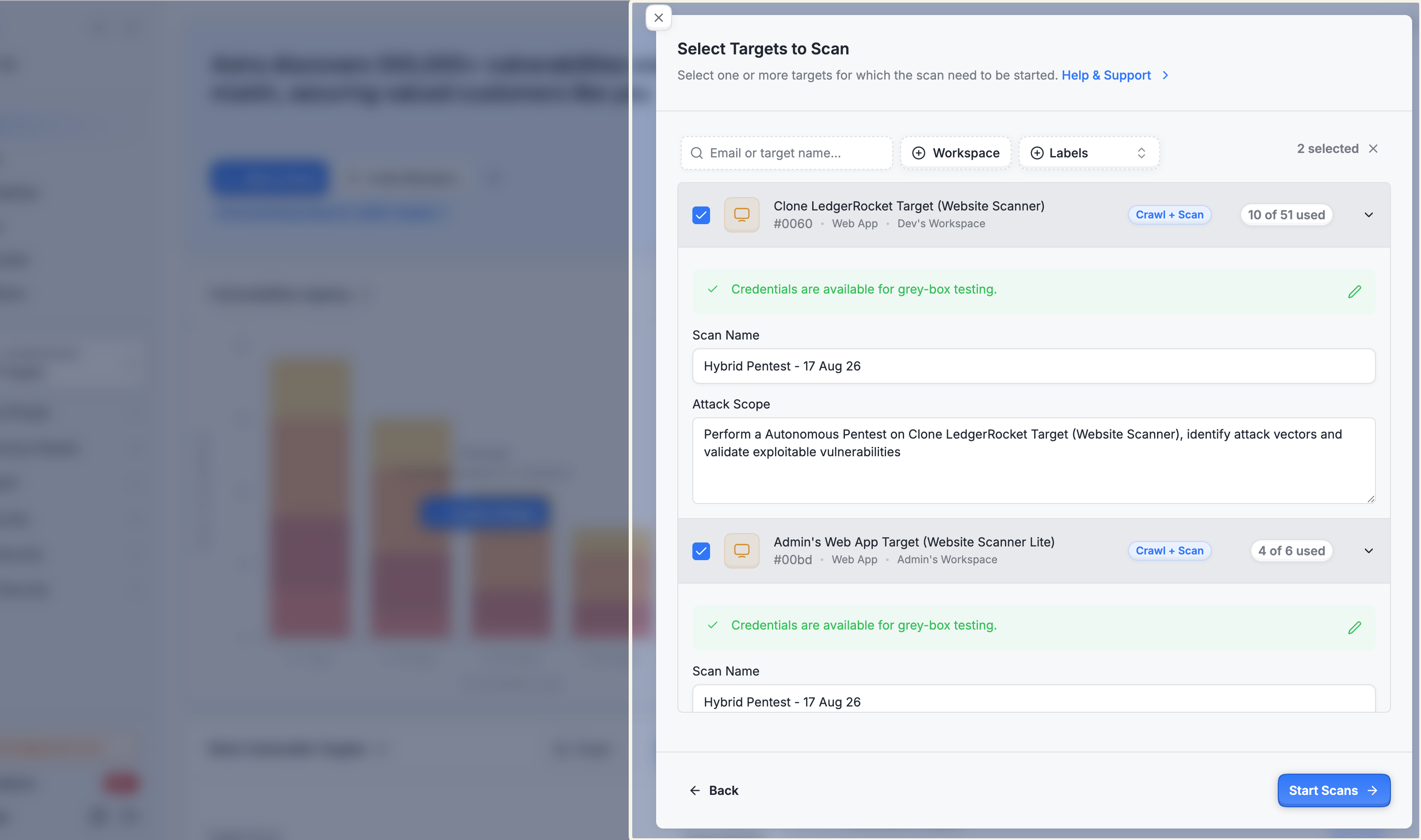
Click Select Target. The sheet title becomes Select Targets to Scan.
Choose one target, or several for a bulk start. Only targets that match the scan you configured are selectable (for example, Hybrid and Autonomous pentests are limited to web targets).
6. Add or update credentials (grey box and authenticated coverage)
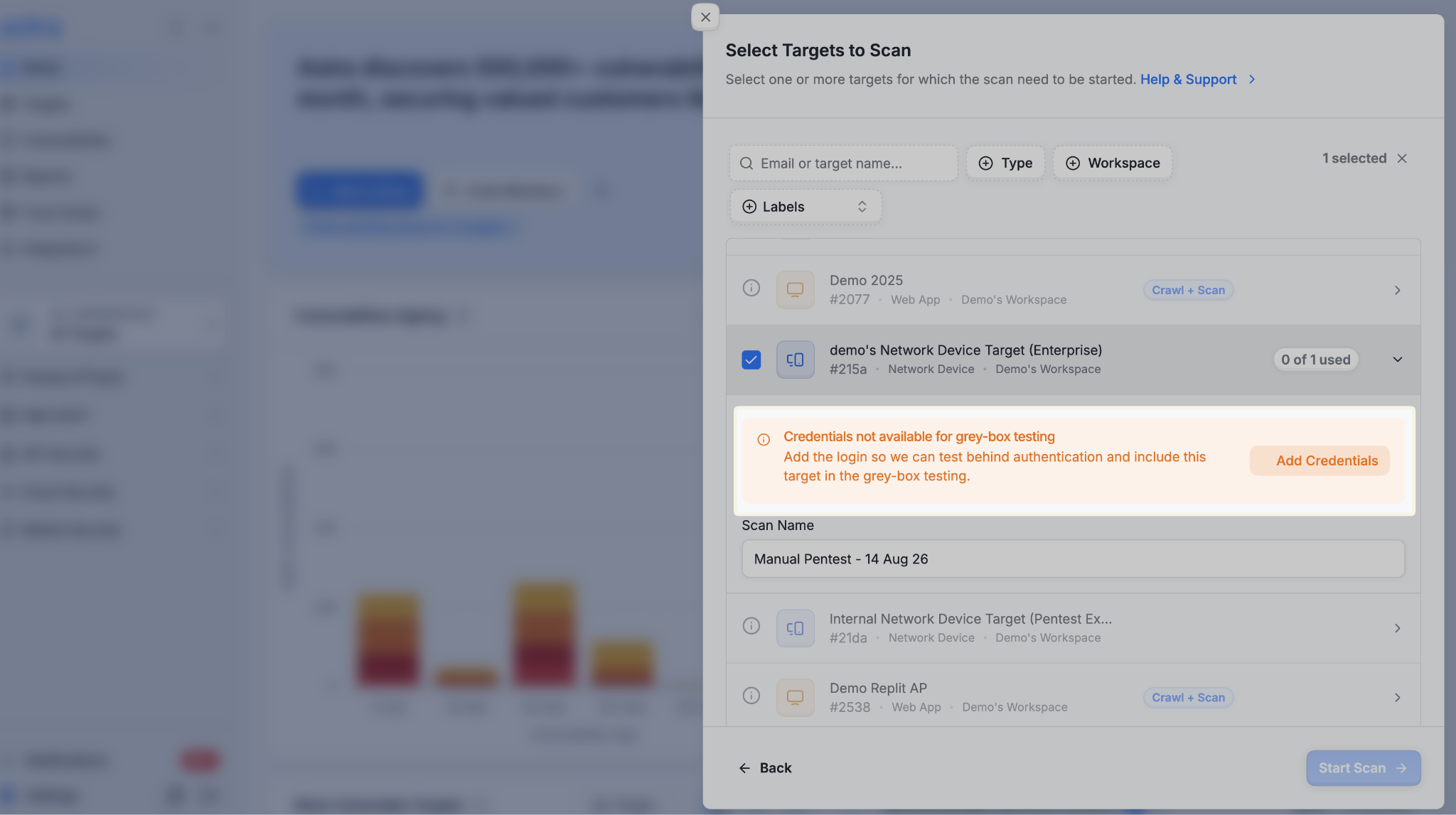
On the target list, use Add Credentials or Update Credentials for a target.
A second sheet opens:
Add Credentials - when the target has no login credentials or session recording yet.
Update Credentials - when credentials already exist and you need to change them.
Click Save Credentials or Update Credentials, then you return to the target list.
Grey box pentests cannot start until every selected target has credentials or a recording.
7. Confirm scanner access (web targets) and start
Click Start Scan (or Start Scans if you selected more than one target).
Expected Outcome
A success message confirms that the scan has been initiated. The scan appears in the In Progress section of your Pentests or Scans list.
If a selected target already has an ongoing scan, that start fails. Use View Scan to open the scan that is already running. Cancel it first if you need to start a different assessment on the same target. See How to cancel an ongoing scan.
Troubleshooting
I cannot click Select Target
Complete the required setup steps first: a scan category, a pentest type or automated scan type, a testing approach for pentests, and a description if you chose Other as the objective.
Grey Box is unavailable
Add login credentials or a session recording for the target. Grey box needs authenticated access.
Black Box is unavailable
Clear the objective (choose No Objective). An objective always uses grey box.
A target cannot be selected
It may be the wrong asset type for this scan, still in setup, quota-exhausted for that assessment, missing a mobile app file (Static Analysis), or already running a scan.
The scan did not start on a web target
Confirm the target is reachable and Astra IPs are allowlisted. See How-To: Troubleshooting Scanner Connection Issues and Astra IP Ranges.
Scan quota exhausted
Automated scans and each pentest type (Hybrid, Autonomous, Manual) can have separate quotas. Contact support if you need the limit reviewed. See Understanding and Resolving "Scan Quota Exhausted" Messages