How to buy a target
Last updated: November 3, 2026
New targets come from a subscription. Web App, API and Cloud targets can be bought online in the checkout. Other target types are quoted by Astra's sales team.
Buy targets in the checkout
The checkout adds targets to the workspace shown at the top.
- Go to Manage Targets and click Buy targets.
- Under Select your scope, pick a target type and set how many with + and −. The These targets go to bar at the top shows which workspace gets them.
- Click Continue and choose a plan.
- Pay on the Payment step.
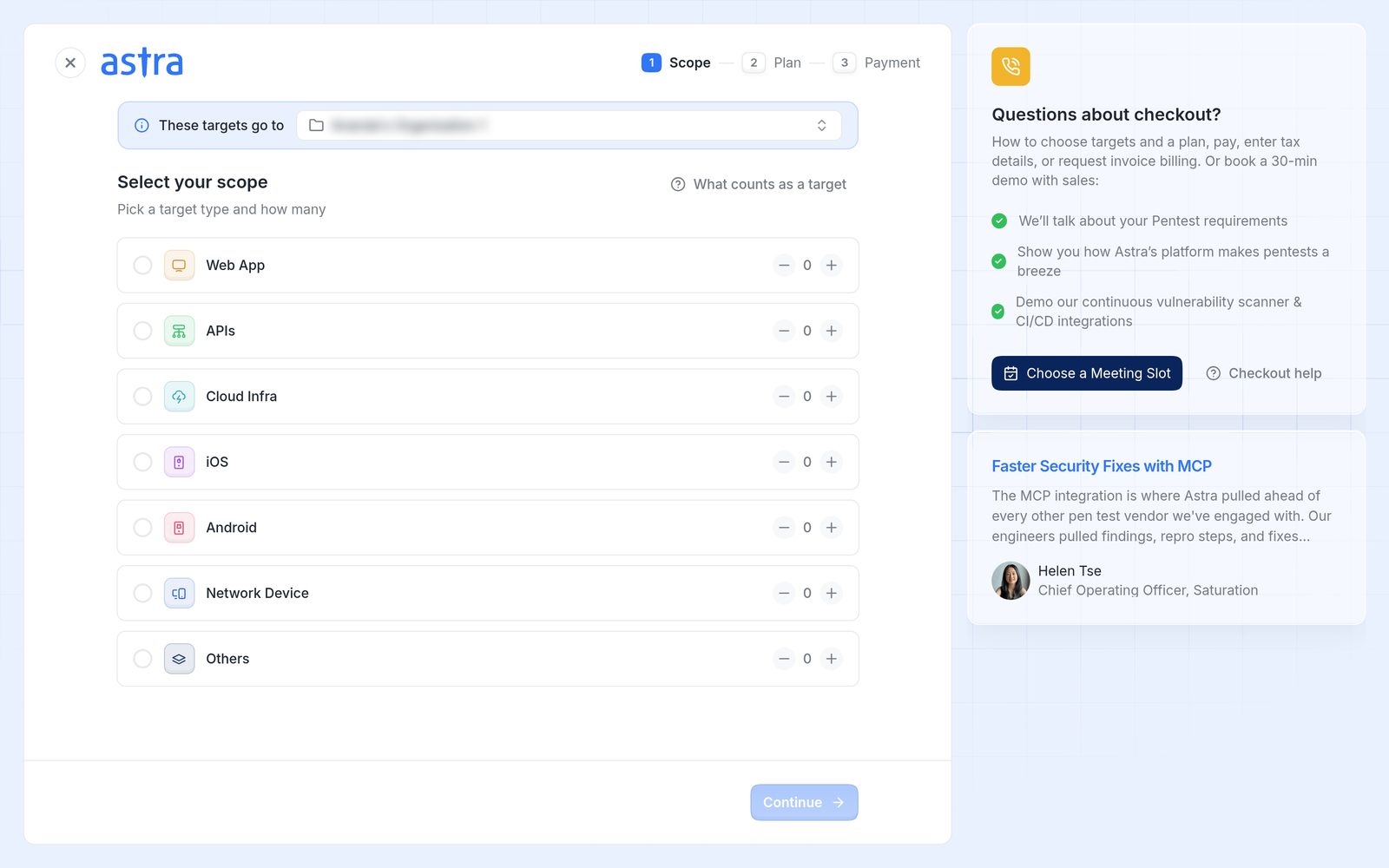
The Buy targets checkout on the scope step, with the target types and the workspace bar at the top.
The new targets appear on the Targets page. Read more about what happens next in How to add and manage targets.
Availability
Online checkout is available for Web App, APIs and Cloud Infra. For iOS, Android, Network Device and Others, clicking Continue opens Astra's contact form, because the price depends on the scope. Astra's sales team follows up with a quote.
Scanner Agency plan
When more than one Web App target is selected, the plan step also offers the Scanner Agency plan for the DAST scanner. It provides one pool of 5 targets, and a target in the pool can be swapped for another after a 30-day cooling period. Read more in How to change a target's URL or replace a target.
FAQ
Why am I asked to buy a new target when adding one?
Each target comes from a subscription. When every target on the workspace's subscriptions is in use, a new one has to be bought.
Who can answer questions about pricing before buying?
The checkout's Questions about checkout? panel offers Choose a Meeting Slot to book a call with Astra's sales team.