How to start a static analysis scan
Last updated: November 12, 2026
A static analysis scan checks the build of a mobile app for security vulnerabilities without running it. It looks for risks in code structure, libraries and configuration. Static analysis is available for Android and iOS targets.
Before you start
Upload the latest APK or IPA file to each mobile target you want to scan. Open the target's Settings, and then open APK File for Android or IPA File for iOS.
Start a static analysis scan
Click Start a Scan on the Home page or on a target's page.
Under Select Scan, choose Static Analysis. Static analysis has no scan type to choose.
Click Select Target.
Select one or more Android or iOS targets, and then click Start Scan. With several targets selected, the button reads Start Scans.
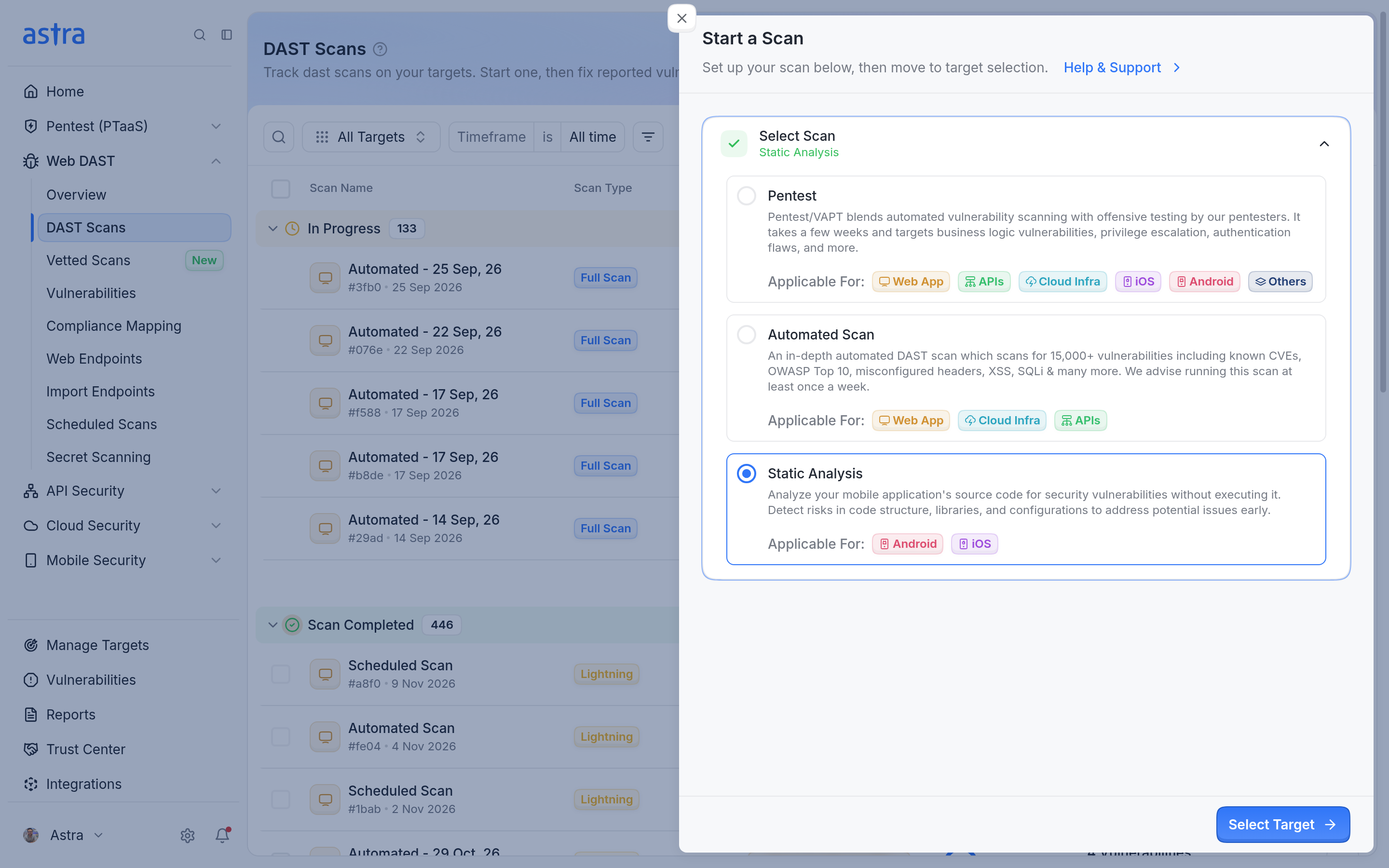
Static Analysis applies to Android and iOS targets.
If a selected target has no build file, Astra shows "Upload an APK or IPA for every selected mobile target before starting." Upload the file to the target, and then start the scan again.
View the results
Go to Mobile Security > SAST Scans. Each scan is named Static Analysis followed by the date it started. Click a scan to see its vulnerabilities, grouped by status.
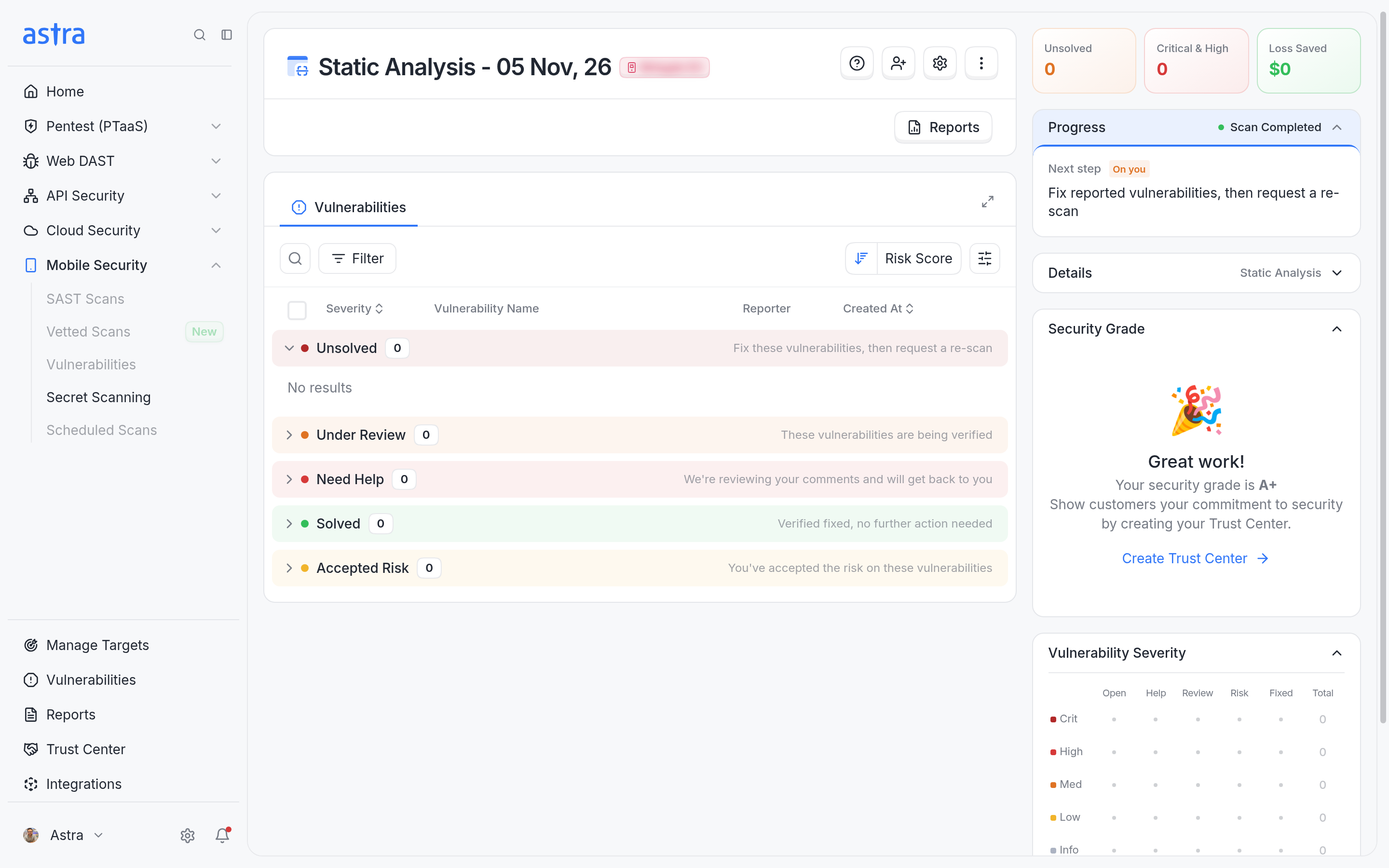
A static analysis scan groups its vulnerabilities by status.
Note
Static analysis scans can't be sent for expert vetting. Read more in How to request expert vetting for automated scans.
To compare static analysis with the other scan types, read Scan types and expert vetting explained.