Fix a Jira connection error or replace the API token
Last updated: October 29, 2026
This article covers what to do when connecting Jira fails, when the Jira card shows Connection Error, or when the API token or webhook secret needs replacing. For connecting Jira in the first place, see Integrate Jira with Astra.
If the connection fails
If Jira rejects the details, Astra shows the error Jira returned, then removes the half-created connection and shows Integration removed because activation failed with Start setup again from Integrations. Nothing is left behind, so check the Jira URL, User email and API token, then click Connect on the Jira card again.
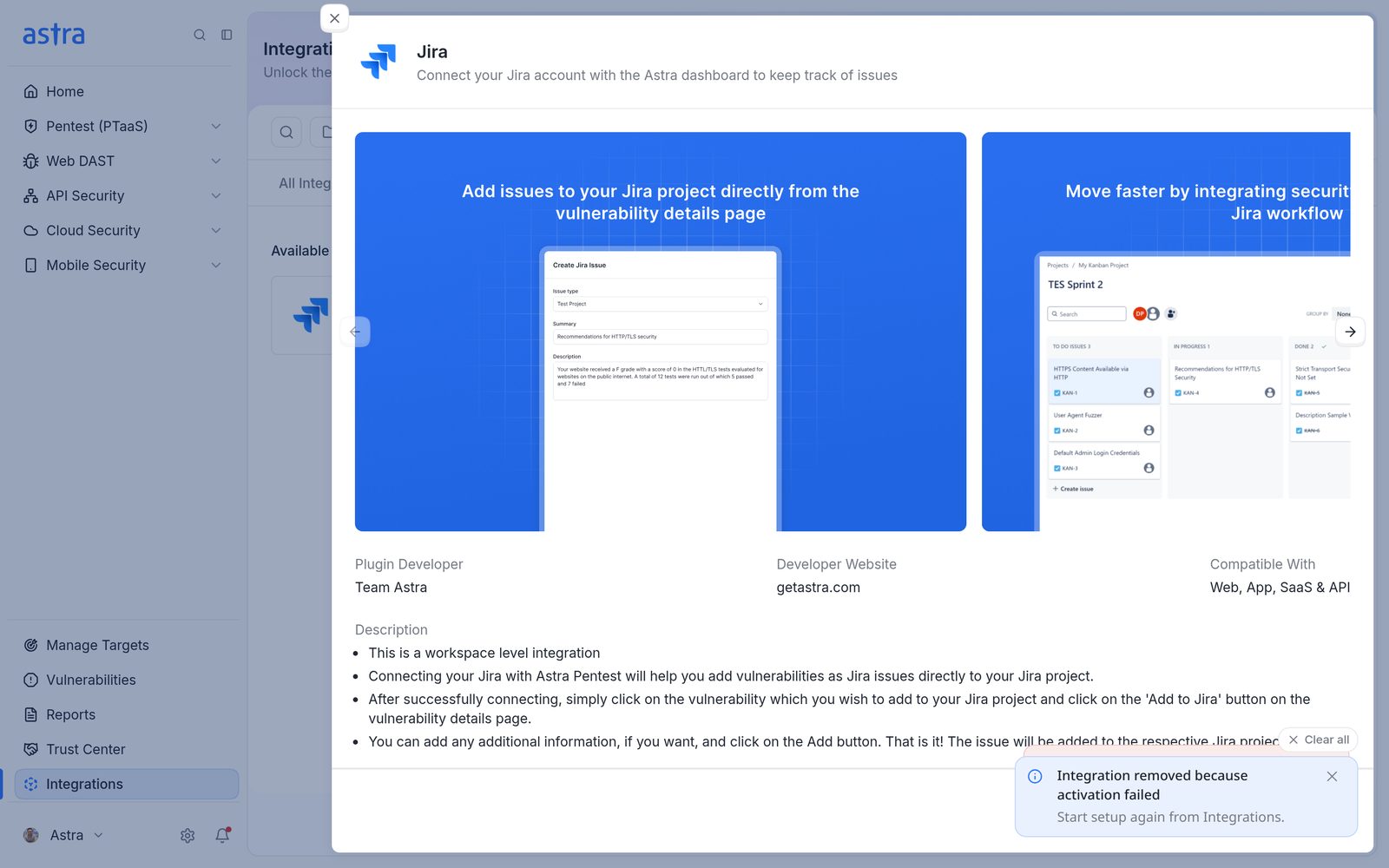
The Jira panel after a failed connection, with the Integration removed because activation failed message.
Common causes:
- The Jira URL has a typo, points to the wrong site, or includes a page path instead of just the site address.
- The API token belongs to a different Jira user than the User email, or it was copied incompletely.
- Cloud or Server doesn't match the Jira site.
- The Jira site blocks traffic from outside its network. Ask the Astra team for the IP addresses to allow.
Fix a connection error or replace the API token
When the Jira card shows Connection Error, Astra can't reach Jira with the saved details. The most common cause is an API token that expired or was revoked. Sync stops until it's fixed.
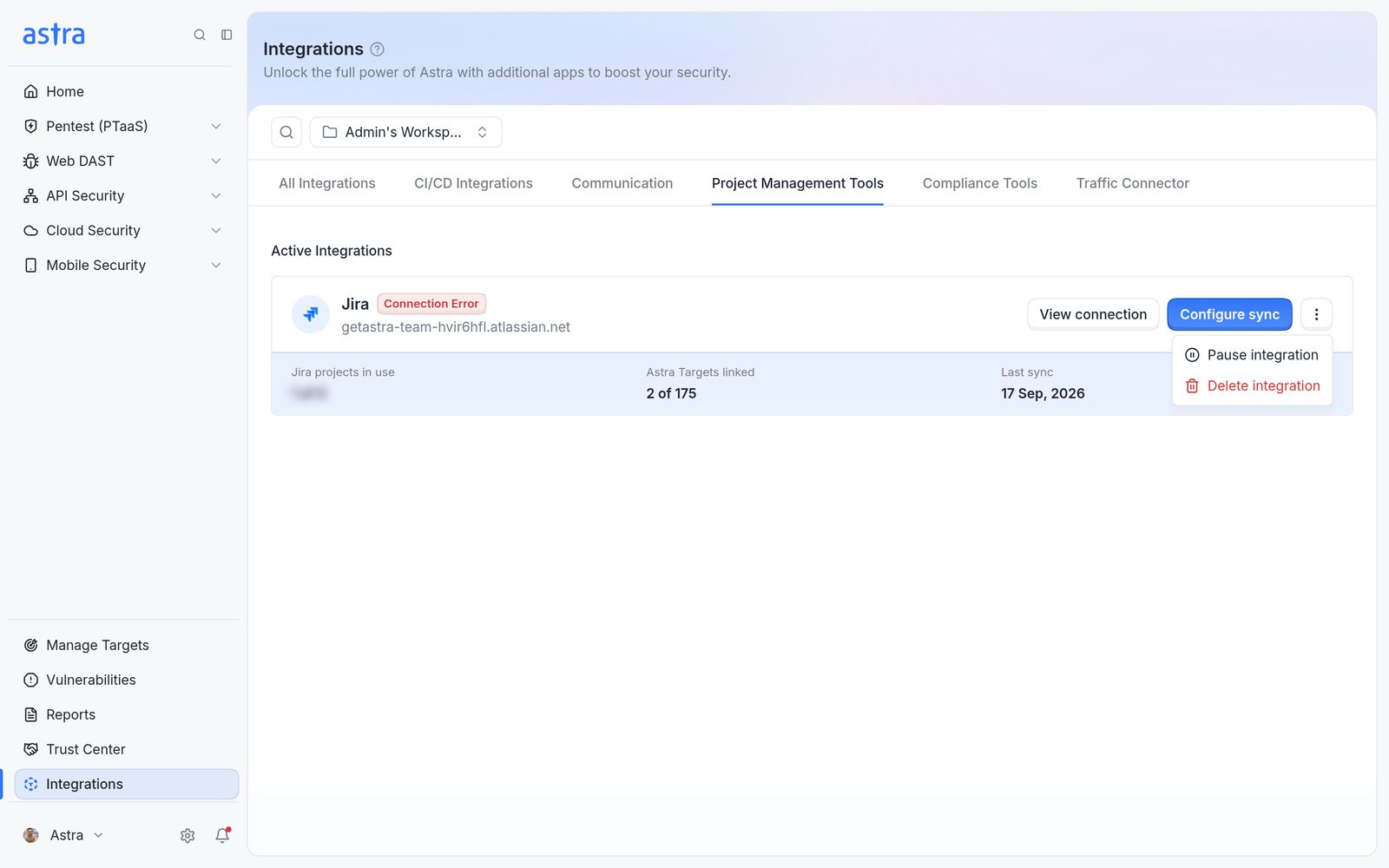
A Jira card with the Connection Error badge, the View connection button and the ⋮ menu open.
Click View connection on the Jira card. Astra checks the connection when the panel opens. When it works, the panel shows Connected to Jira ("Astra can reach Jira with the saved credentials."). If the check fails, it shows Connection failed with the reason, for example "Jira credentials are invalid or missing. Reconnect your Jira account." Saved credentials are never shown.
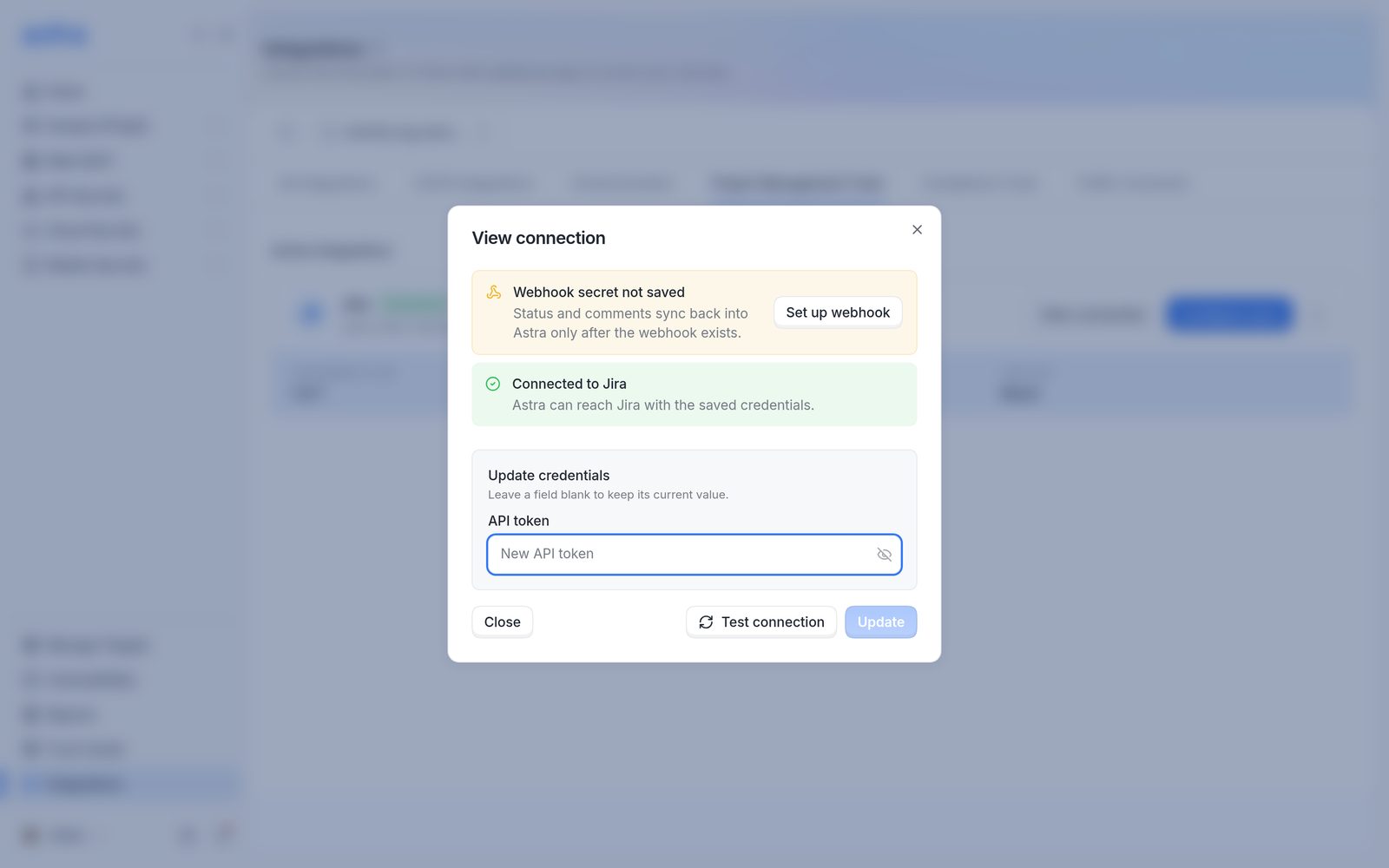
View connection on a working connection, with the Webhook secret not saved banner and its Set up webhook button, Connected to Jira, and Update credentials.
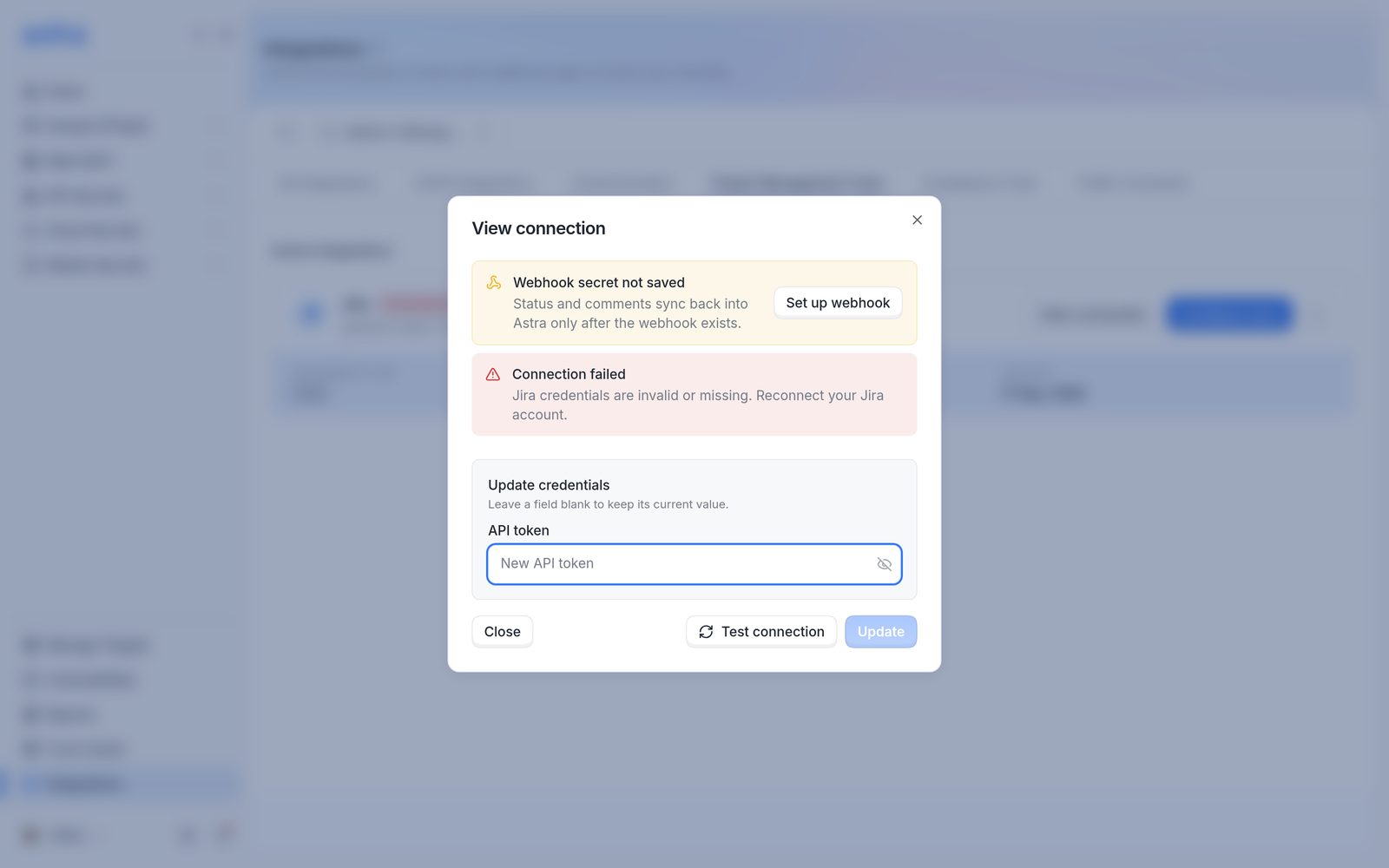
View connection with Connection failed, Webhook secret not saved and the Update credentials block.
Under Update credentials ("Leave a field blank to keep its current value."):
- Create a new API token in Atlassian (see Get a Jira API token in Integrate Jira with Astra) for the same Jira user, and paste it into API token.
- Click Update. Astra shows Credentials saved. Rechecking connection. and checks Jira again.
- To check again later, click Test connection. It's greyed out while a new value is typed but not saved yet.
Once the check passes, run Sync with Jira on any pentest that's missing issues (see When Jira issues are created, and how to sync a pentest with Jira).
Replace the webhook secret
Once two-way sync is set up, View connection no longer shows the Webhook secret not saved banner, and Update credentials has two fields: API token and Webhook secret. Saved values are never shown. To replace the secret, generate a new one in the Astra webhook in Jira, paste it into Webhook secret (at least 8 characters), and click Update. The secret can also be replaced from Two-way sync configured > New secret (see Change the webhook later in Turn on two-way sync with the Jira webhook).
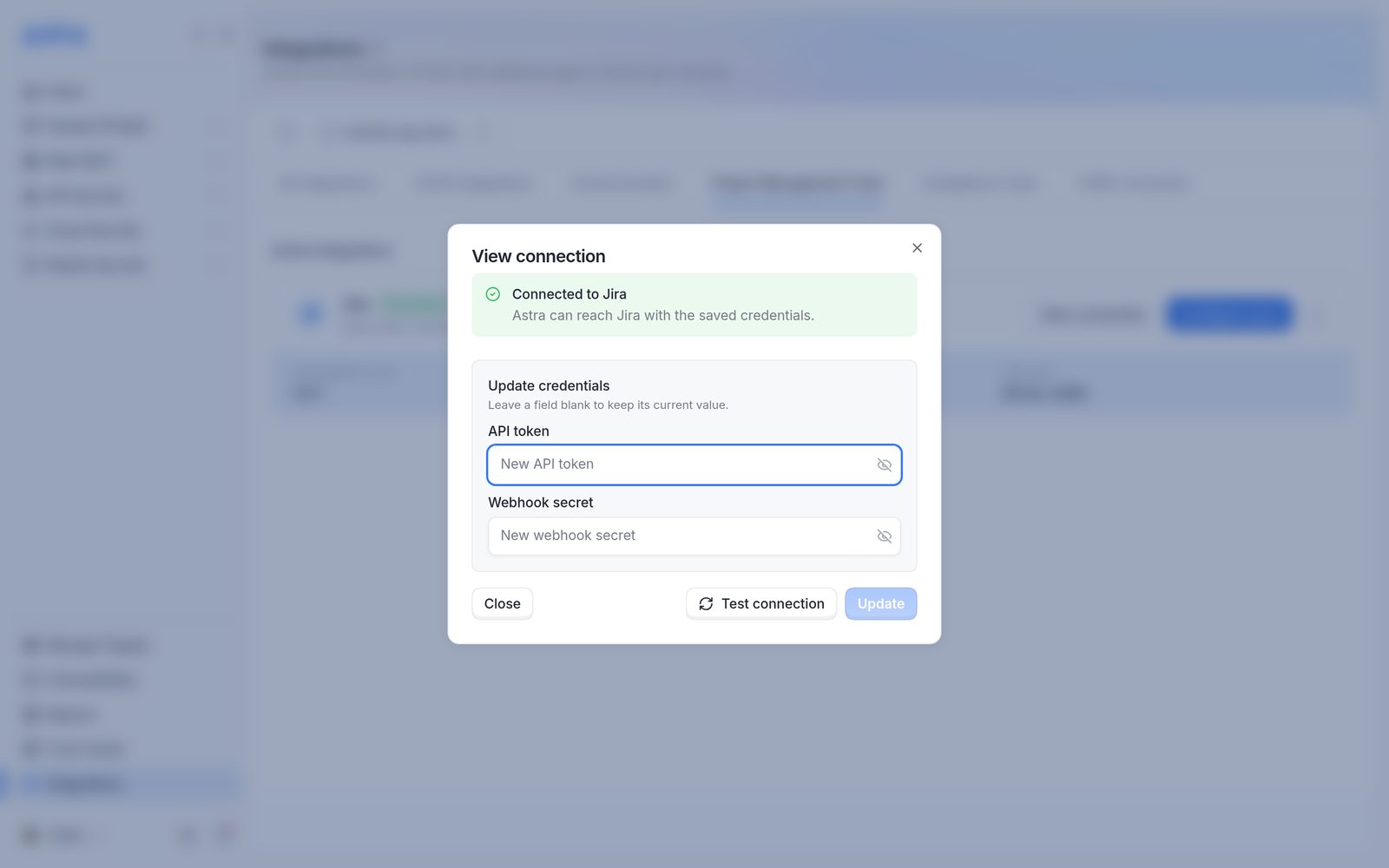
View connection after two-way sync is set up, with Connected to Jira and Update credentials showing the empty API token and Webhook secret fields.
If no webhook is set up yet, the panel shows Webhook secret not saved ("Status and comments sync back into Astra only after the webhook exists.") with Set up webhook, which opens the webhook steps (see Turn on two-way sync with the Jira webhook).
FAQ
Sync stopped working. What should be checked first?
Look at the Jira card. Connection Error usually means the API token expired or was revoked. Create a new token in Atlassian and save it from View connection > Update credentials (see Fix a connection error or replace the API token). Then run Sync with Jira on any pentest that's missing issues.