Getting Started: Integrate Slack with Astra's OrbitX
Last updated: August 5, 2026
Introduction
Integrating Slack with Astra allows you to streamline notifications and alerts across your entire workspace, ensuring your team stays updated on security findings and scan progress in real-time. Slack is a workspace-level integration, meaning once it is activated, it becomes available for all projects within that specific workspace.
Prerequisites
Active access to the Astra Dashboard.
Administrative permissions within your Slack workspace to authorize the application.
Setup Steps
Navigate to the Integrations Page: On your OrbitX dashboard, go to the Integrations section.
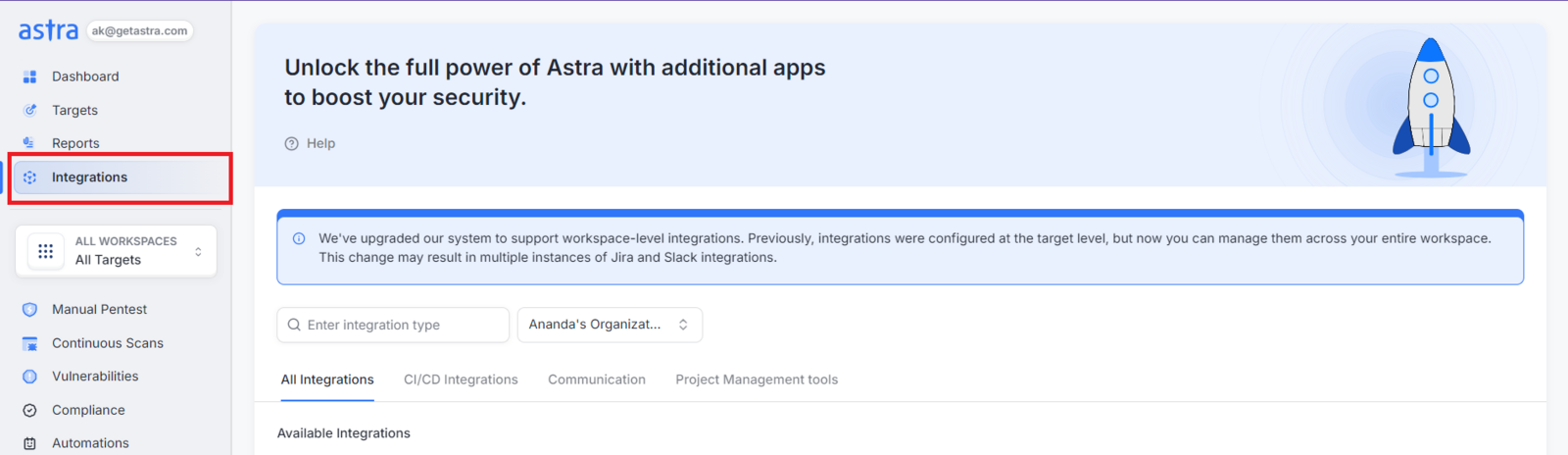
Select the Connect button on the Slack integration card.

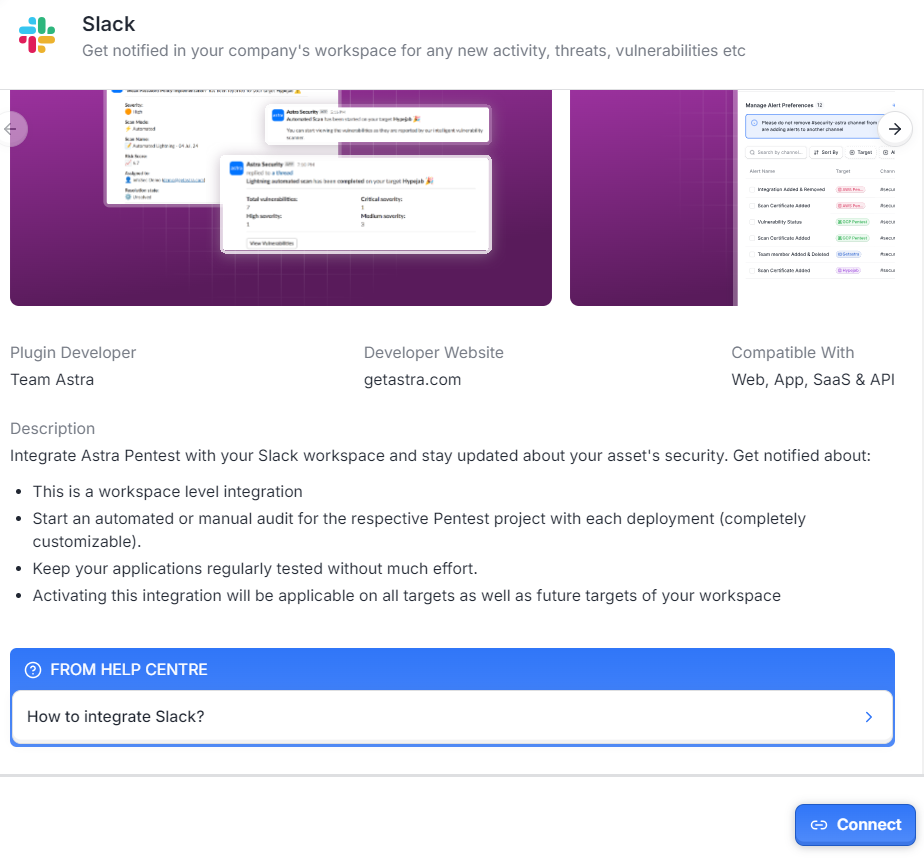
Open the Side Sheet: A panel will open providing details about the integration; click the option to connect.
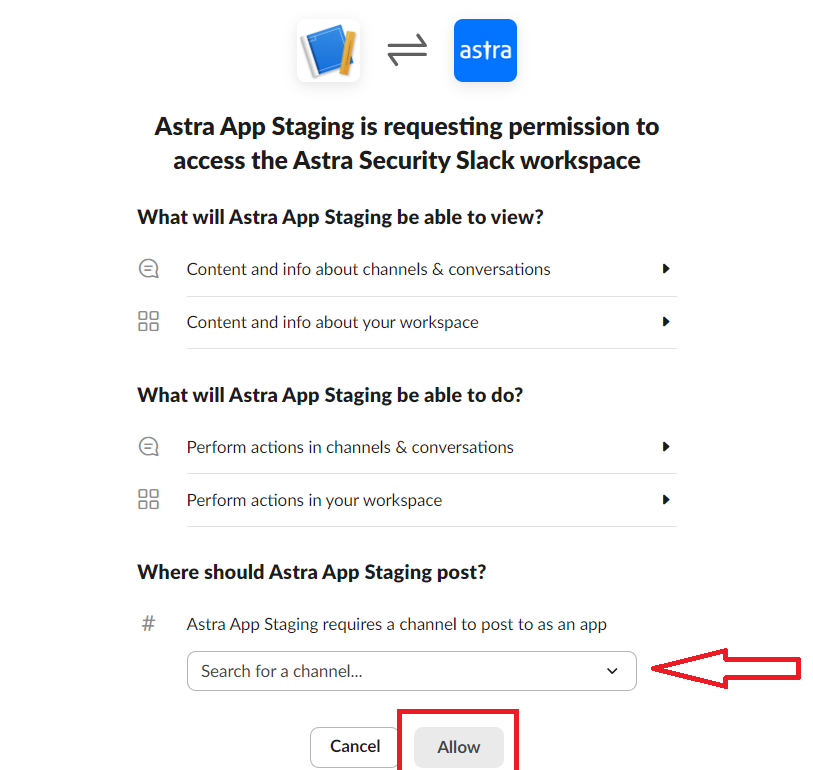
Authorize the Integration: You will be redirected to Slack’s OAuth authorization page. Select the specific channel you wish to connect (the default is usually #security-astra) and click Allow.
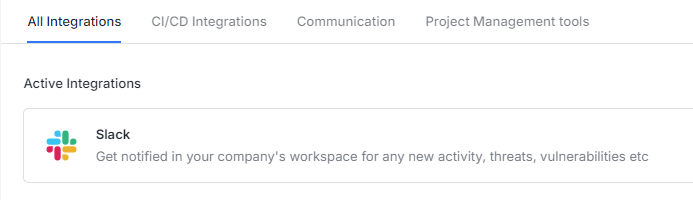
Confirmation: Upon successful authorization, you will return to OrbitX with a success message, and Slack will appear under your Active Integrations.
First Actions: Managing Alert Preferences
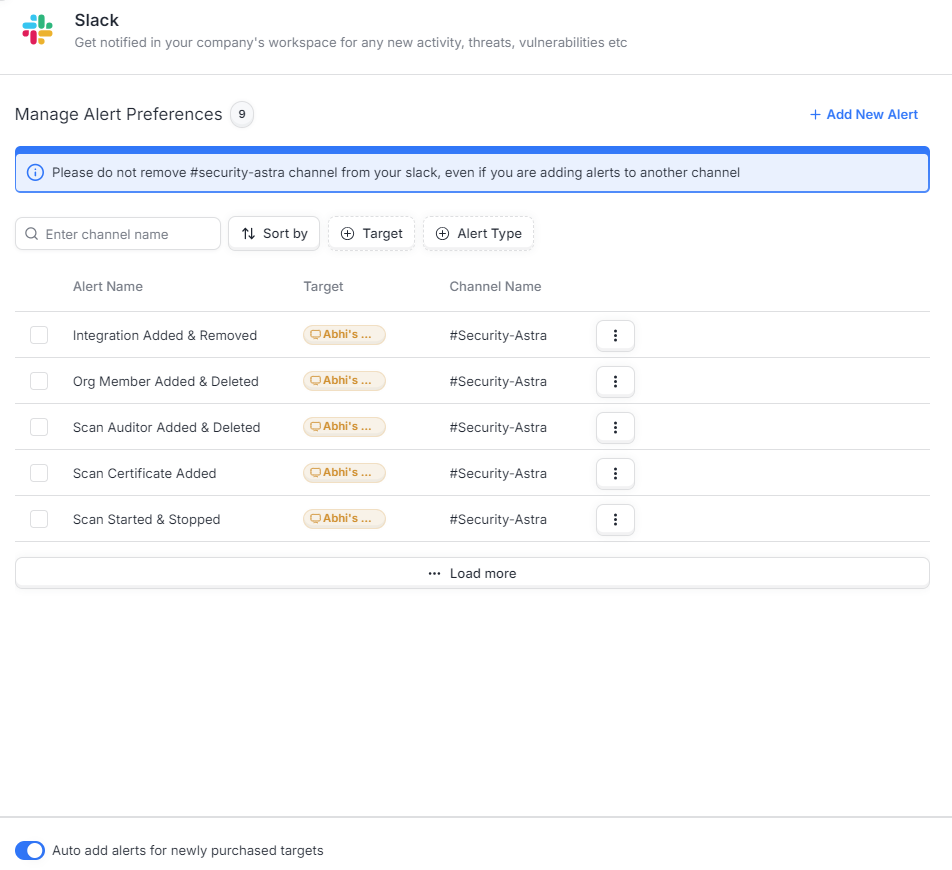
Once connected, all updates are posted to your selected channel by default. To ensure your team only receives the most relevant data, you can customize your preferences:
Access Preferences: Click the three-dot menu (⋮) on the Slack card and select Manage Alert Preferences.

Select Notification Types: You can toggle alerts for Vulnerabilities (new issues found), Scan Updates (scan completions), and Account Changes (critical setting updates).
Direct to Different Channels: You can choose to post specific alerts to different Slack channels by updating these settings at any time.
Next Steps
To edit an alert, click on the respective alerts and click Edit Confirm your action to finalize.
To delete an alert, click on the respective alert and select Delete. Confirm your action to complete the deletion.
Enable Auto-Add Alerts: Use this option to automatically set alerts for any newly added targets in your workspace.
Pause or Disable: If you need to temporarily stop notifications, use the Disable/Pause button on the Slack card.
Integrate Jira: For a complete workflow, consider integrating Jira for two-way synchronization of vulnerabilities and issue tracking.
Common Issues and Troubleshooting
Astra Security Bot Not Found: If the bot does not appear in your channel, type /add in the desired Slack channel, search for Astra Security, and click Add to invite it.
Integration Not Sending Alerts: Try disabling and then re-enabling the integration from your Slack workspace settings or Astra dashboard.
Persistent Errors: If the issue continues, delete the #security-astra channel or rename it (e.g., to #security-astra-archive) and then re-add the integration from the Astra dashboard to create a fresh connection.