Configure Jira sync for a target
Last updated: October 29, 2026
This article covers the six steps that set up Jira sync for a target, copying a setup from another target, and setting up several targets at once. To open the steps, click Configure or Edit config on a target in Astra Targets and Jira. For connecting Jira and linking targets, see Integrate Jira with Astra.
Configure sync for a target
Set up Jira sync ("Pick a Jira project and choose how findings appear as issues") walks through six steps: Jira project, Field mapping, Statuses, Severity, Jira fields and Review. The top of the panel shows Setting up 1 Astra Target (or the number of targets being set up) and, once picked, the Jira project. Click Next to move on, Previous to go back a step, or click a finished step to jump back to it. Back to Targets returns to the list of targets without saving. Click Save configuration on the last step. Astra shows Jira project config updated successfully.
Step 1: Jira project
"Where should this target send its findings?" Pick the Jira project. Search with Search your Jira projects by key or name. Statuses, work item types and fields in the next steps come from this project. Changing the project later clears the mappings already made for this target, including the Jira field values.
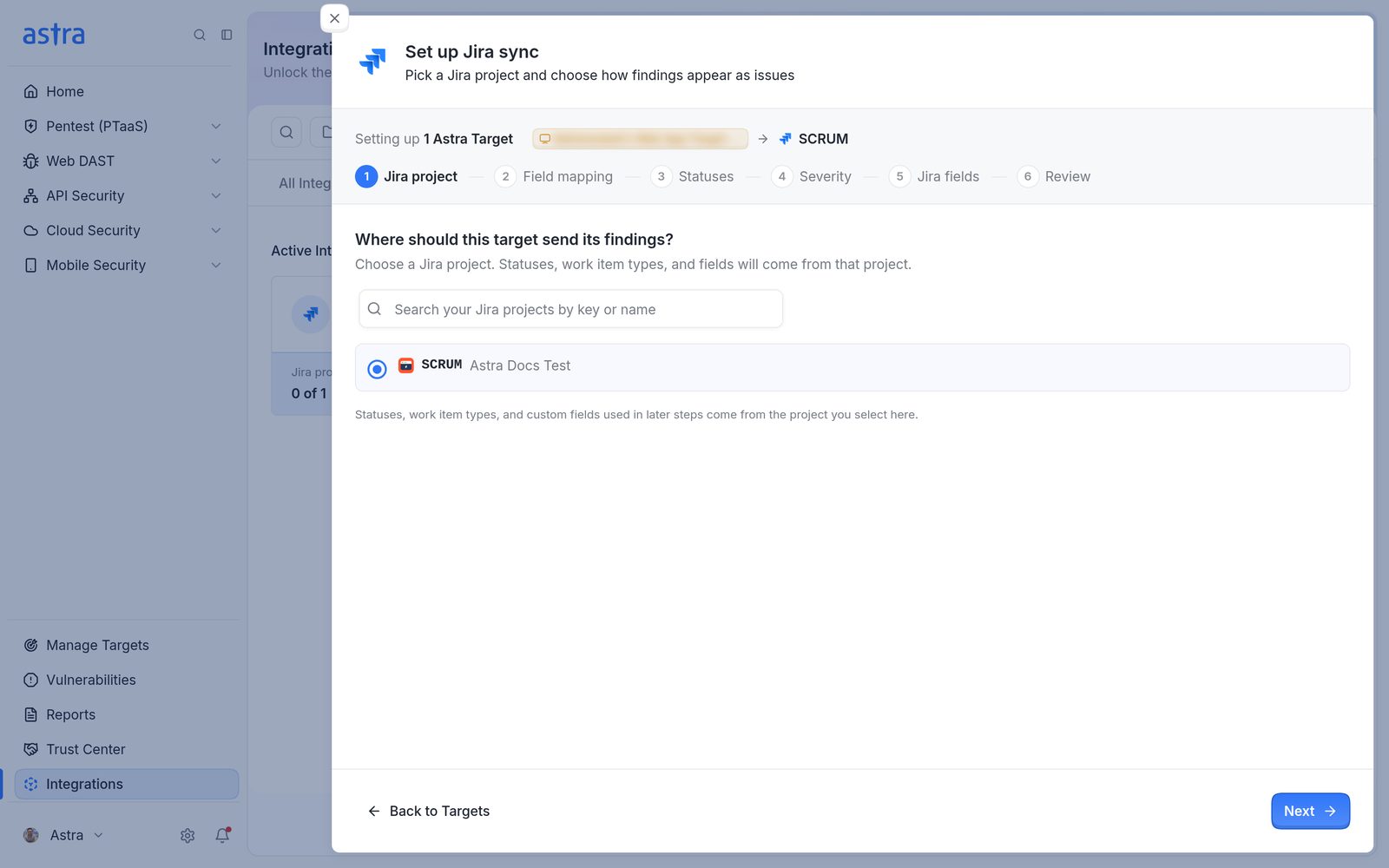
Step 1, Jira project, with the SCRUM project (Astra Docs Test) selected.
Step 2: Field mapping
"How should findings appear in Jira?" Astra creates one Jira issue for each vulnerability, and a smaller issue under it for every finding (each affected location of that vulnerability).
- Which Jira work item type should an Astra Vulnerability become? Vulnerabilities are the parent. Most teams use Task or Epic. The list shows the Jira project's own work item types, for example Epic, Task and Story.
- Which Jira work item type should an Astra Finding become? Findings sit under the vulnerability, so this is usually Subtask.
Important: Pick these two carefully. The statuses and required fields in the next steps are read from the work item types chosen here.
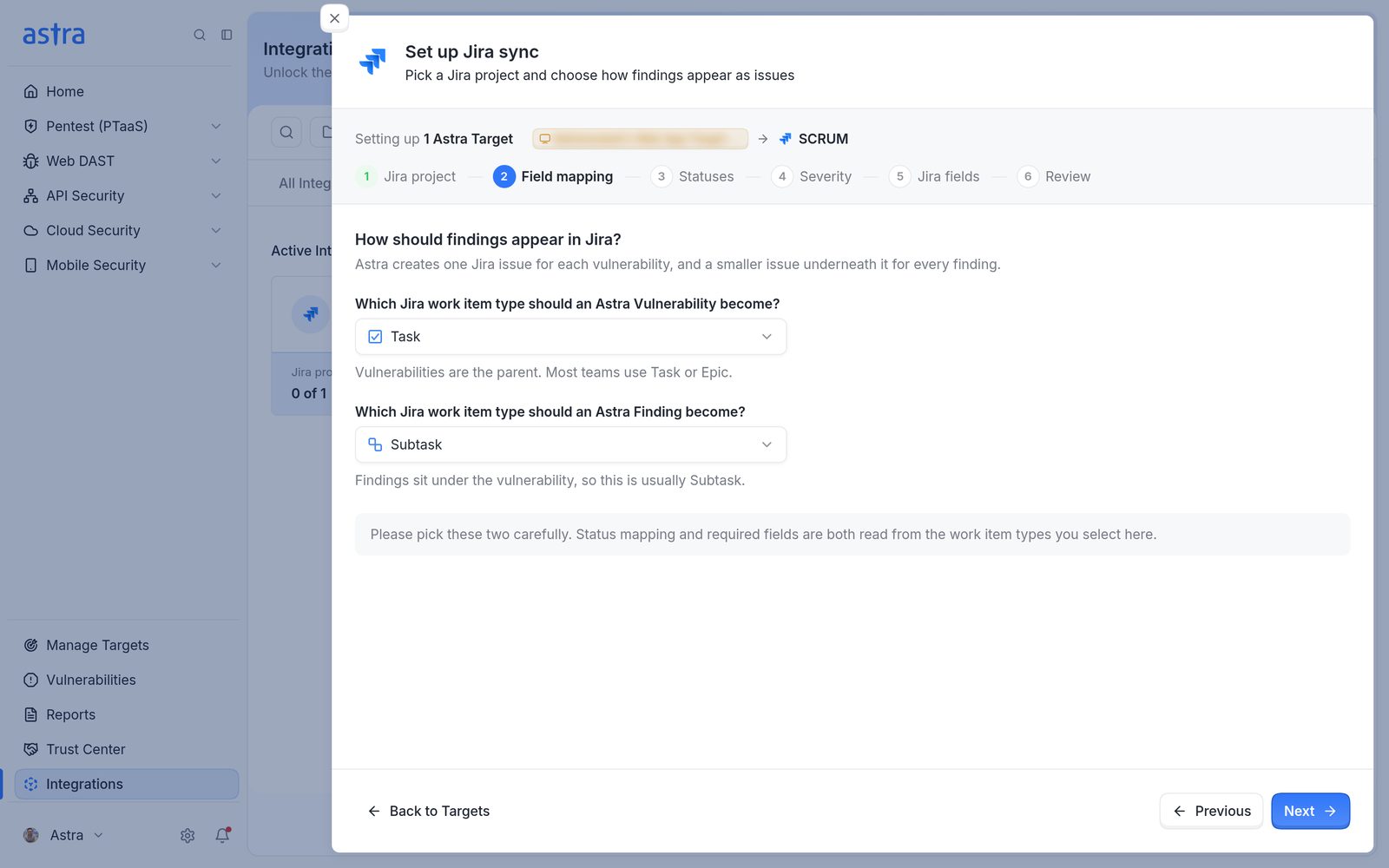
Step 2, Field mapping, with Task for an Astra Vulnerability and Subtask for an Astra Finding.
Step 3: Statuses
Status mapping has two sides, chosen under Sync direction:
- Astra to Jira: "Change a vulnerability in Astra and its Jira issue follows." For each Astra status (Unsolved, Under Review, Accepted Risk, Need Help, Solved, False Positive), pick the Jira status the issue moves to.
- Jira to Astra: "Change an issue in Jira and the vulnerability status in Astra follows." For each Jira status, pick the Astra status the vulnerability moves to, or leave it Not mapped. The choices are Unsolved, Under Review, Accepted Risk, Need Help and False Positive. Solved isn't offered: "A vulnerability can only be marked Solved after a rescan confirms the fix, so Solved is not offered here." To have a closed Jira issue lead to a rescan, map Done to Under Review. Several Jira statuses can point at the same Astra status, for example To Do and In Progress both to Unsolved.
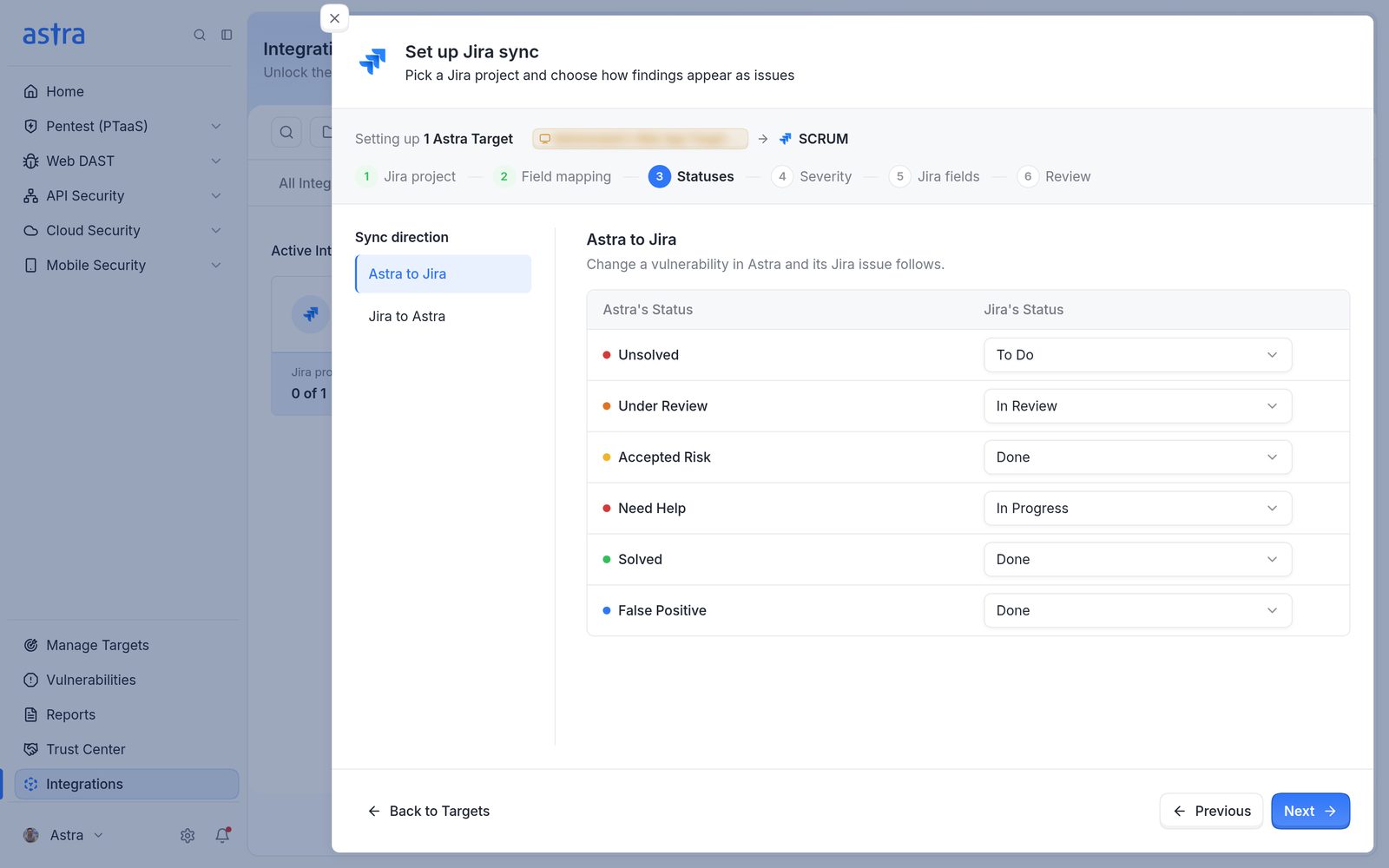
Step 3, Statuses, on Astra to Jira, with a Jira status picked for each of the six Astra statuses.
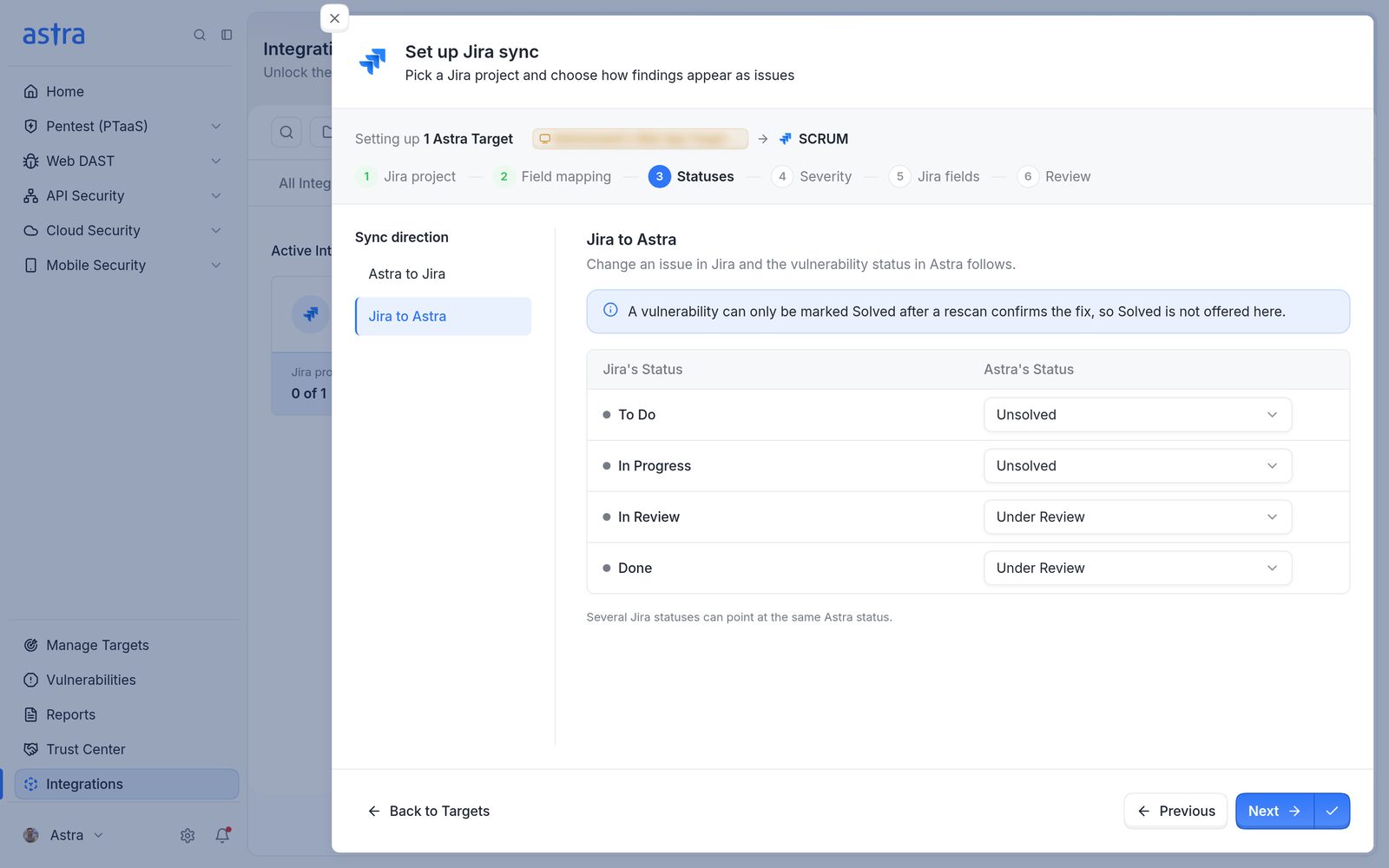
Step 3, Statuses, on Jira to Astra, with the note that Solved is not offered and the four Jira statuses mapped to Unsolved and Under Review.
Each side needs at least one mapping. Map Unsolved on the Astra to Jira side, because new vulnerabilities start as Unsolved and Astra won't create Jira issues for a target without it. The Jira to Astra side only takes effect once the webhook is set up (see Turn on two-way sync with the Jira webhook).
Note: Jira only allows the status moves its workflow permits. If the Jira workflow has no way to get from an issue's current status to the mapped one, the issue keeps its status and the vulnerability shows as out of sync.
Step 4: Severity
"Map Astra severity to Jira priority." Pick a Jira priority for each Astra severity, or leave it Not mapped. Priority only travels one way, from Astra into Jira. Changing the priority in Jira doesn't change the severity in Astra.
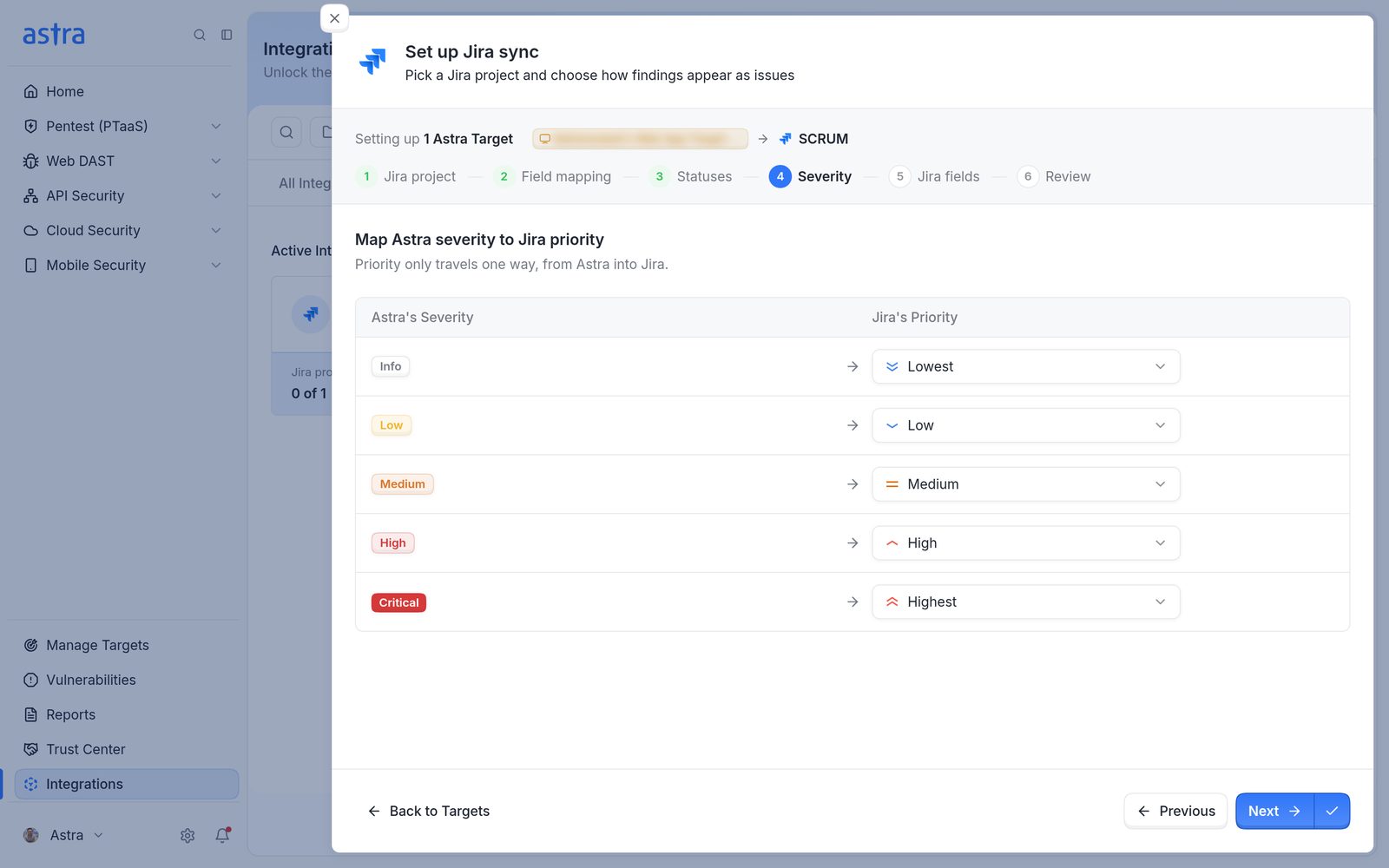
Step 4, Severity, with Info, Low, Medium, High and Critical mapped to Lowest, Low, Medium, High and Highest.
Step 5: Jira fields
This step lists the fields of the chosen work item types: "These are the fields this Jira project asks for on a Task. Some are Jira's own, some your team added." Use Vulnerability and Finding under Issue type on the left to switch between the two. Each work item type has its own fields.
- Required fields: fields the Jira project makes mandatory. Every required field must have a value, or Astra can't create issues and shows Missing required Jira fields with the field names. A Jira project with no mandatory fields shows only Optional fields.
- Optional fields: click Add optional field to fill in any other field. The button shows how many fields are left to add, and the list shows each field's name and type, for example Start date (Date) or Flagged (Multi checkboxes). Remove an added field with its ×.
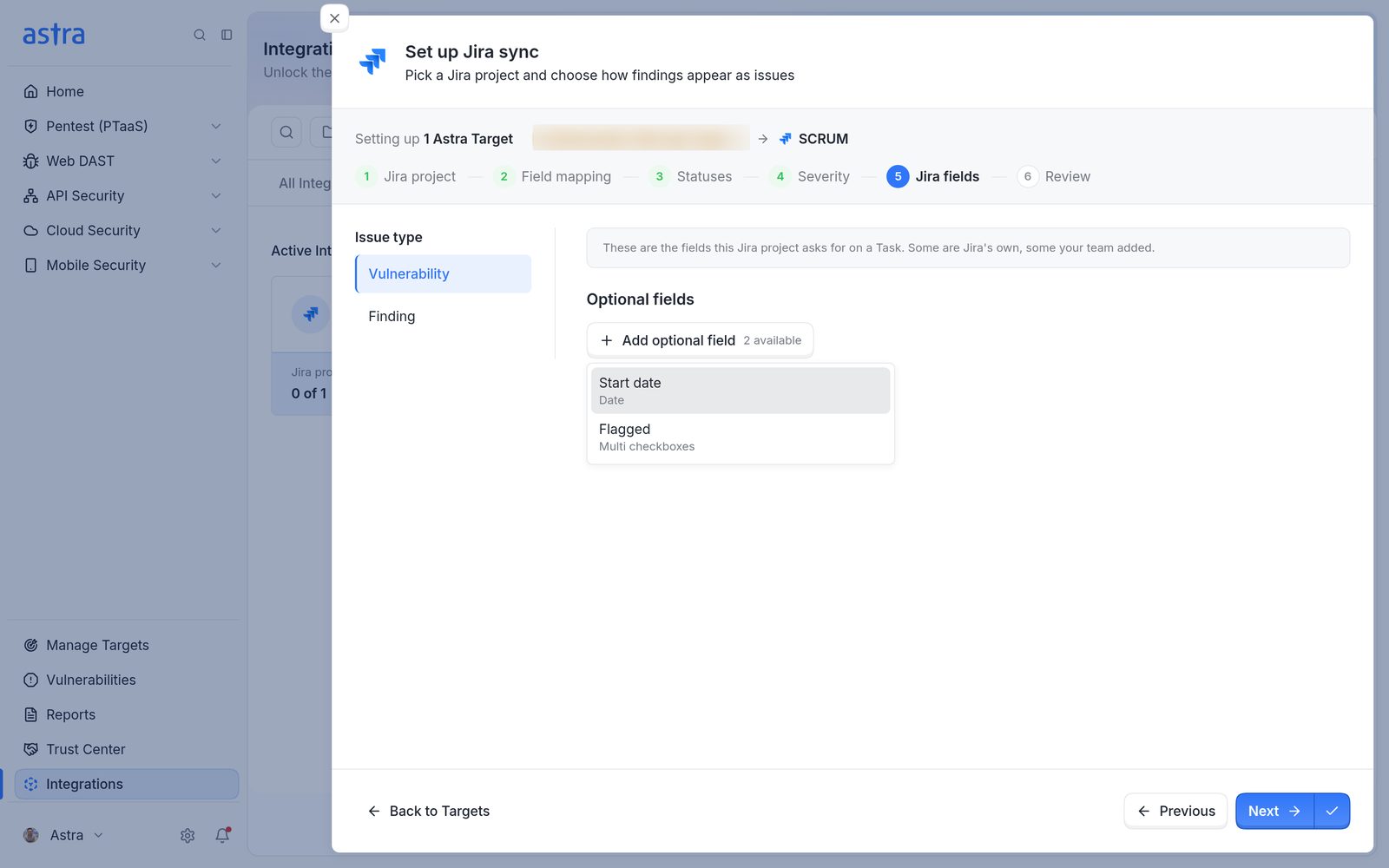
Step 5, Jira fields, with the Add optional field list open, showing Start date (Date) and Flagged (Multi checkboxes).
How a value is set depends on the field type:
- Date fields: click Pick a date Astra should use. Choose Pick a calendar date ("Every issue gets the same date"), or a date Astra works out for each issue: Vulnerability reported date ("The day Astra found it"), Pentest/Scan reported date, Pentest/Scan start date or Date the issue is synced ("Whenever Astra writes to Jira"). Then add days on top if needed, from 0 to 365, for example to set a due date 30 days after the vulnerability is reported. Astra shows an example date under the field.
- Text fields: type fixed text, or type
/to insert a value that changes per issue: Astra Target name, Vulnerability title, Severity or Pentest name. - Other fields (lists, checkboxes, numbers, users and so on): pick or type one fixed value. For a checkbox field such as Flagged, tick the options to set, for example Impediment.
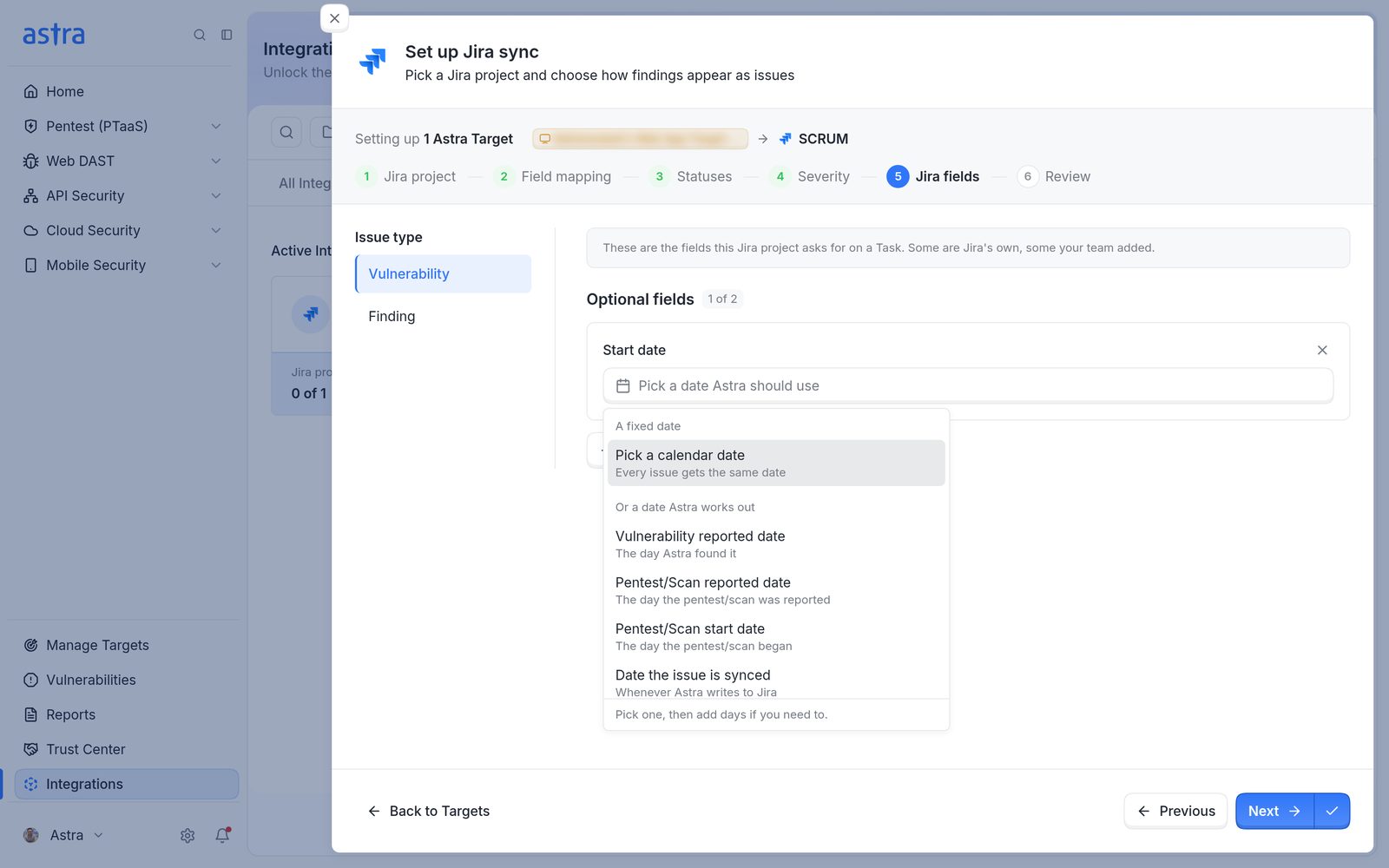
The date choices for a date field: Pick a calendar date, or Vulnerability reported date, Pentest/Scan reported date, Pentest/Scan start date and Date the issue is synced.
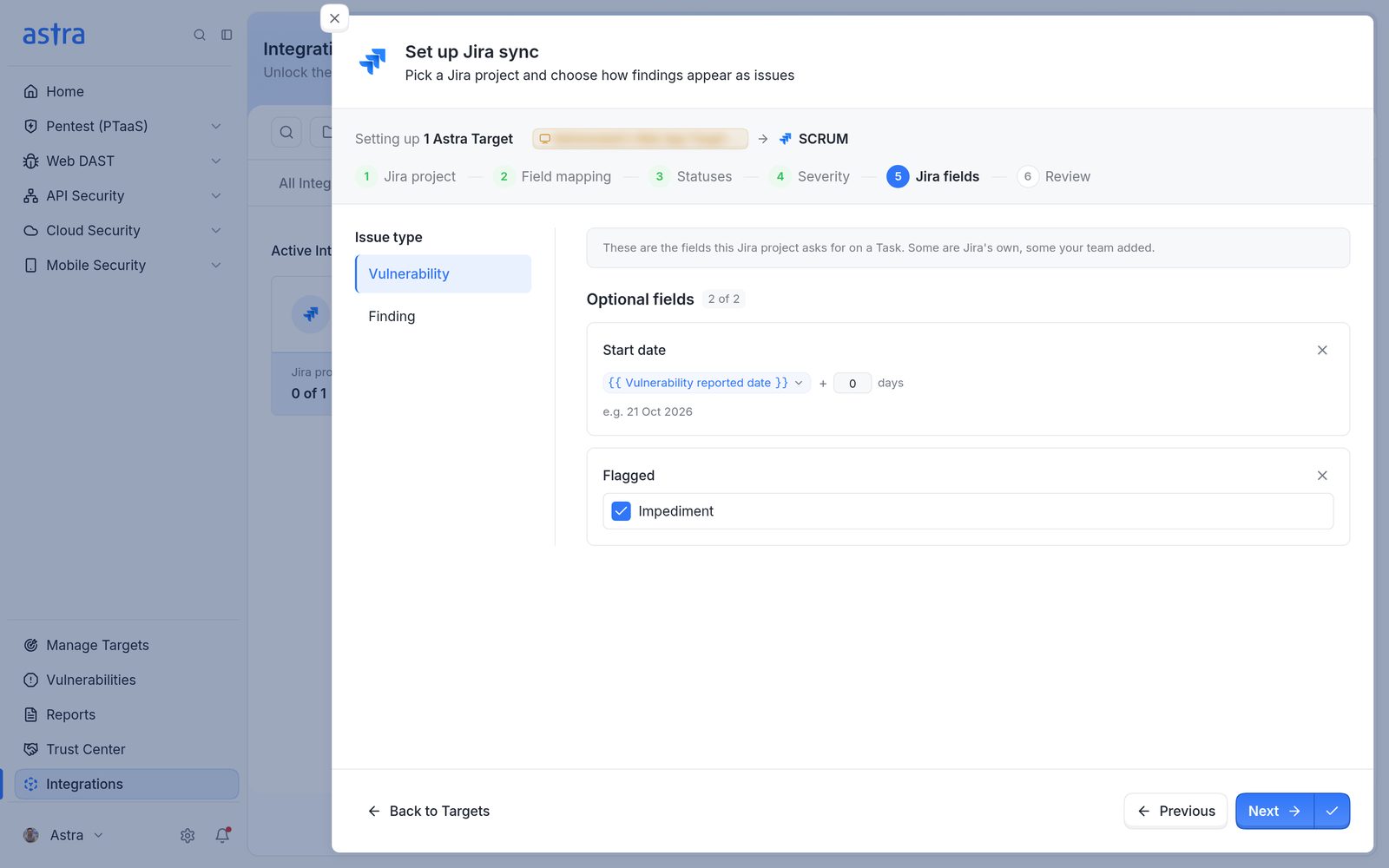
Step 5 with two optional fields set: Start date as Vulnerability reported date plus 0 days, and Flagged with Impediment ticked.
Step 6: Review
"Review this configuration." Check the work item types, both sides of the status mapping, severity and the number of required and optional Jira fields, then click Save configuration. Any of it can be changed later with Edit config. Astra shows Jira project config updated successfully and returns to Astra Targets and Jira, where the target now shows its Jira project.
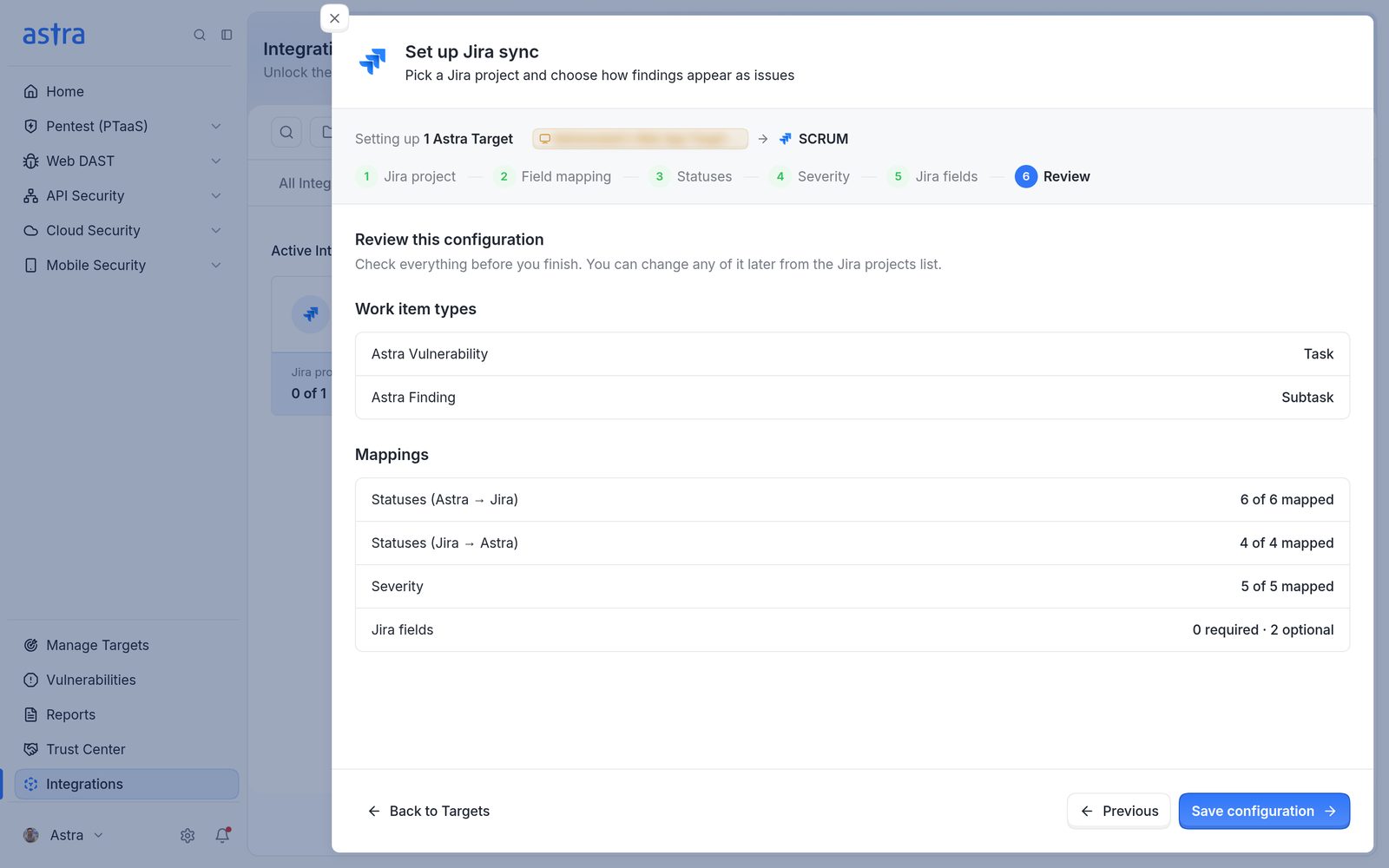
Step 6, Review, with the work item types, 6 of 6 and 4 of 4 statuses mapped, 5 of 5 severities mapped, 0 required and 2 optional Jira fields, and the Save configuration button.
Copy a setup from another target
Copy from a target already set up starts the steps with another target's choices already filled in. "Which Jira project should Astra copy from?" lists the Jira projects that already have a working setup, with how many targets use each. Pick one and click Copy this configuration. The work item types, statuses, severity and required fields are copied. Change anything that differs, then save.
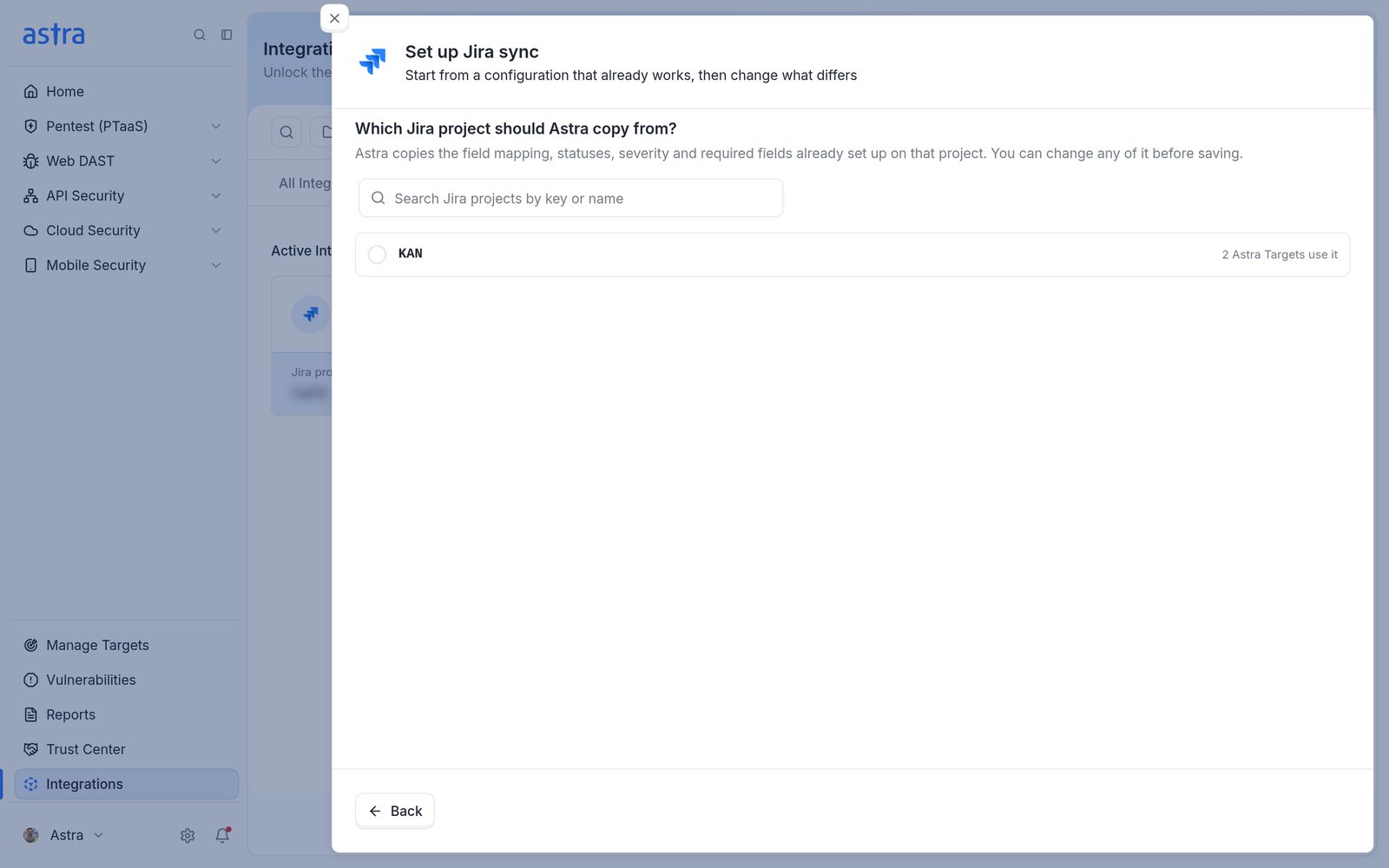
Which Jira project should Astra copy from?, listing the KAN project and the number of targets that use it.
Configure several targets at once
Tick the boxes of the targets to set up. Selections carry across pages. A bar appears with the number selected:
- Configure targets (or Configure target for one) opens the same six steps for every selected target. If all selected targets already share the same setup, the main button is Edit config instead.
- The arrow next to it offers Edit config, Configure from scratch and Copy from a target already set up. Edit config is greyed out when the selected targets have different Jira setups, or when some aren't configured yet.
- Remove links unlinks every selected target (see Pause, remove a target's link, or delete the Jira connection).
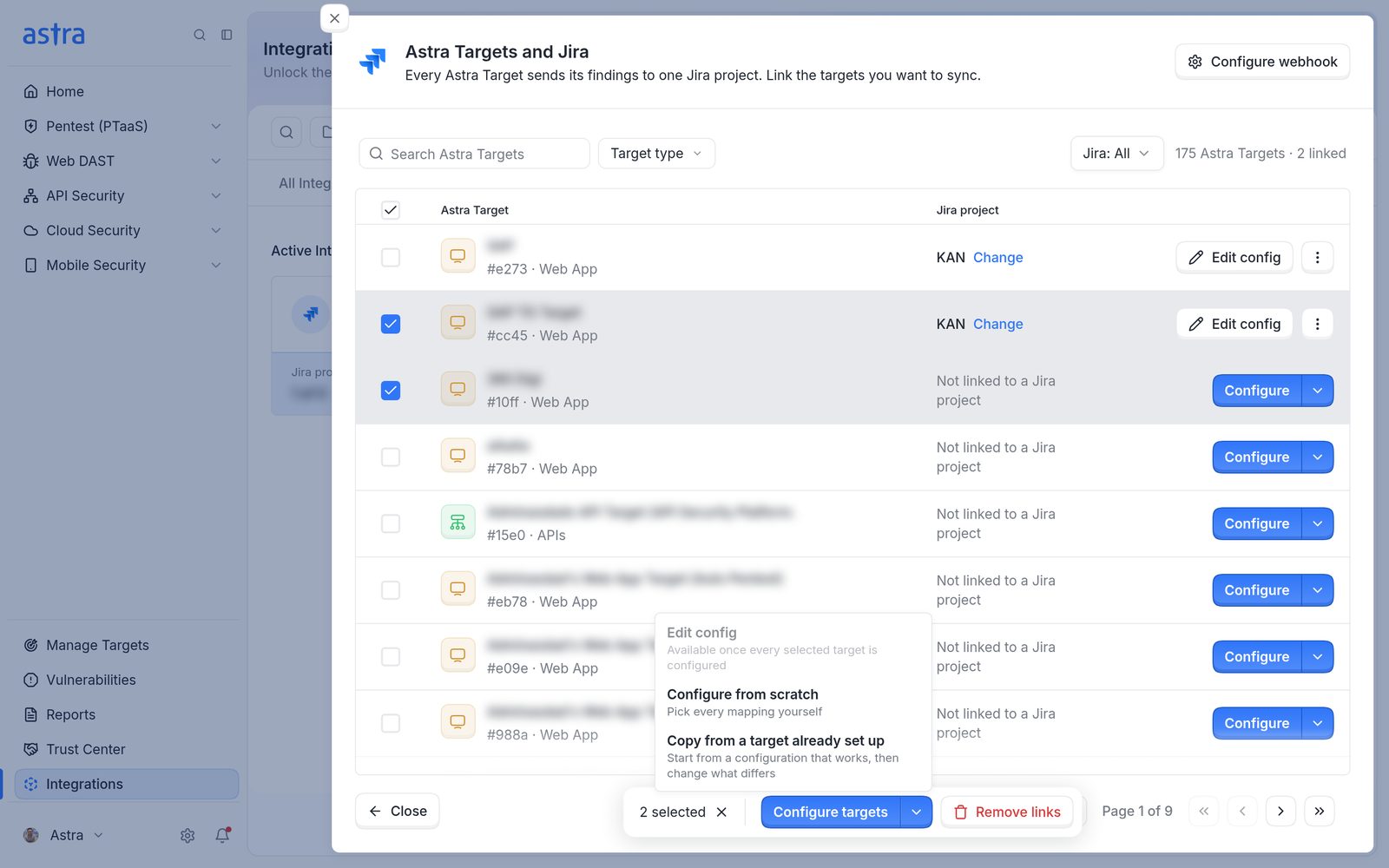
Two targets selected, with the bar at the bottom and the menu next to Configure targets open. Edit config is greyed out because one target isn't configured yet.
If some selected targets already have a setup, Astra asks Replace existing setup? before saving. Click Continue to replace it. While saving, Astra shows Saving configuration for the number of targets, then Configuration saved for them. If only some save, it shows how many of the total were saved. The ones that didn't save can be selected again and retried.
FAQ
Why does setup fail with a required field such as Components?
The Jira project makes that field mandatory, so every issue needs a value. Give it a value in the Jira fields step, or make the field optional in Jira.