Pause, remove a target's link, or delete the Jira connection
Last updated: October 29, 2026
This article covers pausing the Jira connection, removing a target's link to its Jira project, and deleting the connection. For connecting Jira and linking targets, see Integrate Jira with Astra.
Pause the connection
Use ⋮ > Pause integration on the Jira card. A confirmation asks "Are you sure you want to pause Integration? You can re-connect it anytime". Click Pause to confirm. The card's badge changes to Paused, and creating or opening Jira issues from Astra stops until it's unpaused. The setup and target links are kept.
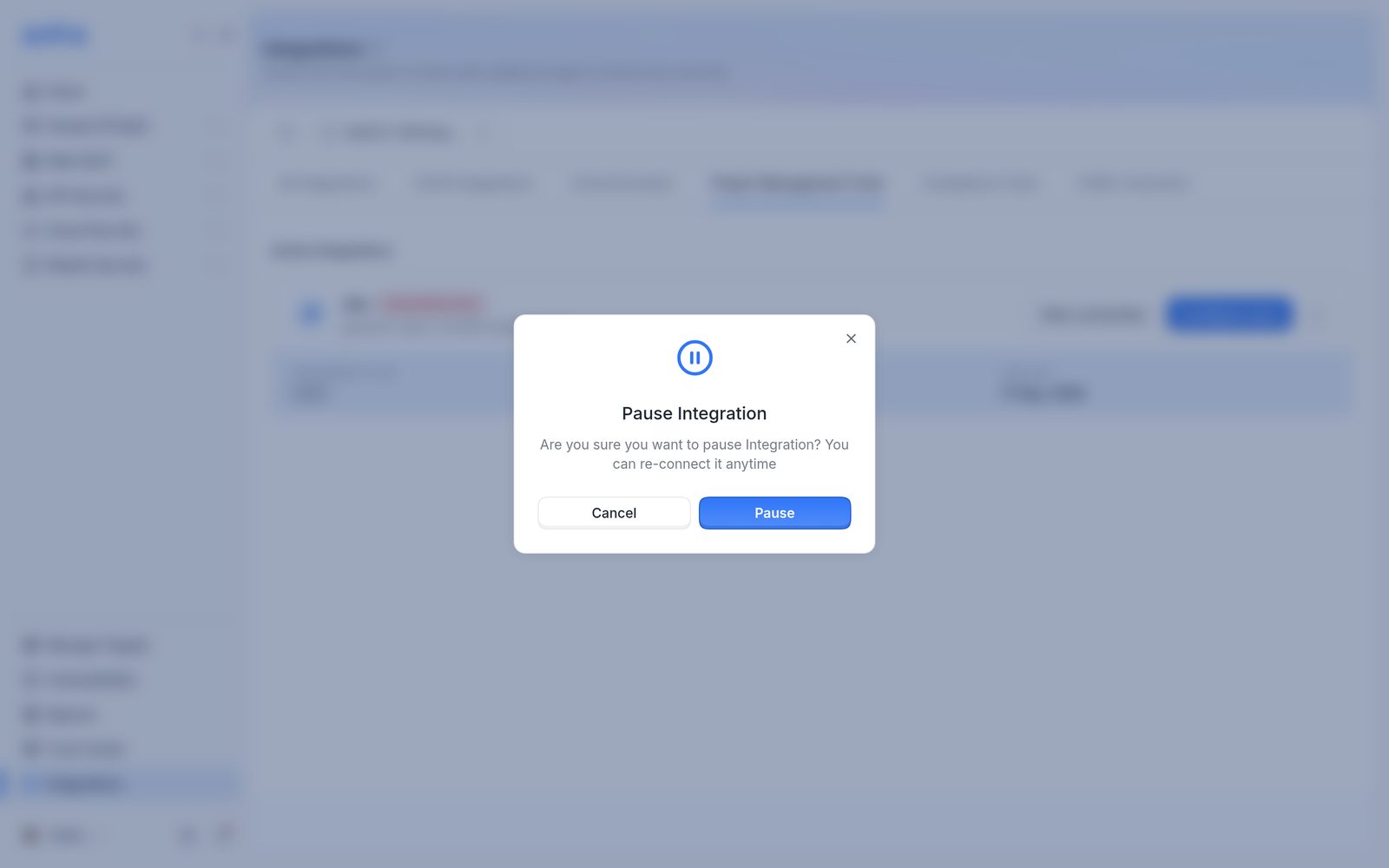
The pause confirmation, with Cancel and Pause.
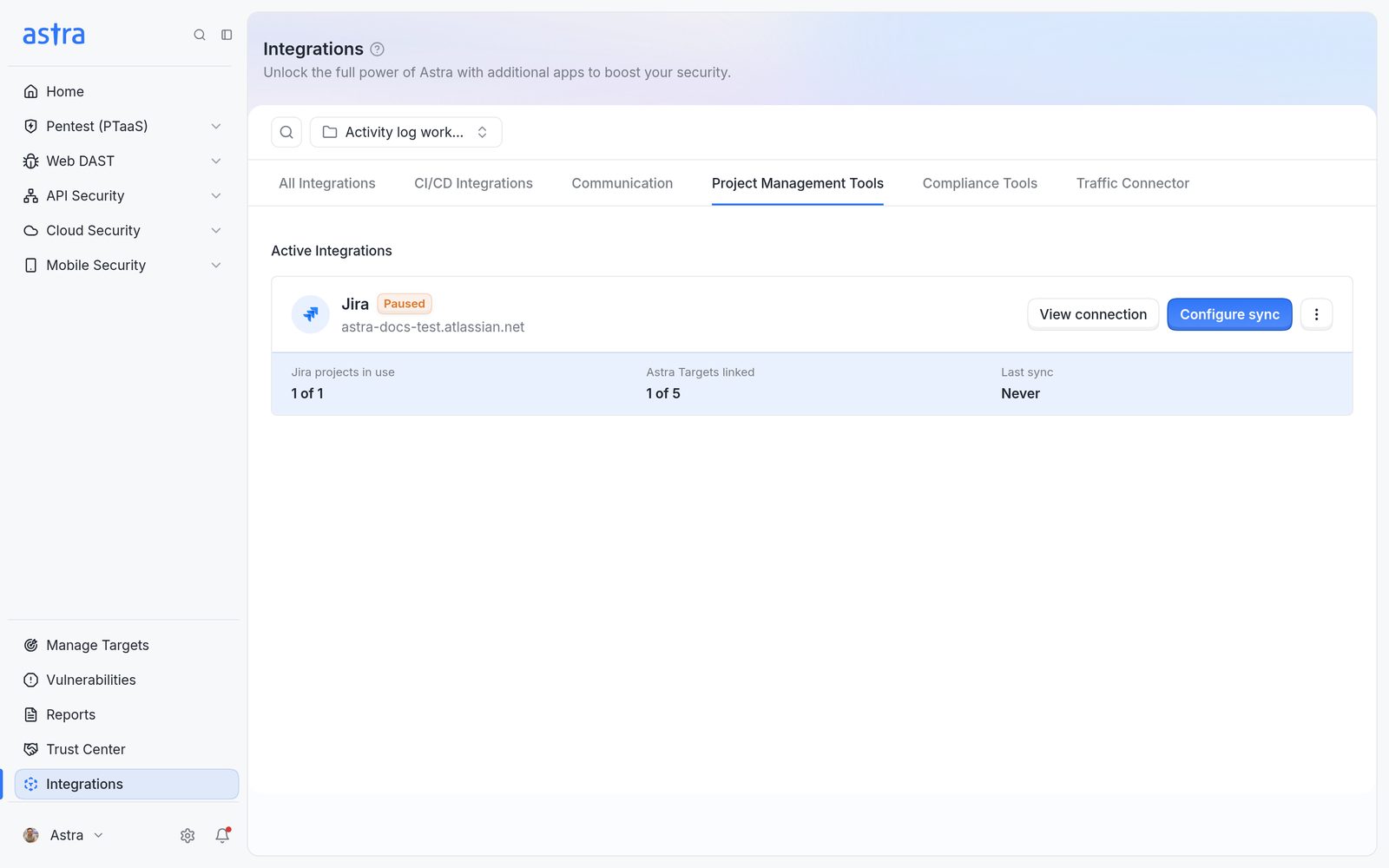
The Jira card with the Paused badge.
To turn it back on, use ⋮ > Unpause integration. A confirmation asks "Are you sure you want to re-connect Integration? You can pause it anytime if needed." Click Unpause. The badge goes back to Connected.
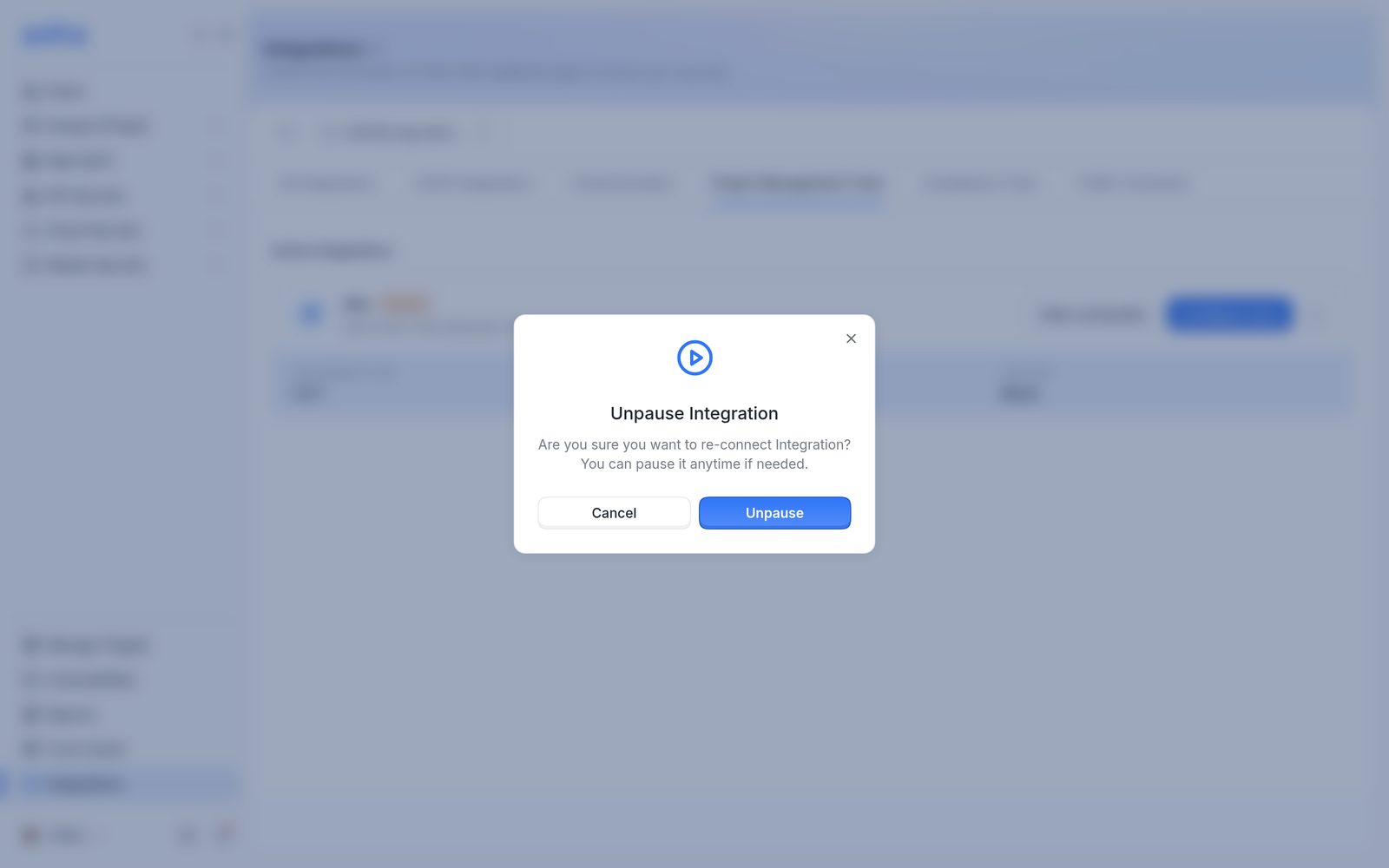
The unpause confirmation, with Cancel and Unpause.
Remove a target's link
Use ⋮ > Remove link on the target's row, or select several targets and click Remove links, then confirm Remove links. The target's sync setup is deleted and Astra shows Target unlinked from Jira integration. Issues already in Jira stay in Jira, but they no longer sync. To sync the target again, configure it from the start or copy a setup from another target (see Configure Jira sync for a target).
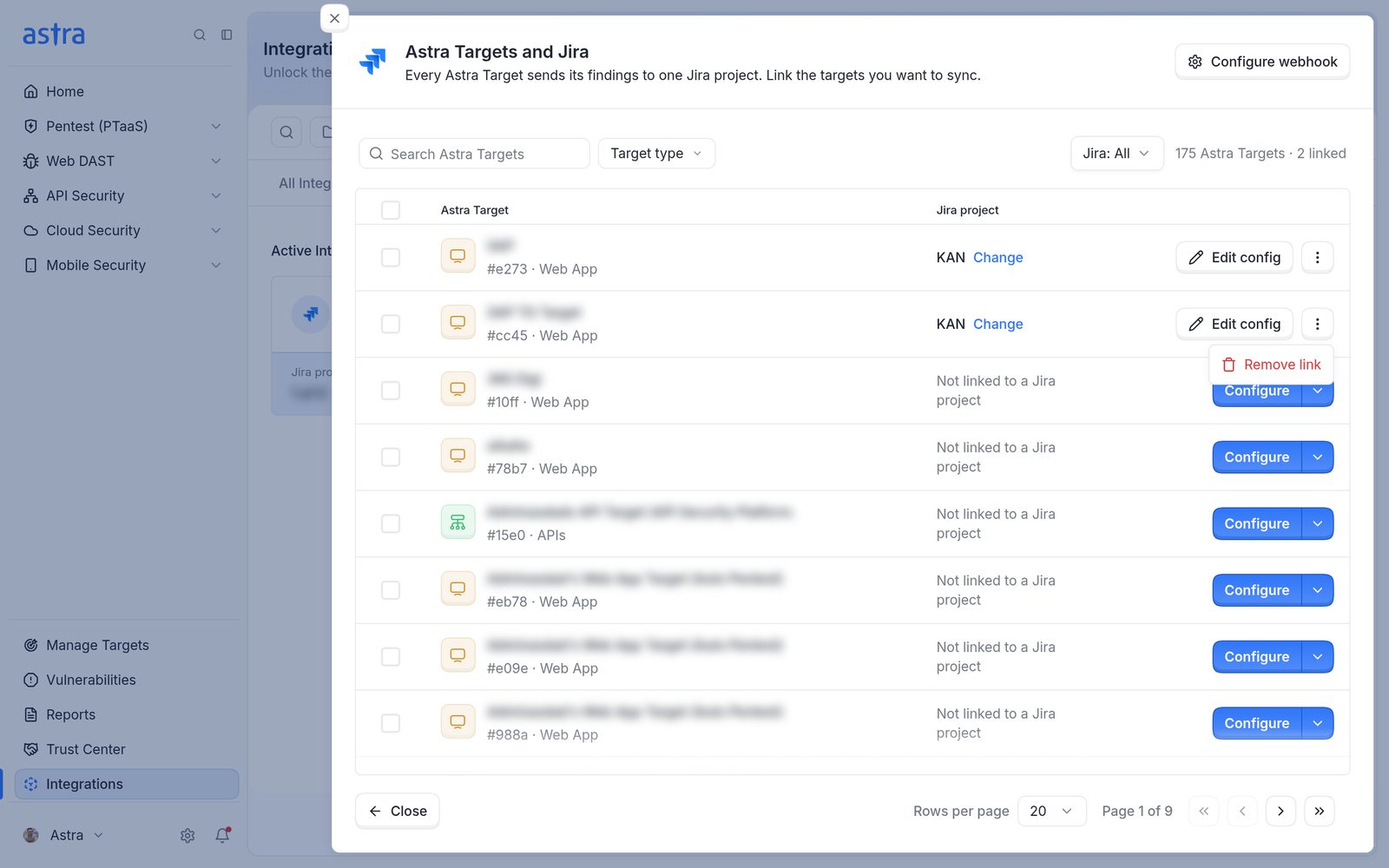
The ⋮ menu on a linked target's row, with Remove link.
Delete the connection
Use ⋮ > Delete integration on the Jira card and click Delete to confirm. Astra shows Integration deleted. Every target link, the webhook secret and the saved credentials are removed. Issues already in Jira stay in Jira. Also delete the Astra webhook in Jira, so Jira stops sending updates. To connect again later, follow the steps in Integrate Jira with Astra and set up the targets again.
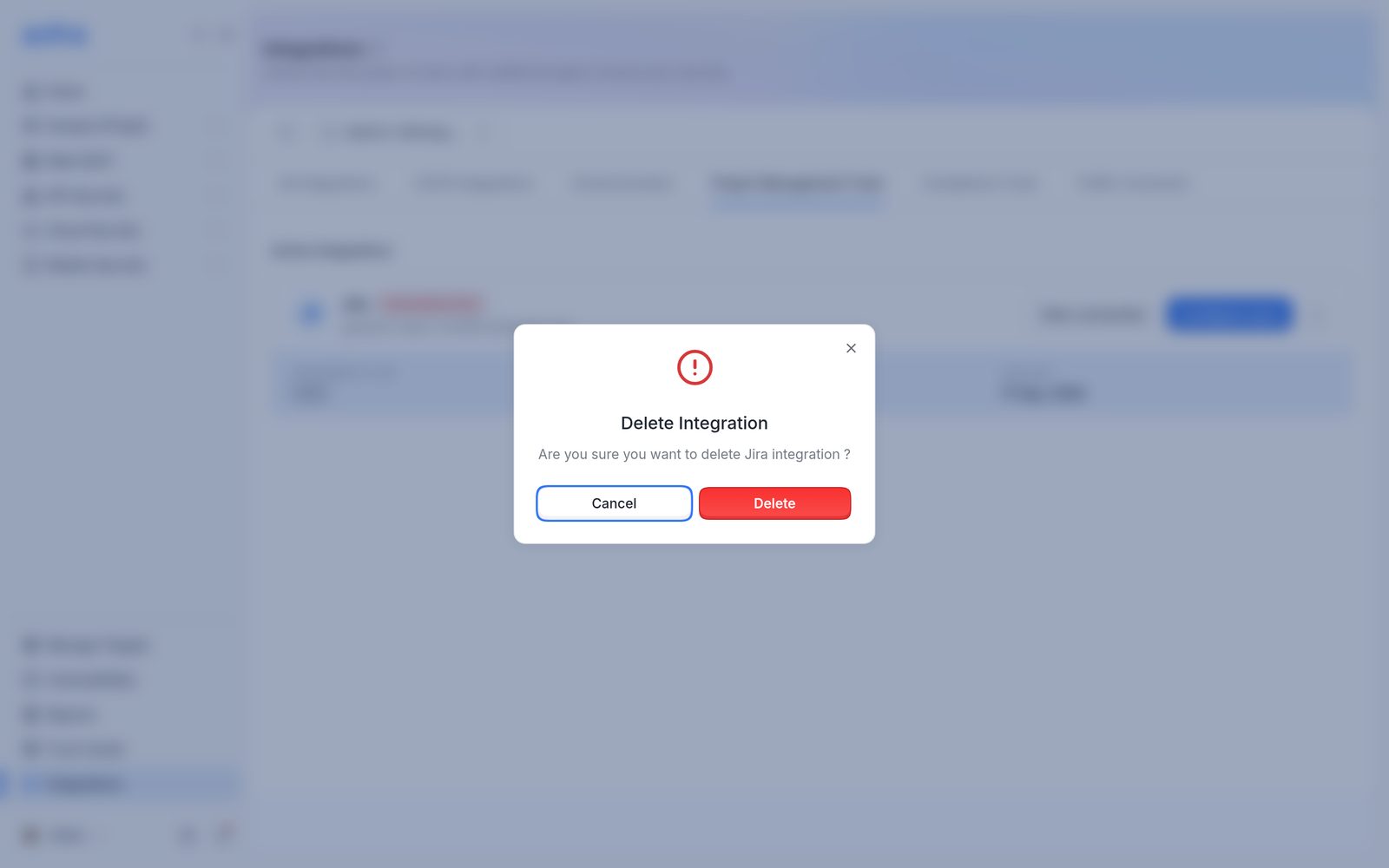
The delete confirmation, with Cancel and Delete.