Turn on two-way sync with the Jira webhook
Last updated: October 29, 2026
This article covers turning on two-way sync with the Jira webhook, changing the webhook later, and how sync works in each direction. For connecting Jira and linking targets, see Integrate Jira with Astra.
Turn on two-way sync
Without the webhook, sync runs one way: Astra creates and updates Jira issues, and changes made in Jira stay in Jira. With the webhook, Jira tells Astra about status changes and comments, so they come back into Astra. "Two-way sync stays off until the secret is saved here and the webhook exists in Jira."
In Astra Targets and Jira, click Configure webhook at the top. The Configure webhook panel walks through it:
- Open WebHooks in Jira. "Needs the Admin Jira global permission. Create a WebHook, name it Astra, and leave it Enabled." In Jira, go to Settings > System > Advanced > WebHooks. The permission is called Administer Jira in Jira.
- Paste the URL. Copy the webhook URL shown in Astra into the webhook's URL field in Jira. The URL is unique to this Jira connection.
- Paste the secret. "Click Generate secret, or type your own, and paste that value here." Generate secret is a button in Jira's webhook form. Astra doesn't create a secret, it only stores the one from Jira. Paste the same secret into the field in Astra (Paste the Jira webhook secret). It must be at least 8 characters, or Astra shows Secret must be at least 8 characters long.
- Check these events only. "Check only these. Astra rejects anything else. Leave Exclude body unchecked." Tick Issue: updated (status changes sync back into Astra) and Comment: created, updated and deleted (comments sync both ways).
- Paste the JQL. This step shows once at least one target is configured. "Replace All issues under Issue related events with this, then click Create. Only the linked projects will fire." The JQL lists the Jira projects linked to targets, for example
project in (SCRUM).
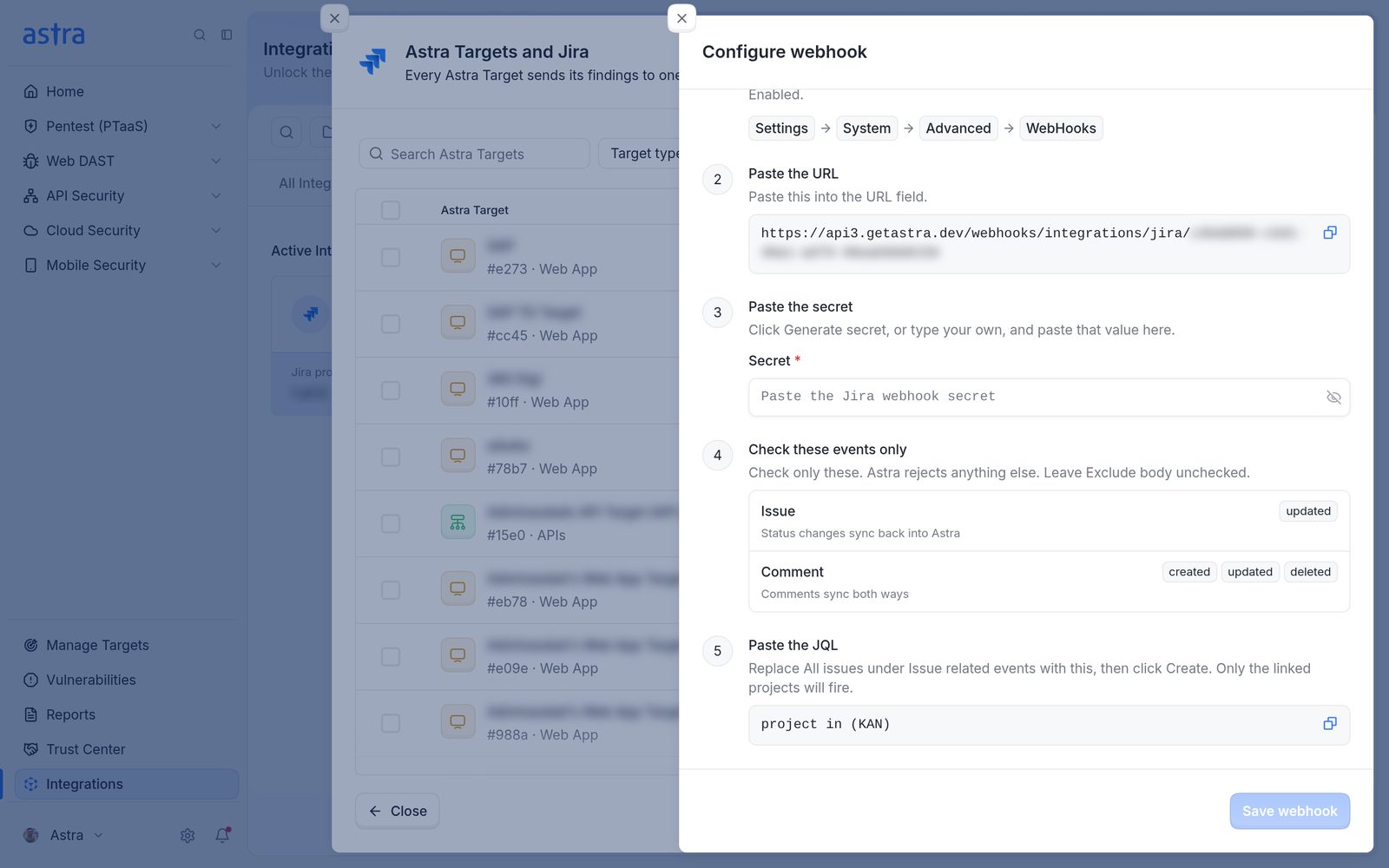
The Configure webhook panel with the five steps: open WebHooks in Jira, the webhook URL, the secret, the events to tick and the JQL.
Click Save webhook in Astra. Astra shows Webhook secret saved, and the button at the top of Astra Targets and Jira changes to Two-way sync configured.
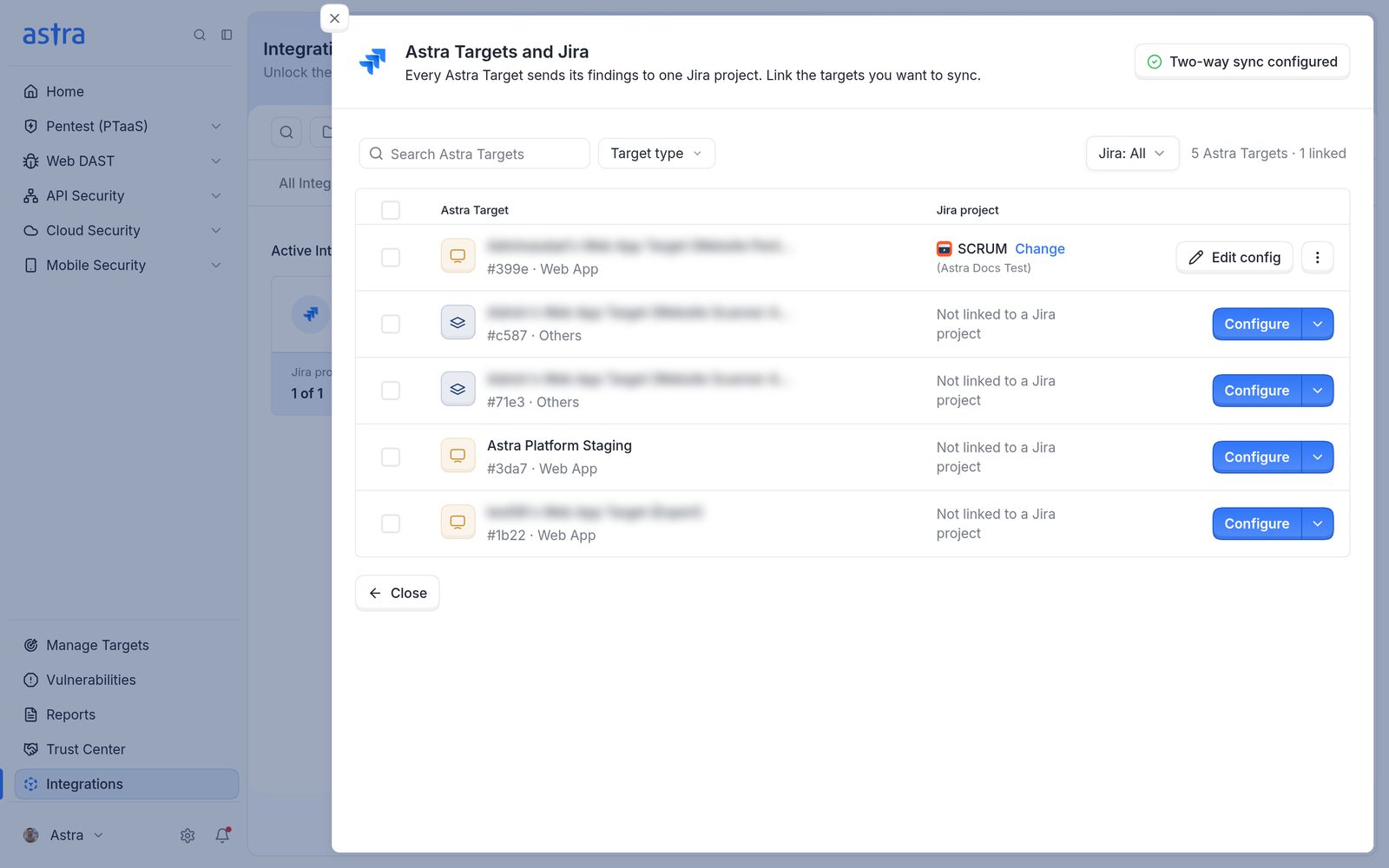
Astra Targets and Jira with the Two-way sync configured button at the top.
Change the webhook later
Click Two-way sync configured to open the Webhook panel. "Two-way sync is configured. A webhook secret is stored for this connection. Edit the existing Jira webhook to change events or the JQL. Do not create a second webhook." It has three steps:
- Open the Astra webhook. "Needs the Administer Jira global permission. Change events here. Check only these." It shows the Jira menu path, the webhook URL and the events (Issue: updated, Comment: created, updated, deleted).
- Replace the JQL. "Replace the query under Issue related events." Copy the JQL shown, for example
project in (SCRUM), into the existing Astra webhook in Jira. - Replace the secret only if Jira has a new one. "Leave this blank to keep the saved secret. If you generate a new one in Jira, paste it here." Paste it into New secret.
Click Done to close the panel.
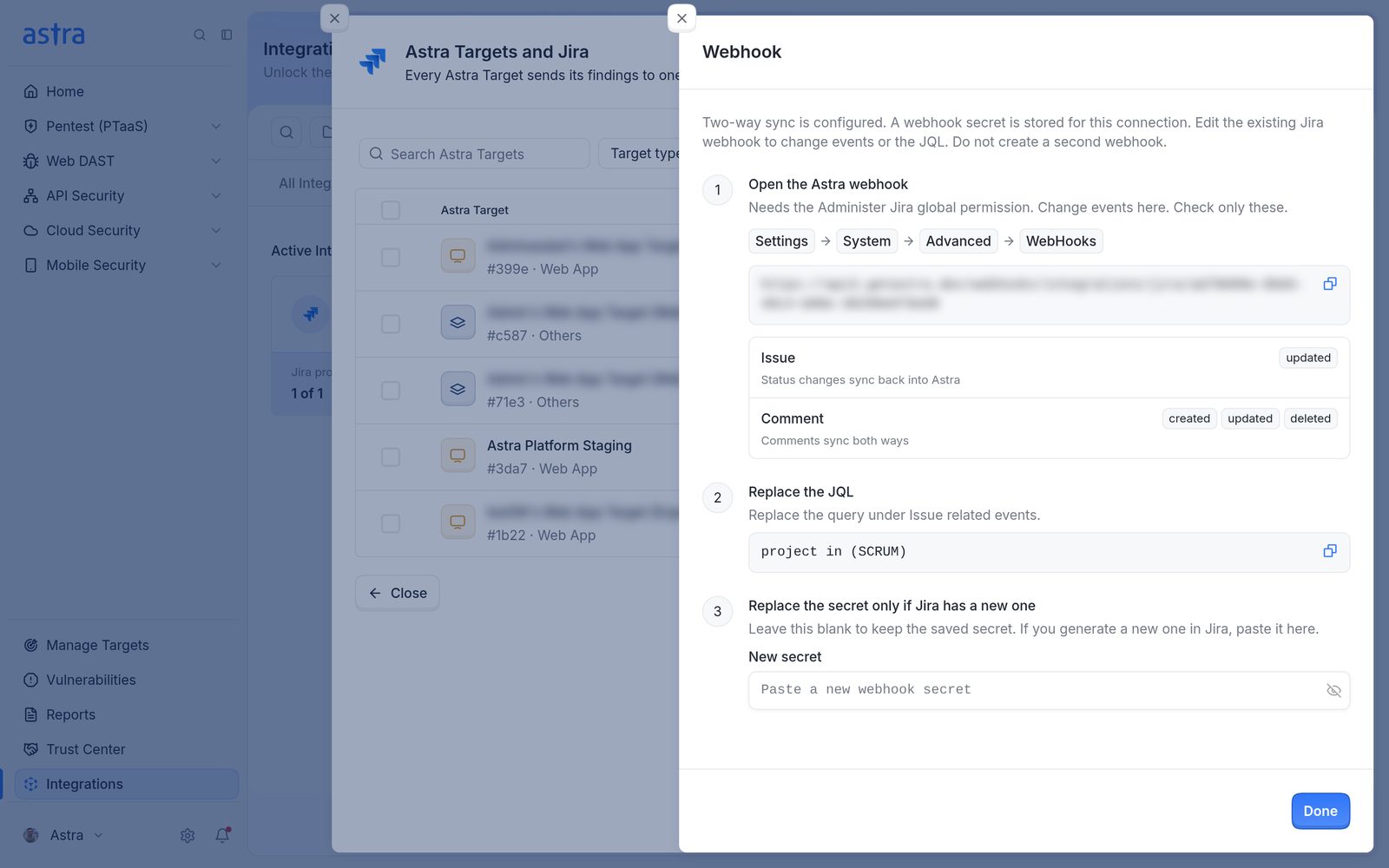
The Webhook panel for a configured connection, with Open the Astra webhook, Replace the JQL and Replace the secret only if Jira has a new one. The secret field is empty.
Important: Each Jira connection uses one webhook. When more targets or Jira projects are linked later, click Two-way sync configured, copy the new JQL and paste it into the existing Astra webhook in Jira. Don't create a second webhook.
How sync works
"Sync" means two things in Astra:
- Automatic sync: once a target is linked and set up, Astra keeps its Jira issues up to date on its own. Issues are created when a pentest reaches Vulnerabilities Reported, and later changes follow automatically.
- Sync with Jira: a button on a pentest or scan that creates the Jira issues that are still missing, for example when Jira was set up after the vulnerabilities were reported. See When Jira issues are created, and how to sync a pentest with Jira.
What travels each way:
| Astra to Jira | Jira to Astra (needs the webhook) | |
|---|---|---|
| New vulnerabilities and findings | Created as Jira issues and sub-issues | No |
| Status | Yes, using the Astra to Jira mapping | Yes, using the Jira to Astra mapping |
| Severity / priority | Severity sets the Jira priority | No |
| Comments | Yes | Yes, including attachments, which show as tiles in the vulnerability's chat |
| Other Jira fields, such as assignee | Set from the Jira fields step when the issue is created | No |
Rules for status changes coming from Jira:
- A vulnerability that's already Solved in Astra doesn't change.
- Once a pentest is Completed, status changes in Jira no longer reach Astra. Astra adds a comment on the Jira issue explaining why.
- While a vulnerability is being rescanned (Re-Scan in Progress), Astra may refuse the change and add a comment on the Jira issue explaining why.
- A change that came from Jira shows in the vulnerability's history as Status synced from Jira.
- On plans with automatic rescans, moving a Jira issue to a status mapped to Under Review asks Astra to rescan that vulnerability.
FAQ
A Jira status such as Won't Do didn't change anything in Astra. Why?
Every Jira status that should change Astra needs a mapping on the Jira to Astra side, for example Won't Do to Accepted Risk. Also check that the webhook is set up, that the pentest isn't Completed, and that the vulnerability isn't being rescanned or already Solved. No Jira status can move a vulnerability to Solved.