When Jira issues are created, and how to sync a pentest with Jira
Last updated: October 29, 2026
This article covers when Astra creates Jira issues, creating a Jira issue for one vulnerability, syncing a pentest with Jira, and tracking Jira issues from the Vulnerabilities page. For connecting Jira and linking targets, see Integrate Jira with Astra.
When Jira issues are created
- Before Vulnerabilities Reported: no Jira issues yet. The Jira button on each vulnerability is greyed out and explains that issues are created once the pentest reaches the Vulnerabilities Reported stage. On a linked target the message reads "This vulnerability will sync to Jira once the pentest reaches the Vulnerabilities Reported stage."
- At Vulnerabilities Reported: for a linked target, Astra creates the Jira issues for the pentest automatically. False Positive vulnerabilities are skipped.
- After that, on a linked target: if some issues are missing, use Sync with Jira in the pentest header. The Jira button on the vulnerability explains this: "Use Sync with Jira in the pentest header to create the Jira issue for this vulnerability."
- Everything else: on targets that aren't linked, automated scans, False Positive vulnerabilities, or pentests reported more than 30 days ago, the Create JIRA Issue button stays available for one vulnerability at a time.
Create a Jira issue for one vulnerability
- Click the Jira icon in the vulnerability's row on Vulnerabilities, or Create JIRA Issue at the top of the vulnerability details.
- The Create JIRA Issue panel opens. Check the Project (search with Search Jira projects...; on a linked target it's filled in with the linked project) and pick the Issue Type from the Jira project's types, for example Epic, Task or Story.
- Check the Summary and Description Astra filled in from the vulnerability. The description can be up to 32,000 characters.
- Click Add to Jira. Astra shows Jira issue created, and the button changes to Open in JIRA, which opens the new issue in Jira. The Jira issue links back to Astra with View Full Vulnerability Report in Astra.
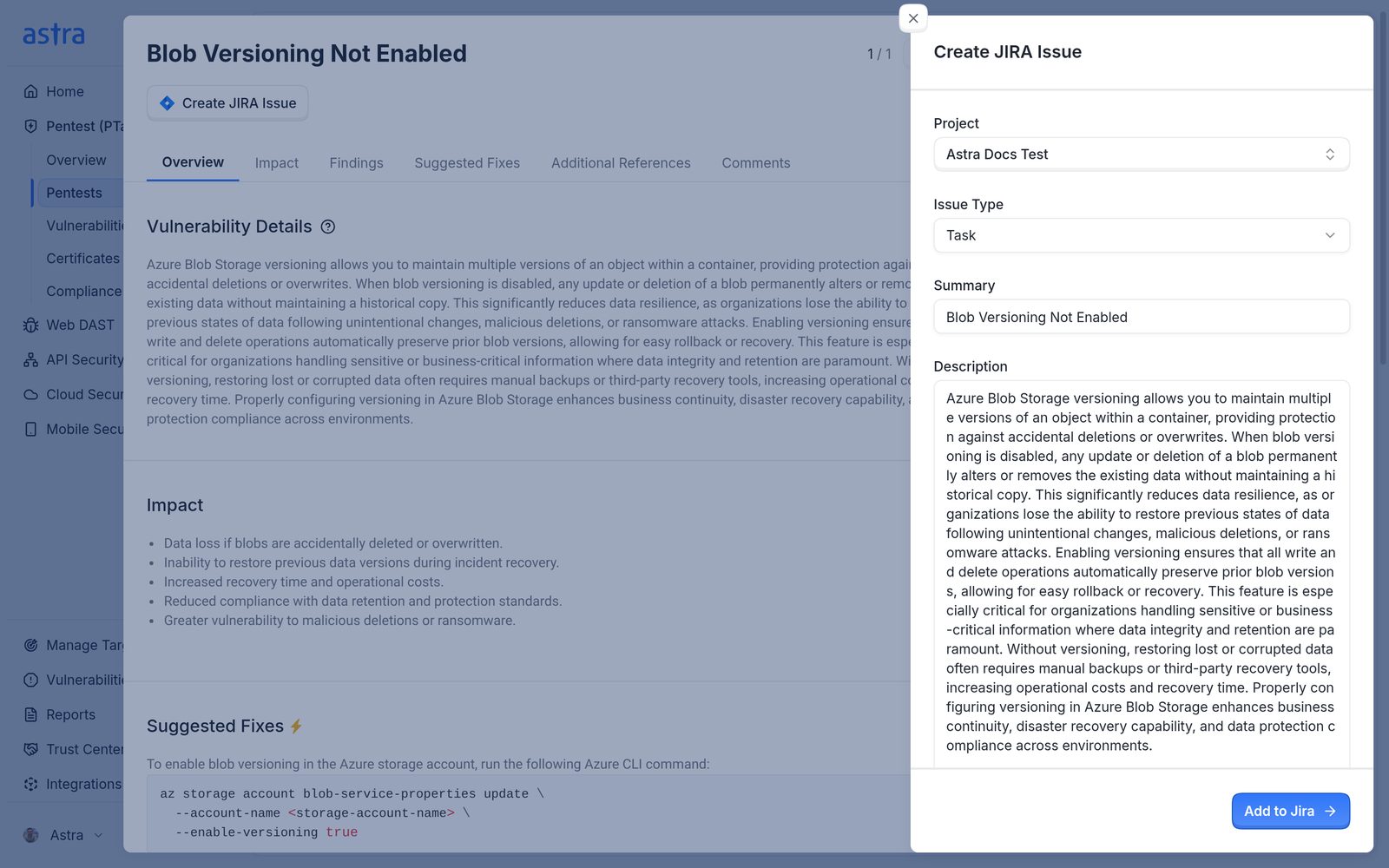
The Create JIRA Issue panel with the Astra Docs Test project, the Task issue type, and the summary and description filled in from the vulnerability.
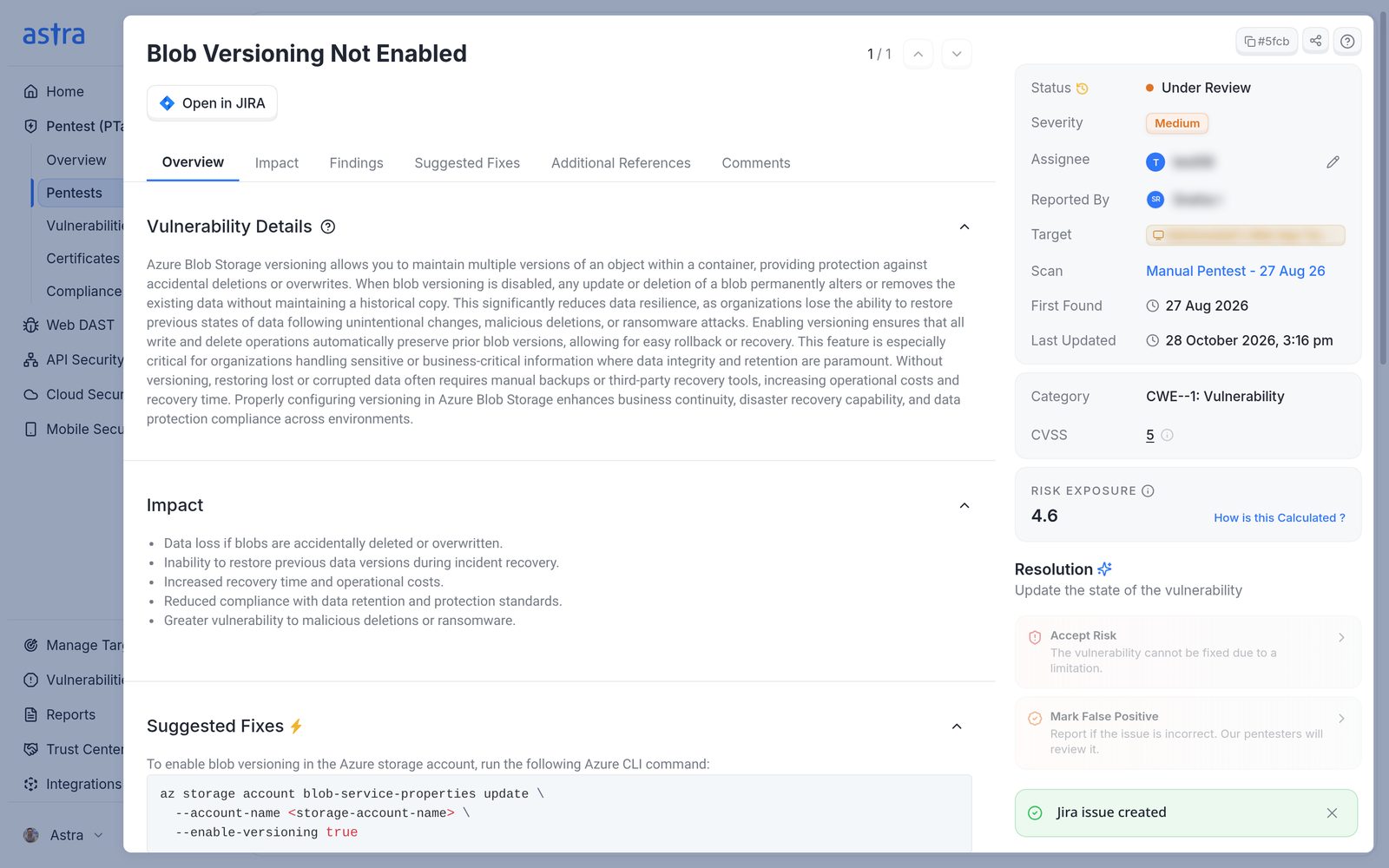
The vulnerability details after the issue was created, with the Open in JIRA button and the Jira issue created message.
Sync a pentest with Jira
Sync with Jira is in the pentest or scan header. If Vanta is also connected, it's under a Sync menu.
Before the pentest reaches Vulnerabilities Reported (or before a scan completes), the header shows a greyed-out Jira icon whenever Jira is connected. On a linked target it explains "Vulnerabilities will sync to Jira once the pentest reaches the Vulnerabilities Reported stage." On a target that isn't linked it reads "Jira issues can be created once the pentest reaches the Vulnerabilities Reported stage." For a scan, the message ends with "once the scan is completed."
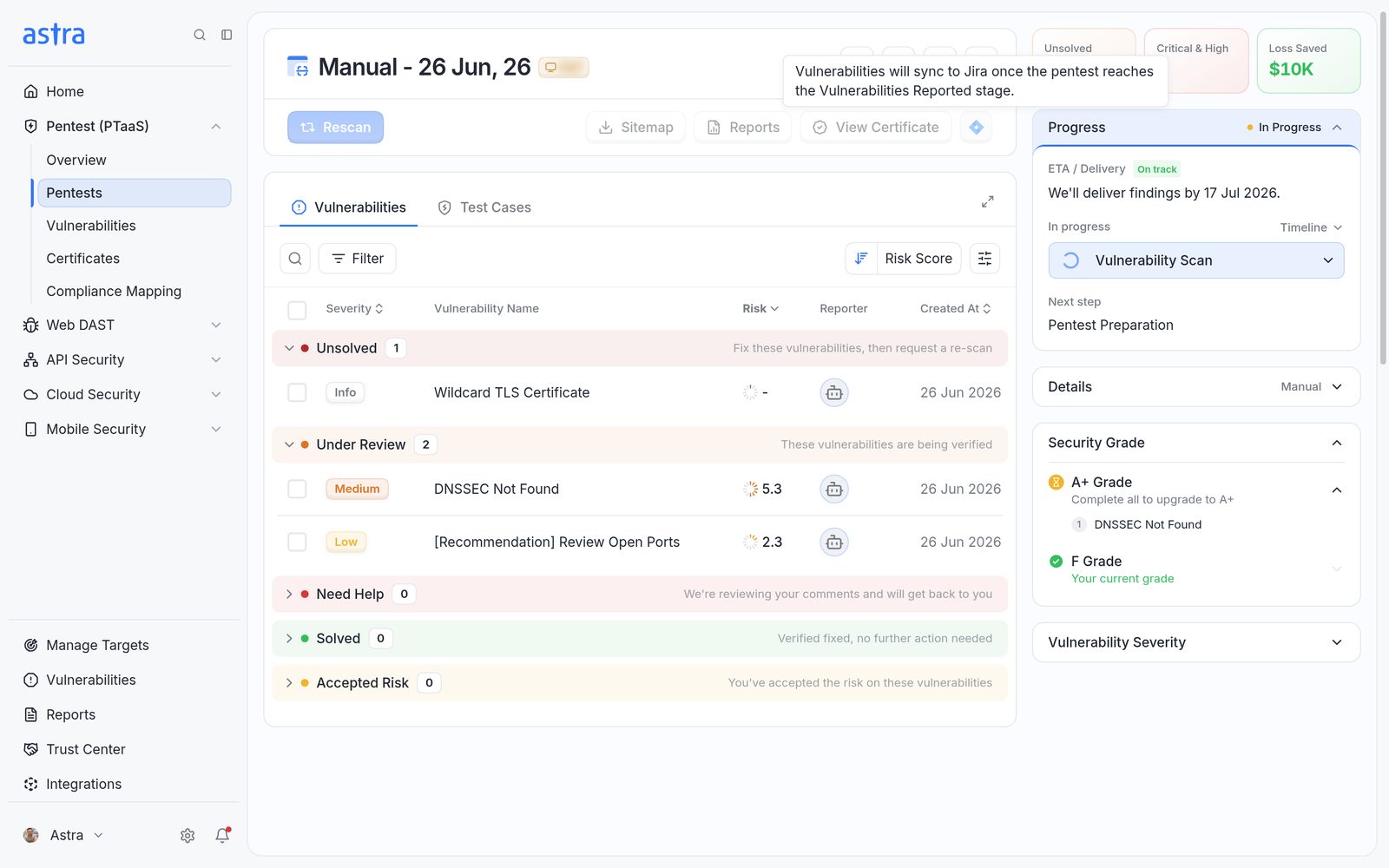
A pentest that's still in progress, with the greyed-out Jira icon in the header and its tooltip.
Normally you don't need the button. When a pentest on a linked target reaches Vulnerabilities Reported, Astra creates its Jira issues automatically. Sync with Jira only appears when something is left over: a reported pentest with at least one vulnerability that has no Jira issue, for example one added after the report. A vulnerability added later isn't synced automatically.
The button shows when:
- the target is linked to a Jira project and set up,
- the pentest is at Vulnerabilities Reported (for a scan, once it has completed), and
- at least one vulnerability doesn't have a Jira issue yet.
It can be clicked when the vulnerabilities were reported in the last 30 days and Astra can reach Jira. Once every vulnerability has a Jira issue, the button is hidden.

The pentest header with the Sync with Jira button next to Reports and View Certificate.
To create the missing issues:
- Click Sync with Jira in the pentest header. There's no confirmation step: the sync starts straight away.
- Astra shows Jira sync started. The button greys out with a spinner while the sync runs.
- When it's done, Astra shows Jira sync completed successfully and the button disappears from the header.

The Sync with Jira button greyed out with a spinner while the sync runs.
The Jira sync started message.
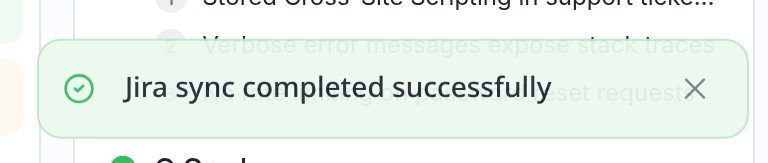
The Jira sync completed successfully message.

The pentest header after the sync. Sync with Jira is no longer shown.
Each vulnerability that was synced now has Open in JIRA at the top of its details, which opens its Jira issue (in our example, SCRUM-14 in the SCRUM project). Only vulnerabilities without a Jira issue are created, so running it again never makes duplicates. Only one sync can run for a pentest at a time.
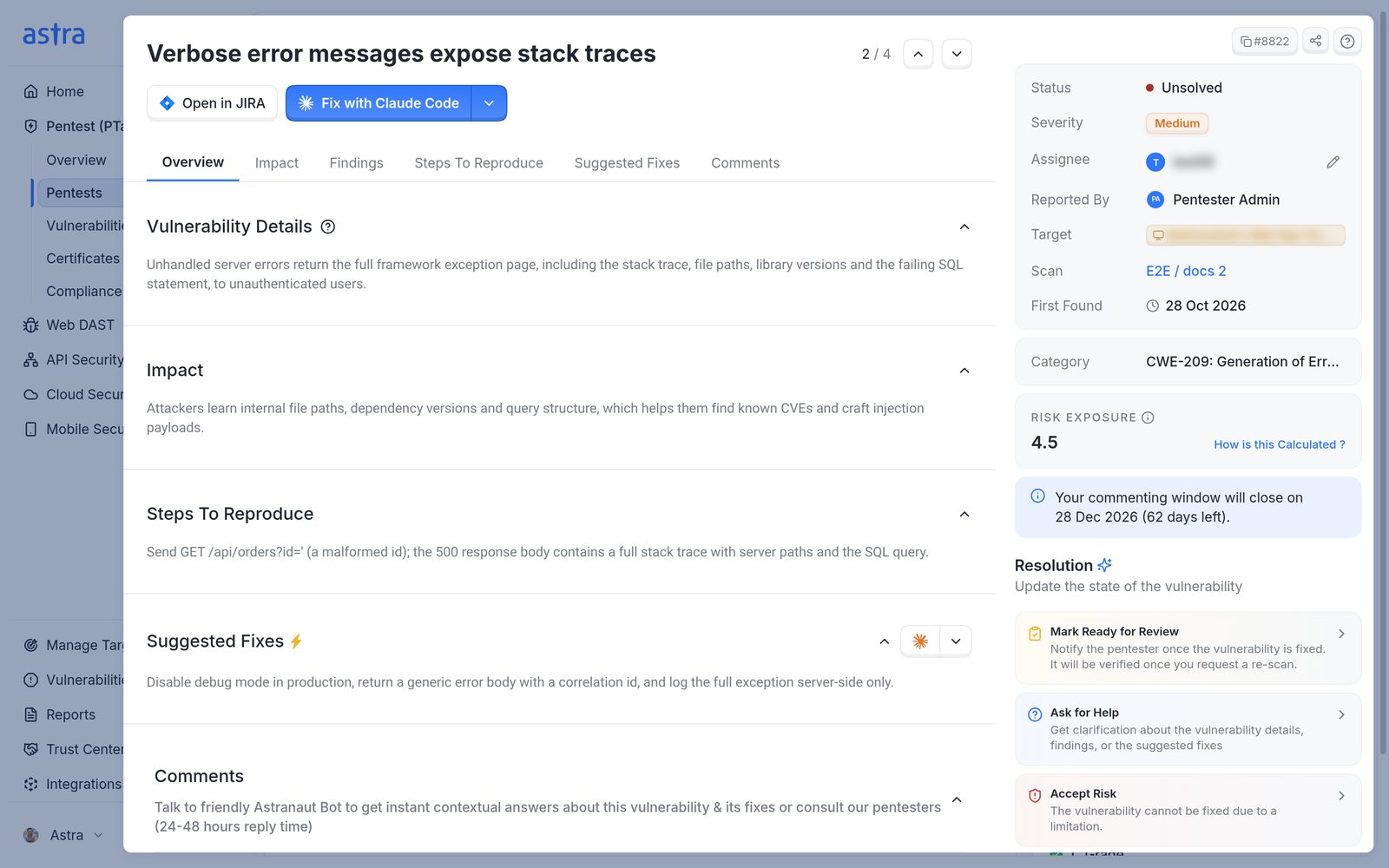
The details of the vulnerability that was synced, with the Open in JIRA button.
After 30 days the button is greyed out with "Jira sync is only available for up to 30 days after vulnerabilities are reported. Contact support to sync this pentest." The Astra team can run the sync after that. If Astra can't reach Jira, the button is greyed out with the error and a link to check Integrations.
If a sync doesn't finish cleanly:
- Jira sync finished with some vulnerabilities still unsynced. Some issues couldn't be created, often because a required Jira field has no value. Check the target's setup, then run it again.
- Jira sync failed, with project or issue mapping isn't set up. The target's setup is incomplete, or Unsolved isn't mapped on the Astra to Jira side. Click Edit config on the target and finish the steps.
- Jira sync timed out. Try again. or Jira sync failed. Try again. Run it again. Issues already created aren't duplicated.
Track Jira issues from the Vulnerabilities page
The Vulnerabilities table has a Jira column. It shows Open in JIRA for vulnerabilities that have a Jira issue, and the create button for those that don't. To list only one group, click Add filter > Jira Ticket and pick Linked or Not linked. For more on the page, see Overview of Vulnerabilities Page.
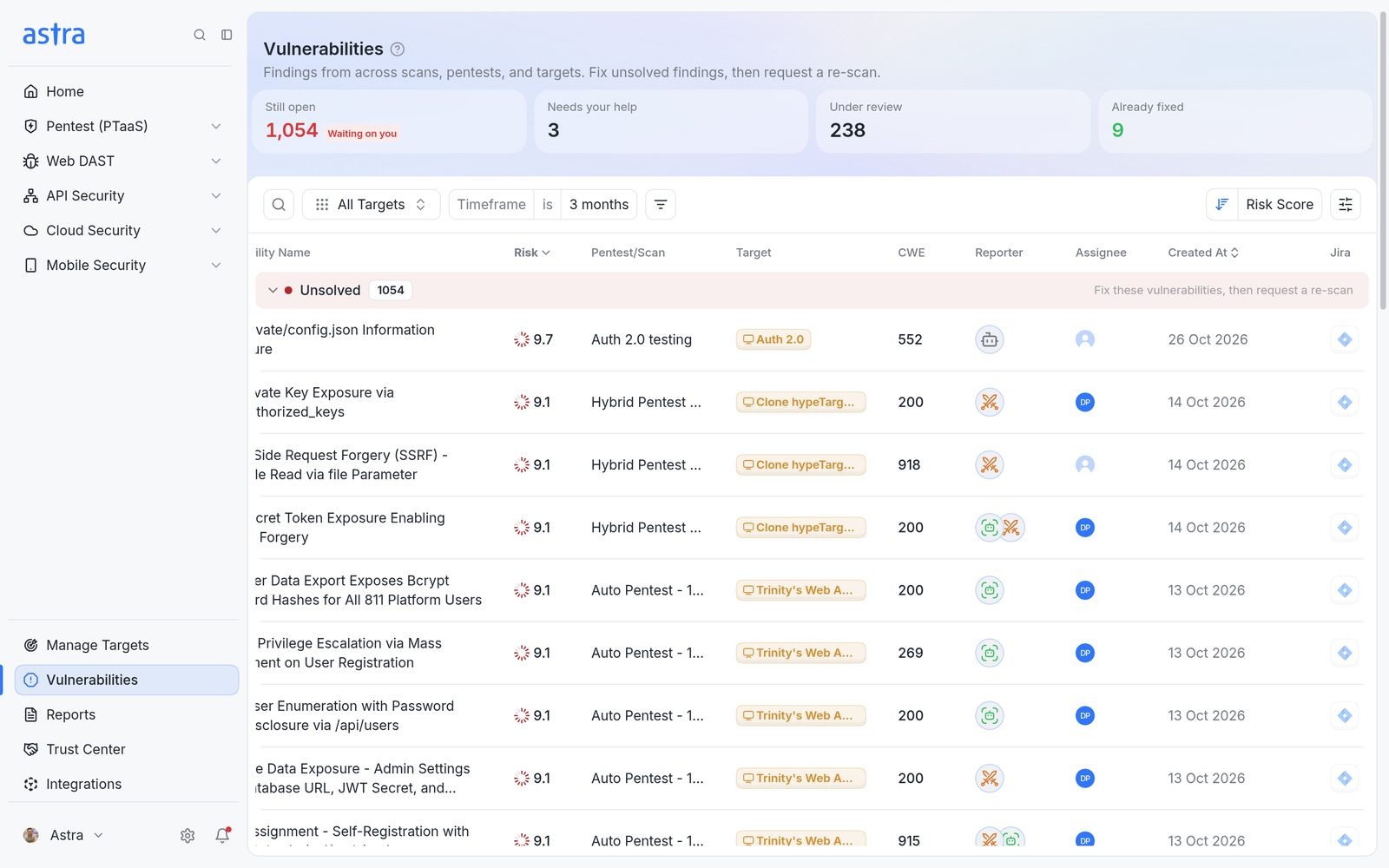
The Vulnerabilities table scrolled to the right, with the Jira column at the end of each row.
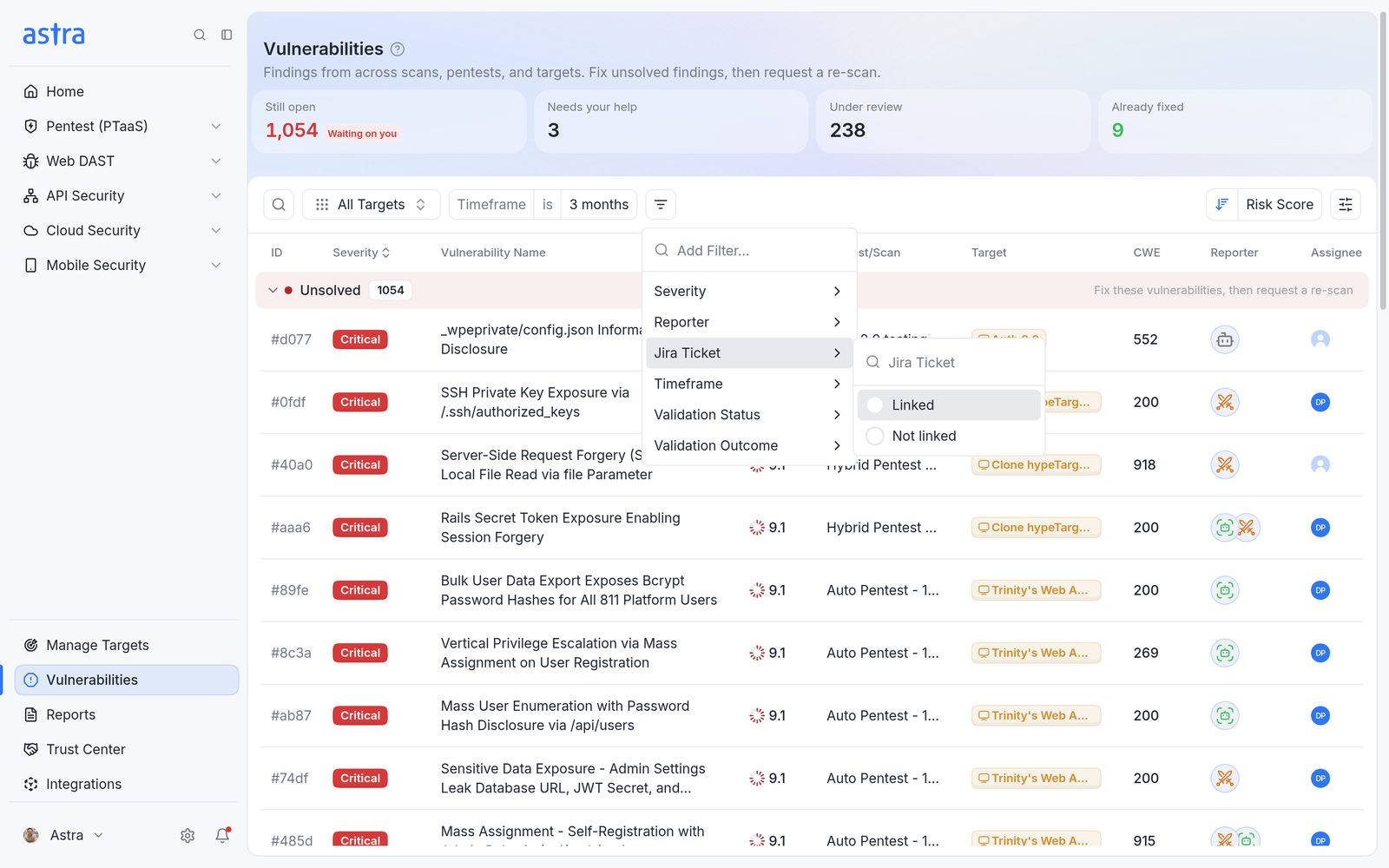
The Add filter menu open on Jira Ticket, with the Linked and Not linked options.
When Jira isn't connected, the Jira icon is greyed out with "Connect JIRA integration to view info here".
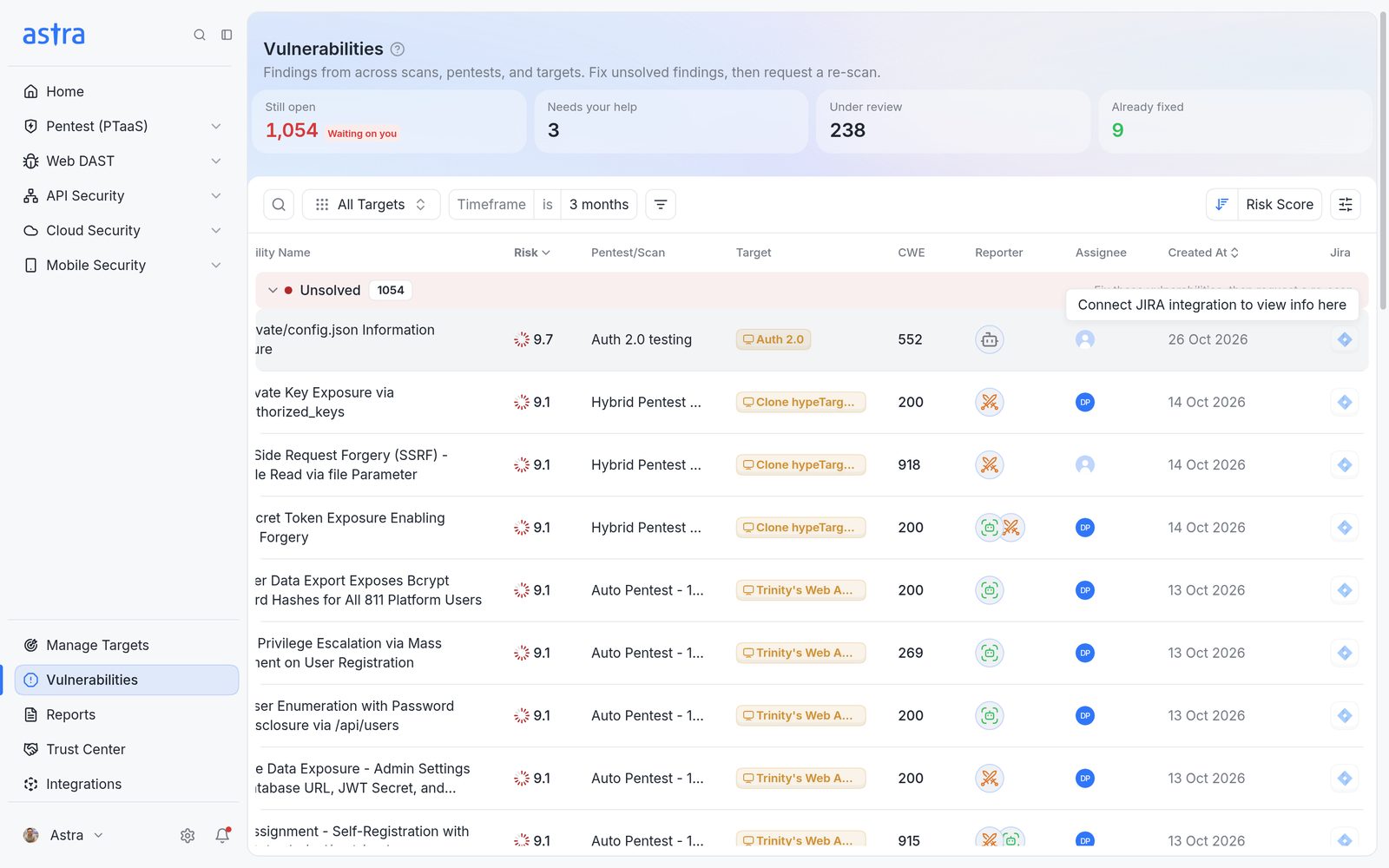
A greyed-out Jira icon in the Vulnerabilities table with the Connect JIRA integration to view info here tooltip.
FAQ
Why is there no option to create a Jira issue for a pentest's vulnerabilities?
Jira issues can only be created once the pentest reaches Vulnerabilities Reported. Before that, the Jira button is greyed out. After it, on a linked target, Astra creates the issues itself, and Sync with Jira in the pentest header creates any that are missing.
Jira was set up after the pentest finished. How do the existing vulnerabilities get into Jira?
Link the target and finish its setup, then click Sync with Jira in the pentest header. This works for 30 days after the vulnerabilities were reported. After that, contact support to run the sync.