Integrate Jira with Astra
Last updated: October 28, 2026
Connecting Jira turns the vulnerabilities Astra finds into Jira issues and keeps both sides in sync. Each Astra target sends its findings to one Jira project. Astra creates the issues, updates their status and priority, and copies comments. If the Jira webhook is also set up, status changes and comments made in Jira come back into Astra, so the sync runs both ways. This article covers connecting Jira, linking targets to Jira projects, the six setup steps, turning on two-way sync, when issues get created, and what happens when the connection is paused, unlinked or deleted.
Availability: Jira needs an active plan with at least one active target. If your plan doesn't cover it, the Integrations page shows Integrations aren't on your plan. with a View plans link to upgrade.
Before you start
A Jira account and API token. Astra signs in to Jira with a user email and an API token, not a password. The Jira user needs access to every Jira project that targets will send findings to.
Jira admin rights for two-way sync. Creating the webhook in Jira needs the Administer Jira global permission. One-way sync from Astra to Jira works without it.
Room on the plan. Each workspace can connect a set number of tools. When that number is used up, connecting shows Integration limit reached. Remove a connection the workspace no longer uses, or upgrade the plan from View plans to add more.
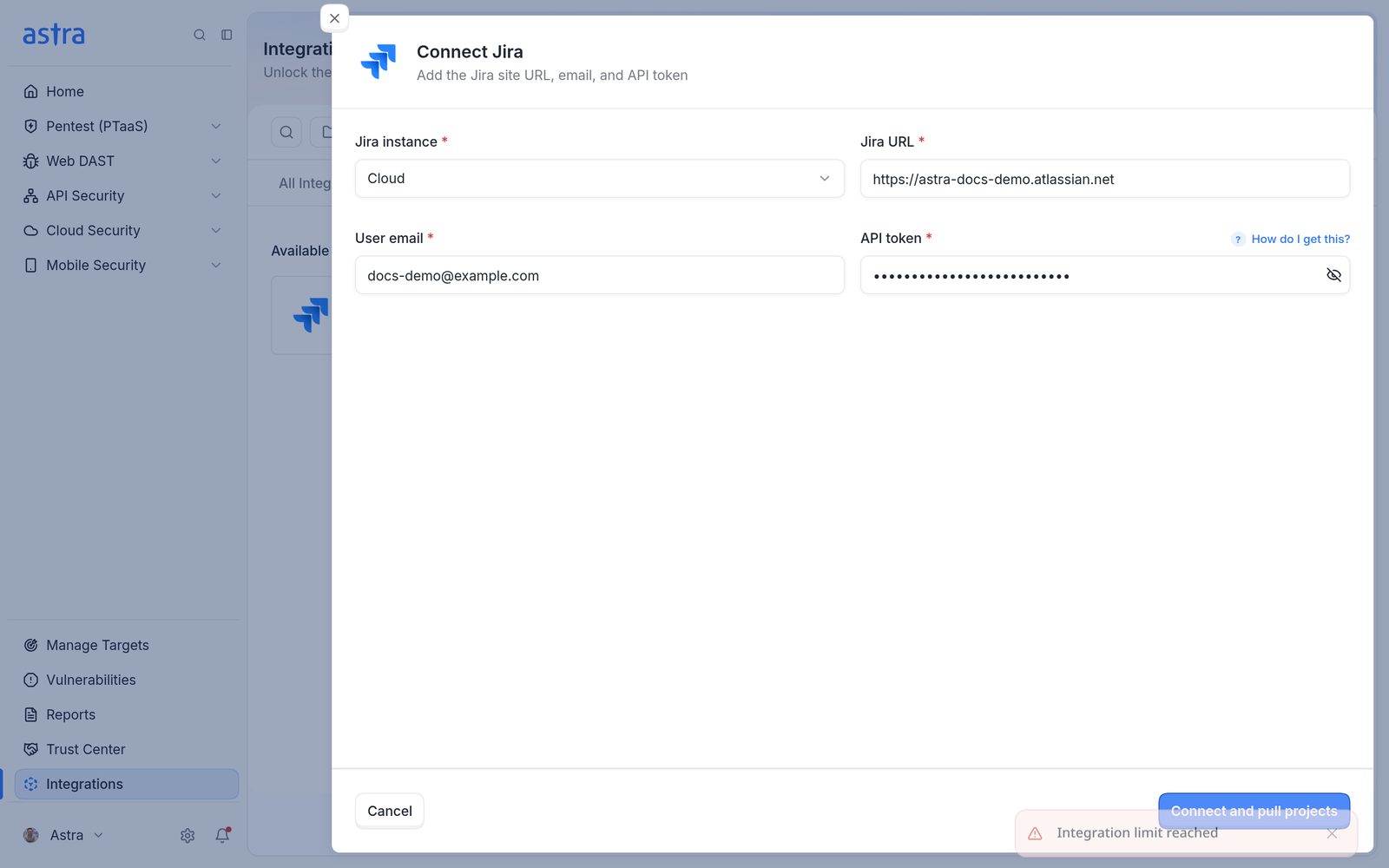
The Integration limit reached message on the Connect Jira form, shown when the workspace has used every connection its plan allows.
Connect Jira
Go to Integrations. Jira is listed under Project Management Tools and on the All Integrations tab. Click Connect on the Jira card.
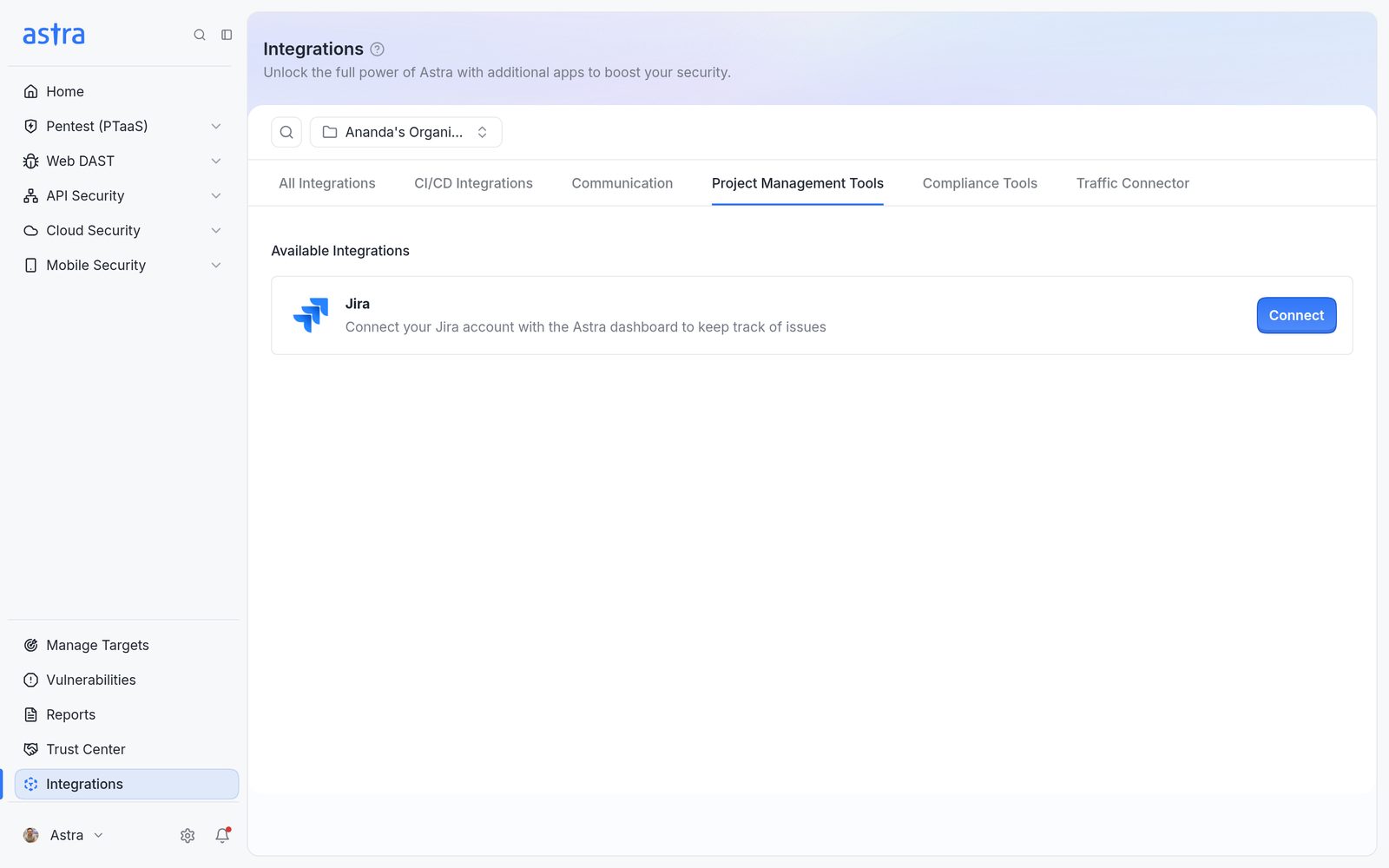
The Integrations page on the Project Management Tools tab, with the Jira card and its Connect button.
A panel opens with an overview of what Jira does in Astra. Click Connect at the bottom.
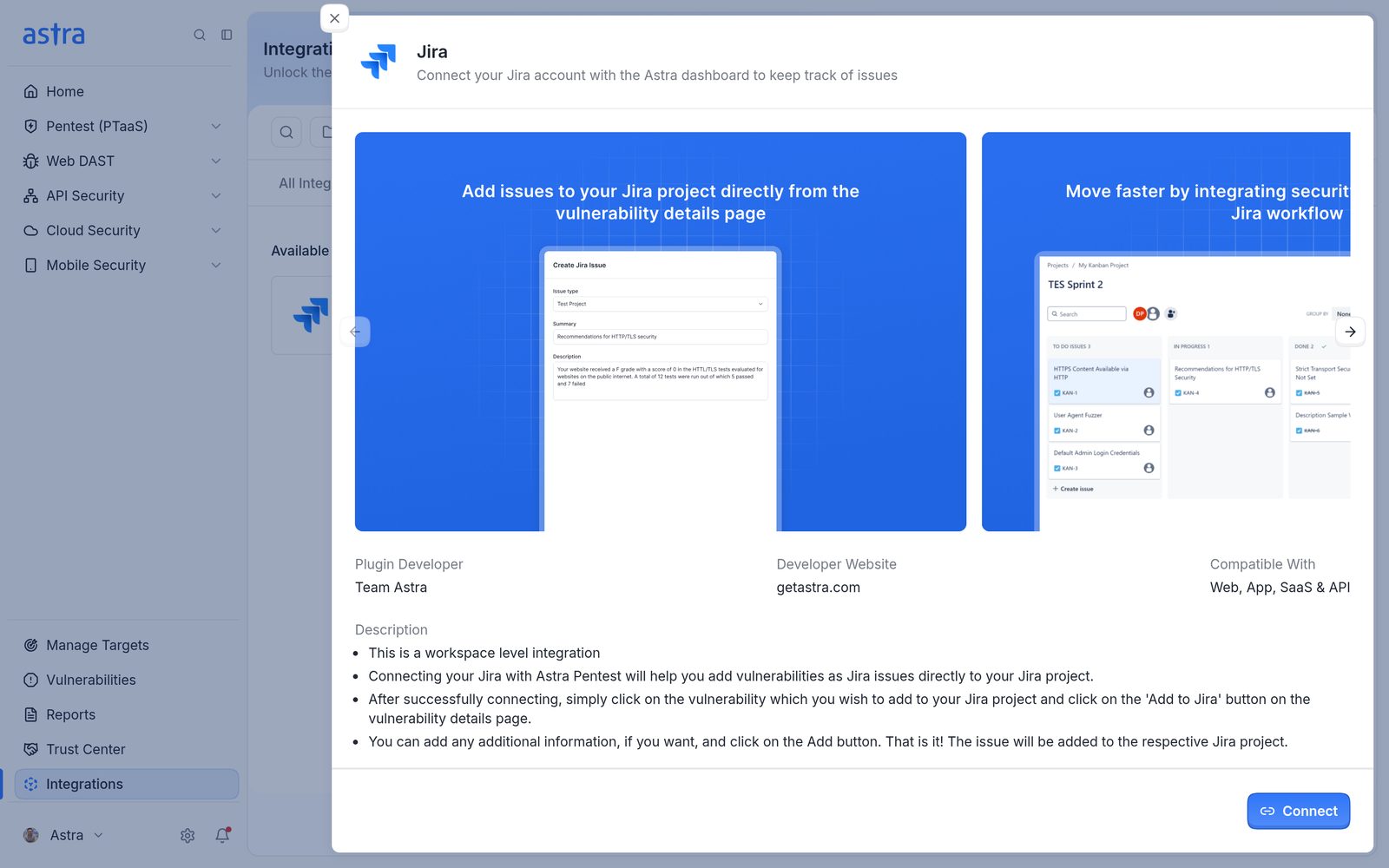
The Jira overview panel with its feature images, developer details and the Connect button.
The Connect Jira form opens. Fill in: - Jira instance: Cloud for Jira sites on atlassian.net (the default), or Server for a self-hosted Jira. - Jira URL: the address of the Jira site, for example
https://your-domain.atlassian.net. - User email: the email of the Jira user Astra signs in as. - API token: an API token for that user. See the next section.
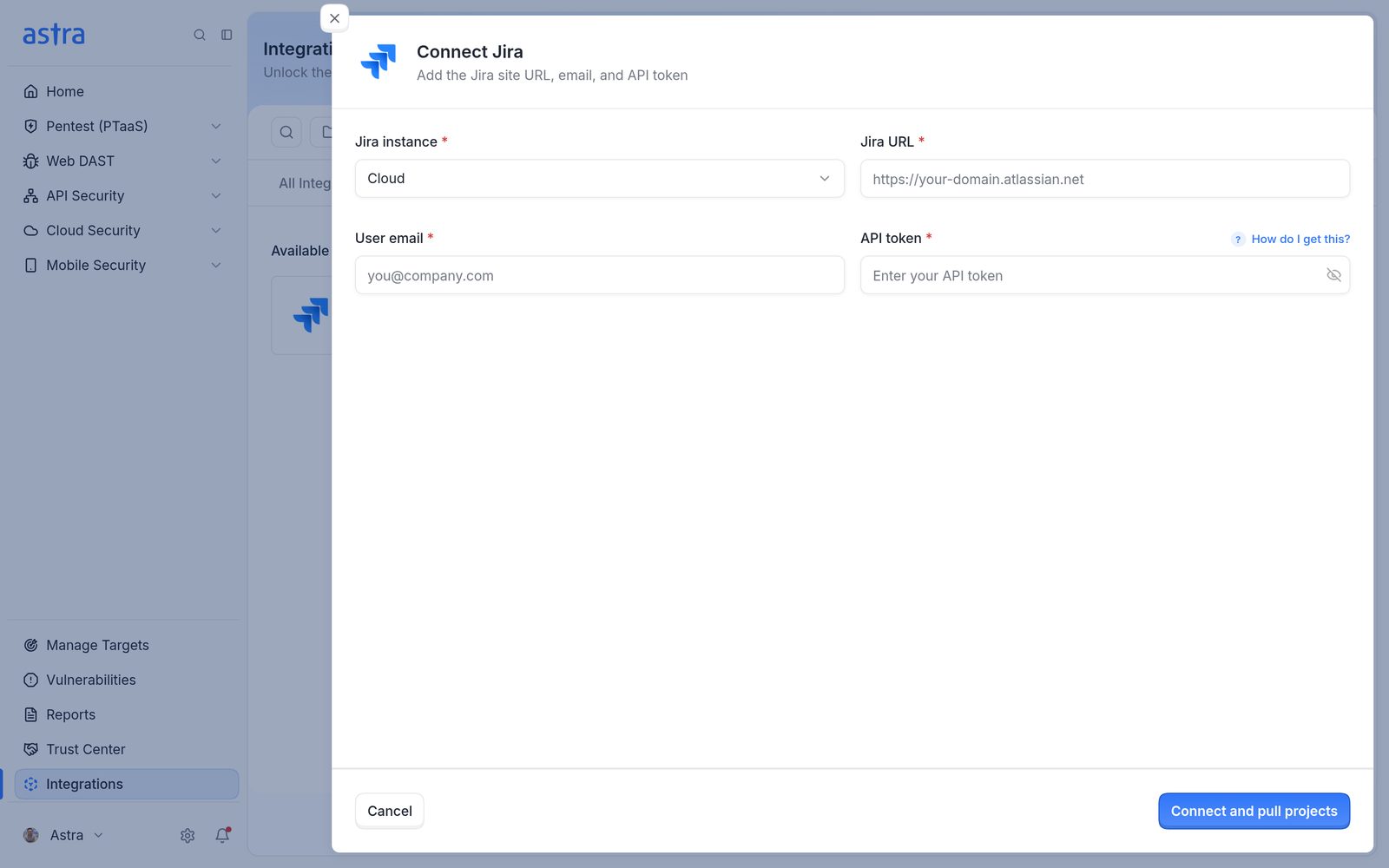
The Connect Jira form with the Jira instance, Jira URL, User email and API token fields.
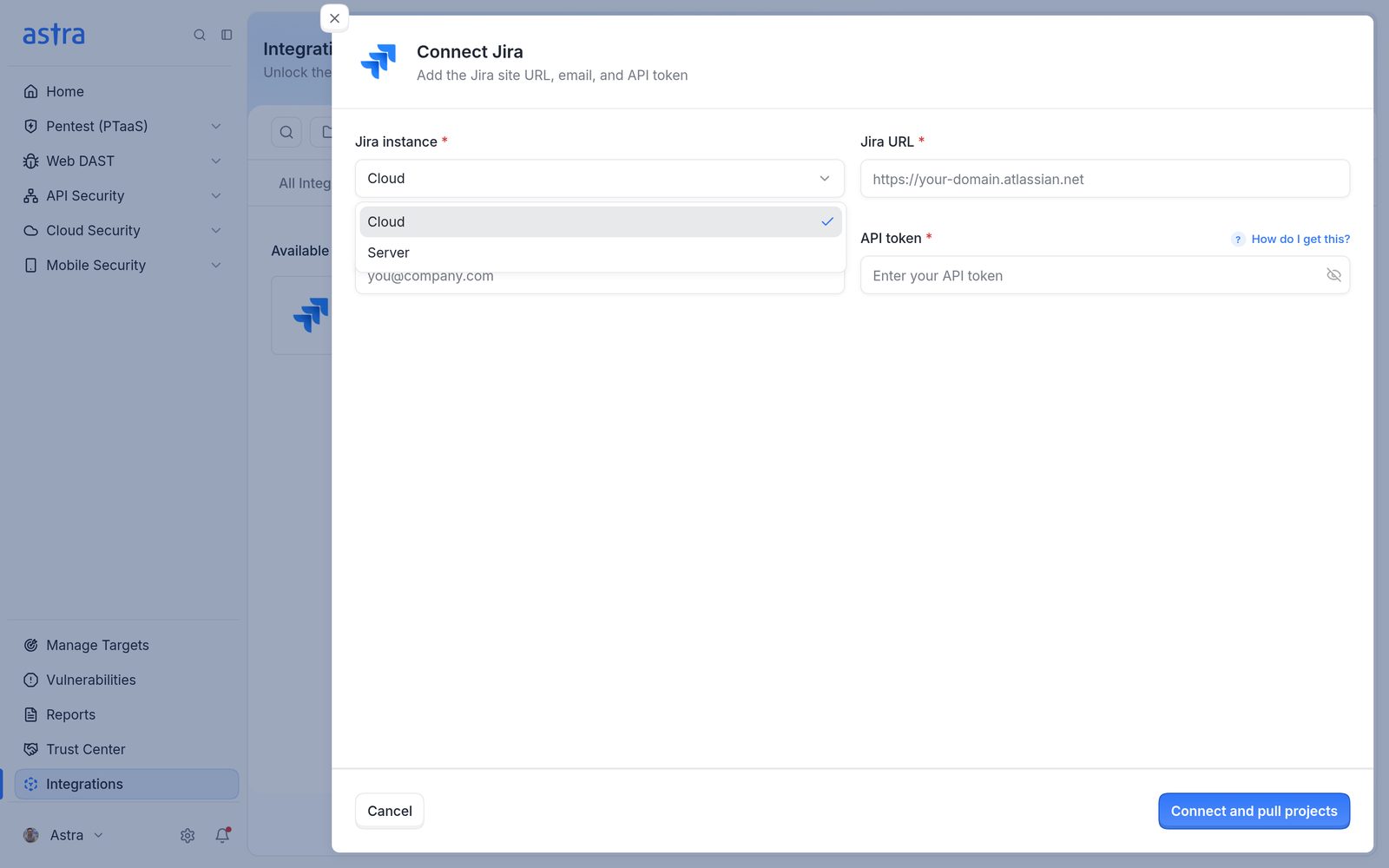
The Jira instance list, with Cloud and Server.
Click Connect and pull projects. Astra checks the details with Jira and reads the list of Jira projects. When it works, Astra shows Jira Integration has been created and opens Astra Targets and Jira, where targets are linked to Jira projects.
Get a Jira API token
Hover How do I get this? next to API token for the steps, or click Get API Token in that panel to open the Atlassian token page.
Open the Atlassian account settings and go to Security.
Select Create and manage API tokens, then Create API token.
Give the token a label that's easy to recognise, then copy it and paste it into API token.
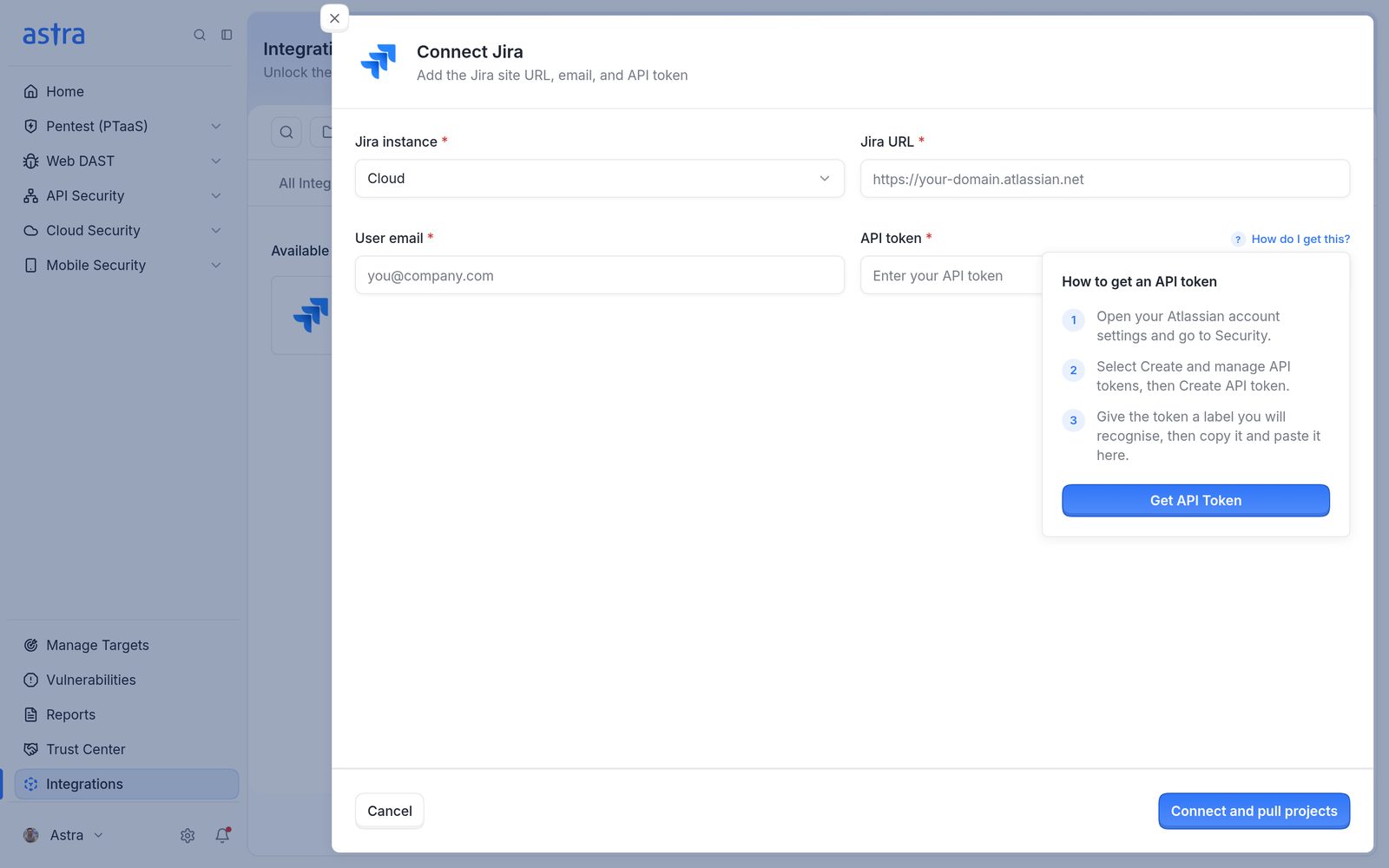
The How to get an API token panel, with three steps and the Get API Token button.
Note: Atlassian API tokens can expire. When a token expires, sync stops until a new token is saved from View connection (see Fix a connection error or replace the API token).
If the connection fails
If Jira rejects the details, Astra shows the error Jira returned, then removes the half-created connection and shows Integration removed because activation failed with Start setup again from Integrations. Nothing is left behind, so check the Jira URL, User email and API token, then click Connect on the Jira card again.
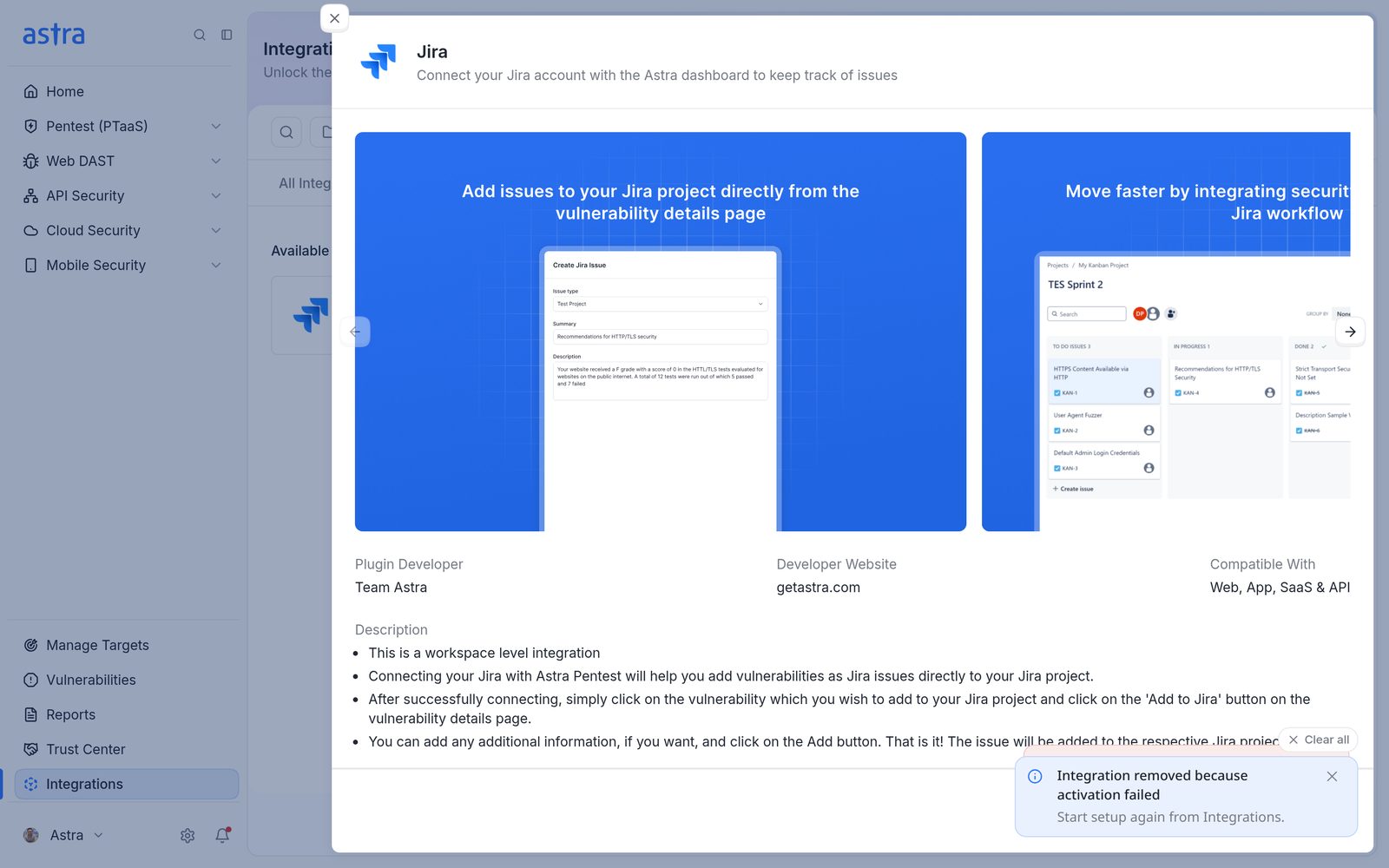
The Jira panel after a failed connection, with the Integration removed because activation failed message.
Common causes:
The Jira URL has a typo, points to the wrong site, or includes a page path instead of just the site address.
The API token belongs to a different Jira user than the User email, or it was copied incompletely.
Cloud or Server doesn't match the Jira site.
The Jira site blocks traffic from outside its network. Ask the Astra team for the IP addresses to allow.
The Jira card
Once connected, Jira moves to Active Integrations. The card shows the Jira site address and a status badge:
Connected: Astra can reach Jira.
Connection Error: Astra couldn't reach Jira just now, for example because the API token expired or the site is down. See Fix a connection error or replace the API token.
Paused: someone paused the connection.
Failed: the connection stopped working and needs attention.
The card also shows Jira projects in use, Astra Targets linked (how many of the workspace's targets are linked) and Last sync (the date Astra last synced with Jira, or Never). It has two buttons:
View connection opens the connection details. See Fix a connection error or replace the API token.
Configure sync opens Astra Targets and Jira.
The ⋮ menu has Pause integration (or Unpause integration) and Delete integration.
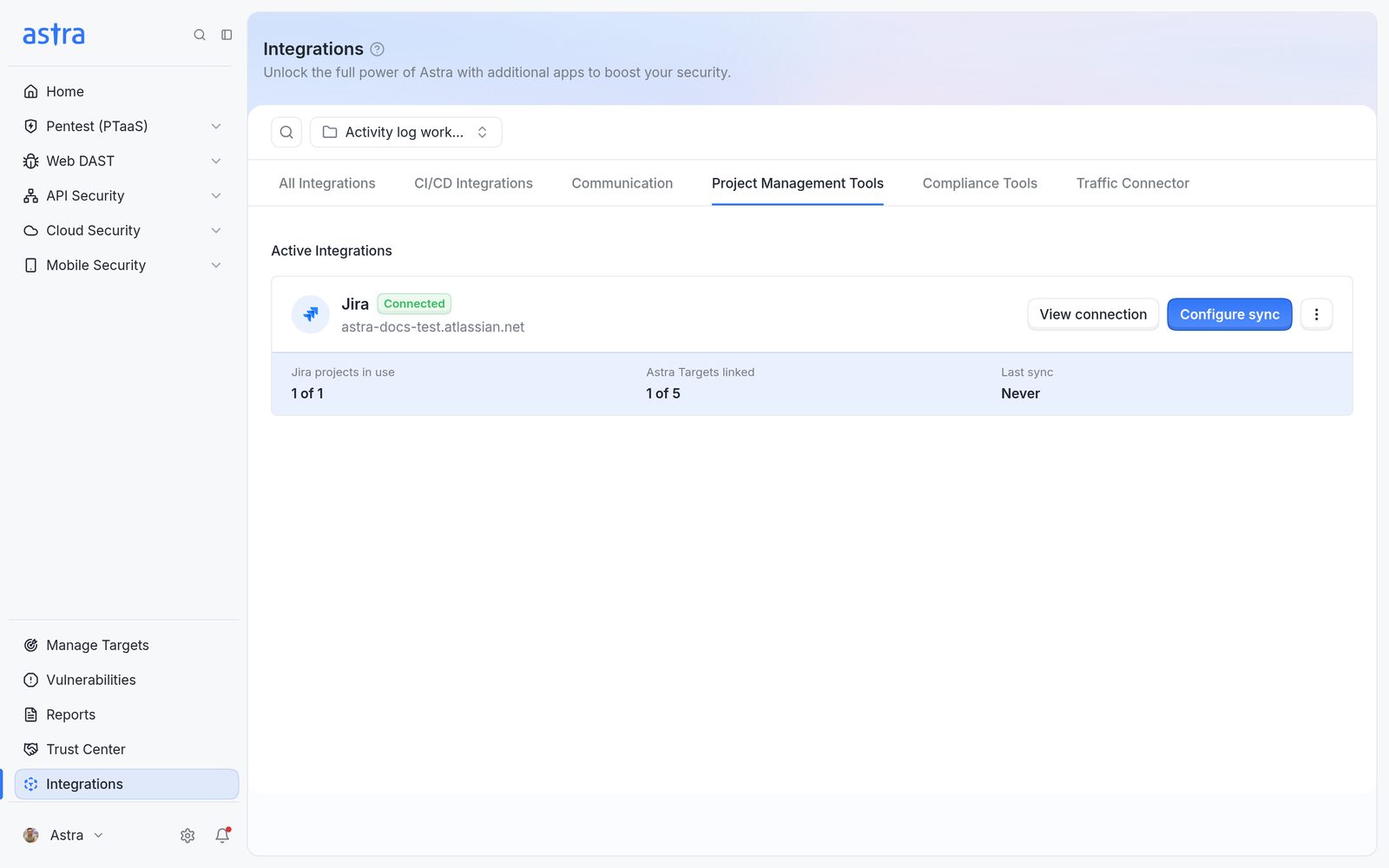
The Jira card with the Connected badge, the Jira site address, 1 of 1 Jira projects in use, 1 of 5 Astra Targets linked and Last sync Never.
After the first sync, Last sync shows the date.
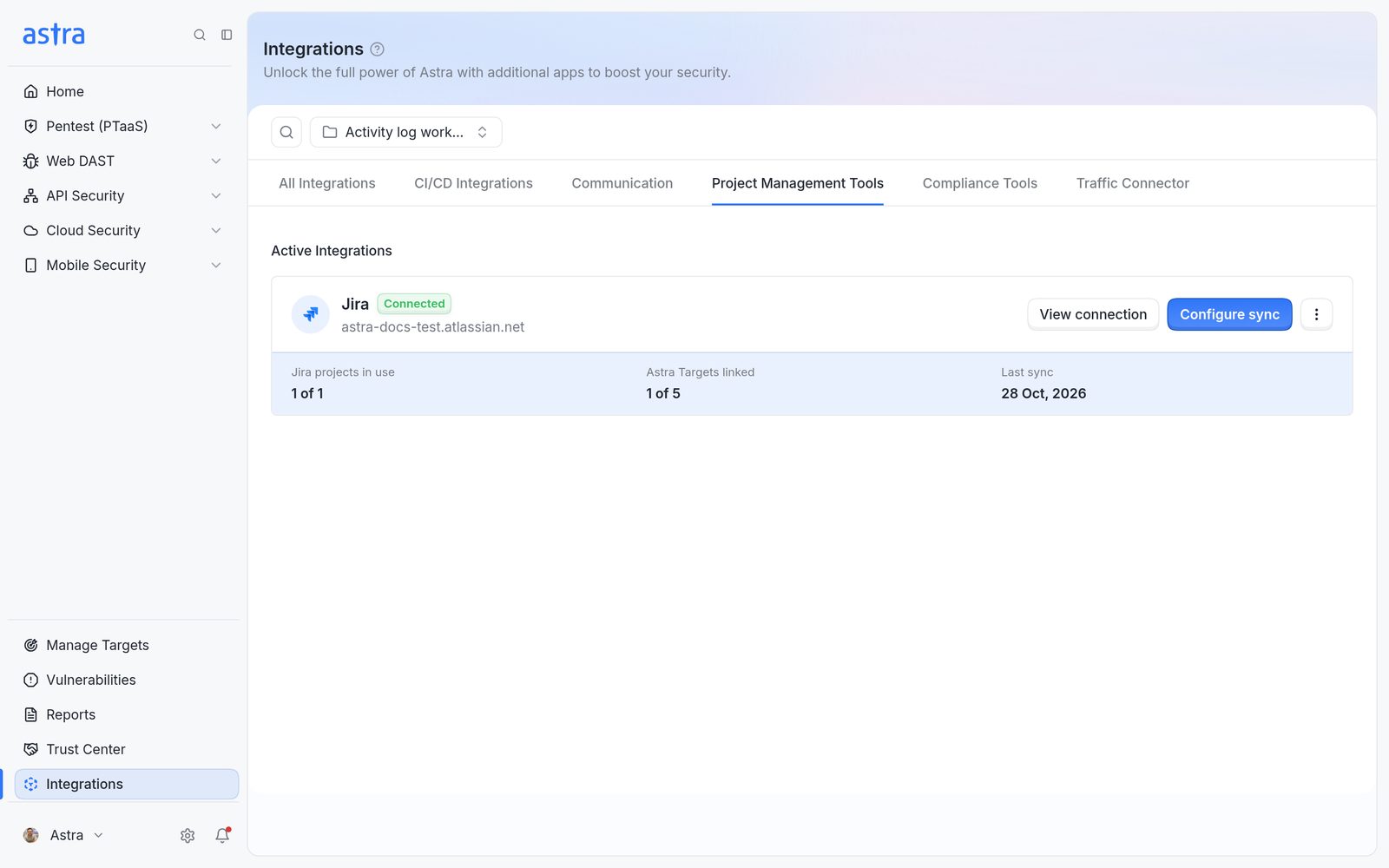
The Jira card after a sync, with Last sync showing 28 Oct, 2026.
Link targets to Jira projects
Astra Targets and Jira lists the workspace's active targets, one row each. "Every Astra Target sends its findings to one Jira project." Several targets can send their findings to the same Jira project.
Astra Target: the target's name.
Jira project: the linked Jira project's key and name with a Change link, or Not linked to a Jira project.
The search box (Search Astra Targets), the Target type filter and the Jira: All / Jira: Linked / Jira: Not linked filter narrow the list. The count beside them shows how many targets are listed and how many are linked.
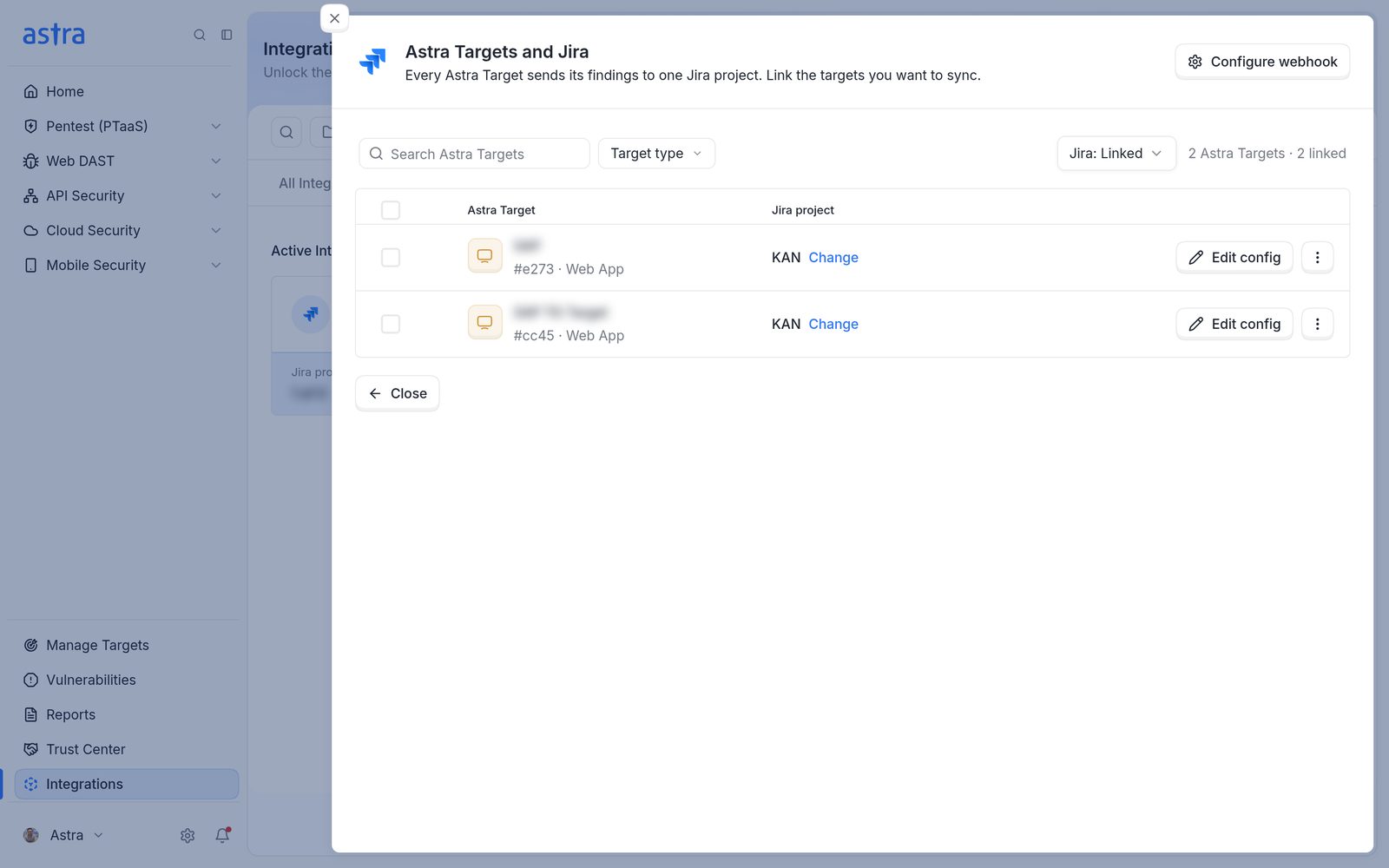
Astra Targets and Jira filtered to Jira: Linked, with two targets linked to the KAN project.
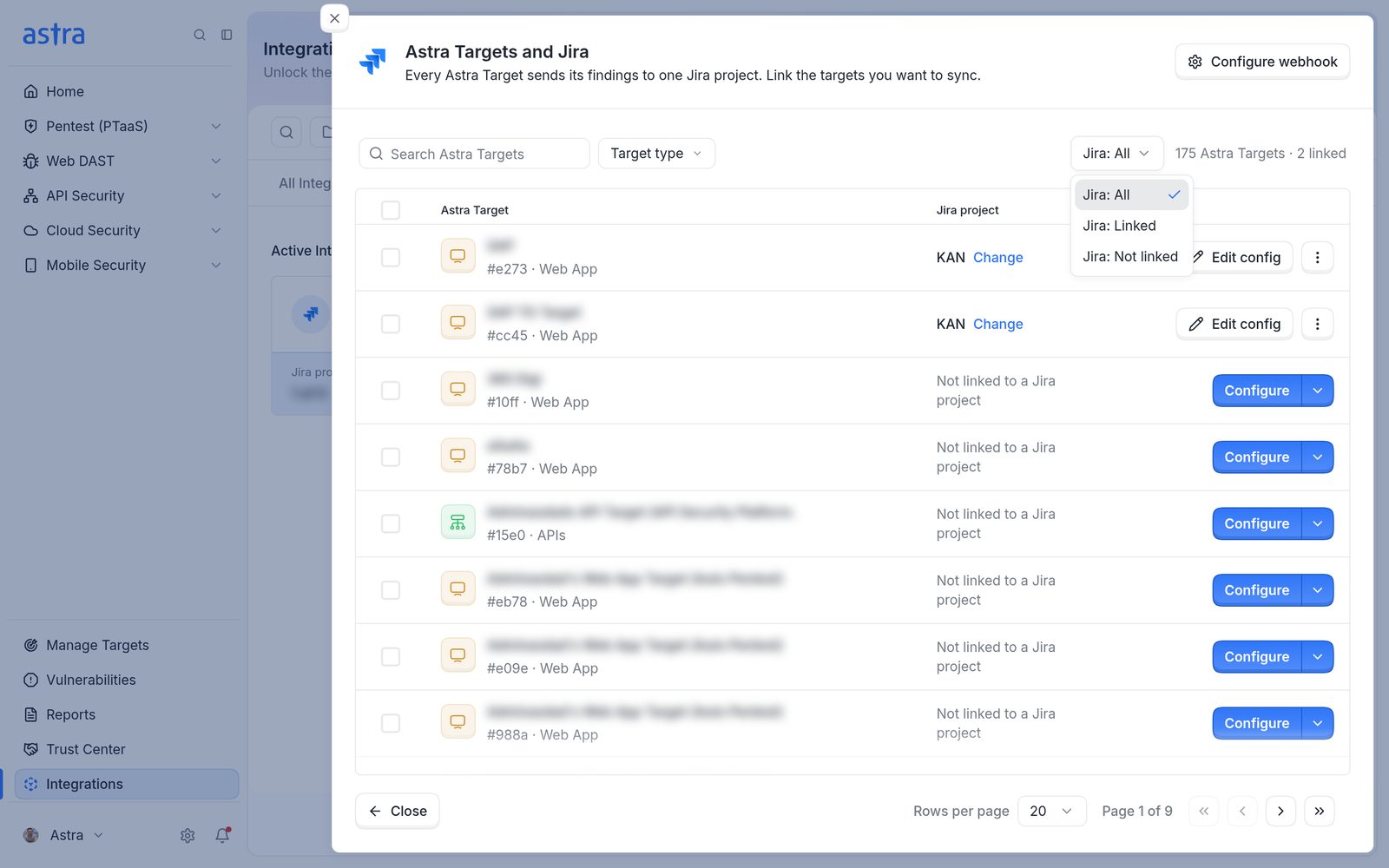
The Jira filter open, with Jira: All, Jira: Linked and Jira: Not linked.
For a target that isn't set up yet, click Configure. The arrow next to it offers two ways to start:
Configure from scratch: "Pick every mapping yourself."
Copy from a target already set up: "Start from a configuration that works, then change what differs." This is available once at least one other target is configured.
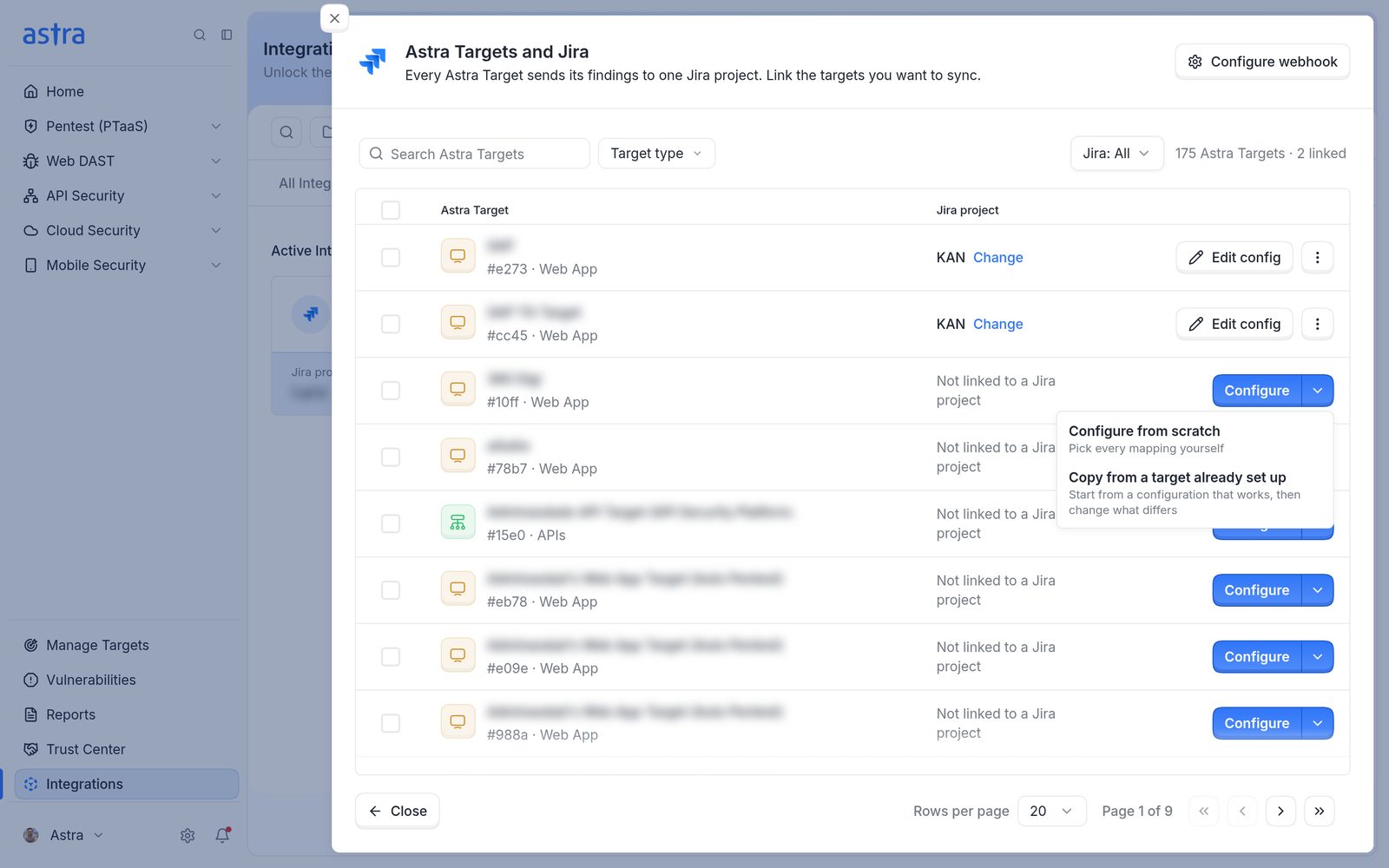
The arrow next to Configure, with Configure from scratch and Copy from a target already set up.
For a target that's already set up, click Edit config to change it, or use ⋮ > Remove link to unlink it.
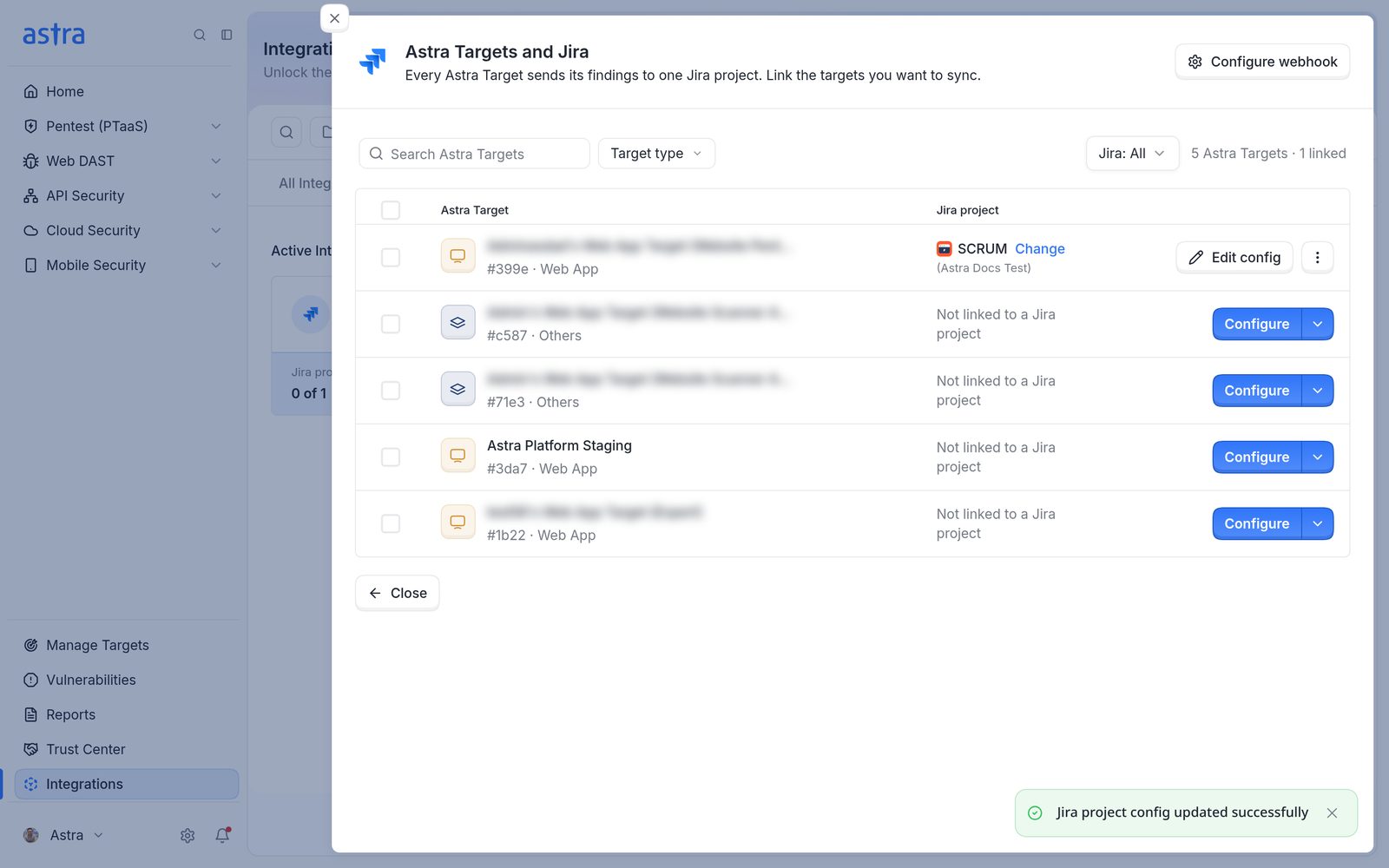
Astra Targets and Jira after saving a setup, with one target linked to SCRUM (Astra Docs Test), its Change link and Edit config button, and the Jira project config updated successfully message.
Edit config opens the same six steps with the saved choices filled in, starting at Jira project with the linked project already picked.
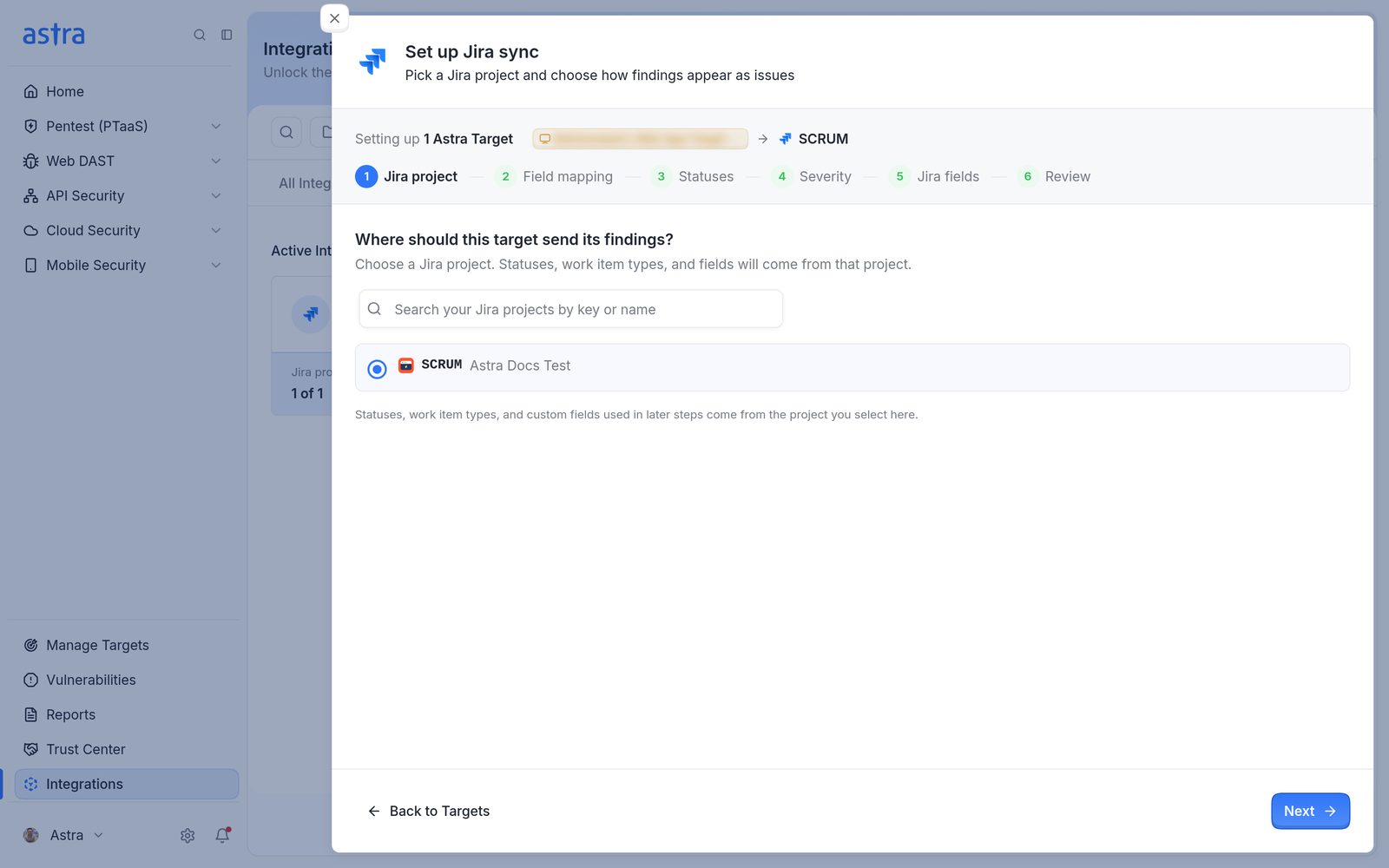
Set up Jira sync opened from Edit config, with the SCRUM project already selected.
Configure sync for a target
Set up Jira sync ("Pick a Jira project and choose how findings appear as issues") walks through six steps: Jira project, Field mapping, Statuses, Severity, Jira fields and Review. The top of the panel shows Setting up 1 Astra Target (or the number of targets being set up) and, once picked, the Jira project. Click Next to move on, Previous to go back a step, or click a finished step to jump back to it. Back to Targets returns to the list of targets without saving. Click Save configuration on the last step. Astra shows Jira project config updated successfully.
Step 1: Jira project
"Where should this target send its findings?" Pick the Jira project. Search with Search your Jira projects by key or name. Statuses, work item types and fields in the next steps come from this project. Changing the project later clears the mappings already made for this target, including the Jira field values.
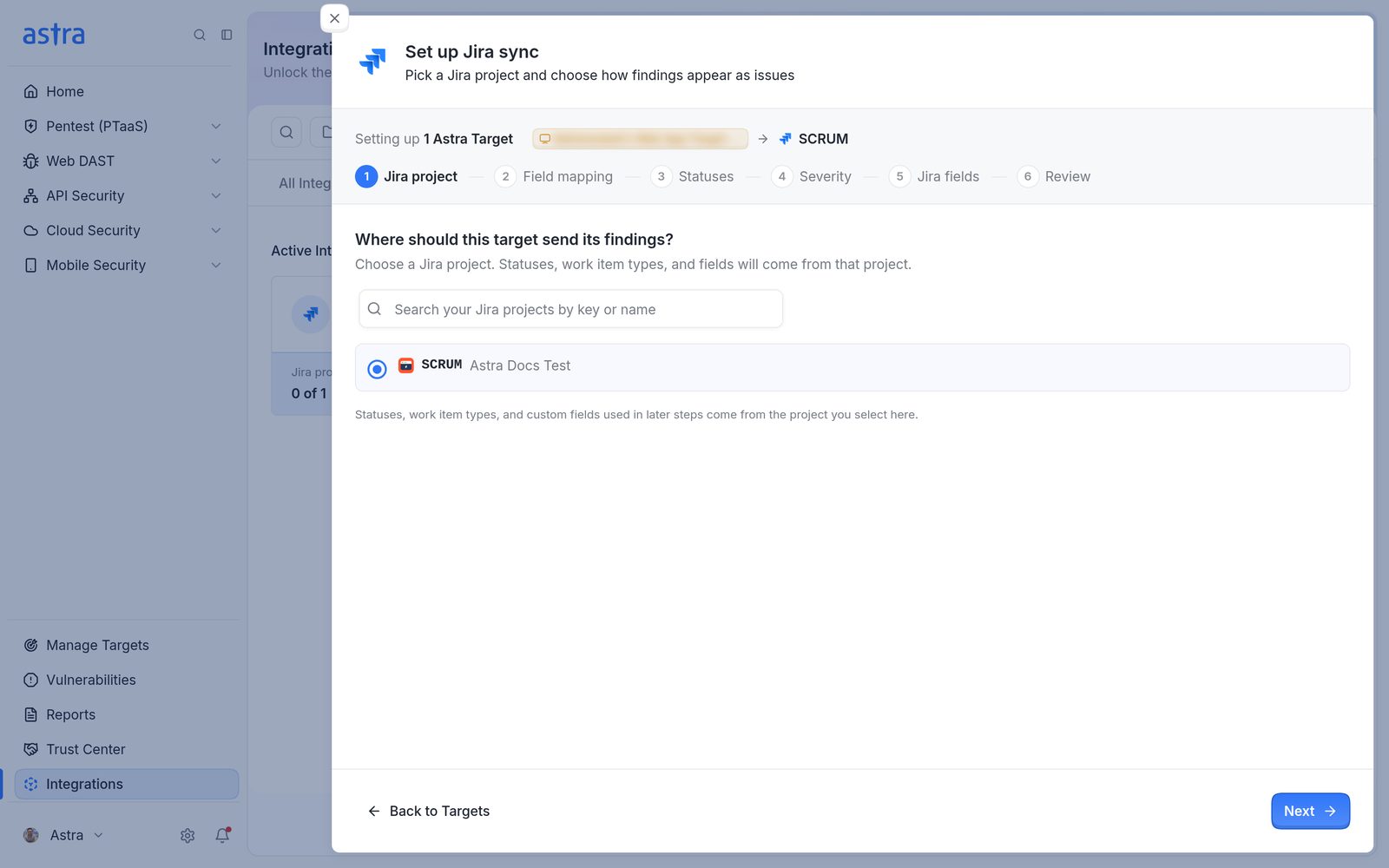
Step 1, Jira project, with the SCRUM project (Astra Docs Test) selected.
Step 2: Field mapping
"How should findings appear in Jira?" Astra creates one Jira issue for each vulnerability, and a smaller issue under it for every finding (each affected location of that vulnerability).
Which Jira work item type should an Astra Vulnerability become? Vulnerabilities are the parent. Most teams use Task or Epic. The list shows the Jira project's own work item types, for example Epic, Task and Story.
Which Jira work item type should an Astra Finding become? Findings sit under the vulnerability, so this is usually Subtask.
Important: Pick these two carefully. The statuses and required fields in the next steps are read from the work item types chosen here.
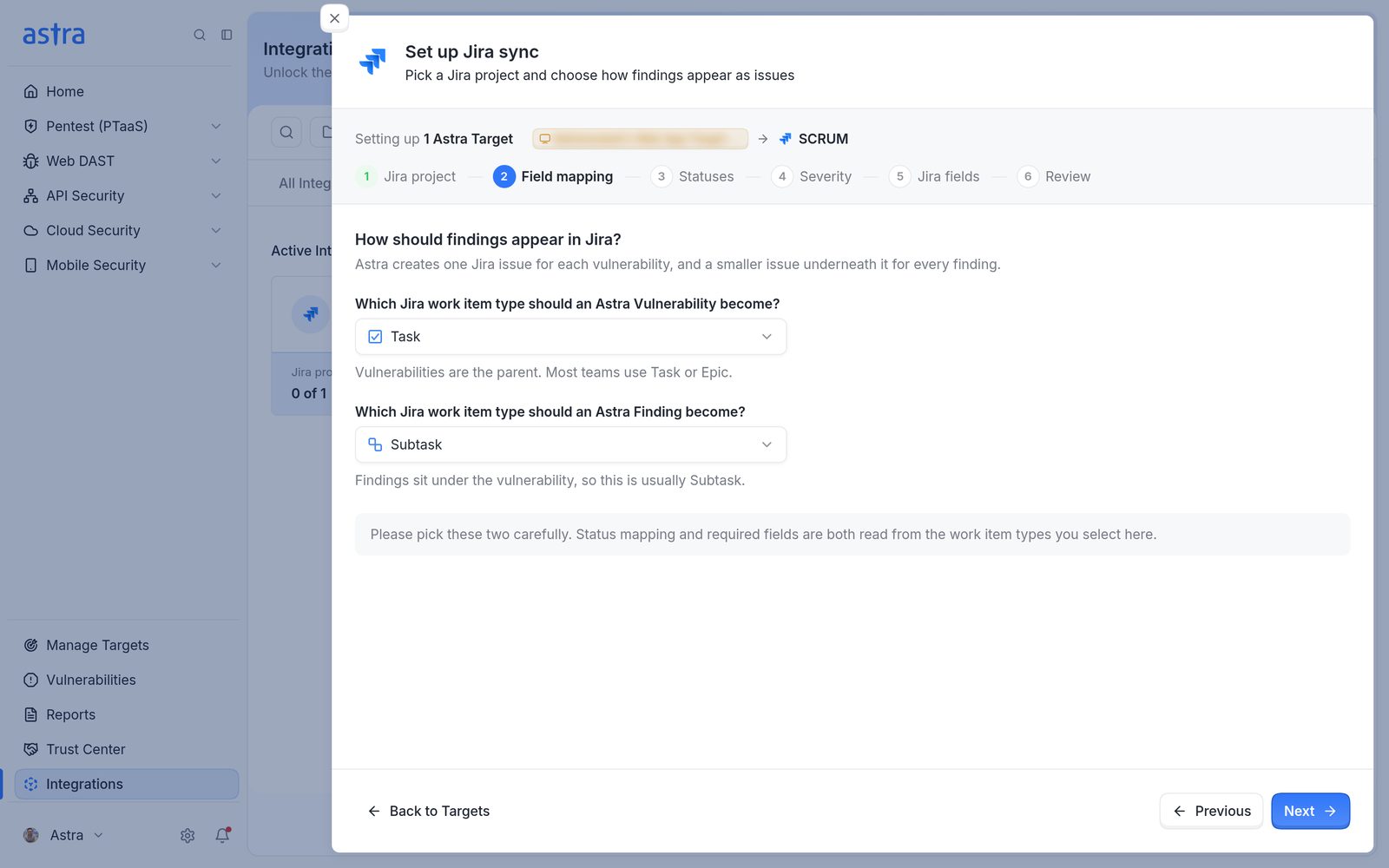
Step 2, Field mapping, with Task for an Astra Vulnerability and Subtask for an Astra Finding.
Step 3: Statuses
Status mapping has two sides, chosen under Sync direction:
Astra to Jira: "Change a vulnerability in Astra and its Jira issue follows." For each Astra status (Unsolved, Under Review, Accepted Risk, Need Help, Solved, False Positive), pick the Jira status the issue moves to.
Jira to Astra: "Change an issue in Jira and the vulnerability status in Astra follows." For each Jira status, pick the Astra status the vulnerability moves to, or leave it Not mapped. The choices are Unsolved, Under Review, Accepted Risk, Need Help and False Positive. Solved isn't offered: "A vulnerability can only be marked Solved after a rescan confirms the fix, so Solved is not offered here." To have a closed Jira issue lead to a rescan, map Done to Under Review. Several Jira statuses can point at the same Astra status, for example To Do and In Progress both to Unsolved.
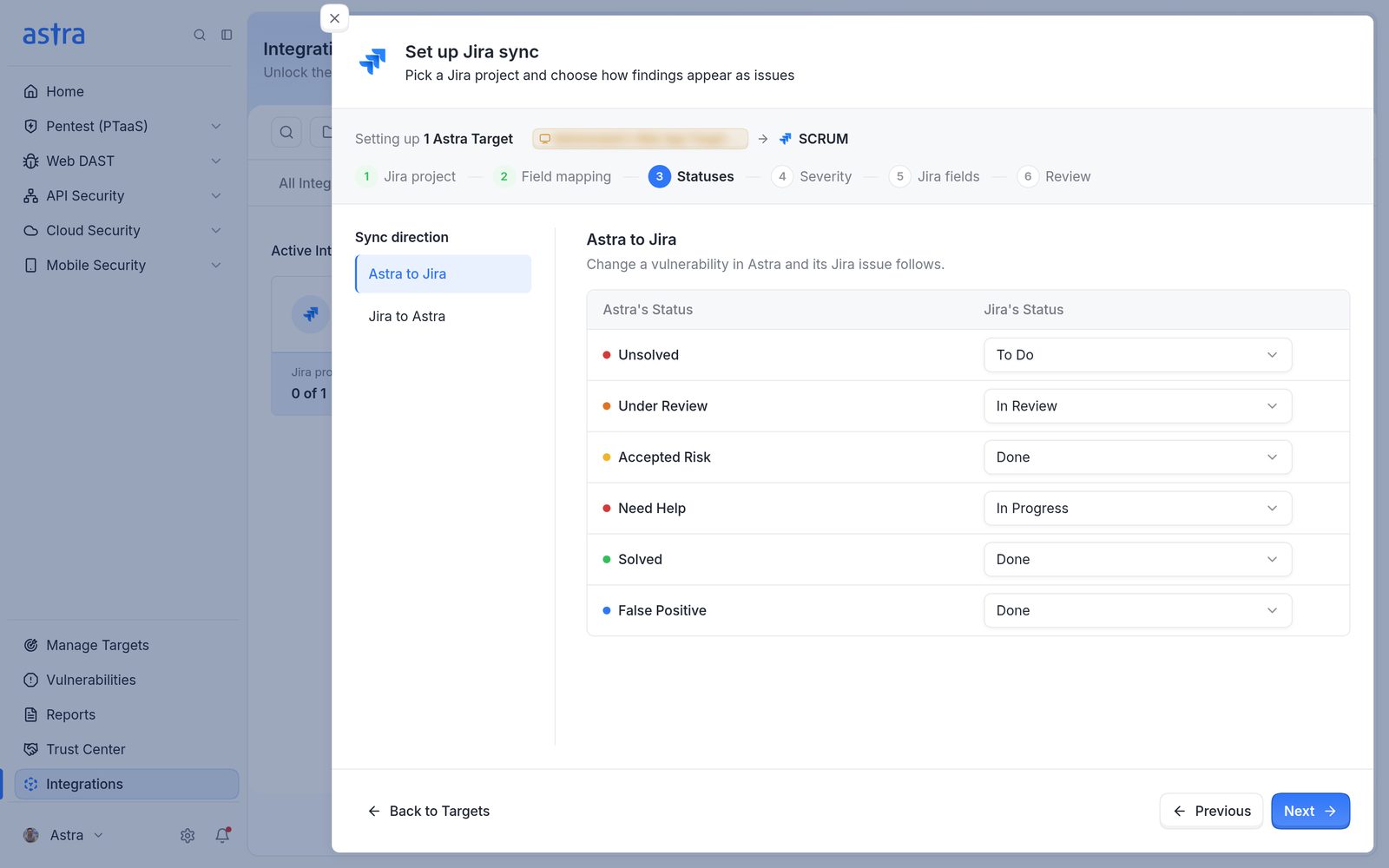
Step 3, Statuses, on Astra to Jira, with a Jira status picked for each of the six Astra statuses.
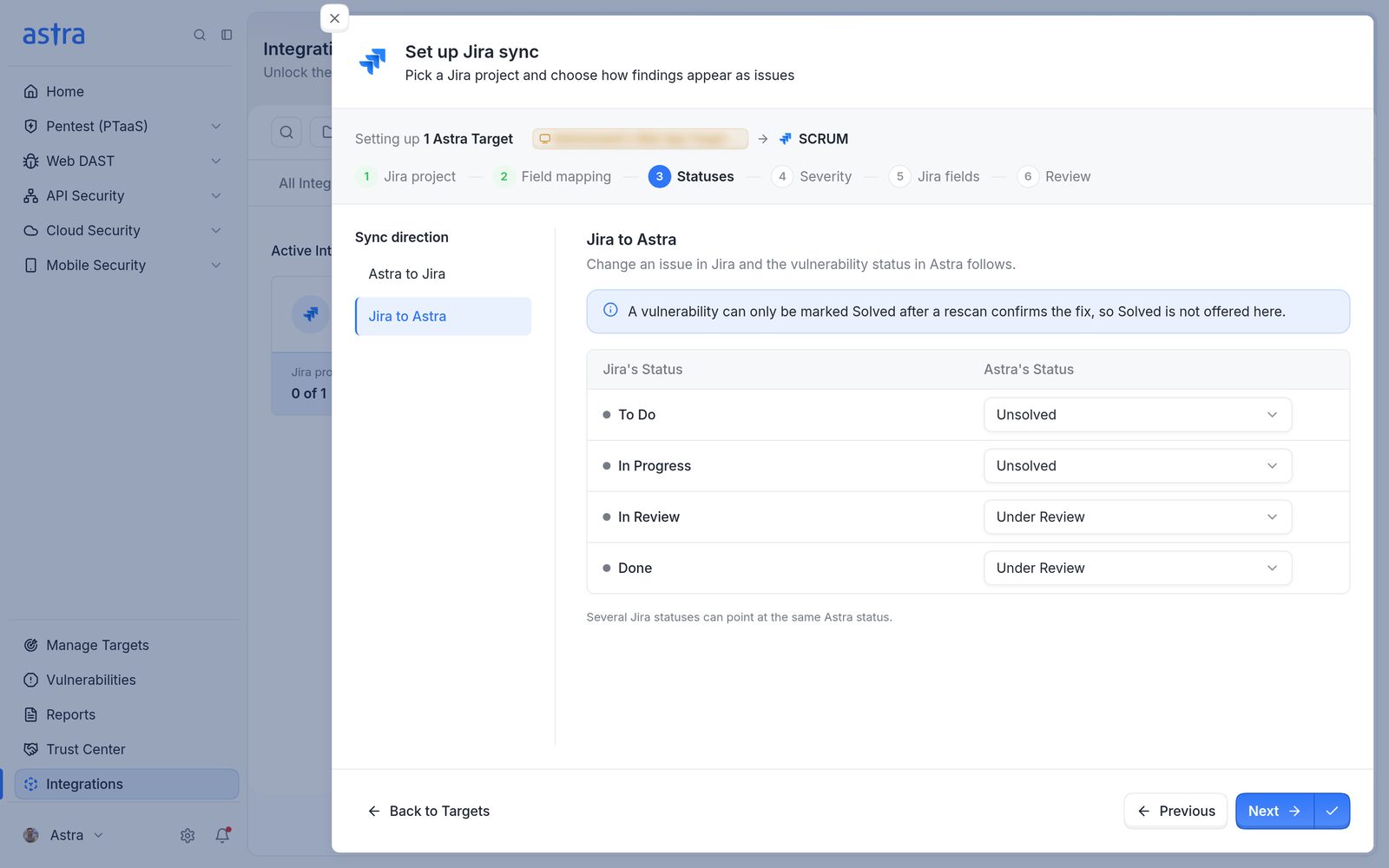
Step 3, Statuses, on Jira to Astra, with the note that Solved is not offered and the four Jira statuses mapped to Unsolved and Under Review.
Each side needs at least one mapping. Map Unsolved on the Astra to Jira side, because new vulnerabilities start as Unsolved and Astra won't create Jira issues for a target without it. The Jira to Astra side only takes effect once the webhook is set up (see Turn on two-way sync).
Note: Jira only allows the status moves its workflow permits. If the Jira workflow has no way to get from an issue's current status to the mapped one, the issue keeps its status and the vulnerability shows as out of sync.
Step 4: Severity
"Map Astra severity to Jira priority." Pick a Jira priority for each Astra severity, or leave it Not mapped. Priority only travels one way, from Astra into Jira. Changing the priority in Jira doesn't change the severity in Astra.
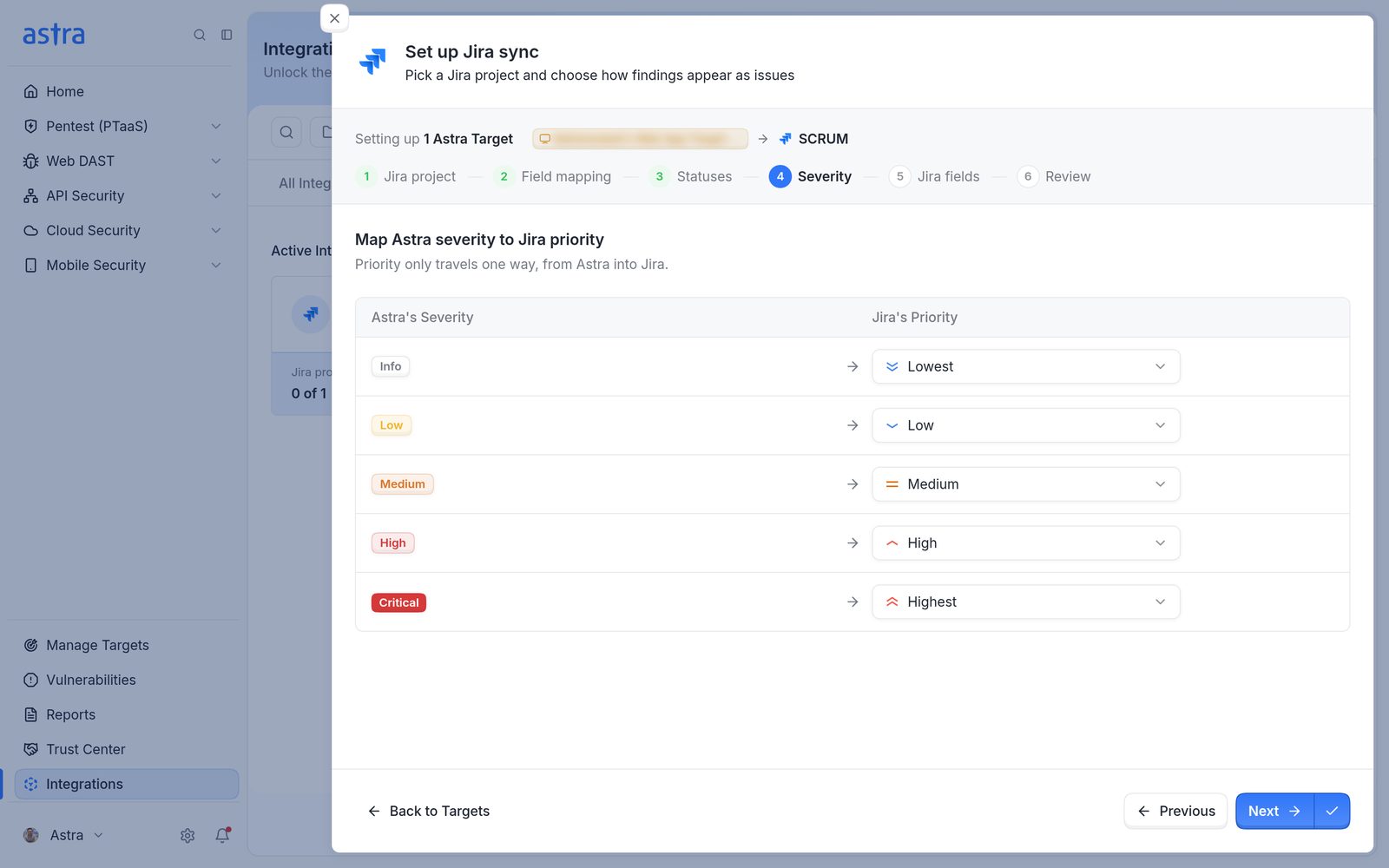
Step 4, Severity, with Info, Low, Medium, High and Critical mapped to Lowest, Low, Medium, High and Highest.
Step 5: Jira fields
This step lists the fields of the chosen work item types: "These are the fields this Jira project asks for on a Task. Some are Jira's own, some your team added." Use Vulnerability and Finding under Issue type on the left to switch between the two. Each work item type has its own fields.
Required fields: fields the Jira project makes mandatory. Every required field must have a value, or Astra can't create issues and shows Missing required Jira fields with the field names. A Jira project with no mandatory fields shows only Optional fields.
Optional fields: click Add optional field to fill in any other field. The button shows how many fields are left to add, and the list shows each field's name and type, for example Start date (Date) or Flagged (Multi checkboxes). Remove an added field with its ×.
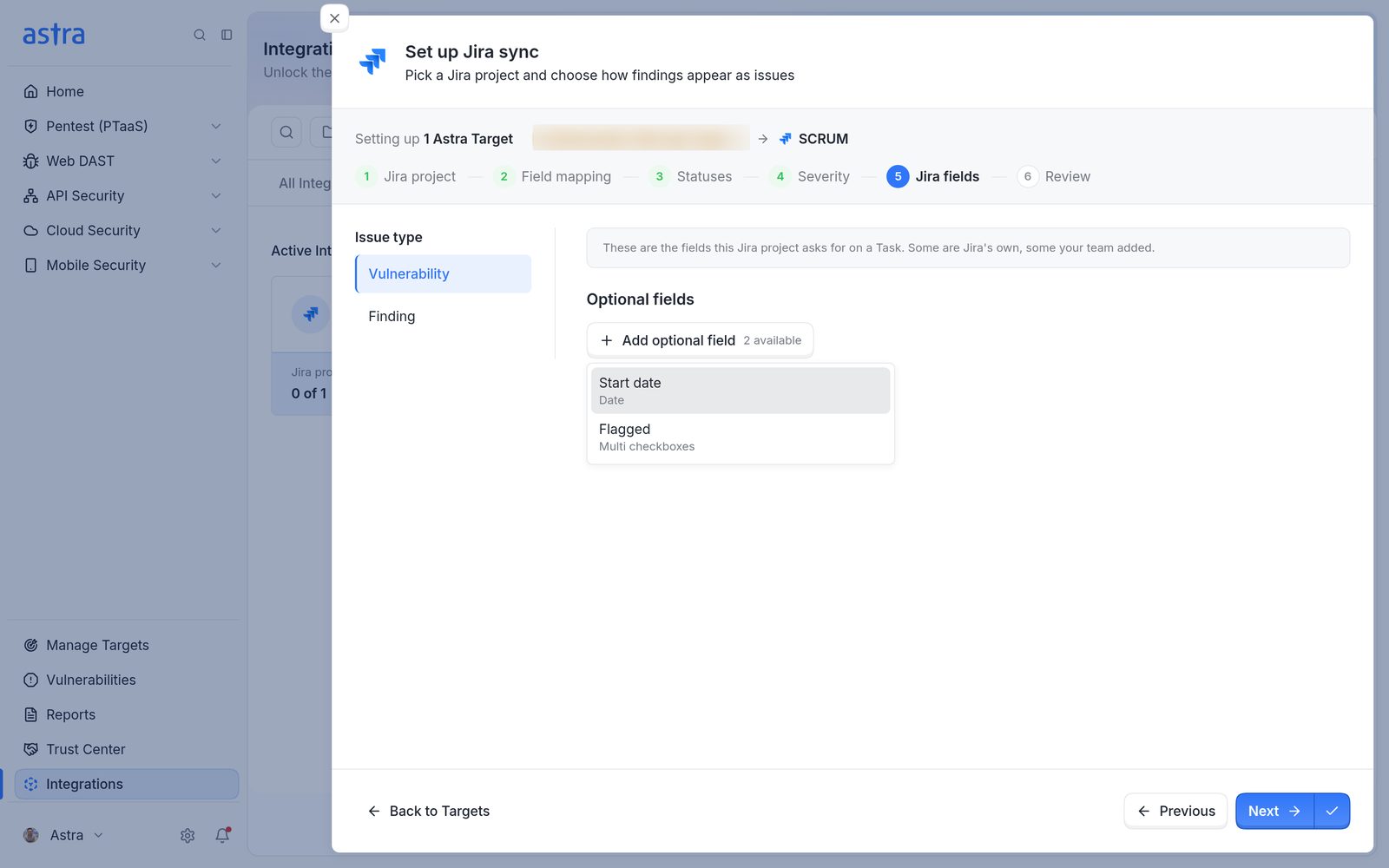
Step 5, Jira fields, with the Add optional field list open, showing Start date (Date) and Flagged (Multi checkboxes).
How a value is set depends on the field type:
Date fields: click Pick a date Astra should use. Choose Pick a calendar date ("Every issue gets the same date"), or a date Astra works out for each issue: Vulnerability reported date ("The day Astra found it"), Pentest/Scan reported date, Pentest/Scan start date or Date the issue is synced ("Whenever Astra writes to Jira"). Then add days on top if needed, from 0 to 365, for example to set a due date 30 days after the vulnerability is reported. Astra shows an example date under the field.
Text fields: type fixed text, or type
/to insert a value that changes per issue: Astra Target name, Vulnerability title, Severity or Pentest name.Other fields (lists, checkboxes, numbers, users and so on): pick or type one fixed value. For a checkbox field such as Flagged, tick the options to set, for example Impediment.
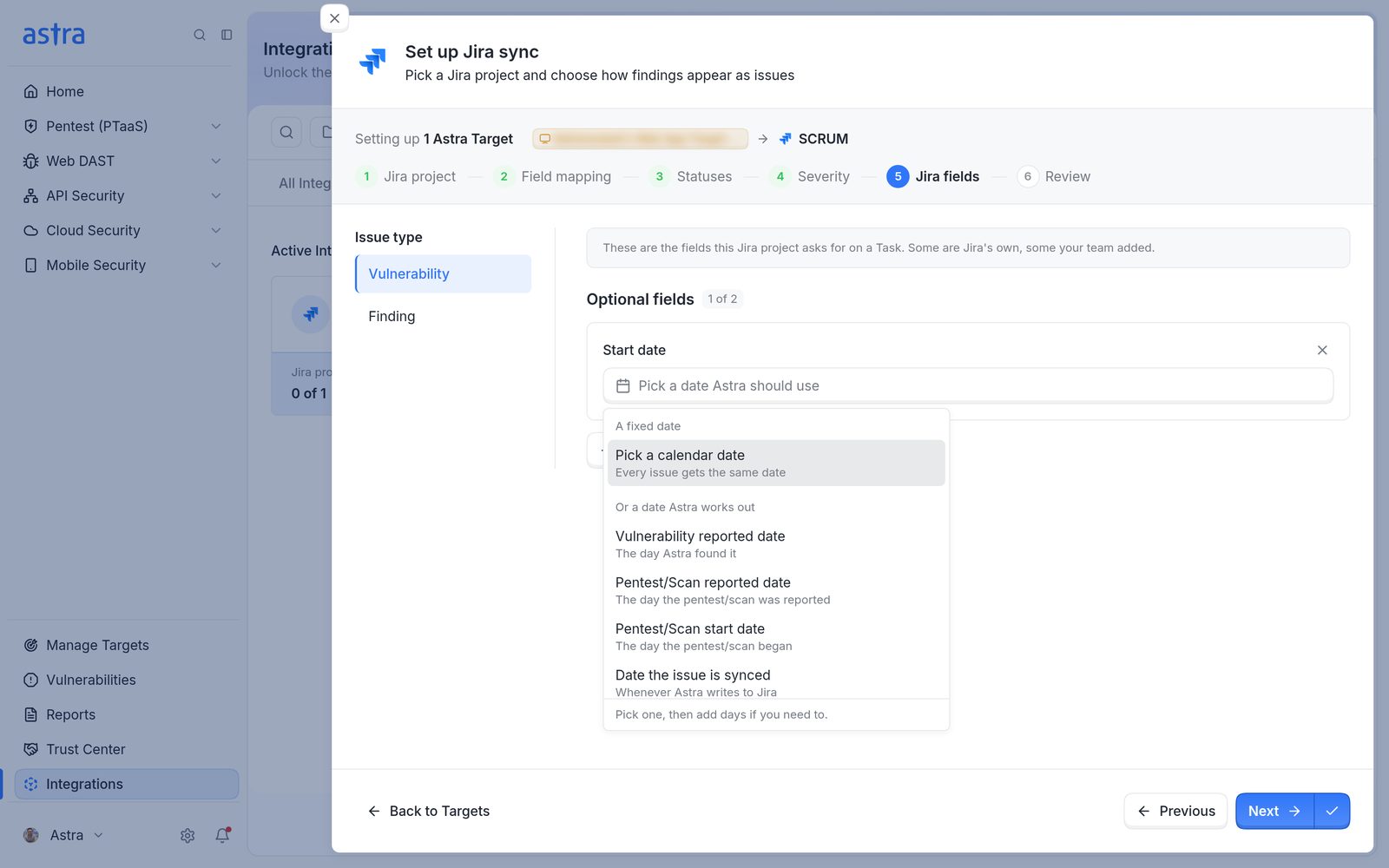
The date choices for a date field: Pick a calendar date, or Vulnerability reported date, Pentest/Scan reported date, Pentest/Scan start date and Date the issue is synced.
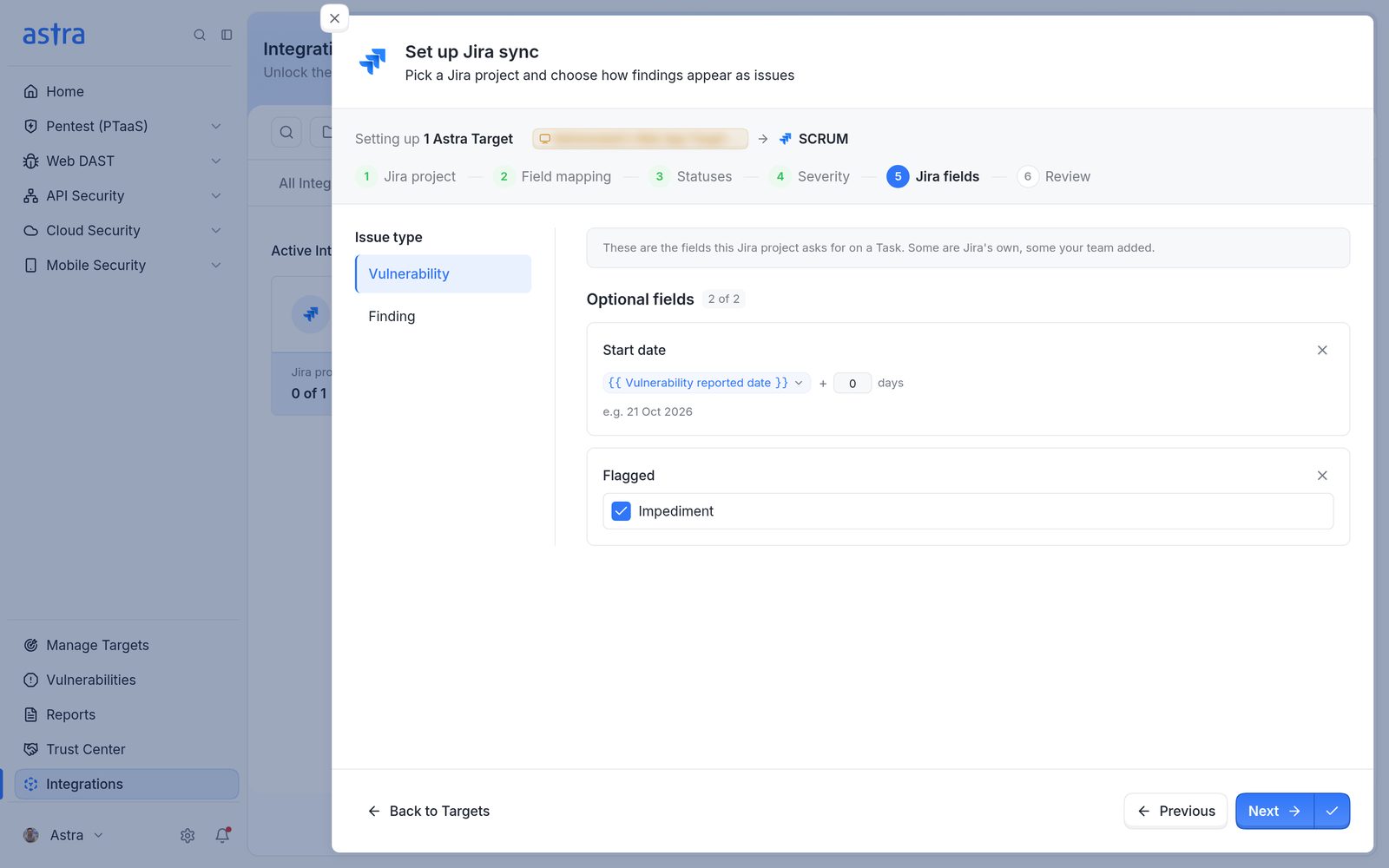
Step 5 with two optional fields set: Start date as Vulnerability reported date plus 0 days, and Flagged with Impediment ticked.
Step 6: Review
"Review this configuration." Check the work item types, both sides of the status mapping, severity and the number of required and optional Jira fields, then click Save configuration. Any of it can be changed later with Edit config. Astra shows Jira project config updated successfully and returns to Astra Targets and Jira, where the target now shows its Jira project.
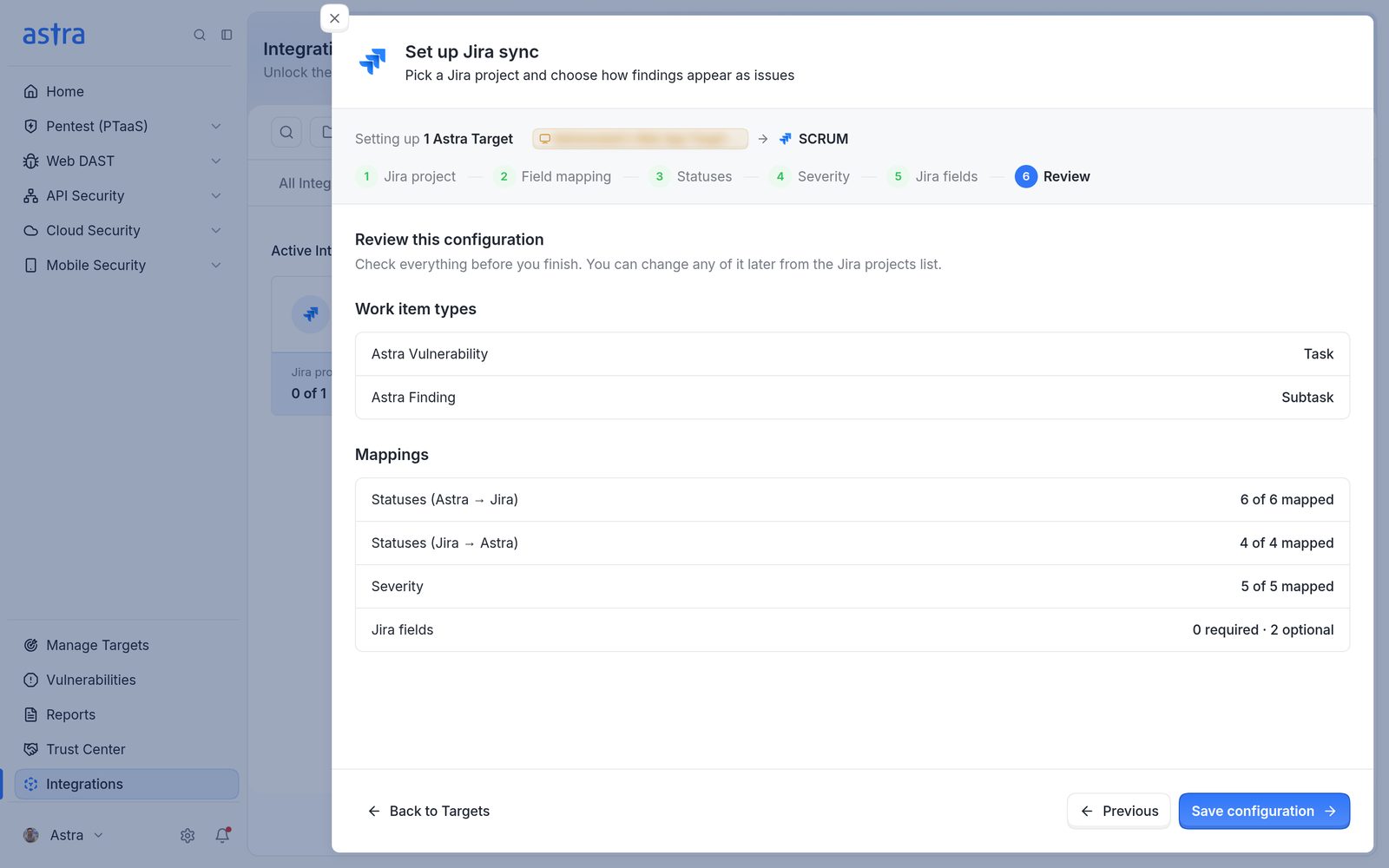
Step 6, Review, with the work item types, 6 of 6 and 4 of 4 statuses mapped, 5 of 5 severities mapped, 0 required and 2 optional Jira fields, and the Save configuration button.
Copy a setup from another target
Copy from a target already set up starts the steps with another target's choices already filled in. "Which Jira project should Astra copy from?" lists the Jira projects that already have a working setup, with how many targets use each. Pick one and click Copy this configuration. The work item types, statuses, severity and required fields are copied. Change anything that differs, then save.
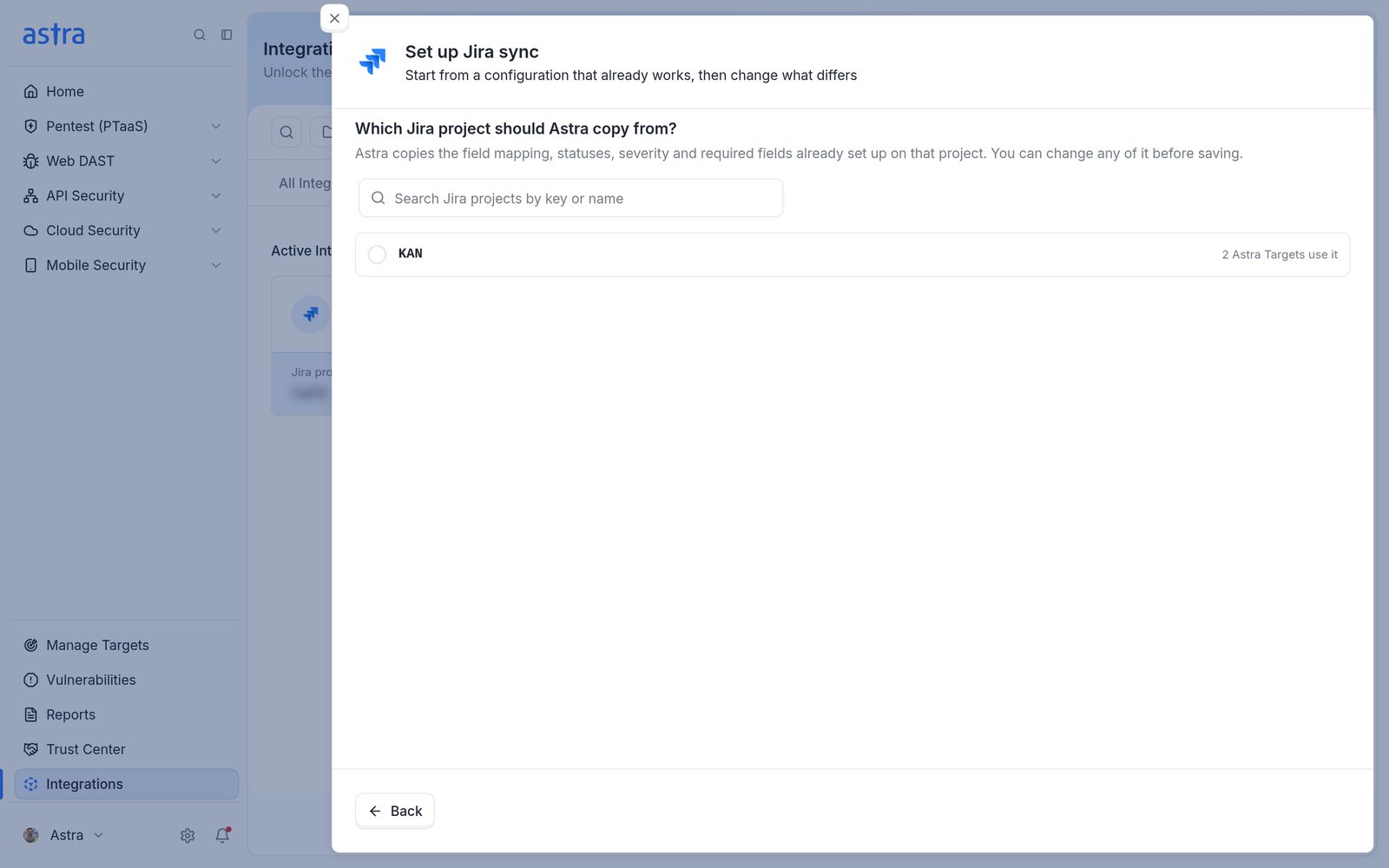
Which Jira project should Astra copy from?, listing the KAN project and the number of targets that use it.
Configure several targets at once
Tick the boxes of the targets to set up. Selections carry across pages. A bar appears with the number selected:
Configure targets (or Configure target for one) opens the same six steps for every selected target. If all selected targets already share the same setup, the main button is Edit config instead.
The arrow next to it offers Edit config, Configure from scratch and Copy from a target already set up. Edit config is greyed out when the selected targets have different Jira setups, or when some aren't configured yet.
Remove links unlinks every selected target (see Remove a target's link).
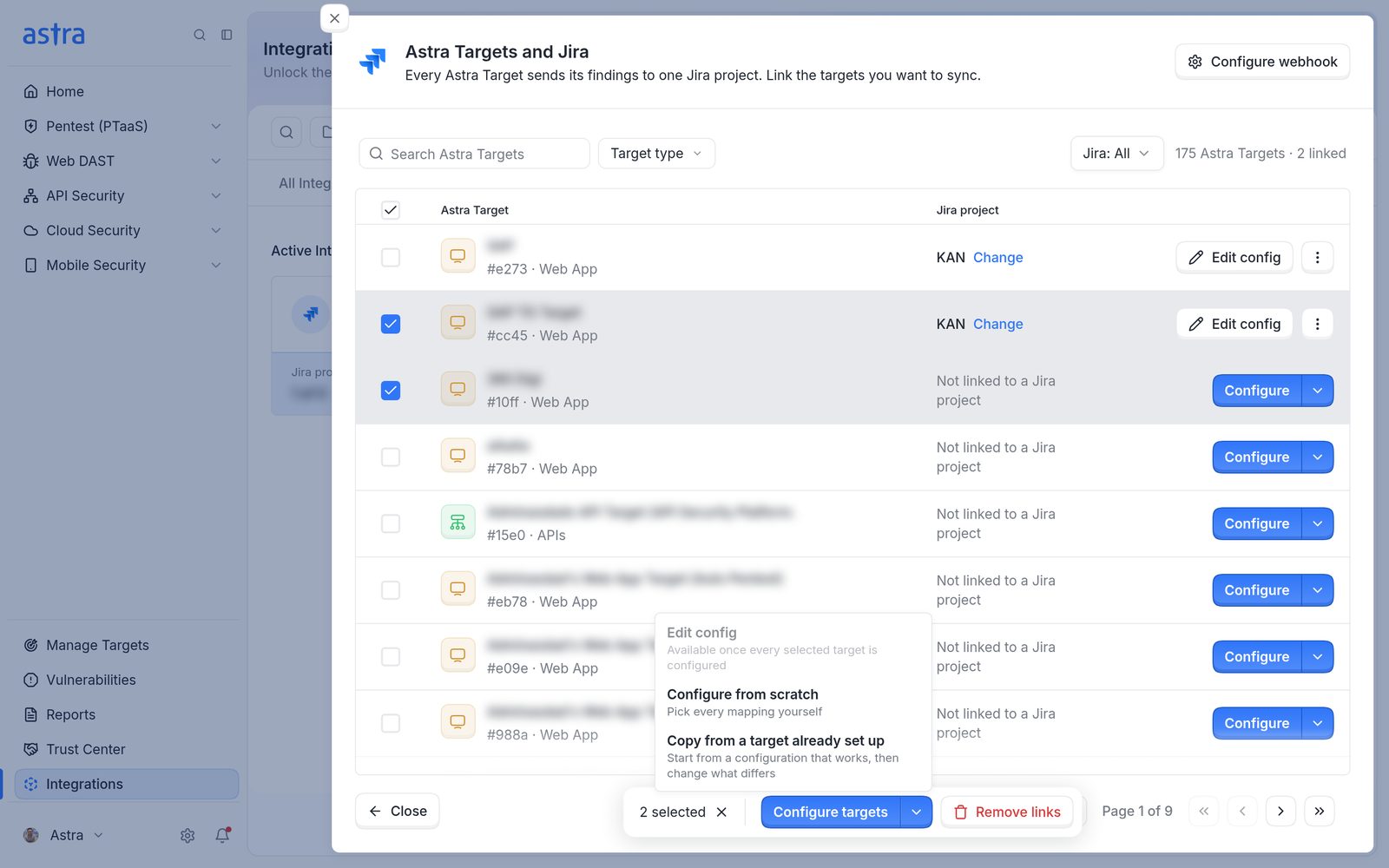
Two targets selected, with the bar at the bottom and the menu next to Configure targets open. Edit config is greyed out because one target isn't configured yet.
If some selected targets already have a setup, Astra asks Replace existing setup? before saving. Click Continue to replace it. While saving, Astra shows Saving configuration for the number of targets, then Configuration saved for them. If only some save, it shows how many of the total were saved. The ones that didn't save can be selected again and retried.
Turn on two-way sync
Without the webhook, sync runs one way: Astra creates and updates Jira issues, and changes made in Jira stay in Jira. With the webhook, Jira tells Astra about status changes and comments, so they come back into Astra. "Two-way sync stays off until the secret is saved here and the webhook exists in Jira."
In Astra Targets and Jira, click Configure webhook at the top. The Configure webhook panel walks through it:
Open WebHooks in Jira. "Needs the Admin Jira global permission. Create a WebHook, name it Astra, and leave it Enabled." In Jira, go to Settings > System > Advanced > WebHooks. The permission is called Administer Jira in Jira.
Paste the URL. Copy the webhook URL shown in Astra into the webhook's URL field in Jira. The URL is unique to this Jira connection.
Paste the secret. "Click Generate secret, or type your own, and paste that value here." Generate secret is a button in Jira's webhook form. Astra doesn't create a secret, it only stores the one from Jira. Paste the same secret into the field in Astra (Paste the Jira webhook secret). It must be at least 8 characters, or Astra shows Secret must be at least 8 characters long.
Check these events only. "Check only these. Astra rejects anything else. Leave Exclude body unchecked." Tick Issue: updated (status changes sync back into Astra) and Comment: created, updated and deleted (comments sync both ways).
Paste the JQL. This step shows once at least one target is configured. "Replace All issues under Issue related events with this, then click Create. Only the linked projects will fire." The JQL lists the Jira projects linked to targets, for example
project in (SCRUM).
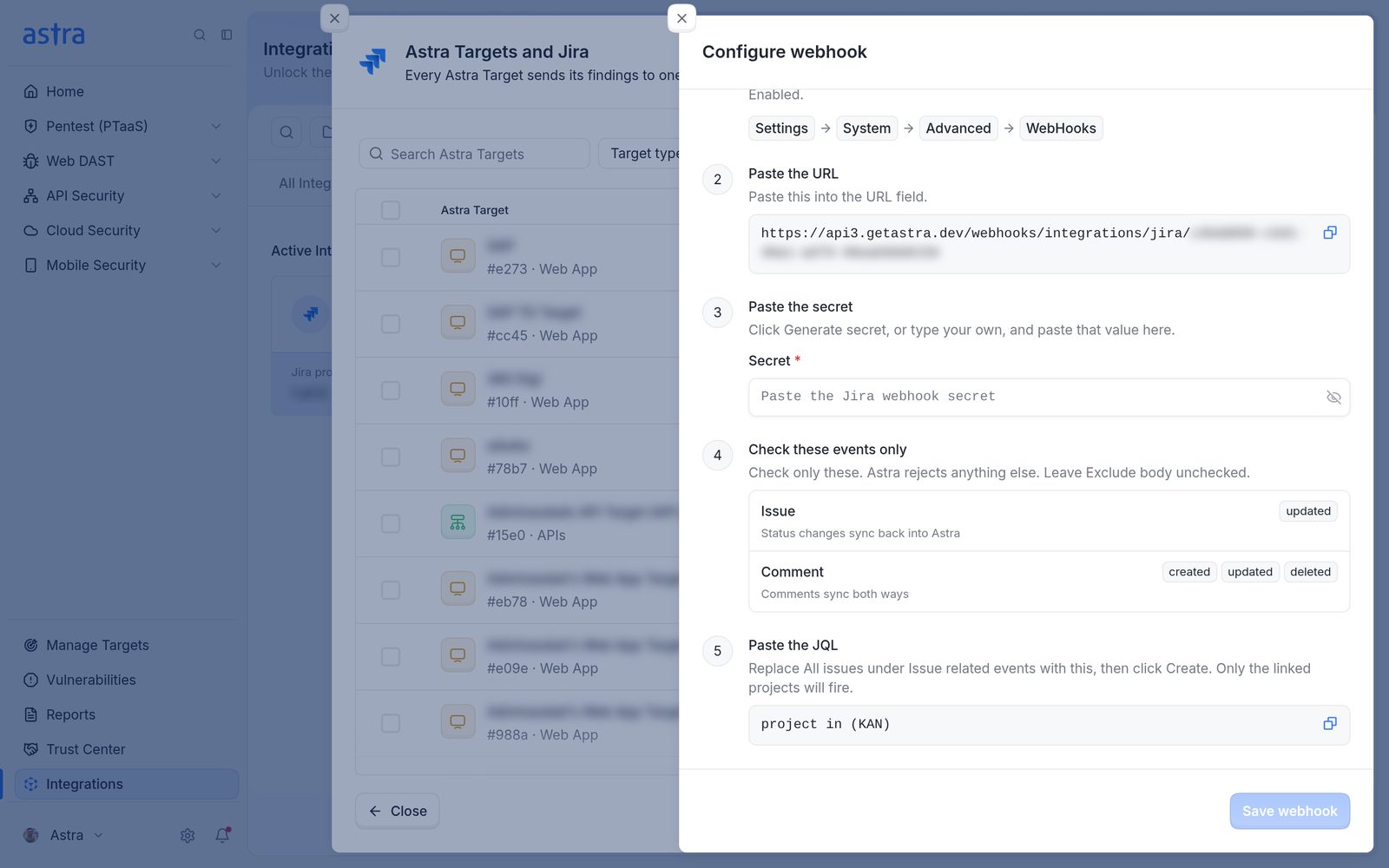
The Configure webhook panel with the five steps: open WebHooks in Jira, the webhook URL, the secret, the events to tick and the JQL.
Click Save webhook in Astra. Astra shows Webhook secret saved, and the button at the top of Astra Targets and Jira changes to Two-way sync configured.
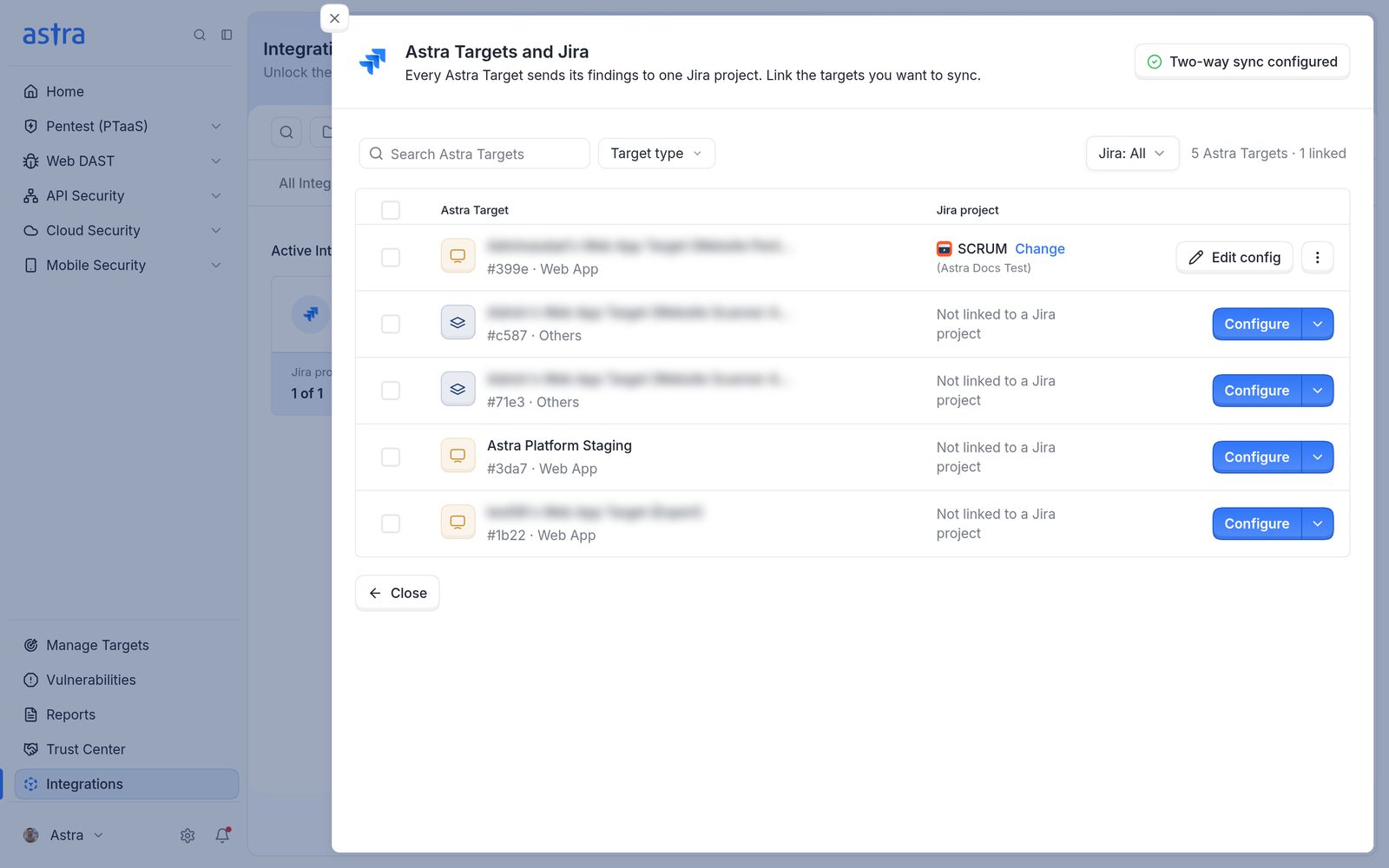
Astra Targets and Jira with the Two-way sync configured button at the top.
Change the webhook later
Click Two-way sync configured to open the Webhook panel. "Two-way sync is configured. A webhook secret is stored for this connection. Edit the existing Jira webhook to change events or the JQL. Do not create a second webhook." It has three steps:
Open the Astra webhook. "Needs the Administer Jira global permission. Change events here. Check only these." It shows the Jira menu path, the webhook URL and the events (Issue: updated, Comment: created, updated, deleted).
Replace the JQL. "Replace the query under Issue related events." Copy the JQL shown, for example
project in (SCRUM), into the existing Astra webhook in Jira.Replace the secret only if Jira has a new one. "Leave this blank to keep the saved secret. If you generate a new one in Jira, paste it here." Paste it into New secret.
Click Done to close the panel.
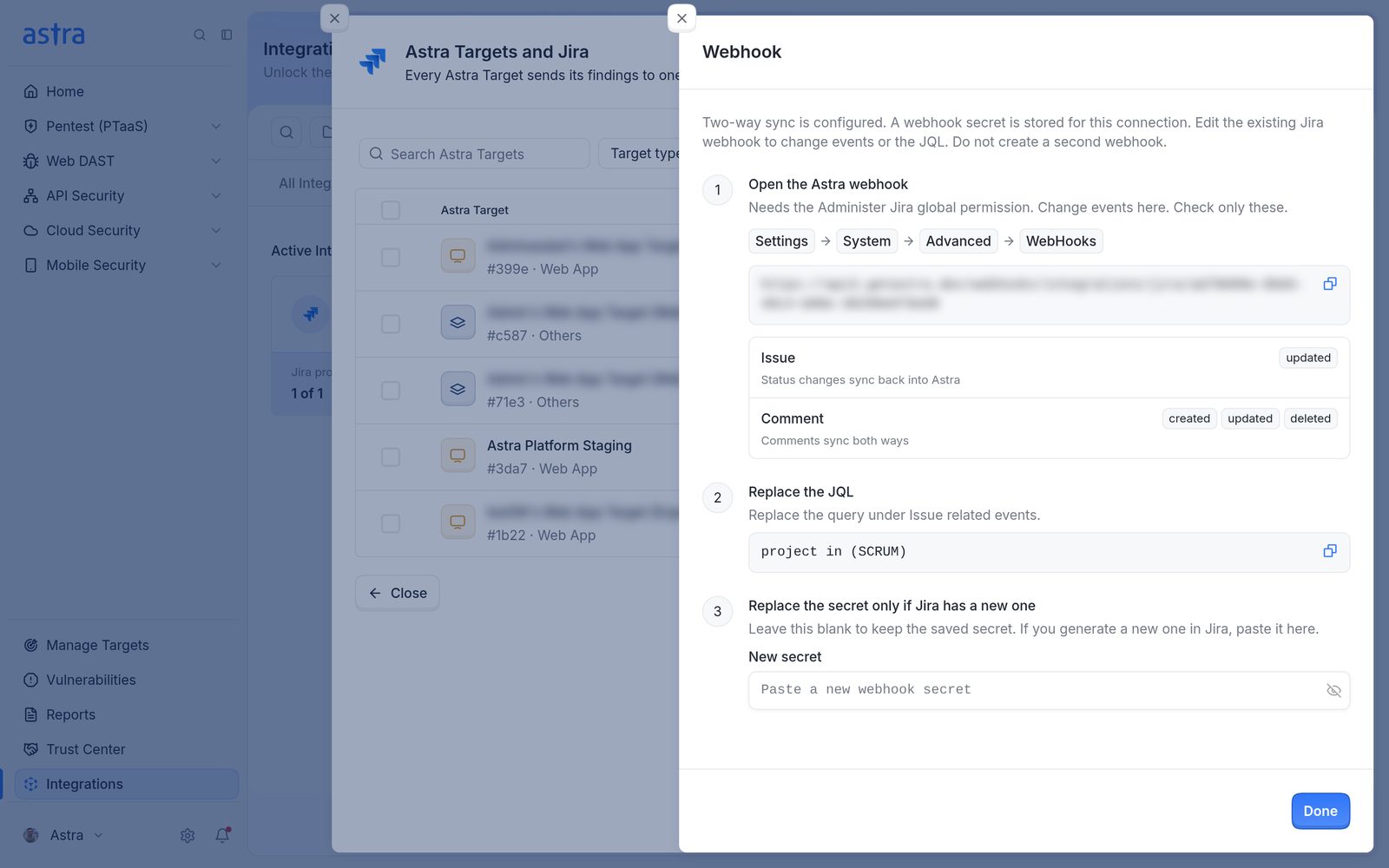
The Webhook panel for a configured connection, with Open the Astra webhook, Replace the JQL and Replace the secret only if Jira has a new one. The secret field is empty.
Important: Each Jira connection uses one webhook. When more targets or Jira projects are linked later, click Two-way sync configured, copy the new JQL and paste it into the existing Astra webhook in Jira. Don't create a second webhook.
How sync works
"Sync" means two things in Astra:
Automatic sync: once a target is linked and set up, Astra keeps its Jira issues up to date on its own. Issues are created when a pentest reaches Vulnerabilities Reported, and later changes follow automatically.
Sync with Jira: a button on a pentest or scan that creates the Jira issues that are still missing, for example when Jira was set up after the vulnerabilities were reported. See Sync a pentest with Jira.
What travels each way:
Astra to Jira | Jira to Astra (needs the webhook) | |
|---|---|---|
New vulnerabilities and findings | Created as Jira issues and sub-issues | No |
Status | Yes, using the Astra to Jira mapping | Yes, using the Jira to Astra mapping |
Severity / priority | Severity sets the Jira priority | No |
Comments | Yes | Yes, including attachments, which show as tiles in the vulnerability's chat |
Other Jira fields, such as assignee | Set from the Jira fields step when the issue is created | No |
Rules for status changes coming from Jira:
A vulnerability that's already Solved in Astra doesn't change.
Once a pentest is Completed, status changes in Jira no longer reach Astra. Astra adds a comment on the Jira issue explaining why.
While a vulnerability is being rescanned (Re-Scan in Progress), Astra may refuse the change and add a comment on the Jira issue explaining why.
A change that came from Jira shows in the vulnerability's history as Status synced from Jira.
On plans with automatic rescans, moving a Jira issue to a status mapped to Under Review asks Astra to rescan that vulnerability.
When Jira issues are created
Before Vulnerabilities Reported: no Jira issues yet. The Jira button on each vulnerability is greyed out and explains that issues are created once the pentest reaches the Vulnerabilities Reported stage. On a linked target the message reads "This vulnerability will sync to Jira once the pentest reaches the Vulnerabilities Reported stage."
At Vulnerabilities Reported: for a linked target, Astra creates the Jira issues for the pentest automatically. False Positive vulnerabilities are skipped.
After that, on a linked target: if some issues are missing, use Sync with Jira in the pentest header. The Jira button on the vulnerability explains this: "Use Sync with Jira in the pentest header to create the Jira issue for this vulnerability."
Everything else: on targets that aren't linked, automated scans, False Positive vulnerabilities, or pentests reported more than 30 days ago, the Create JIRA Issue button stays available for one vulnerability at a time.
Create a Jira issue for one vulnerability
Click the Jira icon in the vulnerability's row on Vulnerabilities, or Create JIRA Issue at the top of the vulnerability details.
The Create JIRA Issue panel opens. Check the Project (search with Search Jira projects...; on a linked target it's filled in with the linked project) and pick the Issue Type from the Jira project's types, for example Epic, Task or Story.
Check the Summary and Description Astra filled in from the vulnerability. The description can be up to 32,000 characters.
Click Add to Jira. Astra shows Jira issue created, and the button changes to Open in JIRA, which opens the new issue in Jira. The Jira issue links back to Astra with View Full Vulnerability Report in Astra.
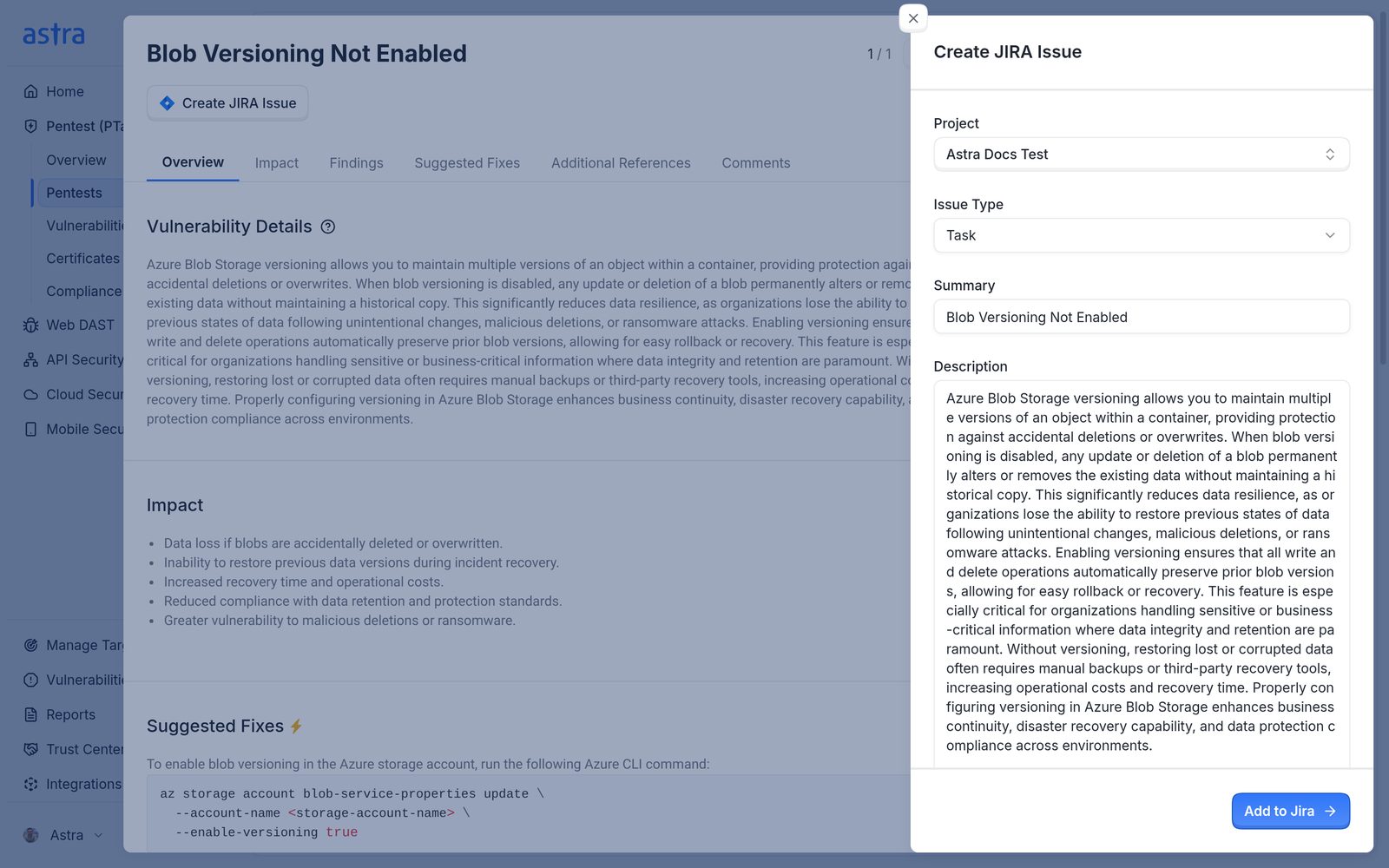
The Create JIRA Issue panel with the Astra Docs Test project, the Task issue type, and the summary and description filled in from the vulnerability.
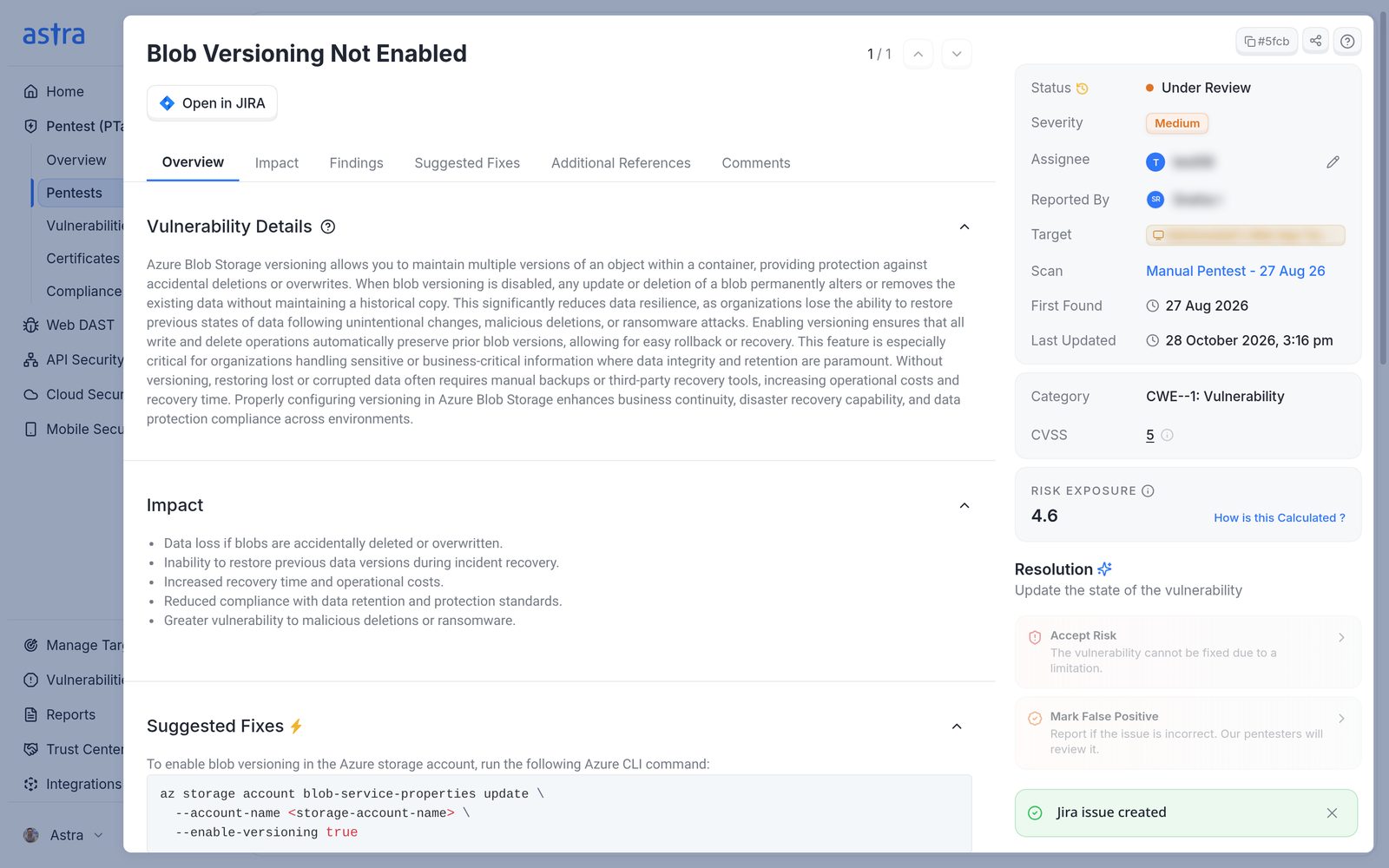
The vulnerability details after the issue was created, with the Open in JIRA button and the Jira issue created message.
Sync a pentest with Jira
Sync with Jira is in the pentest or scan header. If Vanta is also connected, it's under a Sync menu.
Before the pentest reaches Vulnerabilities Reported (or before a scan completes), the header shows a greyed-out Jira icon whenever Jira is connected. On a linked target it explains "Vulnerabilities will sync to Jira once the pentest reaches the Vulnerabilities Reported stage." On a target that isn't linked it reads "Jira issues can be created once the pentest reaches the Vulnerabilities Reported stage." For a scan, the message ends with "once the scan is completed."
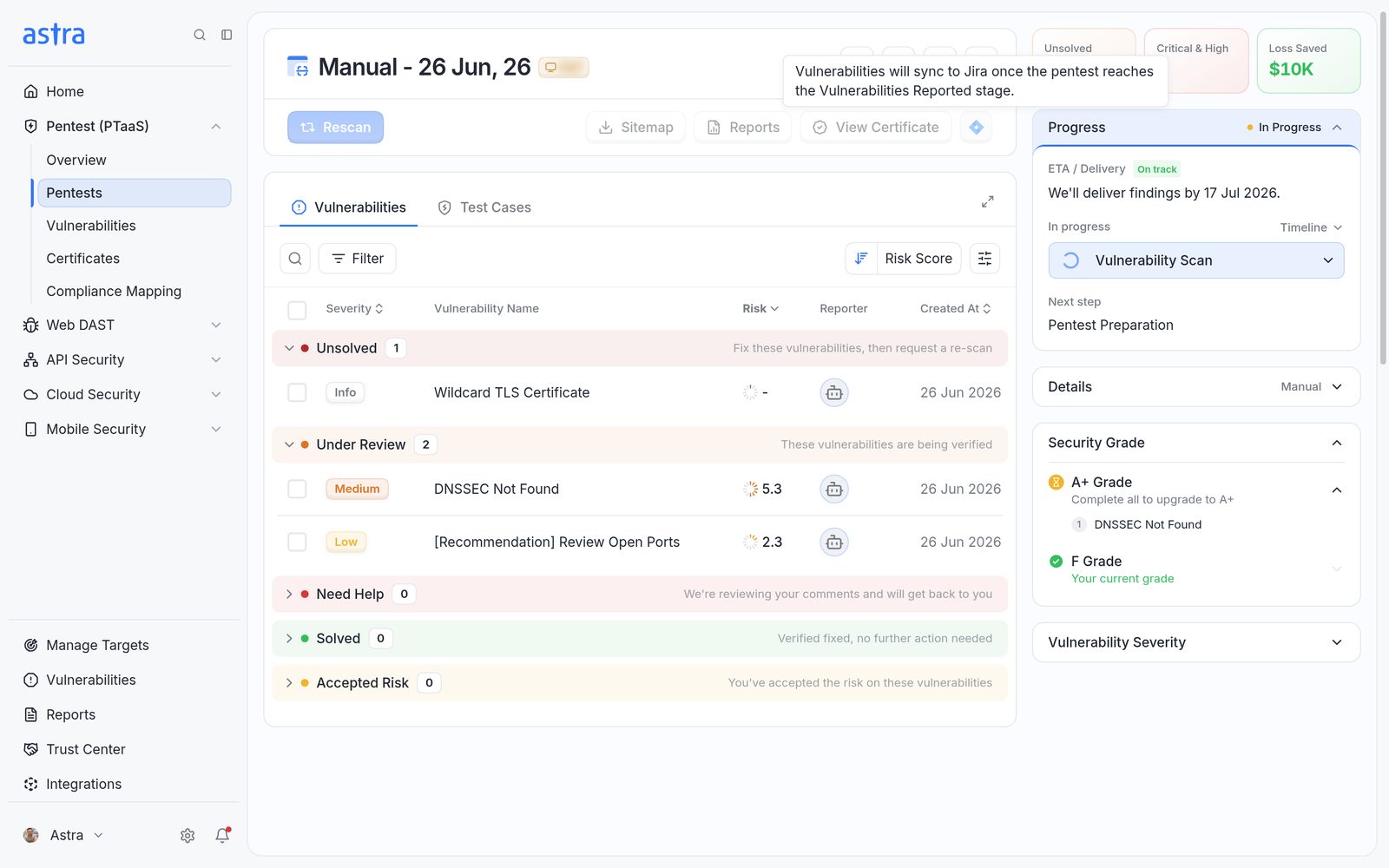
A pentest that's still in progress, with the greyed-out Jira icon in the header and its tooltip.
Normally you don't need the button. When a pentest on a linked target reaches Vulnerabilities Reported, Astra creates its Jira issues automatically. Sync with Jira only appears when something is left over: a reported pentest with at least one vulnerability that has no Jira issue, for example one added after the report. A vulnerability added later isn't synced automatically.
The button shows when:
the target is linked to a Jira project and set up,
the pentest is at Vulnerabilities Reported (for a scan, once it has completed), and
at least one vulnerability doesn't have a Jira issue yet.
It can be clicked when the vulnerabilities were reported in the last 30 days and Astra can reach Jira. Once every vulnerability has a Jira issue, the button is hidden.

The pentest header with the Sync with Jira button next to Reports and View Certificate.
To create the missing issues:
Click Sync with Jira in the pentest header. There's no confirmation step: the sync starts straight away.
Astra shows Jira sync started. The button greys out with a spinner while the sync runs.
When it's done, Astra shows Jira sync completed successfully and the button disappears from the header.

The Sync with Jira button greyed out with a spinner while the sync runs.
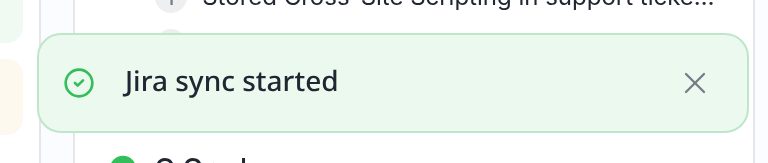
The Jira sync started message.
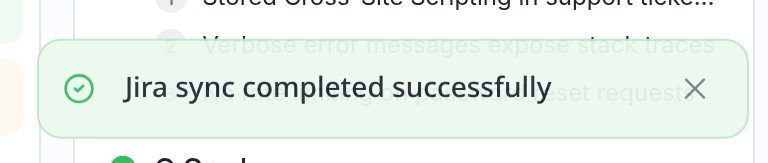
The Jira sync completed successfully message.

The pentest header after the sync. Sync with Jira is no longer shown.
Each vulnerability that was synced now has Open in JIRA at the top of its details, which opens its Jira issue (in our example, SCRUM-14 in the SCRUM project). Only vulnerabilities without a Jira issue are created, so running it again never makes duplicates. Only one sync can run for a pentest at a time.
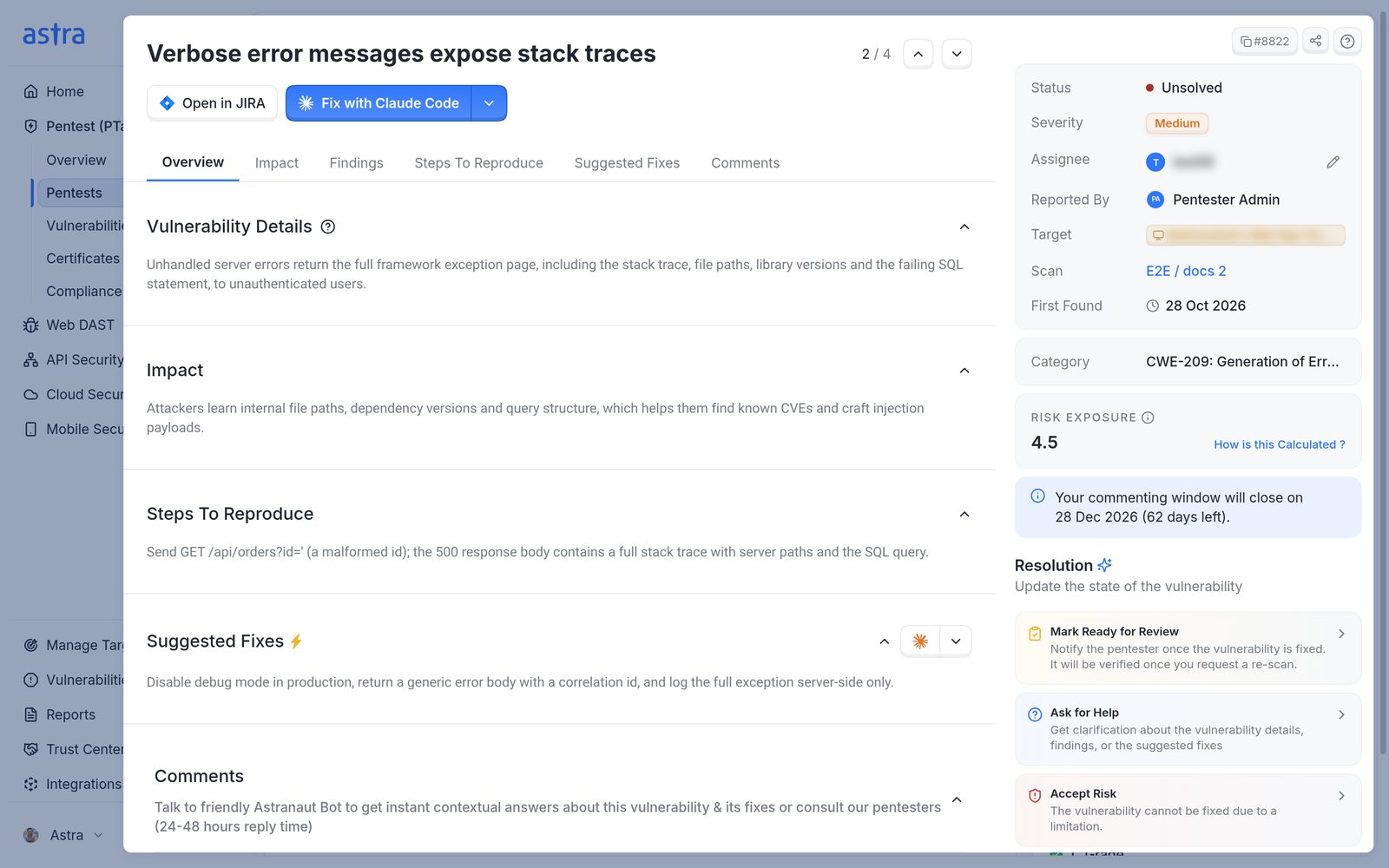
The details of the vulnerability that was synced, with the Open in JIRA button.
After 30 days the button is greyed out with "Jira sync is only available for up to 30 days after vulnerabilities are reported. Contact support to sync this pentest." The Astra team can run the sync after that. If Astra can't reach Jira, the button is greyed out with the error and a link to check Integrations.
If a sync doesn't finish cleanly:
Jira sync finished with some vulnerabilities still unsynced. Some issues couldn't be created, often because a required Jira field has no value. Check the target's setup, then run it again.
Jira sync failed — project or issue mapping isn't set up. The target's setup is incomplete, or Unsolved isn't mapped on the Astra to Jira side. Click Edit config on the target and finish the steps.
Jira sync timed out. Try again. or Jira sync failed. Try again. Run it again. Issues already created aren't duplicated.
Track Jira issues from the Vulnerabilities page
The Vulnerabilities table has a Jira column. It shows Open in JIRA for vulnerabilities that have a Jira issue, and the create button for those that don't. To list only one group, click Add filter > Jira Ticket and pick Linked or Not linked. For more on the page, see Overview of Vulnerabilities Page.
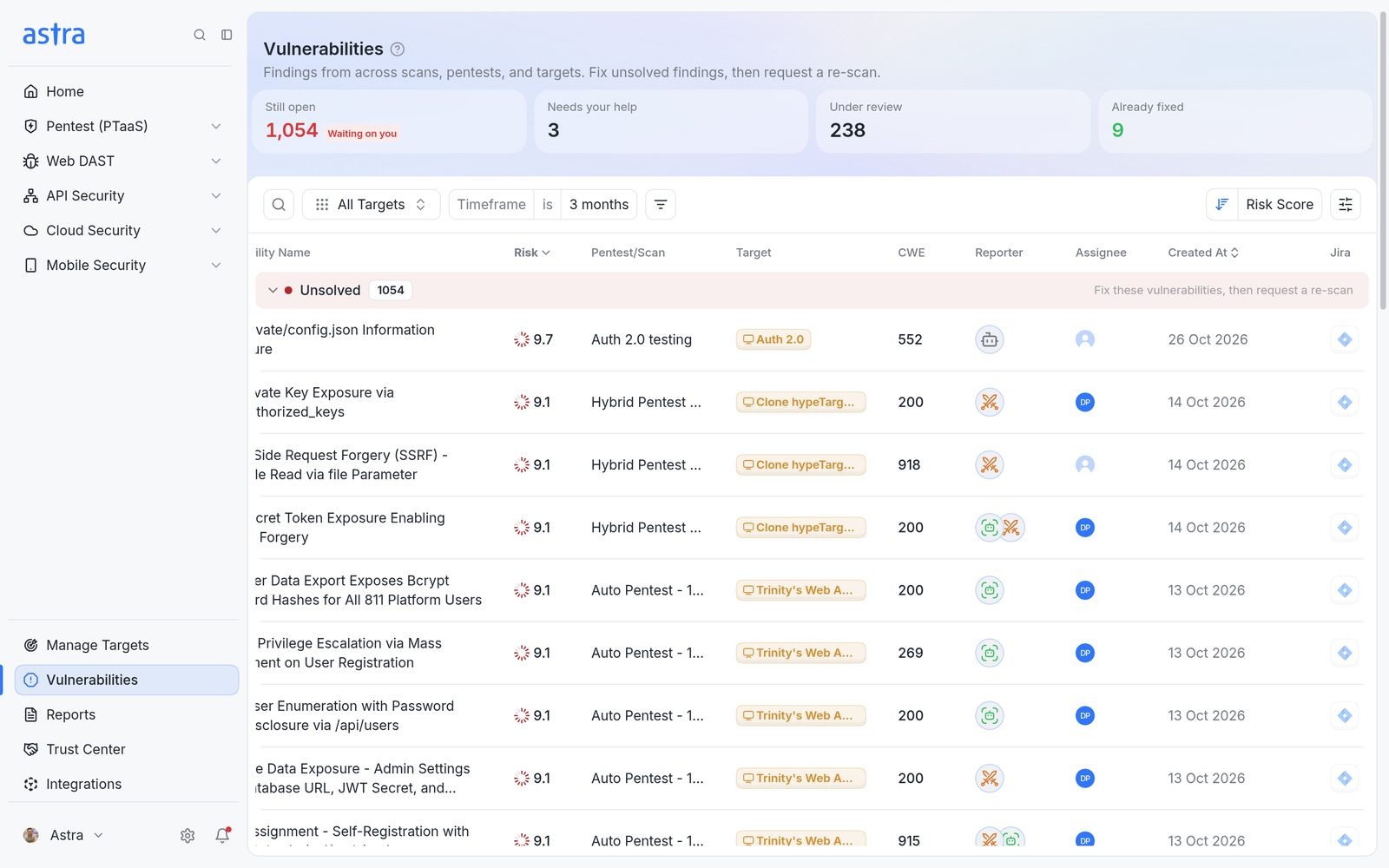
The Vulnerabilities table scrolled to the right, with the Jira column at the end of each row.
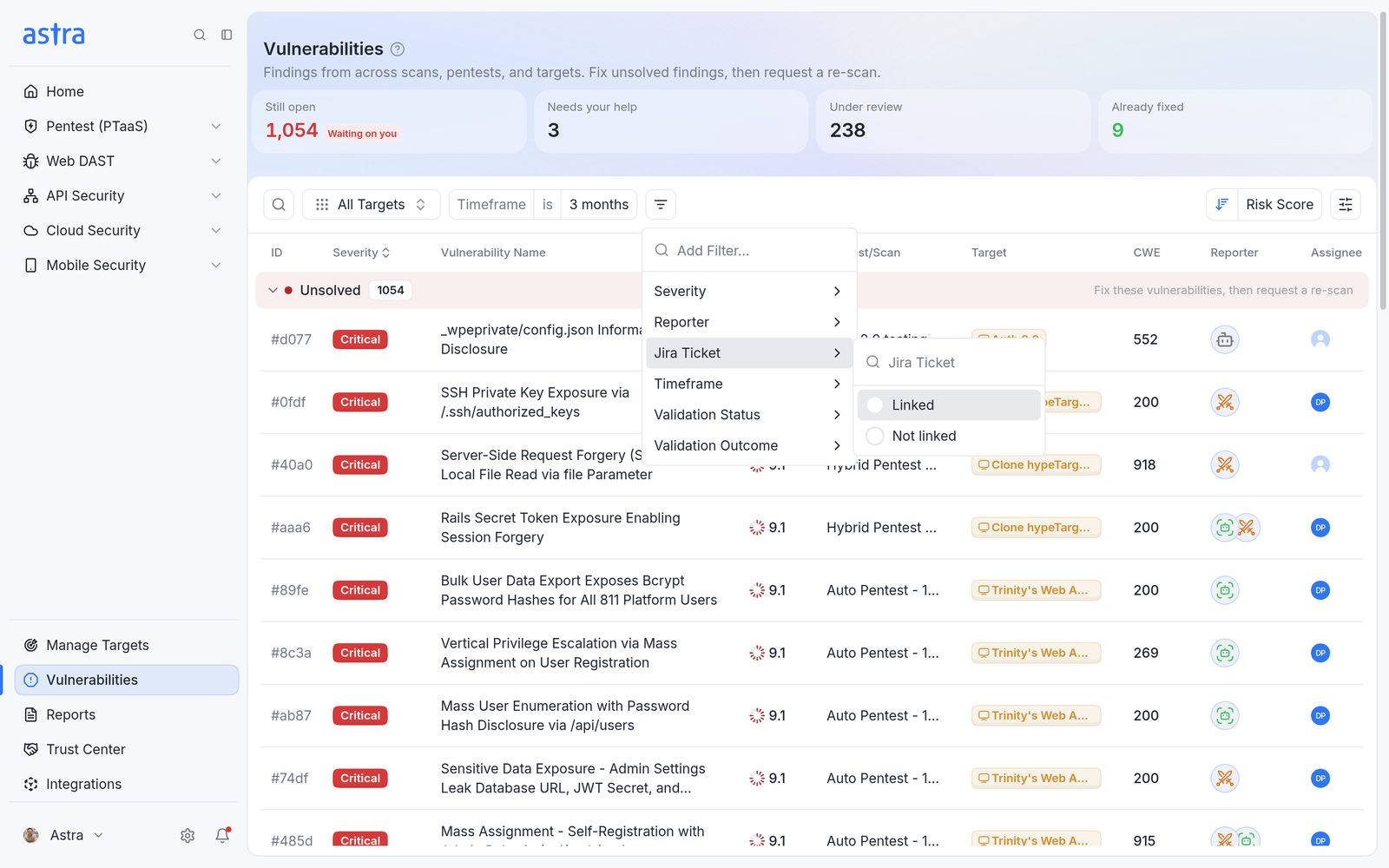
The Add filter menu open on Jira Ticket, with the Linked and Not linked options.
When Jira isn't connected, the Jira icon is greyed out with "Connect JIRA integration to view info here".
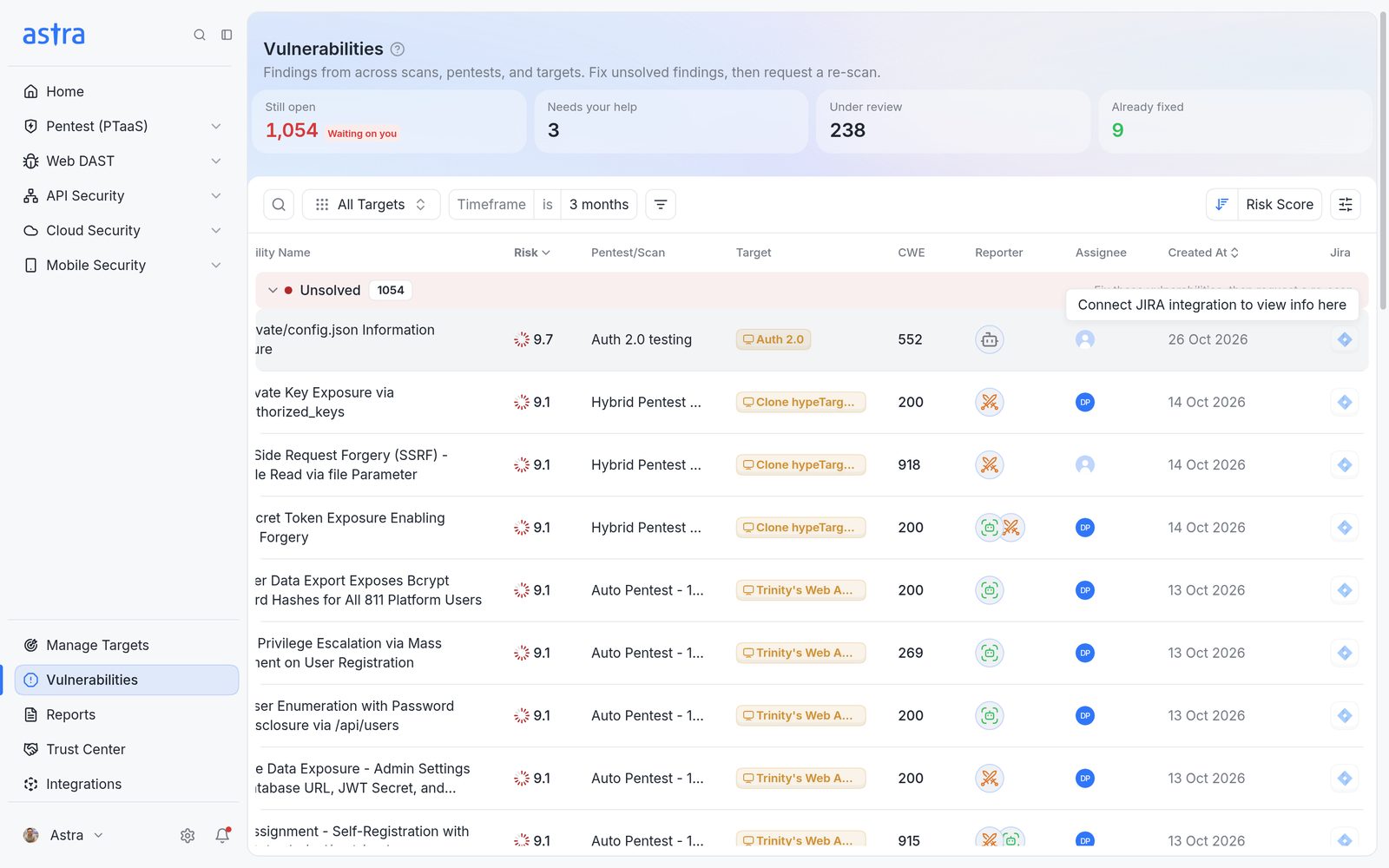
A greyed-out Jira icon in the Vulnerabilities table with the Connect JIRA integration to view info here tooltip.
Fix a connection error or replace the API token
When the Jira card shows Connection Error, Astra can't reach Jira with the saved details. The most common cause is an API token that expired or was revoked. Sync stops until it's fixed.
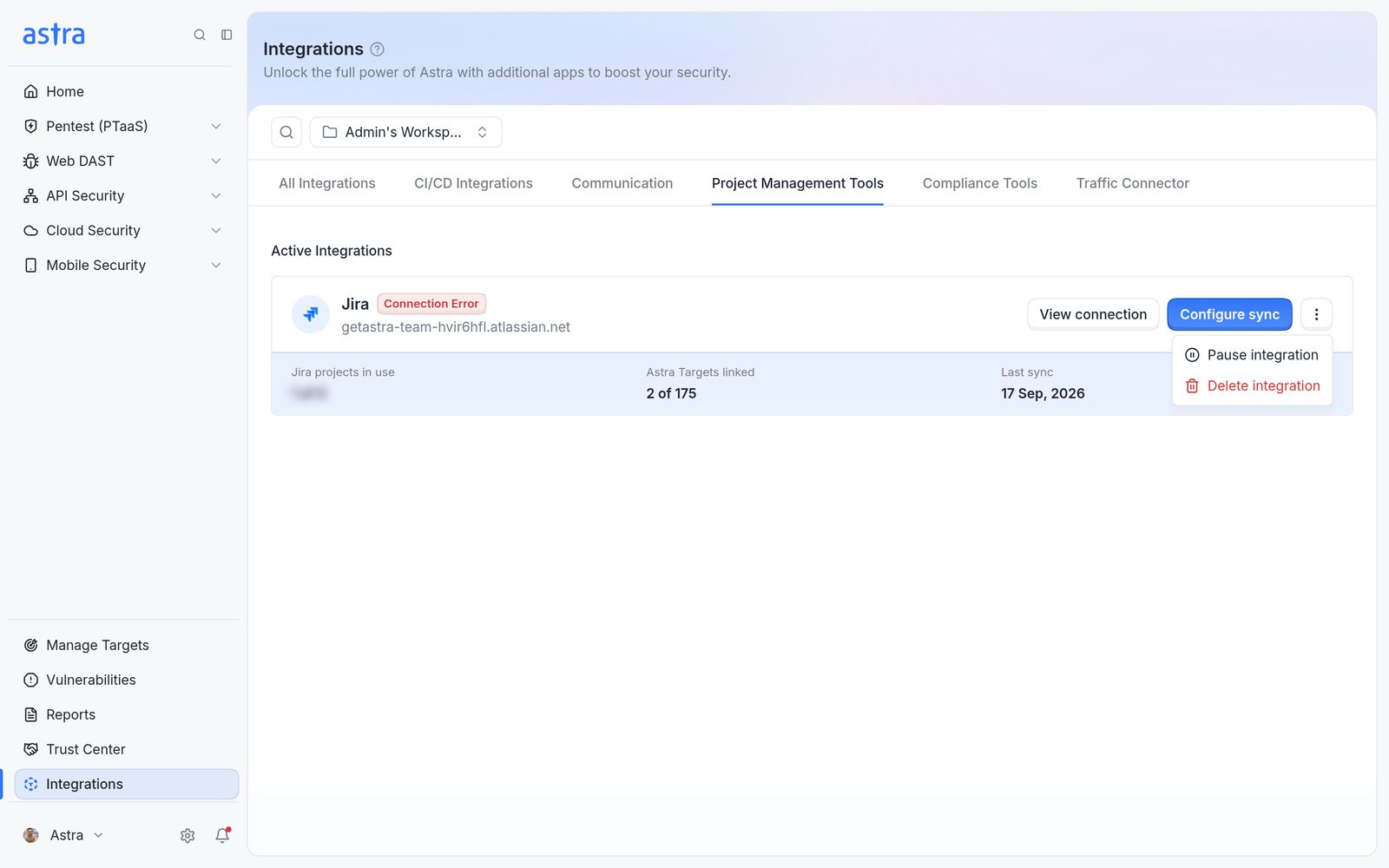
A Jira card with the Connection Error badge, the View connection button and the ⋮ menu open.
Click View connection on the Jira card. Astra checks the connection when the panel opens. When it works, the panel shows Connected to Jira ("Astra can reach Jira with the saved credentials."). If the check fails, it shows Connection failed with the reason, for example "Jira credentials are invalid or missing. Reconnect your Jira account." Saved credentials are never shown.
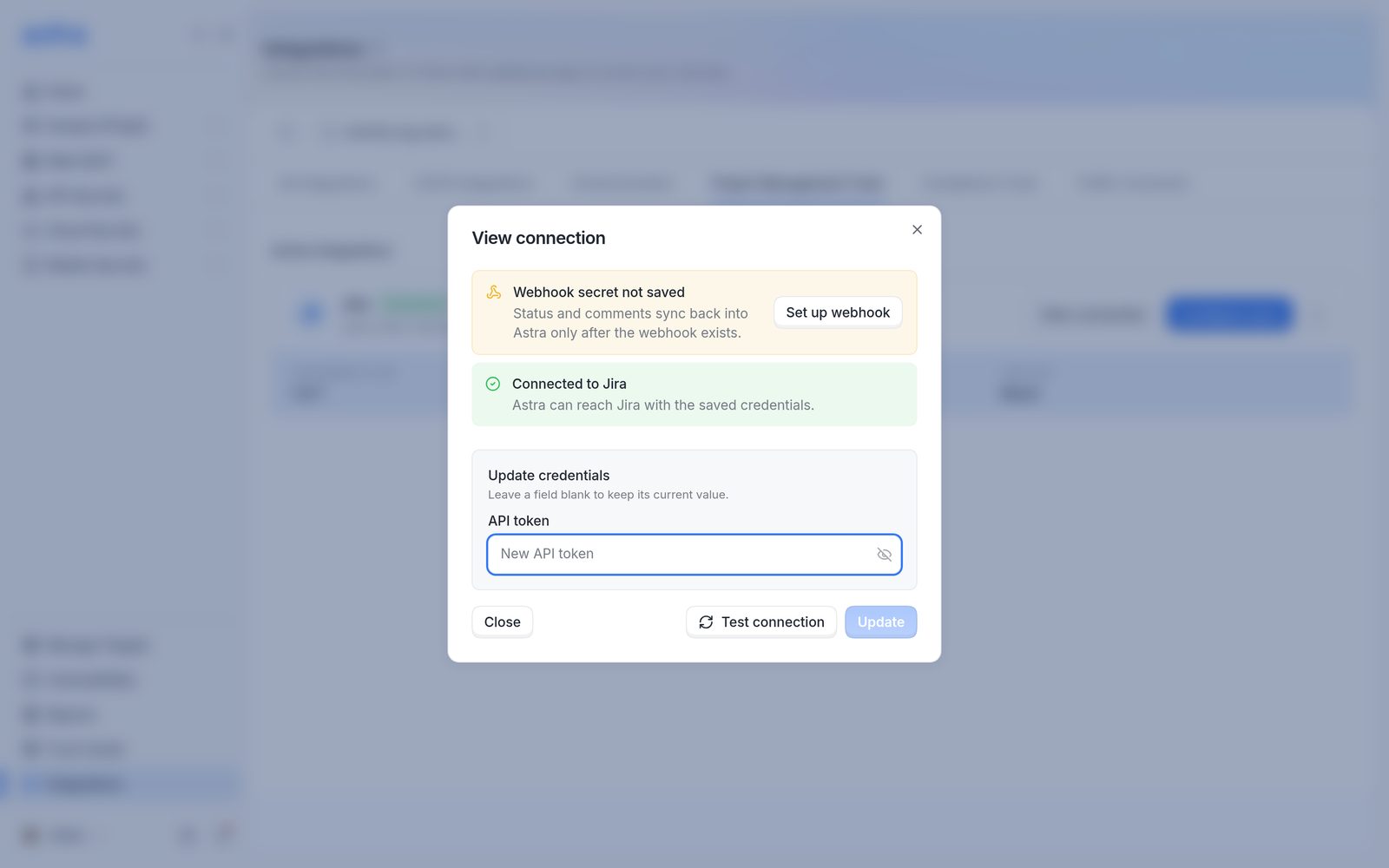
View connection on a working connection, with the Webhook secret not saved banner and its Set up webhook button, Connected to Jira, and Update credentials.
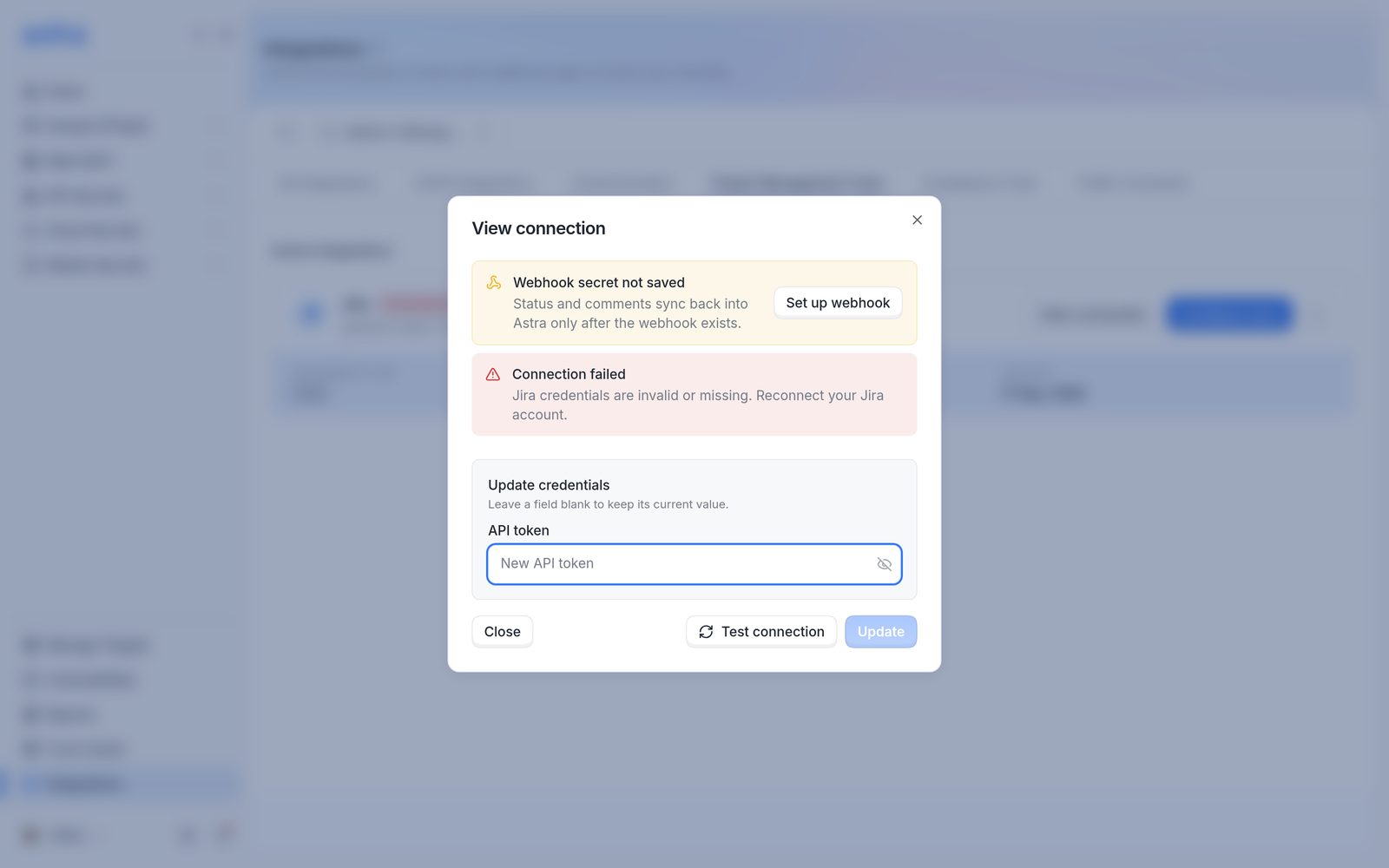
View connection with Connection failed, Webhook secret not saved and the Update credentials block.
Under Update credentials ("Leave a field blank to keep its current value."):
Create a new API token in Atlassian (see Get a Jira API token) for the same Jira user, and paste it into API token.
Click Update. Astra shows Credentials saved. Rechecking connection. and checks Jira again.
To check again later, click Test connection. It's greyed out while a new value is typed but not saved yet.
Once the check passes, run Sync with Jira on any pentest that's missing issues (see Sync a pentest with Jira).
Replace the webhook secret
Once two-way sync is set up, View connection no longer shows the Webhook secret not saved banner, and Update credentials has two fields: API token and Webhook secret. Saved values are never shown. To replace the secret, generate a new one in the Astra webhook in Jira, paste it into Webhook secret (at least 8 characters), and click Update. The secret can also be replaced from Two-way sync configured > New secret (see Change the webhook later).
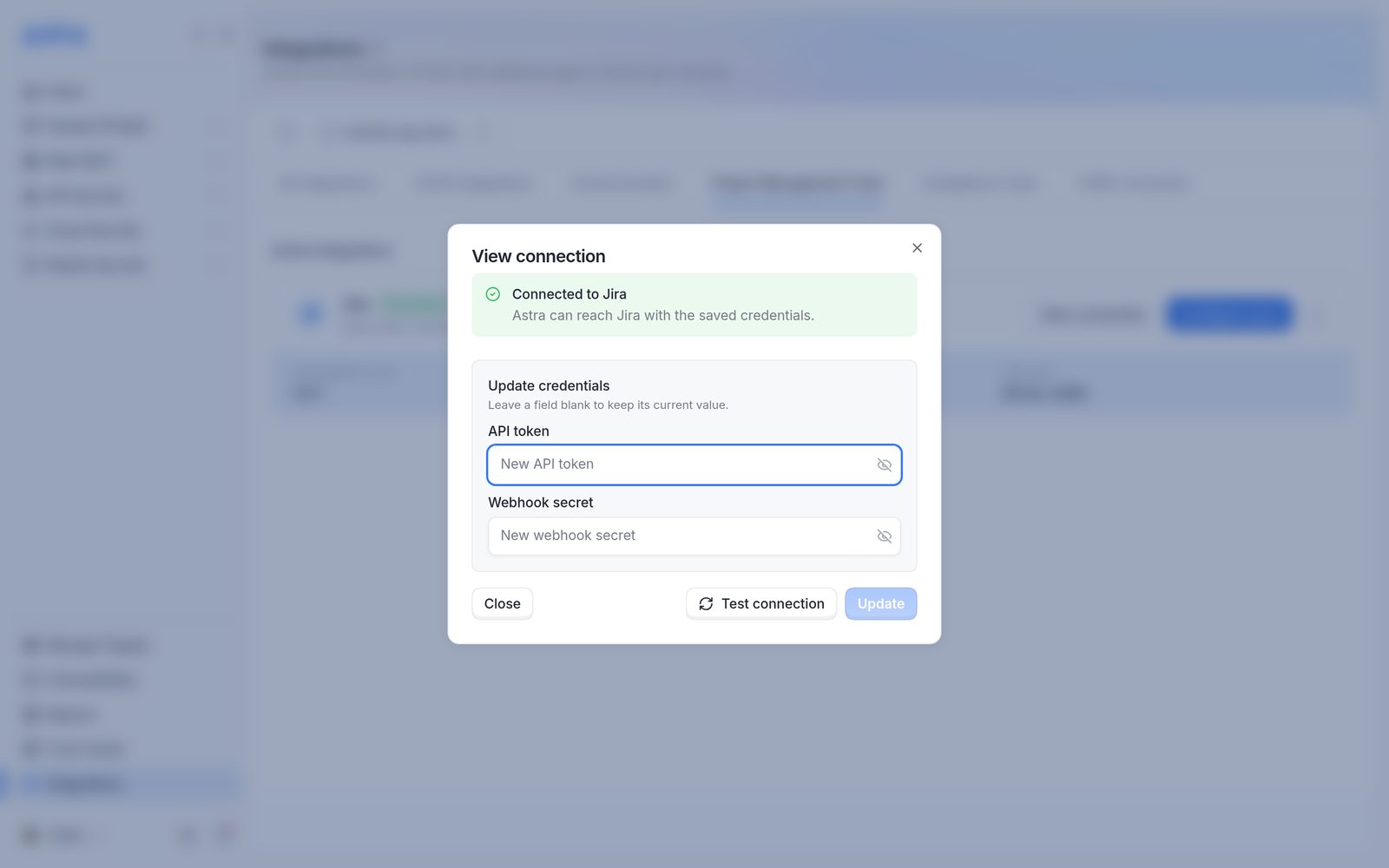
View connection after two-way sync is set up, with Connected to Jira and Update credentials showing the empty API token and Webhook secret fields.
If no webhook is set up yet, the panel shows Webhook secret not saved ("Status and comments sync back into Astra only after the webhook exists.") with Set up webhook, which opens the webhook steps (see Turn on two-way sync).
Pause, remove a target's link, or delete the connection
Pause the connection
Use ⋮ > Pause integration on the Jira card. A confirmation asks "Are you sure you want to pause Integration? You can re-connect it anytime". Click Pause to confirm. The card's badge changes to Paused, and creating or opening Jira issues from Astra stops until it's unpaused. The setup and target links are kept.
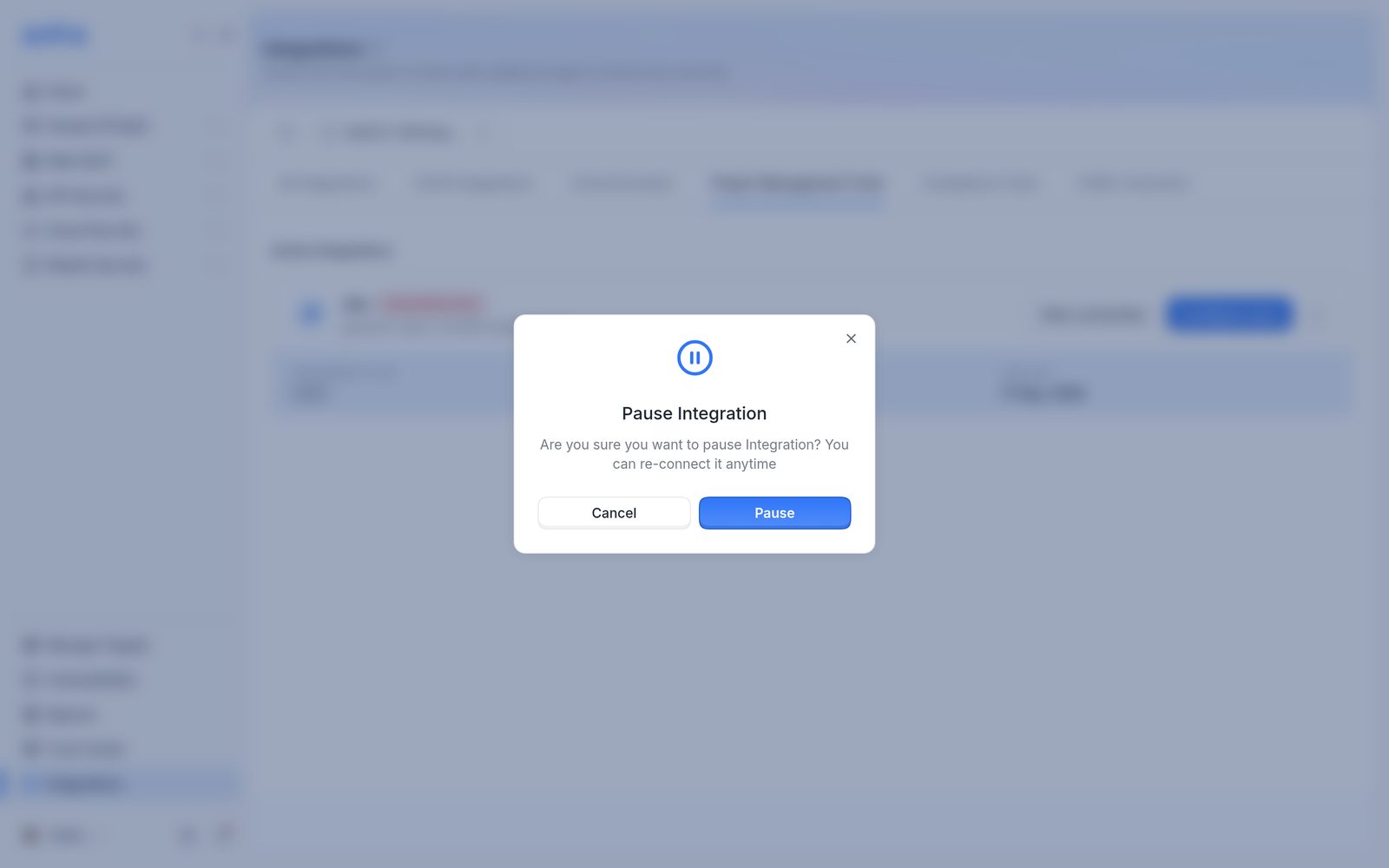
The pause confirmation, with Cancel and Pause.
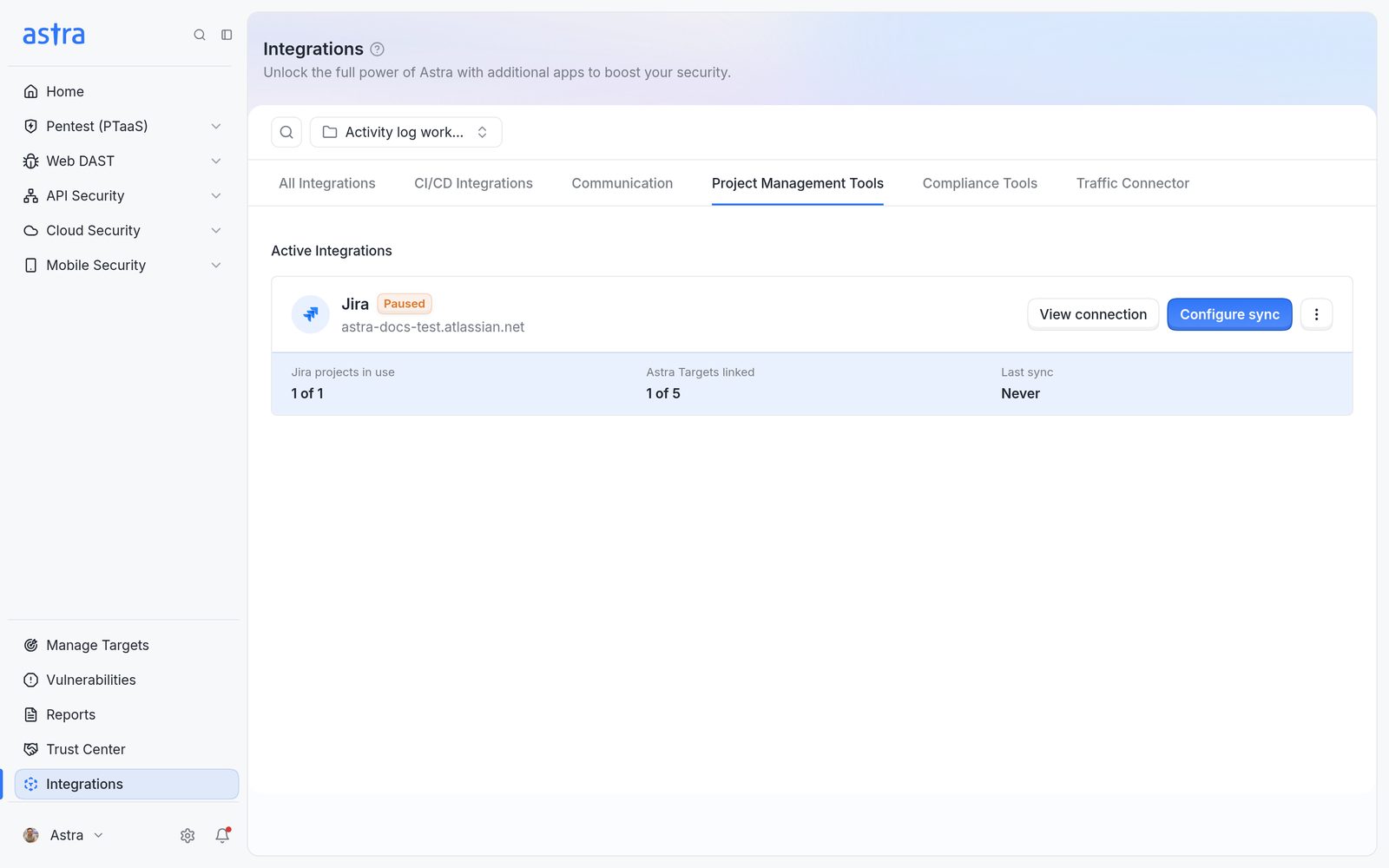
The Jira card with the Paused badge.
To turn it back on, use ⋮ > Unpause integration. A confirmation asks "Are you sure you want to re-connect Integration? You can pause it anytime if needed." Click Unpause. The badge goes back to Connected.
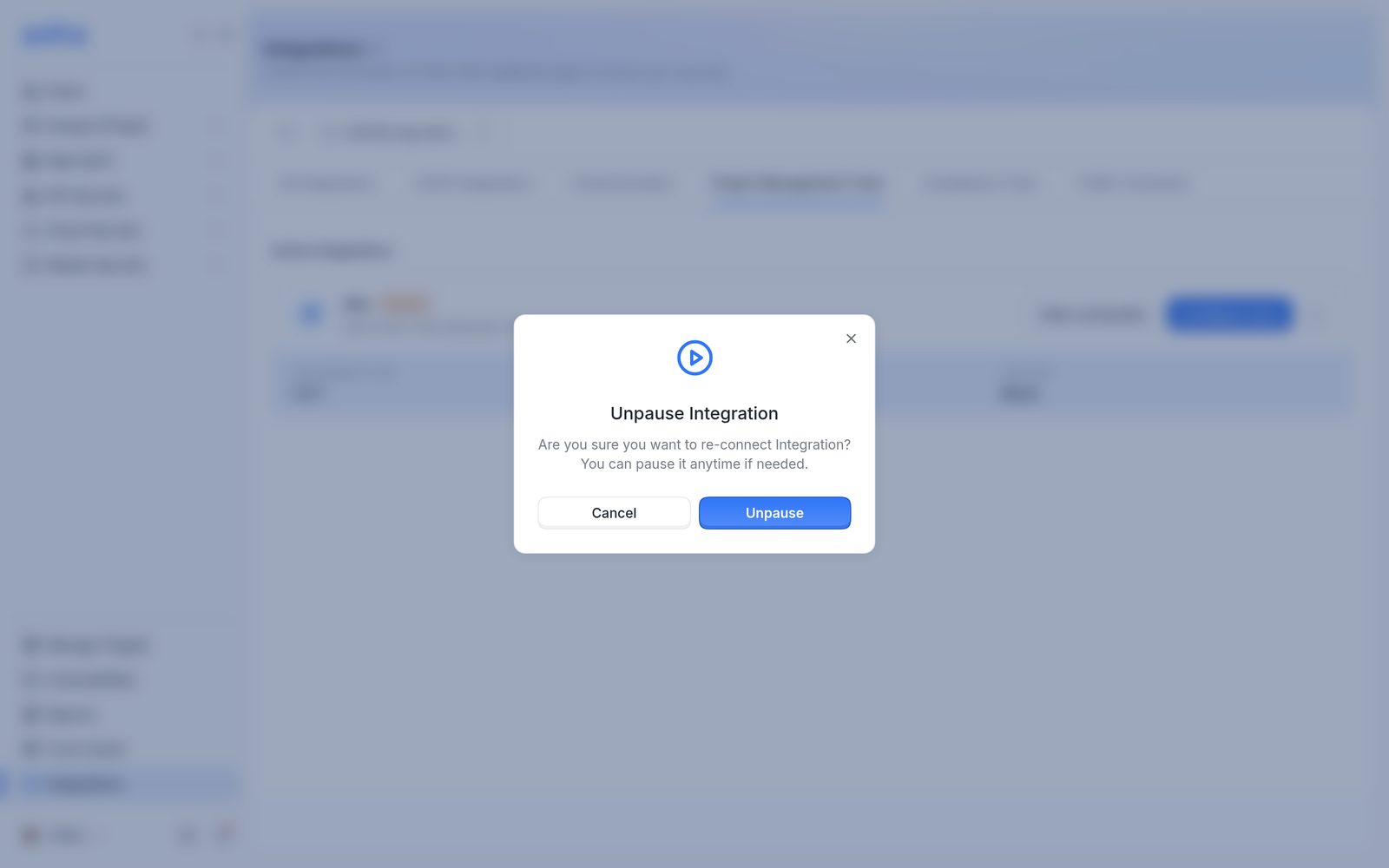
The unpause confirmation, with Cancel and Unpause.
Remove a target's link
Use ⋮ > Remove link on the target's row, or select several targets and click Remove links, then confirm Remove links. The target's sync setup is deleted and Astra shows Target unlinked from Jira integration. Issues already in Jira stay in Jira, but they no longer sync. To sync the target again, configure it from the start or copy a setup from another target.
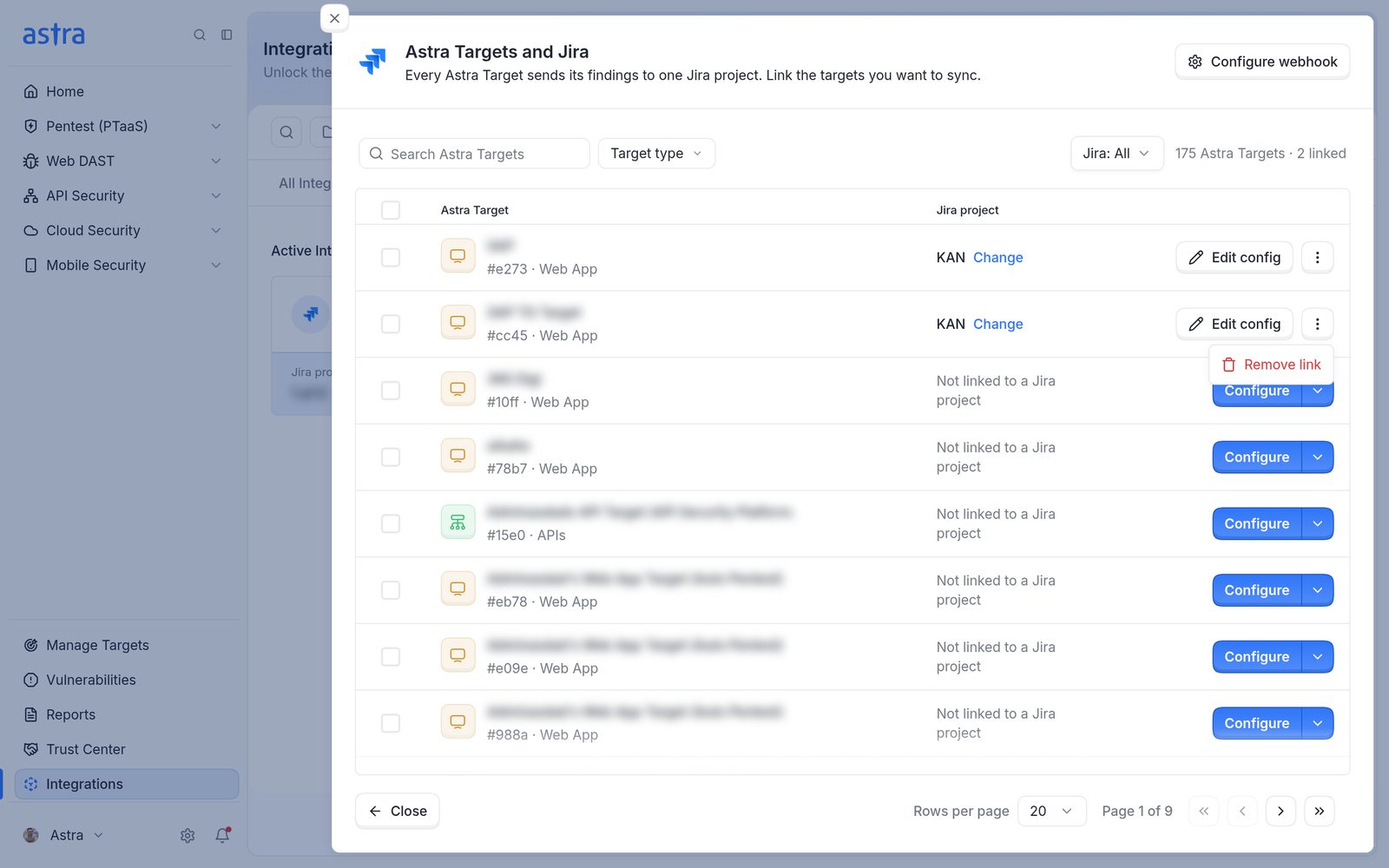
The ⋮ menu on a linked target's row, with Remove link.
Delete the connection
Use ⋮ > Delete integration on the Jira card and click Delete to confirm. Astra shows Integration deleted. Every target link, the webhook secret and the saved credentials are removed. Issues already in Jira stay in Jira. Also delete the Astra webhook in Jira, so Jira stops sending updates. To connect again later, follow Connect Jira and set up the targets again.
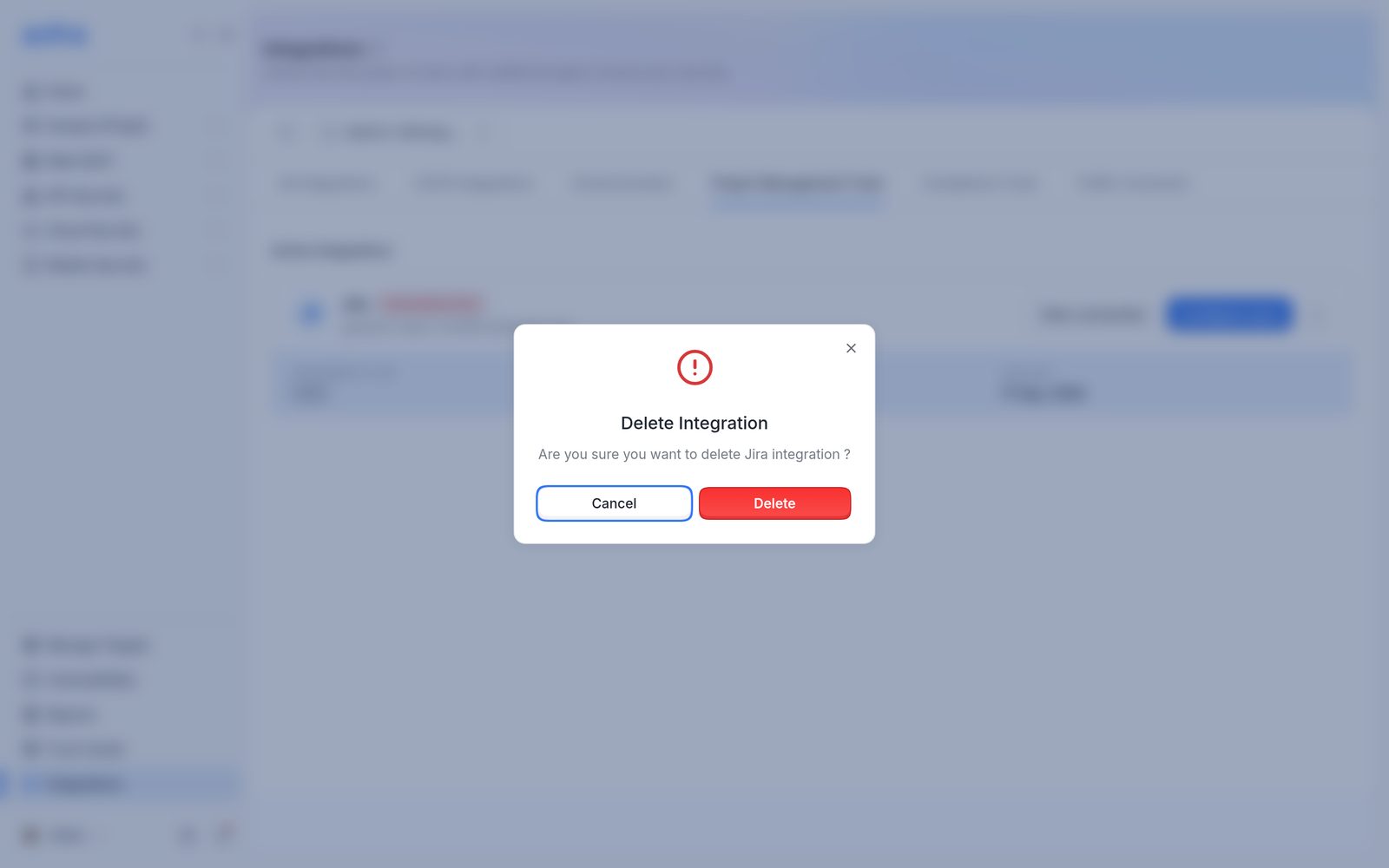
The delete confirmation, with Cancel and Delete.
FAQ
If a Jira issue is moved to Done or Closed, does the Astra vulnerability close too?
Not straight away. A vulnerability is marked Solved only after a rescan confirms the fix, so Solved can't be picked on the Jira to Astra side. Map Done (or Closed) to Under Review instead. With two-way sync on, closing the issue moves the vulnerability to Under Review, and on plans with automatic rescans Astra rescans it. Without the webhook, or without that mapping, the vulnerability stays as it is in Astra. Status changes also stop reaching Astra once the pentest is Completed.
Why is there no option to create a Jira issue for a pentest's vulnerabilities?
Jira issues can only be created once the pentest reaches Vulnerabilities Reported. Before that, the Jira button is greyed out. After it, on a linked target, Astra creates the issues itself, and Sync with Jira in the pentest header creates any that are missing.
Jira was set up after the pentest finished. How do the existing vulnerabilities get into Jira?
Link the target and finish its setup, then click Sync with Jira in the pentest header. This works for 30 days after the vulnerabilities were reported. After that, contact support to run the sync.
Why does setup fail with a required field such as Components?
The Jira project makes that field mandatory, so every issue needs a value. Give it a value in the Jira fields step, or make the field optional in Jira.
Sync stopped working. What should be checked first?
Look at the Jira card. Connection Error usually means the API token expired or was revoked. Create a new token in Atlassian and save it from View connection > Update credentials (see Fix a connection error or replace the API token). Then run Sync with Jira on any pentest that's missing issues.
Can Astra see every project in the Jira site?
Astra uses the Jira user's access to list projects, but it only creates and updates issues in the projects linked to targets. The webhook's JQL limits what Jira sends back to the linked projects.
Does changing the assignee or priority in Jira update Astra?
No. Only status changes and comments come back from Jira. Priority travels one way, from Astra severity to Jira priority.
A Jira status such as Won't Do didn't change anything in Astra. Why?
Every Jira status that should change Astra needs a mapping on the Jira to Astra side, for example Won't Do to Accepted Risk. Also check that the webhook is set up, that the pentest isn't Completed, and that the vulnerability isn't being rescanned or already Solved. No Jira status can move a vulnerability to Solved.