How to schedule automated scans
Last updated: November 3, 2026
A scan schedule runs the same automated scan on one or more targets at a set frequency. Each scheduled run uses one from the target's scan quota.
Create a schedule
Schedules are created from the Scheduled Scans page.
- Go to Web DAST → Scheduled Scans and click Create Scan Schedule.
- Enter a name for the schedule.
- Choose the scan type. The options are the same as for a scan started on demand.
- Under Schedule, choose the Time Zone and a Scan Frequency: Daily, Weekly, Monthly, Quarterly, Yearly or Advanced (a custom cron expression).
- Pick the days and a one-hour Time window. A summary, such as "Runs every week on Mon at 5:51 AM", and the Next runs dates appear below.
- Click Continue, select up to 50 targets, then click Create Schedule.
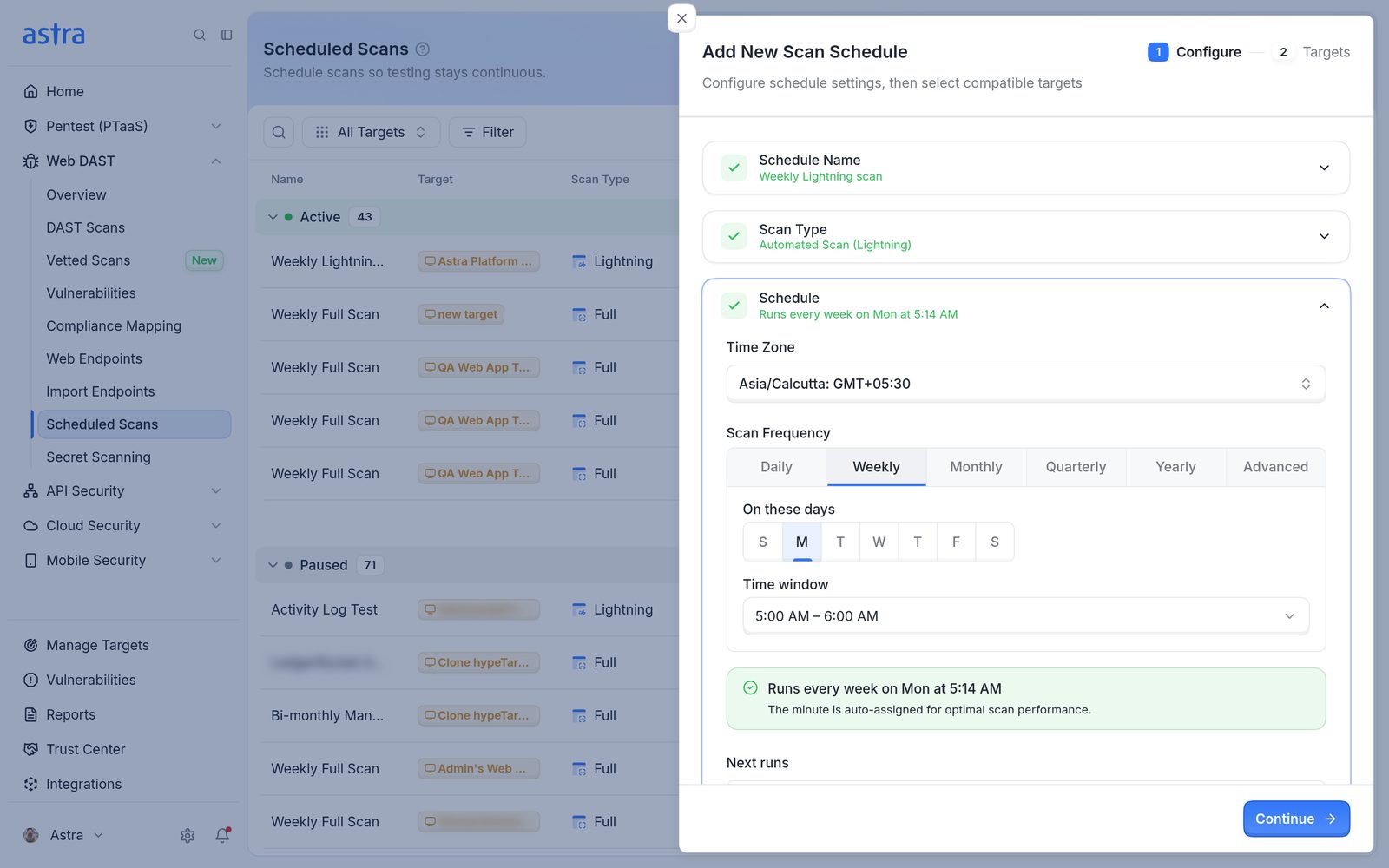
A new weekly scan schedule with a one-hour time window and time zone.
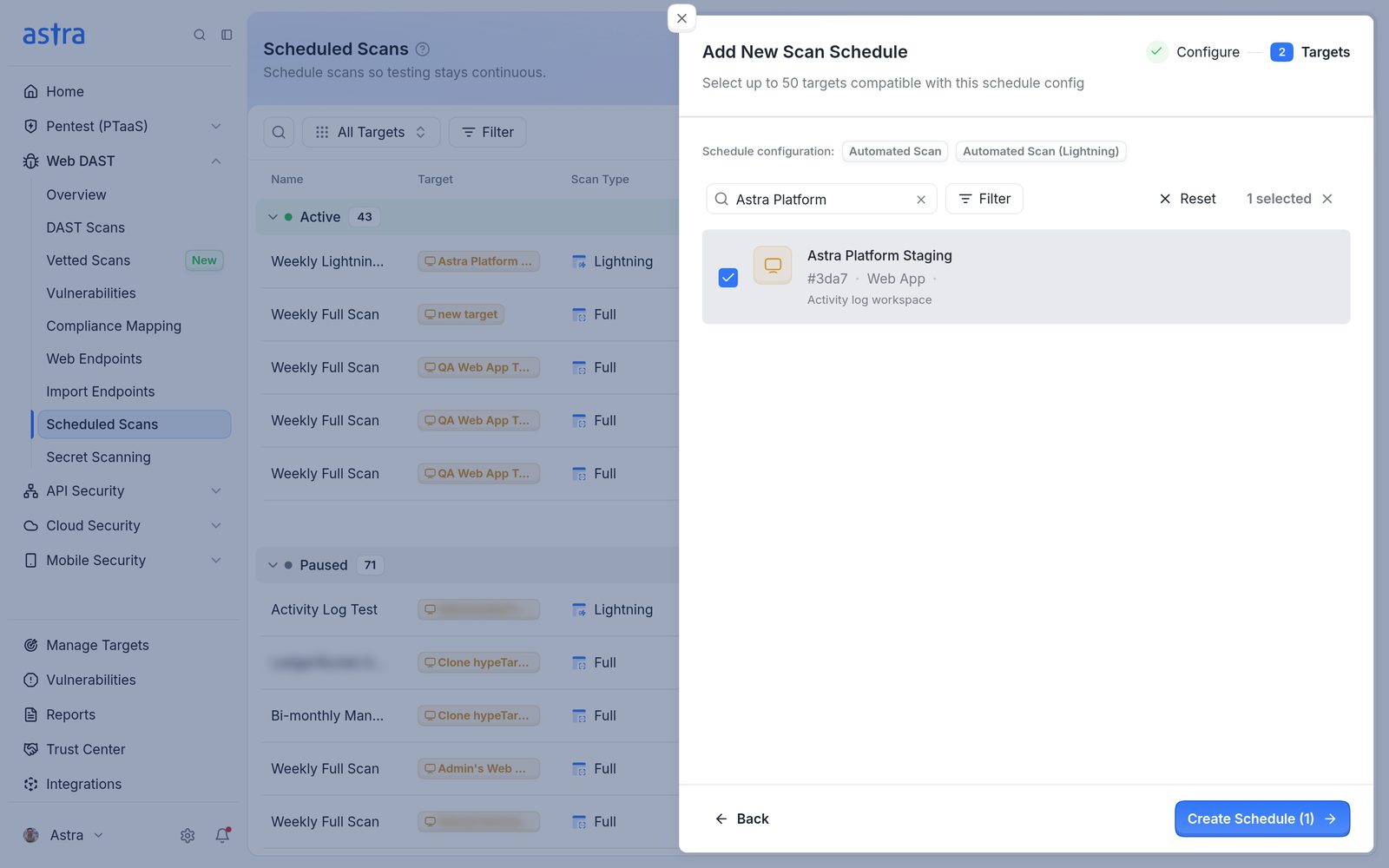
The targets step of a new schedule, with Create Schedule.
The minute within the chosen hour is assigned automatically "for optimal scan performance". A schedule set for 5:00 AM – 6:00 AM might run at 5:51 AM, for example.
Availability
The Advanced frequency isn't included in every plan. Where it isn't, the option shows "Not available on your current plan".
Disable, edit or delete a schedule
On Scheduled Scans, click the ⋮ menu on the schedule's row and choose Disable Schedule, Edit Schedule or Delete Schedule. A disabled schedule moves to Paused and doesn't run until Enable Schedule is chosen.
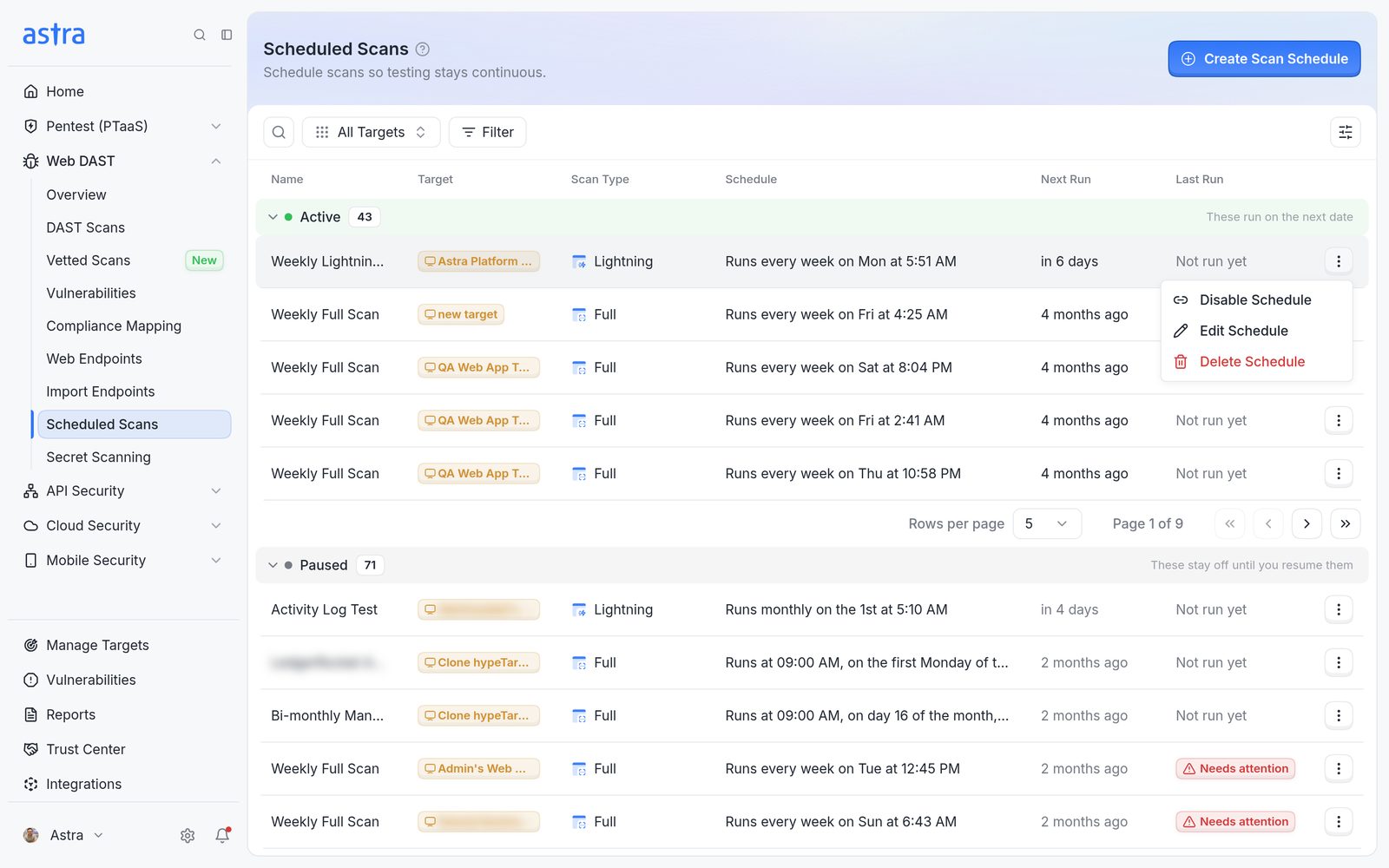
The row menu of a scheduled scan.
When a scheduled run doesn't start
The Last Run column shows Needs attention, and hovering over it shows the reason. Common reasons:
- A scan was already running on the target ("A scan is underway, please try again once it is completed").
- The target has no scan quota left ("You do not have any available automated scans"). Read more in How scan quota works.
- The target couldn't be reached. Read more in How to make sure Astra's scanner can reach your application.
The schedule stays active and tries again at its next run.
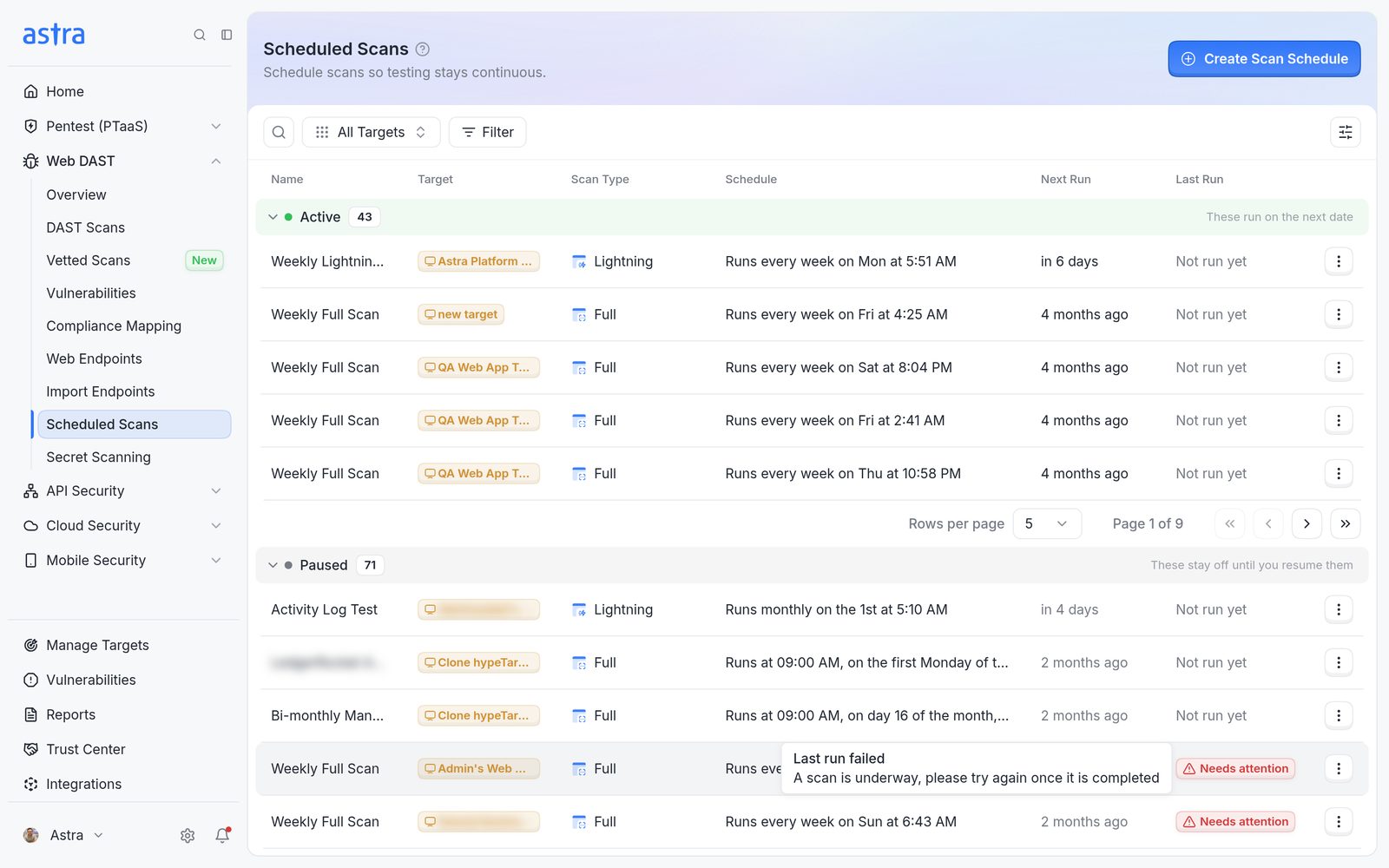
Scheduled Scans, with Active and Paused schedules and the reason for a failed run.
FAQ
I get an email every day saying a scheduled scan failed to run. What does it mean?
The schedule tried to start a scan and couldn't. Open Scheduled Scans and hover over Needs attention in the Last Run column to see why. Fix the cause, or choose Disable Schedule if the schedule is no longer needed.
Why did my scheduled scan start at 5:51 instead of 5:00?
Schedules use a one-hour time window, and the minute within that hour is assigned automatically.