How to request a rescan
Last updated: November 12, 2026
After you fix the vulnerabilities from a pentest or an automated scan, request a rescan so that Astra can check the fixes. Fixed vulnerabilities move to Solved. Vulnerabilities that aren't fixed go back to Unsolved with a comment.
Before you request a rescan
Fix the vulnerabilities.
Move each fixed vulnerability to Under Review. Vulnerabilities in Under Review are included in the rescan automatically.
For a mobile app, upload the latest APK or IPA file to the target. A rescan tests the build that is already on the target.
Rescan types for a pentest
Click Rescan on the pentest page to choose a rescan type:
Manual Rescan: Astra's pentesters check the fixes in Under Review, review vulnerabilities you marked as false positive or accepted risk, and reply to your comments. The menu shows the last date to request it.
Automated Rescan: Astra's scanner re-checks the vulnerabilities it reported. You can request it at any time. It covers only vulnerabilities found by Astra's automated scanners.
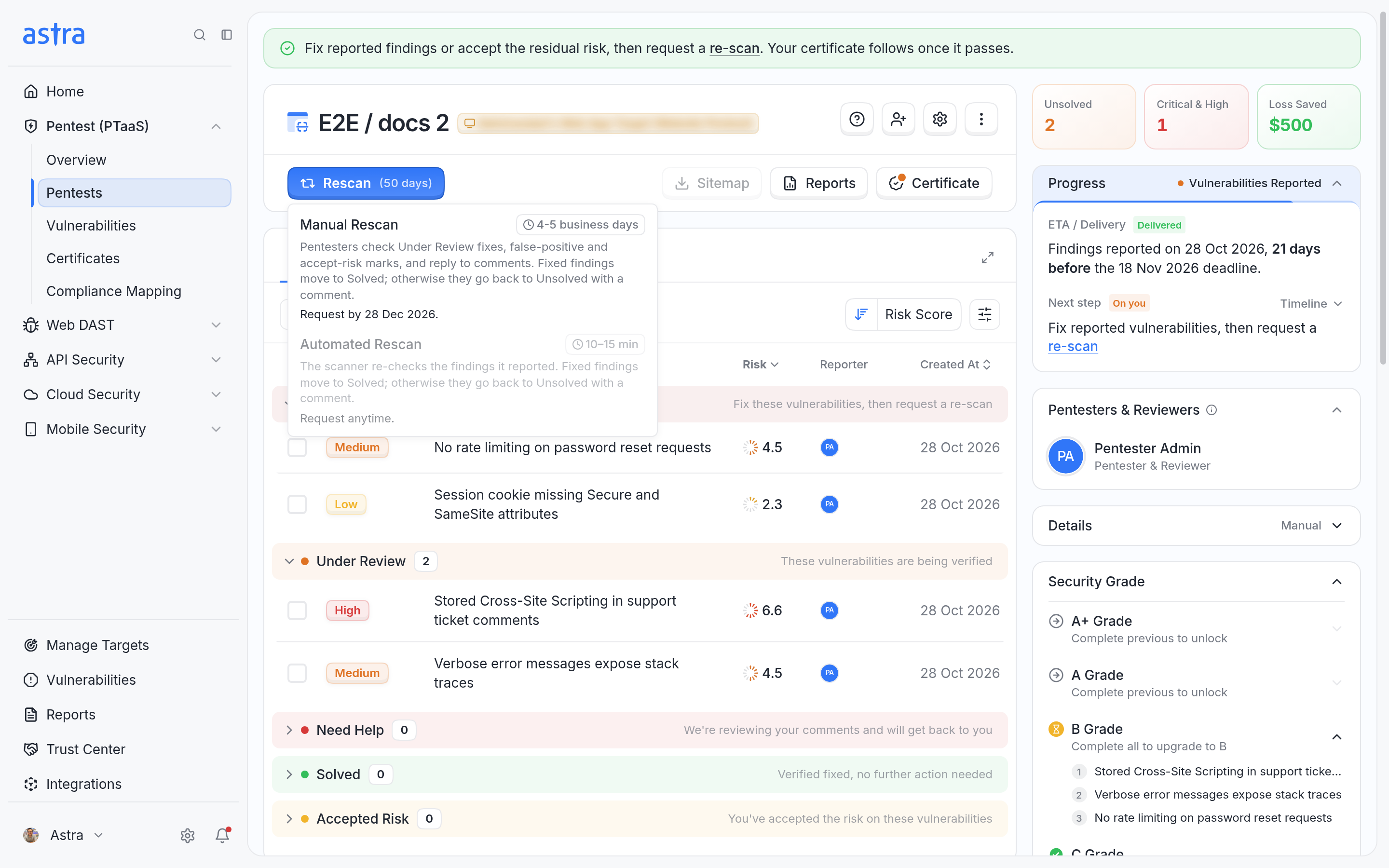
The Rescan menu on a pentest offers Manual Rescan and Automated Rescan.
Note
Automated Rescan isn't available for Hybrid or Autonomous pentests, Android and iOS targets, or Digital Ocean cloud targets. Use Manual Rescan for these.
Request a manual rescan
Open the pentest, click Rescan, and then choose Manual Rescan.
Check the vulnerabilities at the top. These are the vulnerabilities in Under Review that are included by default.
Optional: under Add more vulnerabilities to this rescan, select Unsolved vulnerabilities to include. They move to Under Review when you request the rescan.
Check the Rescan Eligibility panel. It shows how many rescans are available, the date rescans are valid until, and whether the rescan is eligible.
Click Request Rescan. If you added vulnerabilities, the button reads Include followed by the number of vulnerabilities, for example Include 1 and request rescan.
For a mobile app, Astra asks whether you have uploaded the latest build file, for example "Have you uploaded the latest Android build file?". Click the Yes button, for example Yes, Request Rescan, to continue. Or click No, and then upload the file from the link in the message first.
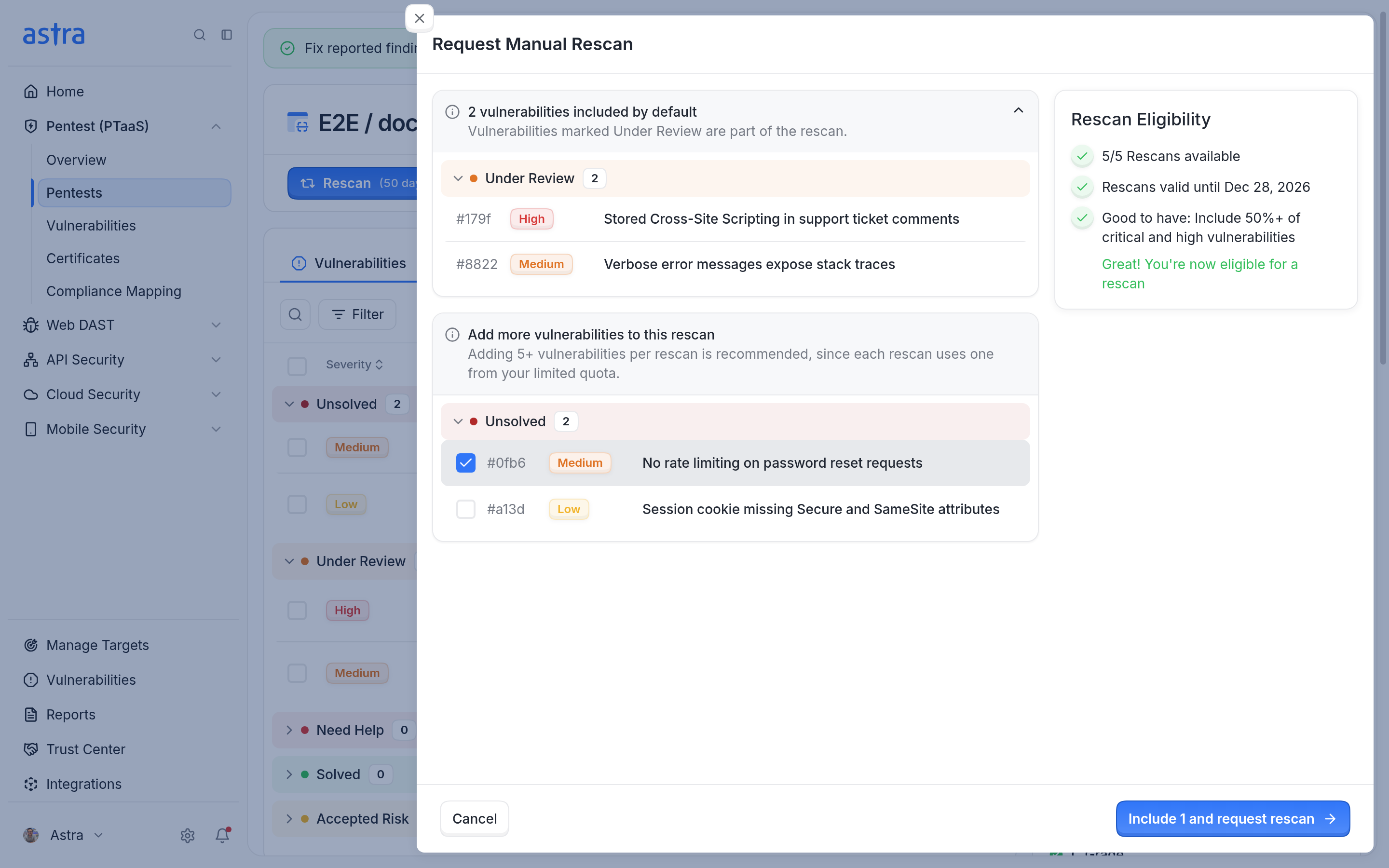
Request Manual Rescan lists the vulnerabilities in the rescan and checks eligibility on the right.
When the rescan is requested, Astra shows "Rescan requested successfully".
Tip
Each manual rescan uses one rescan from the pentest's limit. Include as many fixed vulnerabilities as you can in each rescan, especially Critical and High ones. The eligibility panel recommends including at least 50% of Critical and High vulnerabilities.
Request an automated rescan for automated scans
You can request automated rescans for several automated scans at once.
Open the scans list, for example Web DAST > DAST Scans.
Select the scans to rescan.
Click Rescan in the toolbar at the bottom of the page. The button shows how many of the selected scans can be rescanned.
In Request Automated Rescan, confirm the request.
When the request goes through, Astra shows "Rescan requested". Follow the progress on the scans list.
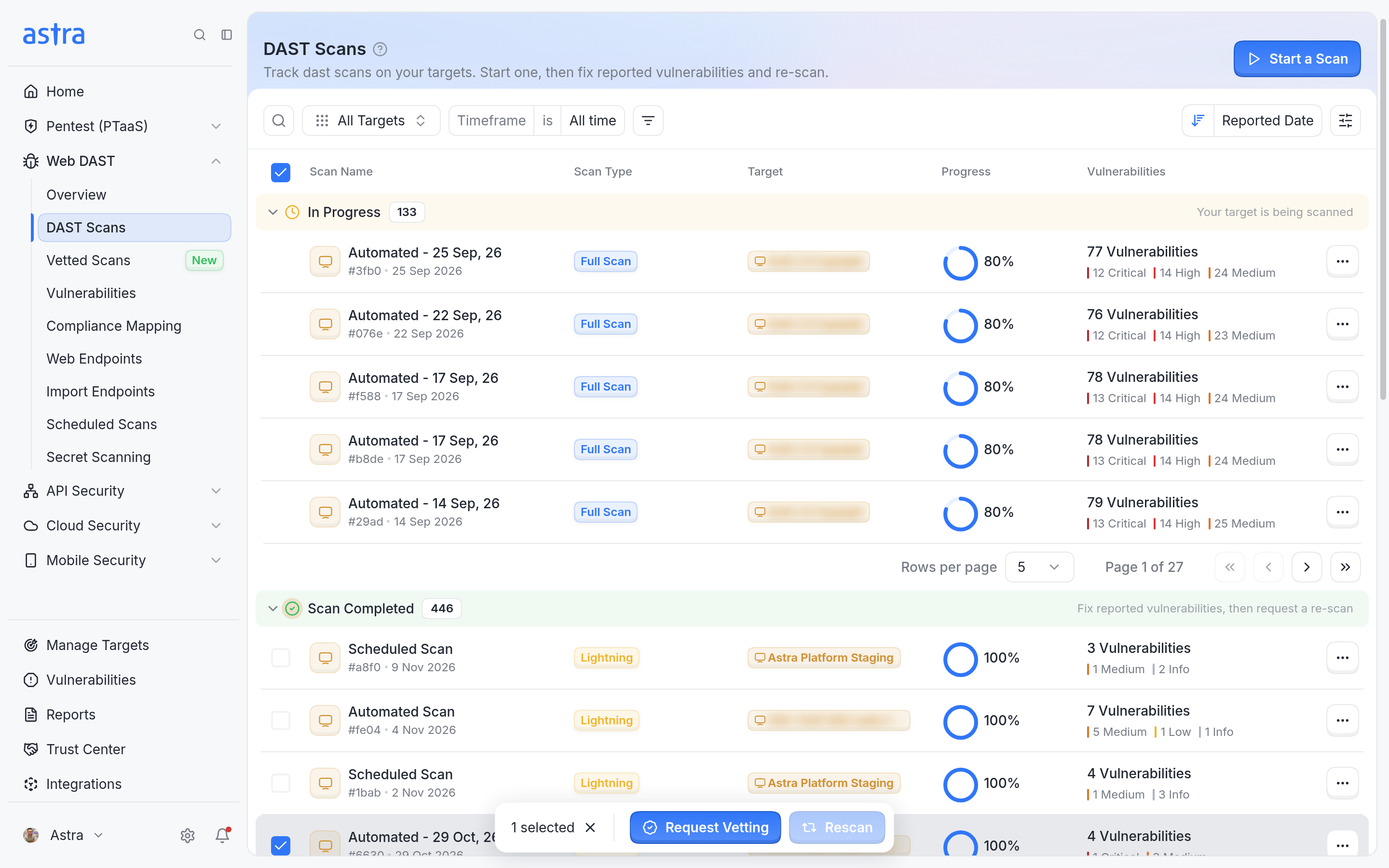
Select scans to show the toolbar with Request Vetting and Rescan at the bottom of the page.
To rescan a single automated scan, open it and click Rescan.
What happens after you request a rescan
The rescan appears in the pentest's or scan's progress.
When the rescan finishes, fixed vulnerabilities move to Solved. Vulnerabilities that aren't fixed go back to Unsolved with a comment.
While a rescan is running, you can't request another one for the same vulnerabilities. Astra shows "A rescan is already in progress."
When a rescan isn't available
Message | What it means |
|---|---|
Nothing is available for a rescan. Mark vulnerabilities as fixed (Under Review) or add unsolved ones to continue. | No vulnerabilities are in Under Review, and none are selected. |
No rescans remaining for this pentest. Please contact your CSM for support. | The pentest's rescan limit is used up. |
The manual rescan window for this pentest has expired. Please contact your CSM for support. | The last date to request a manual rescan has passed. |
This pentest does not include rescans. Please contact your CSM for support. | The pentest has no rescans. |
Rescan isn't available for static analysis scans | Static analysis scans can't be rescanned. Start a new static analysis scan instead. |
None of the selected scans have vulnerabilities available for rescan | None of the selected automated scans have fixed vulnerabilities in Under Review. |
This vulnerability was reported by a pentester and isn't eligible for automated rescans | Use Manual Rescan for this vulnerability. |
FAQ
I uploaded a new APK. How do I get it retested?
Upload the latest APK or IPA file to the target first. Then request a manual rescan on the pentest. When Astra asks whether you have uploaded the latest build file, click the Yes button. The rescan tests the build on the target. If you don't upload a new file, the rescan checks the same build as the last pentest.