How to manage workspace members and roles
Last updated: November 3, 2026
Every person in an Astra workspace is a member with one role, and the role decides which targets they see and what they can change. This article explains the roles and member seats, and links to the steps for inviting, changing and removing members.
Roles
Each member has exactly one of these roles.
| Role | What the member can do |
|---|---|
| Workspace Owner | Full access to workspace settings, billing information and member management. Each workspace has one owner. |
| Workspace Admin | Access to all targets, workspace settings and billing information. Can invite and manage members. |
| Workspace Full Member | Access to all targets. Can update vulnerability statuses and mark false positives. Can't invite members. |
| Workspace Billing Member | Access to subscription settings and invoices. |
| Workspace Restricted Member | Access only to the targets shared with them. |
| Workspace Admin (Read-Only) | Read-only access to the workspace's targets. |
Workspace owners and admins manage members. Company owners and admins can also manage members in every workspace of the company.
Note
The Workspace Owner role can't be chosen when inviting or editing a member. Ownership moves to another member only through a transfer.
View the members of a workspace
The Members page lists everyone in the workspace.
- Open Settings.
- Under Workspaces, pick the workspace, then click Members.
The table shows each member's name, email, MFA status, role, who added them and when they joined.
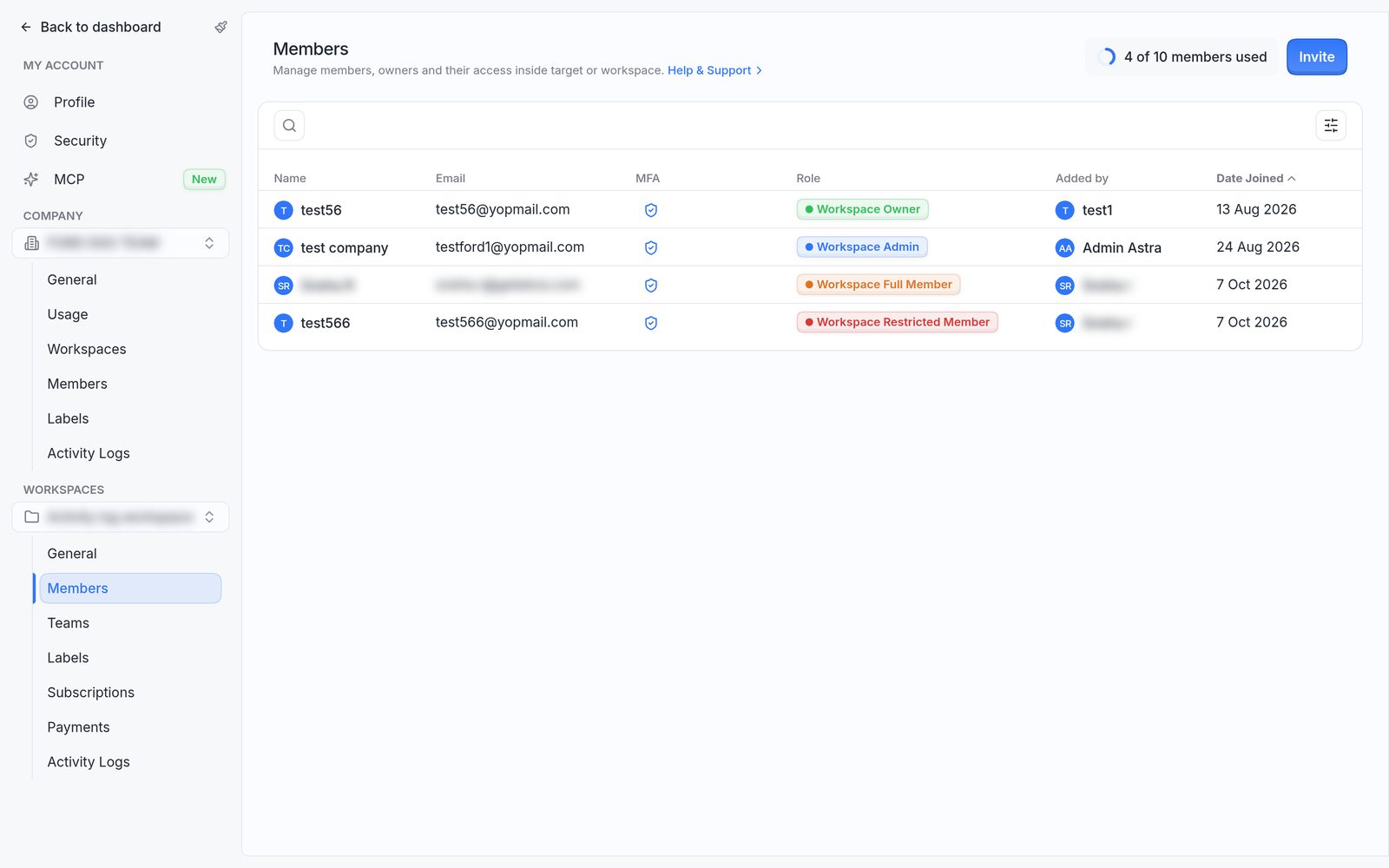
The Members page, with the seat counter and Invite button at the top right.
Member seats
Each subscription in the workspace includes a number of member seats, and every member uses one, including the owner. The Invite Member(s) panel shows how many are in use, for example 4 of 10 members used.
When all seats are in use, a new member can be added only after a seat is freed or more seats are added. To add seats, upgrade a plan or buy another subscription for the workspace. Read more in How to manage your subscription and billing.
Removing a member frees their seat.
Common tasks
- Invite people to the workspace. Add one or more people by email and choose their role. Read more in How to invite members to a workspace.
- Give a restricted member access to targets. Share individual targets with a Workspace Restricted Member, or give access through a team. Read more in How to share targets with restricted members and teams.
- Change a role, remove a member or transfer ownership. Read more in How to change a member's role, remove a member or transfer ownership.
FAQ
Why can't this account invite members or see the team's targets?
Access depends on the role. Only workspace owners and admins, and company owners and admins, can invite members. A Workspace Restricted Member sees only the targets shared with them. Ask a workspace owner or admin to change the role or share more targets.
Can members sign in with Okta or another single sign-on (SSO) provider?
The sign-in page offers Sign in with Google, Sign in with Microsoft and Sign in with Okta. To set up Okta SSO for the organization, raise a support request from the dashboard.
Does removing a member free a seat?
Yes. The seat becomes available again.