How to change a member's role, remove a member or transfer ownership
Last updated: November 3, 2026
A member's access can be changed at any time from the Members page. This article covers changing a role, removing a member and making another member the workspace owner.
Change a member's role
Workspace owners and admins, and company owners and admins, can change roles.
- Open Settings, pick the workspace under Workspaces, then click Members.
- Click the member's name to open Edit Member Details.
- Choose a new role under Role.
The message Member role updated confirms the change. The owner's role can't be changed this way. To change the owner, transfer ownership.
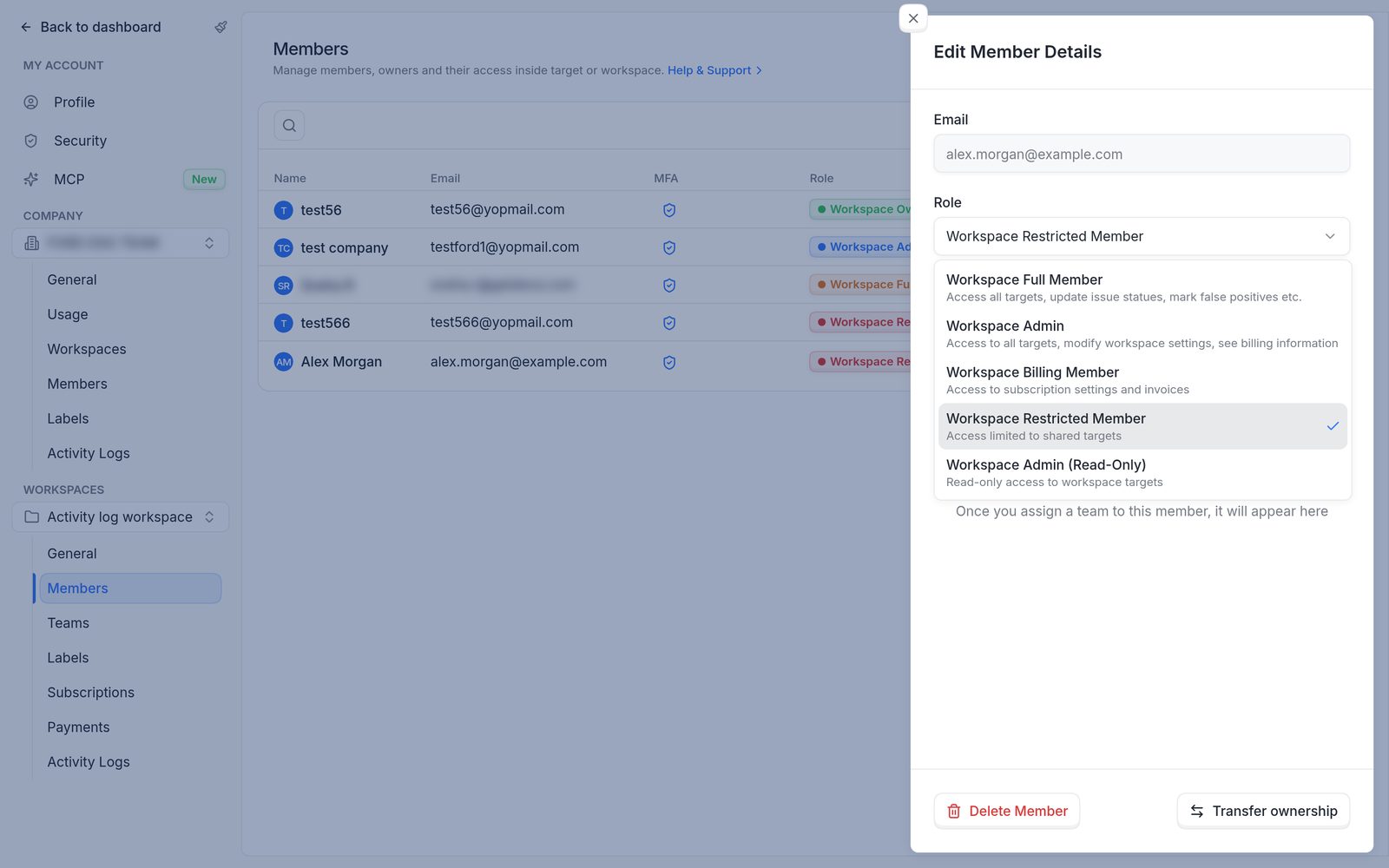
Changing a member's role in Edit Member Details.
Remove a member
Removing a member ends their access to the workspace's targets and settings, and frees their seat.
- Click the member's name to open Edit Member Details.
- Click Delete Member, then Delete to confirm.
The owner can't be removed. Transfer ownership to another member first.
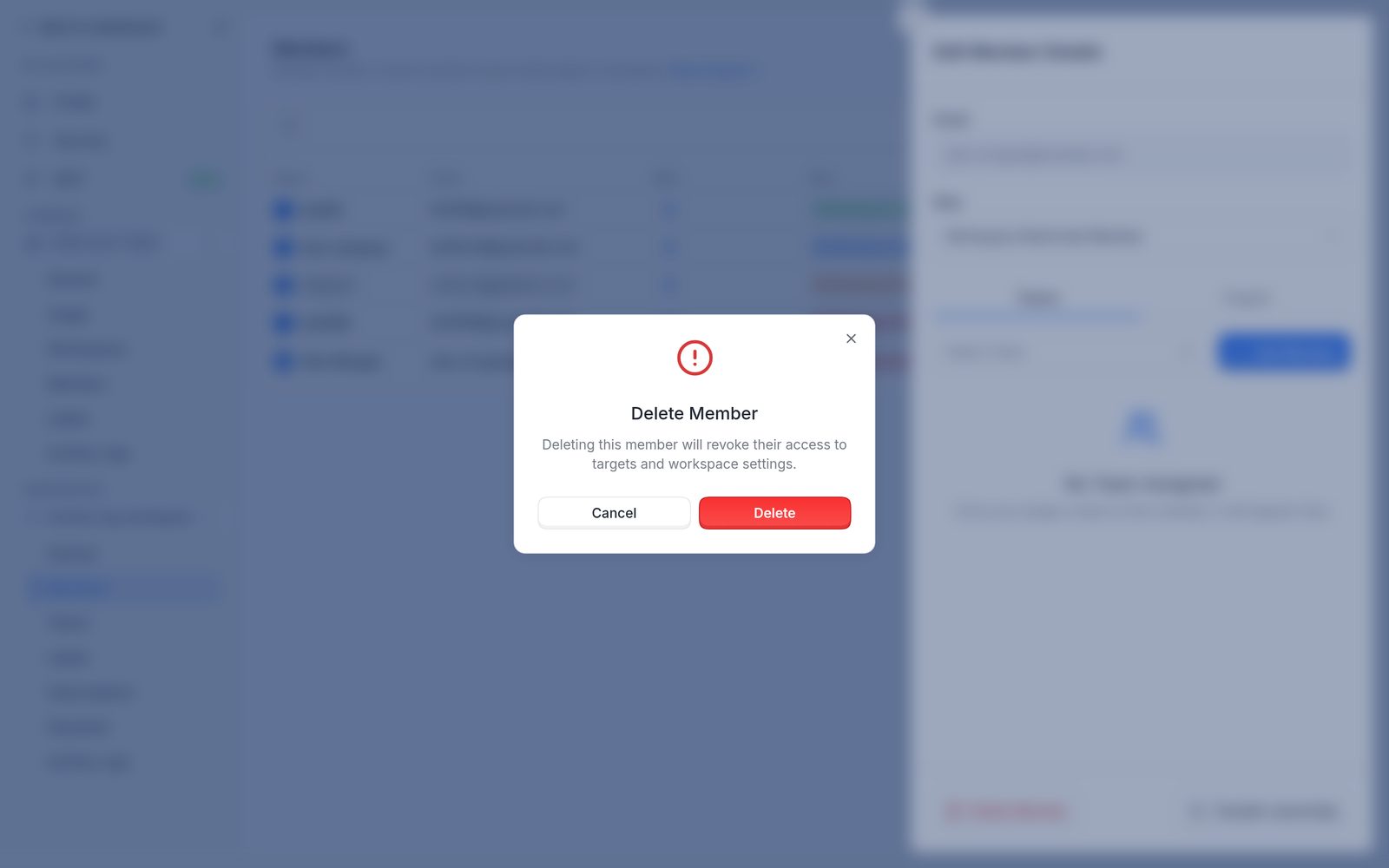
The Delete Member confirmation.
Transfer ownership of the workspace
The current owner, or a company owner or admin, can make another member the owner.
- On the Members page, click the name of the member who will become the owner.
- Click Transfer ownership.
- Check the current owner and the new owner shown in the window.
- Sign in again to confirm, with the account password or with single sign-on (SSO).
After the sign-in succeeds, the transfer runs and the message Workspace ownership transferred confirms it. The new owner gets full control of the workspace, and the previous owner stays on as a Workspace Admin. If the transfer doesn't go through, the window says so and offers Try again.
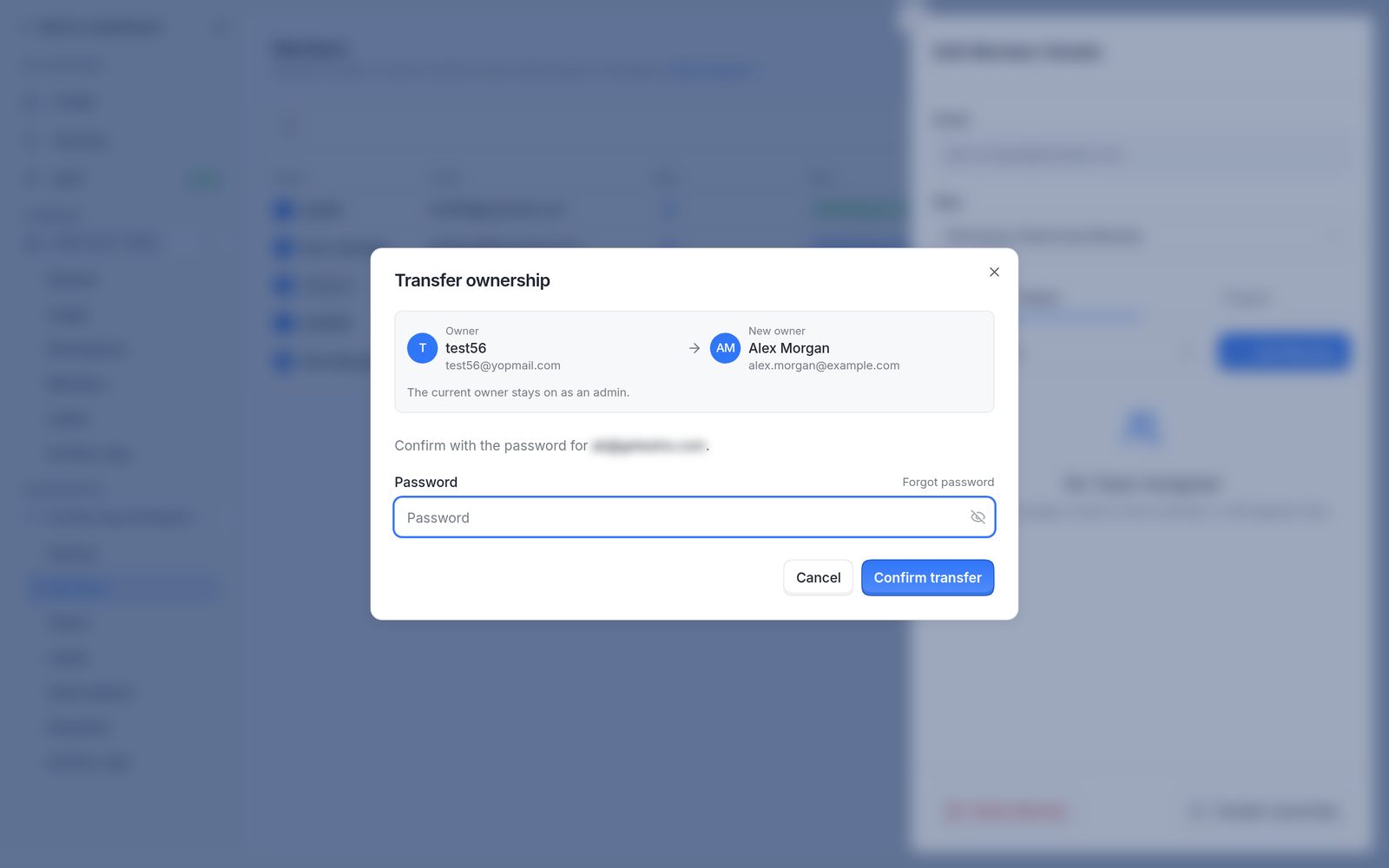
The Transfer ownership window: the current owner, the new owner and the sign-in to confirm.
FAQ
The workspace owner has left the company. How can ownership be moved?
A company owner or admin can transfer ownership from the Members page as described above, without the previous owner. If nobody in the company has that access, raise a support request from the dashboard with the workspace name and the new owner, and Astra's team can make the transfer.