How to share targets with restricted members and teams
Last updated: November 3, 2026
A Workspace Restricted Member sees only the targets shared with them. Targets can be shared with the member directly, or with a team the member belongs to. Workspace owners and admins can do both.
Share a target with a restricted member
Targets are shared after the member has been invited.
- Open Settings, pick the workspace under Workspaces, then click Members.
- Click the member's name to open Edit Member Details.
- Open the Targets tab.
- Pick a target from the list and click Add Target. Repeat for each target.
The shared targets are listed under the tab. To remove access to one, click the bin icon next to it.
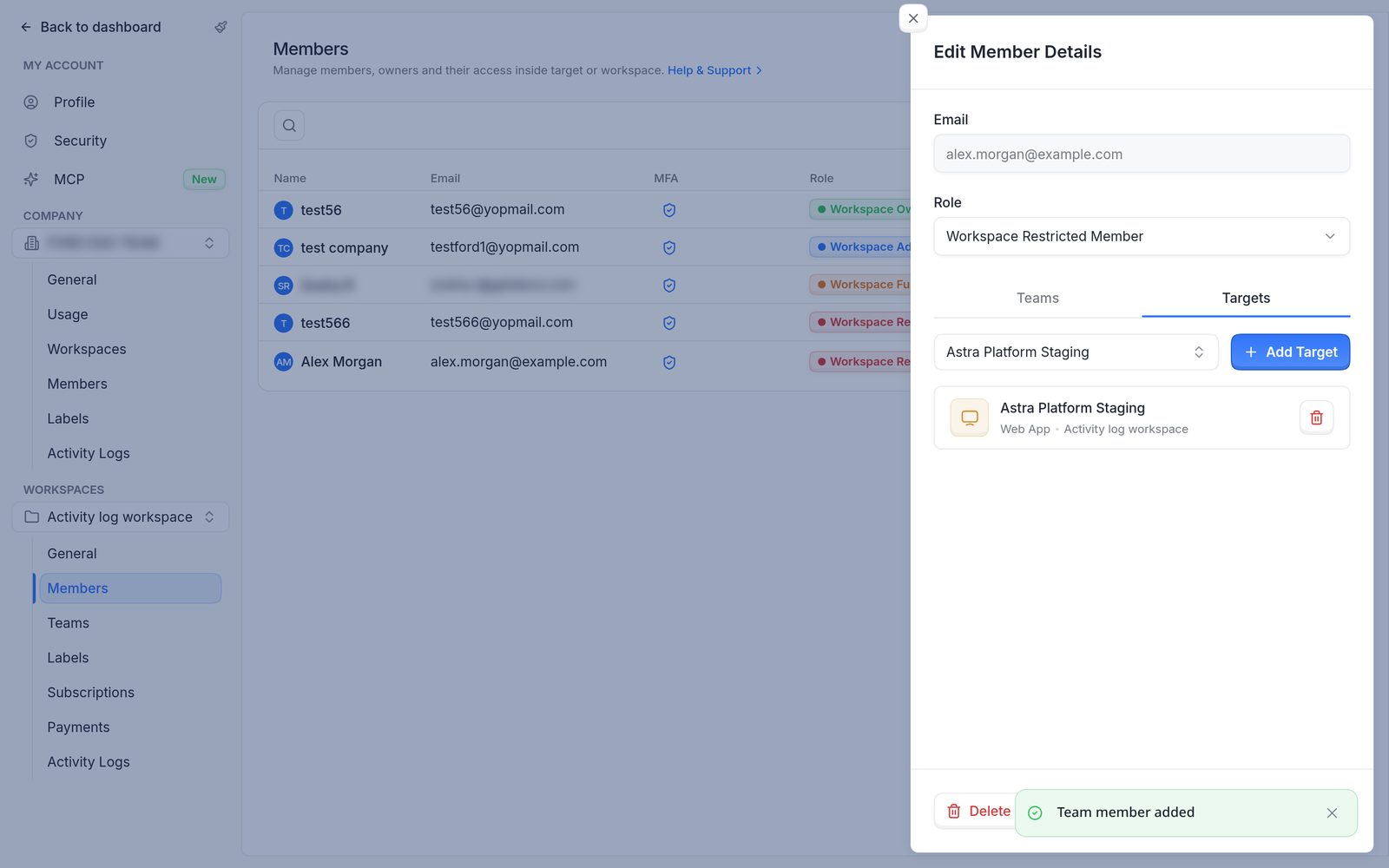
Edit Member Details for a restricted member, with one target shared on the Targets tab.
Give access through a team
Teams group members and targets, so several people can get the same access at once.
- Open Settings, pick the workspace, then click Teams.
- Click Add Team, type the team name and click Add Team.
- On the Team Members tab, add the people.
- On the Targets tab, add the targets.
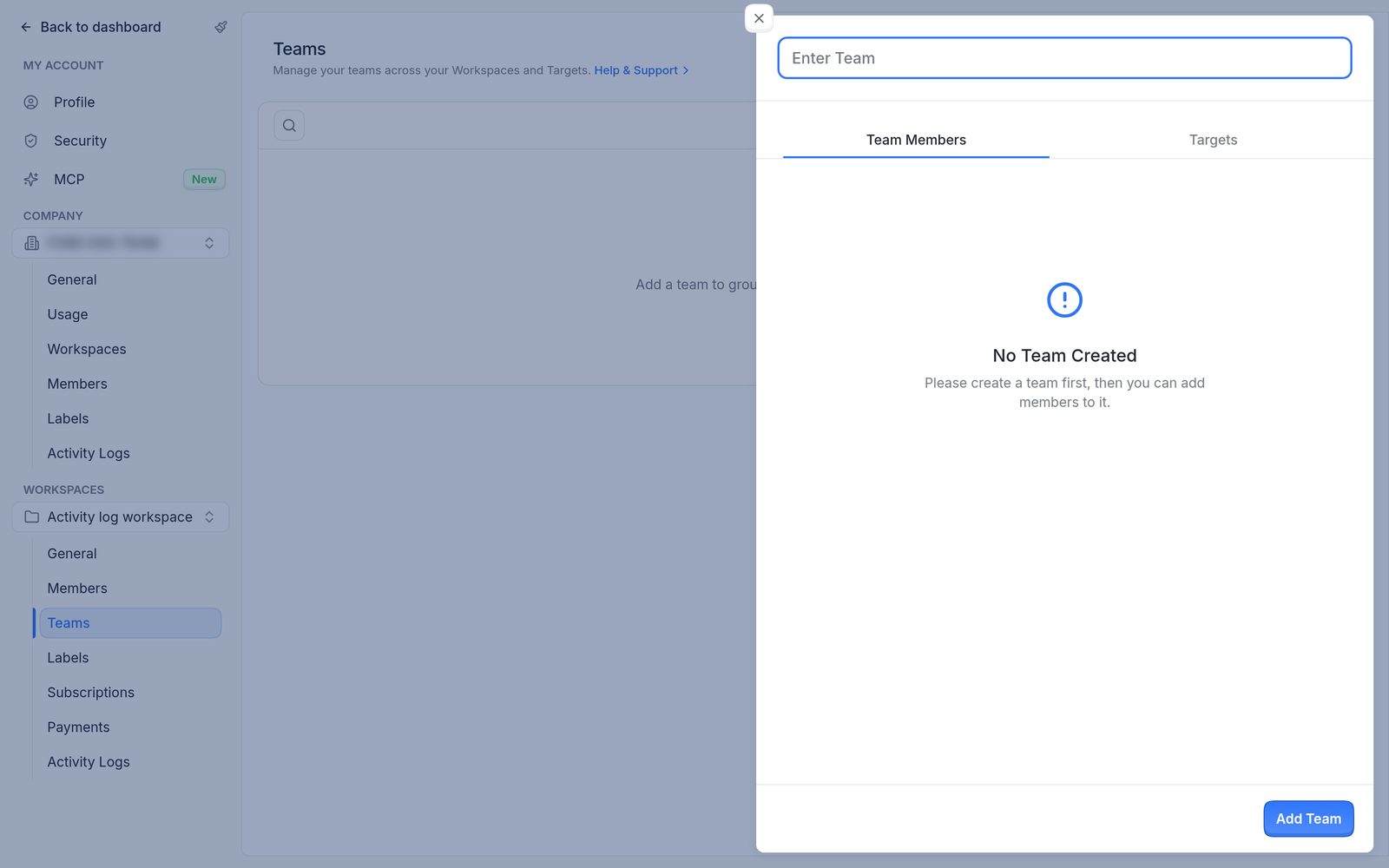
A new team, with the name field and the Team Members and Targets tabs.
Members of the team get access to the team's targets. A member can also be added to a team from the Teams tab in Edit Member Details.