How to create and manage teams
Last updated: November 12, 2026
A team is a group of workspace members who share access to a set of targets. Add members and targets to a team to give all its members access to those targets at once. Teams are managed per workspace.
Availability
Workspace owners and admins, and company owners and admins, can create, edit and delete teams. Other members can open the Teams page but can't change teams.
Open the Teams page
Open Settings.
Under WORKSPACES, choose the workspace, and then click Teams.
The Teams page lists each team with its name, members and the date it was created.
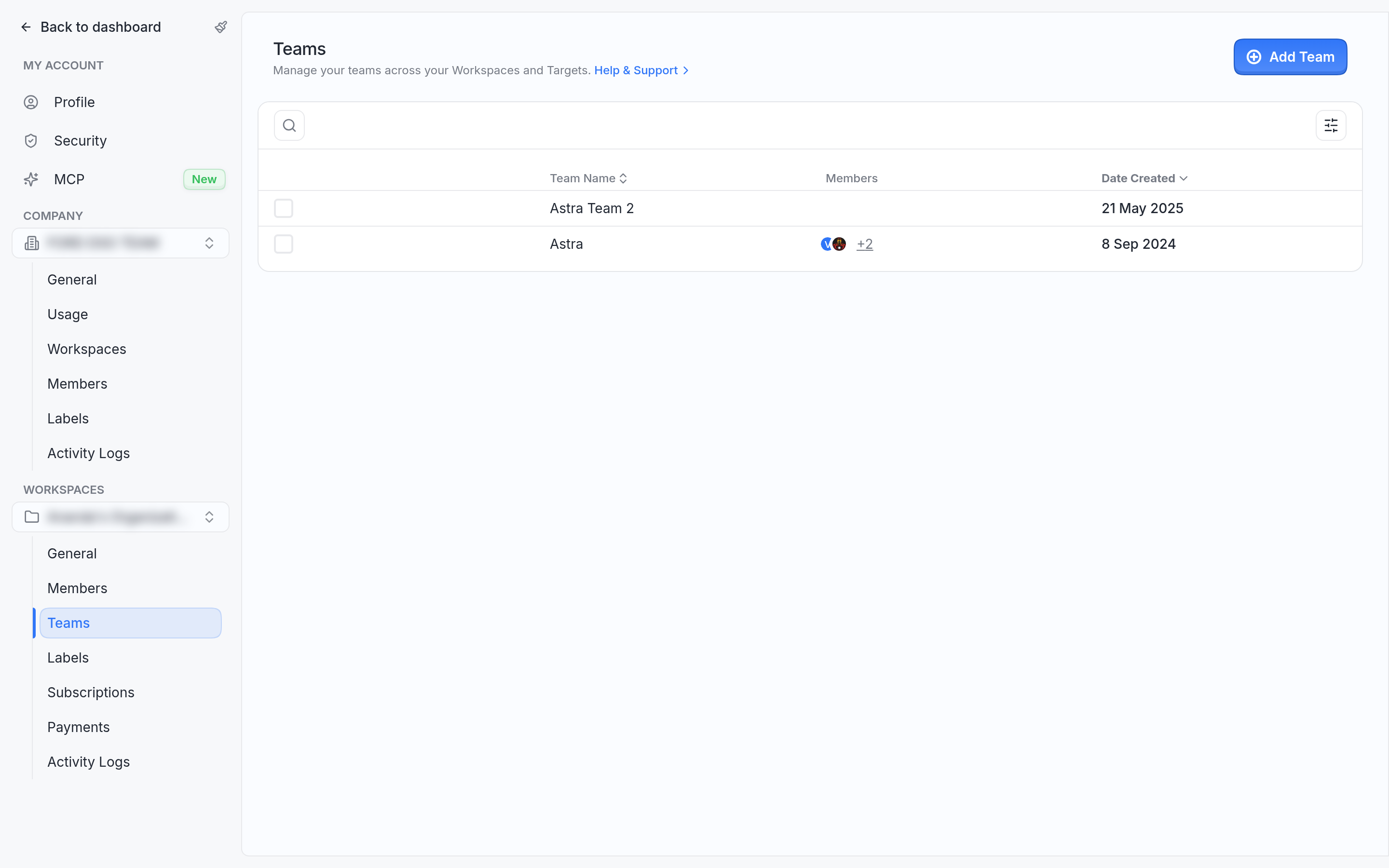
The Teams page lists the workspace's teams.
Create a team
On the Teams page, click Add Team.
Enter the team name.
Click Add Team. Astra shows "Team created".
The Team Members and Targets tabs are available after the team is created.
Add members and targets
On the Teams page, click the team.
To add a member, open Team Members, choose a member in Select Member, and then click Add member.
To add a target, open Targets, choose a target in Select Target, and then click Add to target.
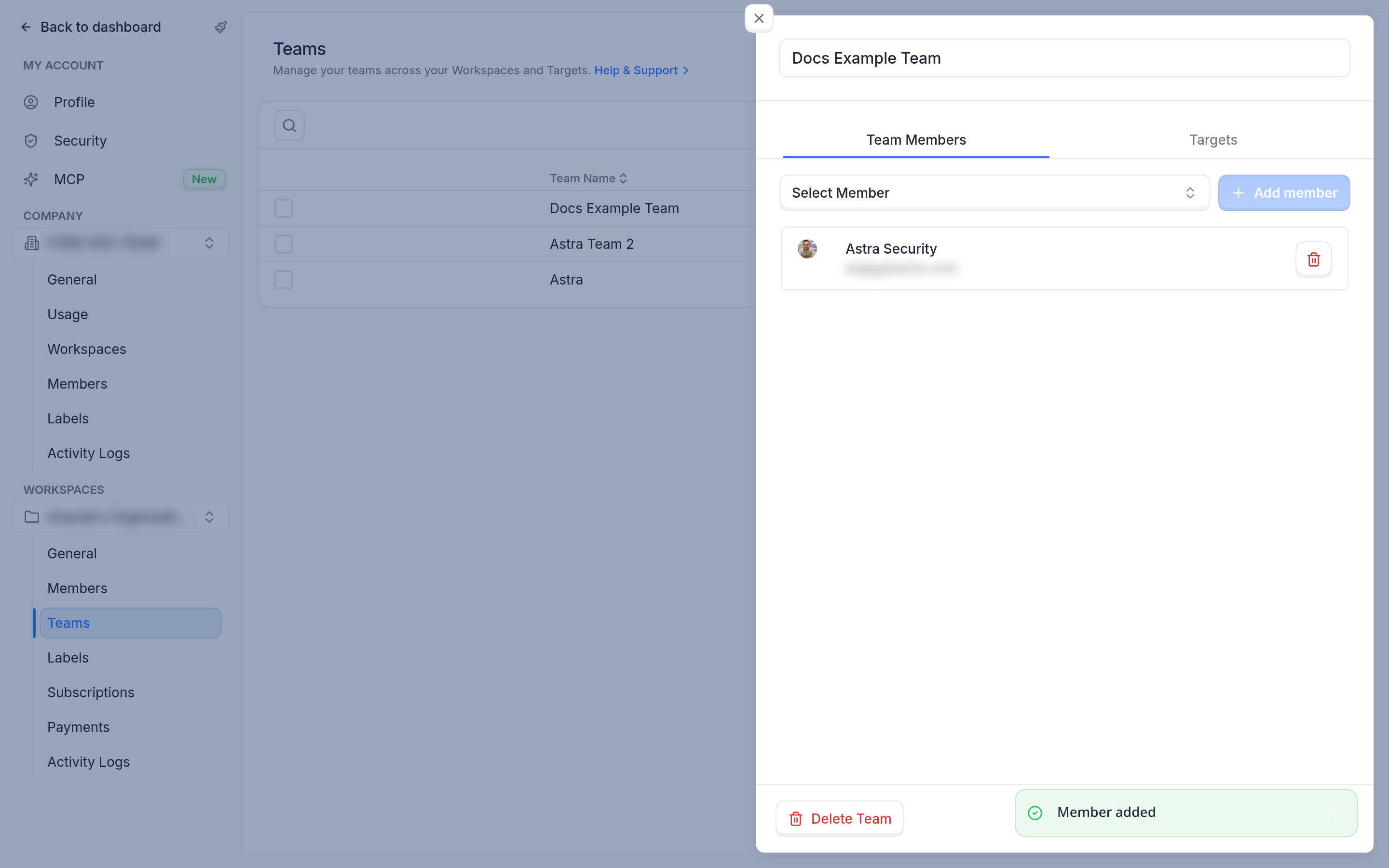
Add members on the Team Members tab of the team's sheet.
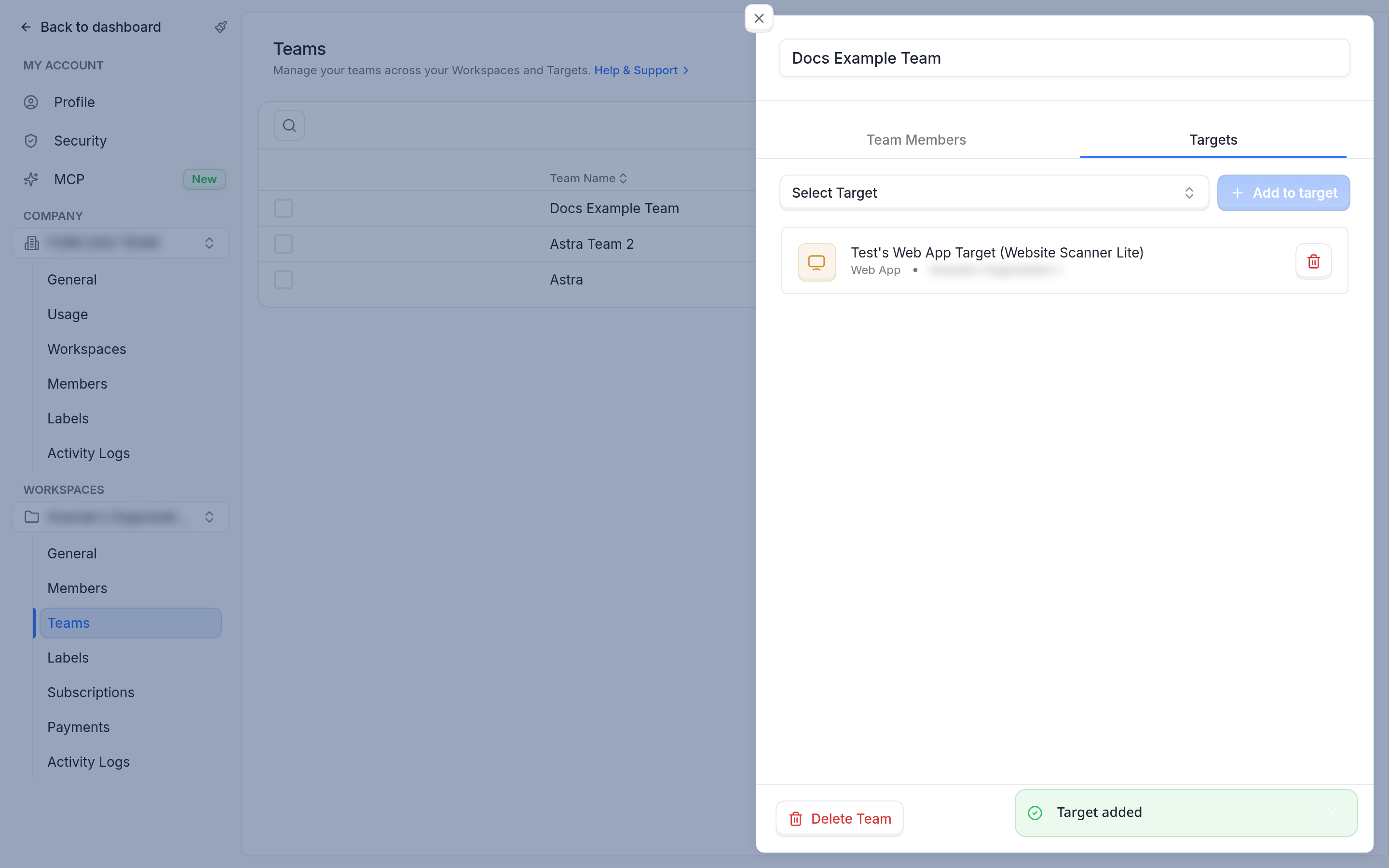
Add targets on the Targets tab.
To remove a member or a target, click the delete icon on its row. To rename the team, click the team, and then edit the name at the top of the sheet. The change saves automatically.
Read more about how teams control access in How to share targets with restricted members and teams.
Delete teams
On the Teams page, select the teams to delete.
Click Delete, and then confirm.
To delete a single team, you can also click the team, and then click Delete Team.
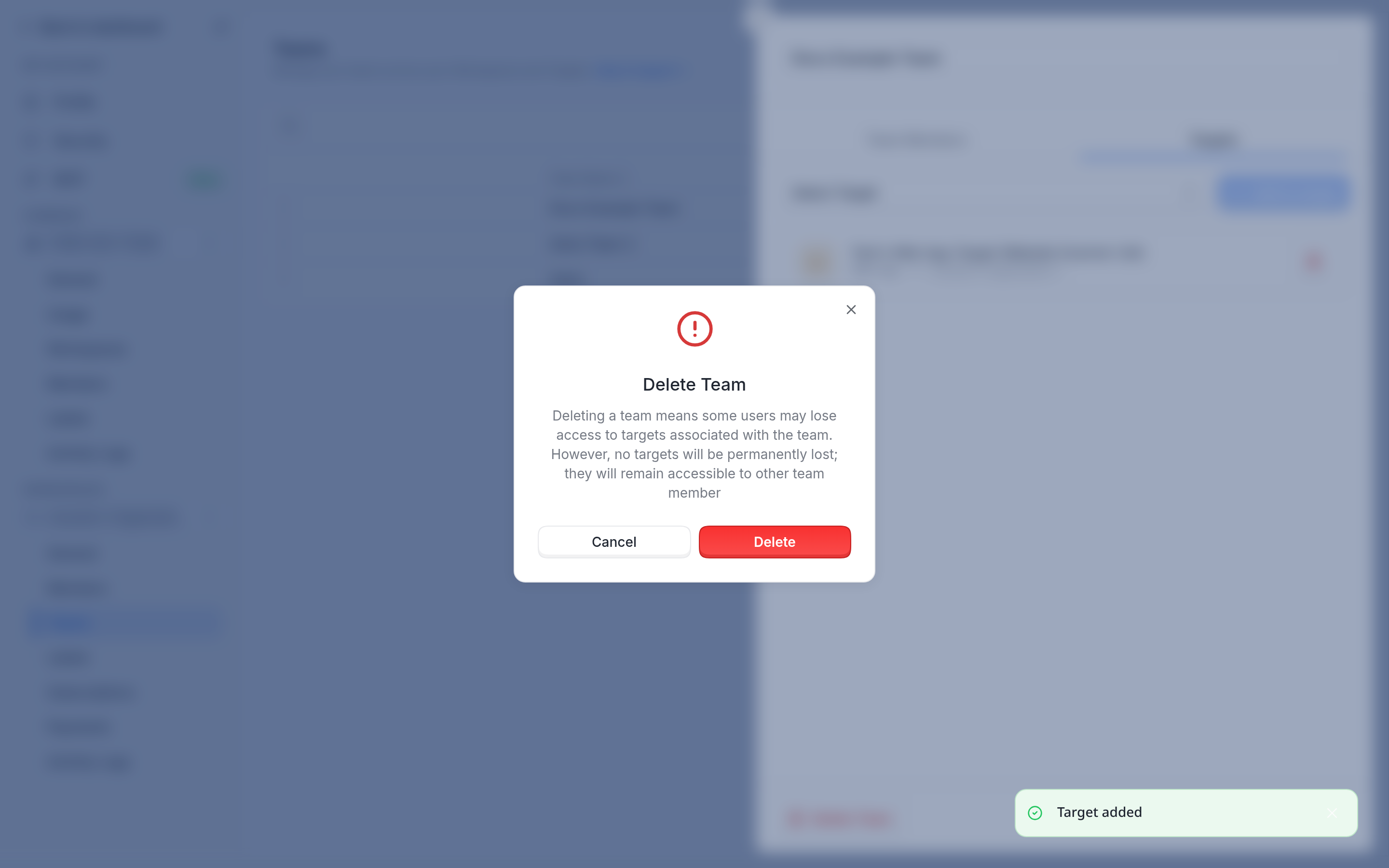
Astra asks you to confirm before it deletes a team.
What happens after you delete a team
Members who had access to a target only through the team may lose access to it.
No targets are deleted. The targets stay available to other members who have access to them.