How to manage your subscription and billing
Last updated: November 3, 2026
Each Astra workspace has its own subscriptions. The Subscriptions page shows every plan in the workspace, what it costs, how it's paid and when the next payment is due. This article explains how to read it and how to change a plan, and links to the steps for payments, invoices, pausing and cancelling.
Workspace owners and admins, company owners and admins, and members with the Workspace Billing Member role can manage subscriptions.
View the workspace's subscriptions
Each plan appears as a card with its ID, creation date and status.
- Open Settings.
- Under Workspaces, pick the workspace, then click Subscriptions.
A banner above a card shows the next payment date, or the date until which a cancelled plan can still be used.
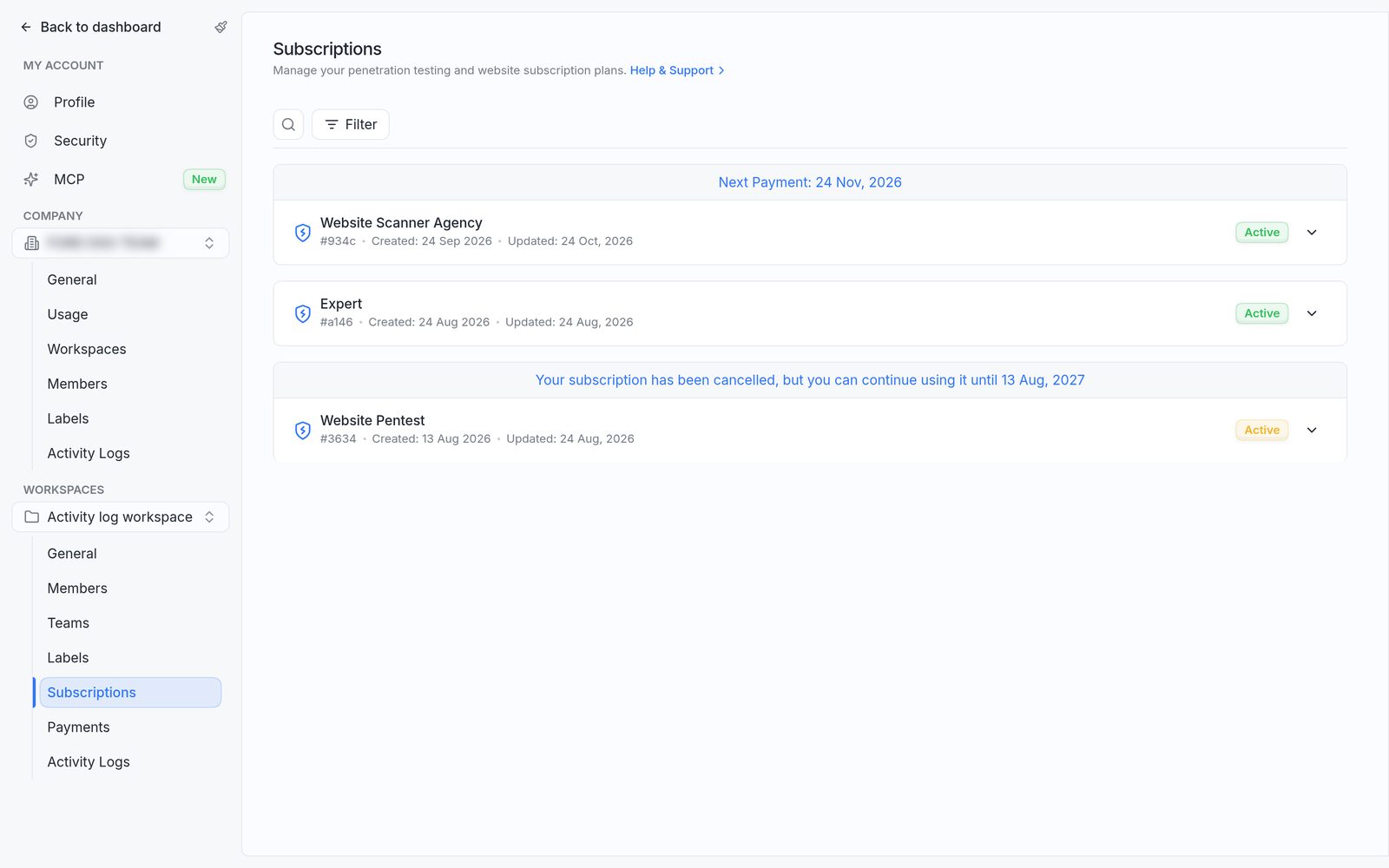
The Subscriptions page, with the next payment date in the banner above the first plan.
Click a card to expand it. The expanded card shows:
- Plan Price and Next payment amount. Plans with a negotiated price show Custom Price.
- Payment method: Billed Online (Paddle) or Billed by Invoice (Offline).
- The targets on the plan (Targets Added, or Pools Added on the Scanner Agency plan).
- Payments Received, with each payment and its invoice.
- The actions available for the plan, such as Upgrade and Cancel / Pause.
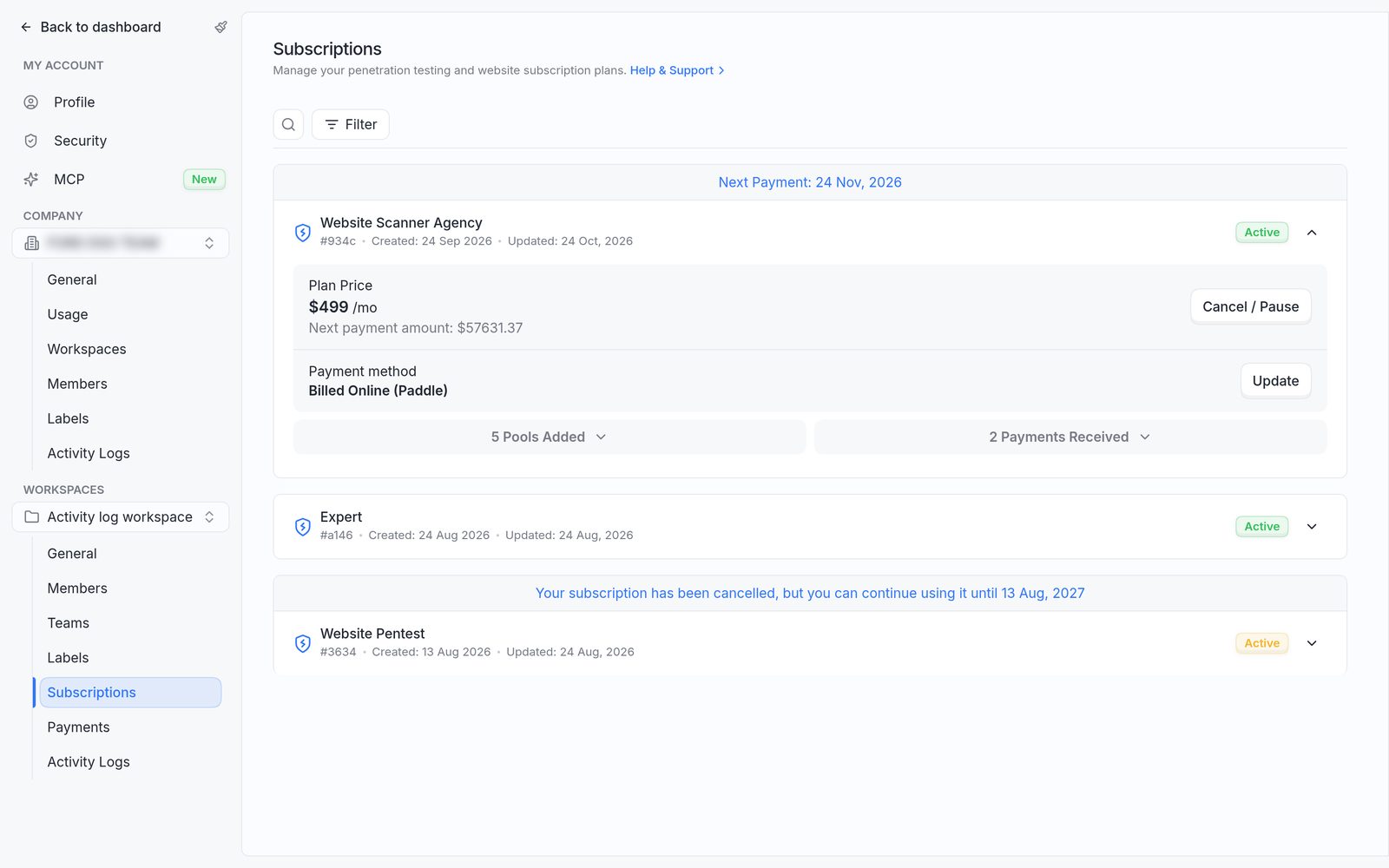
An expanded subscription, with the plan price, payment method, targets and payments.
Payment methods
Each plan shows one of two payment methods.
- Billed Online (Paddle): paid online through Paddle, Astra's payment processor, and charged on each renewal.
- Billed by Invoice (Offline): paid by invoice or wire transfer, as arranged with Astra's sales team.
Read more in How to update a payment method and download invoices.
Upgrade or downgrade a plan
A plan change goes through a checkout.
- When a higher plan is available, the expanded subscription shows Upgrade. Click it, choose the new plan and complete the checkout.
- When a lower plan is available, Downgrade is in the ⋯ menu next to Upgrade.
- A trial shows Upgrade to Paid Version instead.
Plans can't be changed while a subscription is paused or cancelled. Unpause the subscription first.
Pause or cancel a subscription
Pausing stops auto-renewal and can be undone at any time. Cancelling is permanent. In both cases, the plan stays usable until the end of the period already paid for. Read more in How to pause or cancel your subscription.
FAQ
Where is the option to cancel the subscription?
Go to Settings, pick the workspace under Workspaces, click Subscriptions, expand the plan and click Cancel / Pause. The button appears only for members who can manage subscriptions. If it's missing, ask a workspace owner or admin to cancel, or to grant the Workspace Billing Member role.
Does access end when a subscription is cancelled?
No. The plan can be used until the end of the period already paid for. The date is shown in the banner above the plan.