How to Create and Configure Trust Center for your Targets
Last updated: November 24, 2026
A Trust Center is a public page where you show customers and partners your security posture: your security grade, recent pentests, compliance mappings and how to report a vulnerability. It's built from the data in one workspace and the targets you choose, and it stays up to date as you scan and fix issues.
This article explains how to create a Trust Center, configure and publish it, and manage it afterwards.
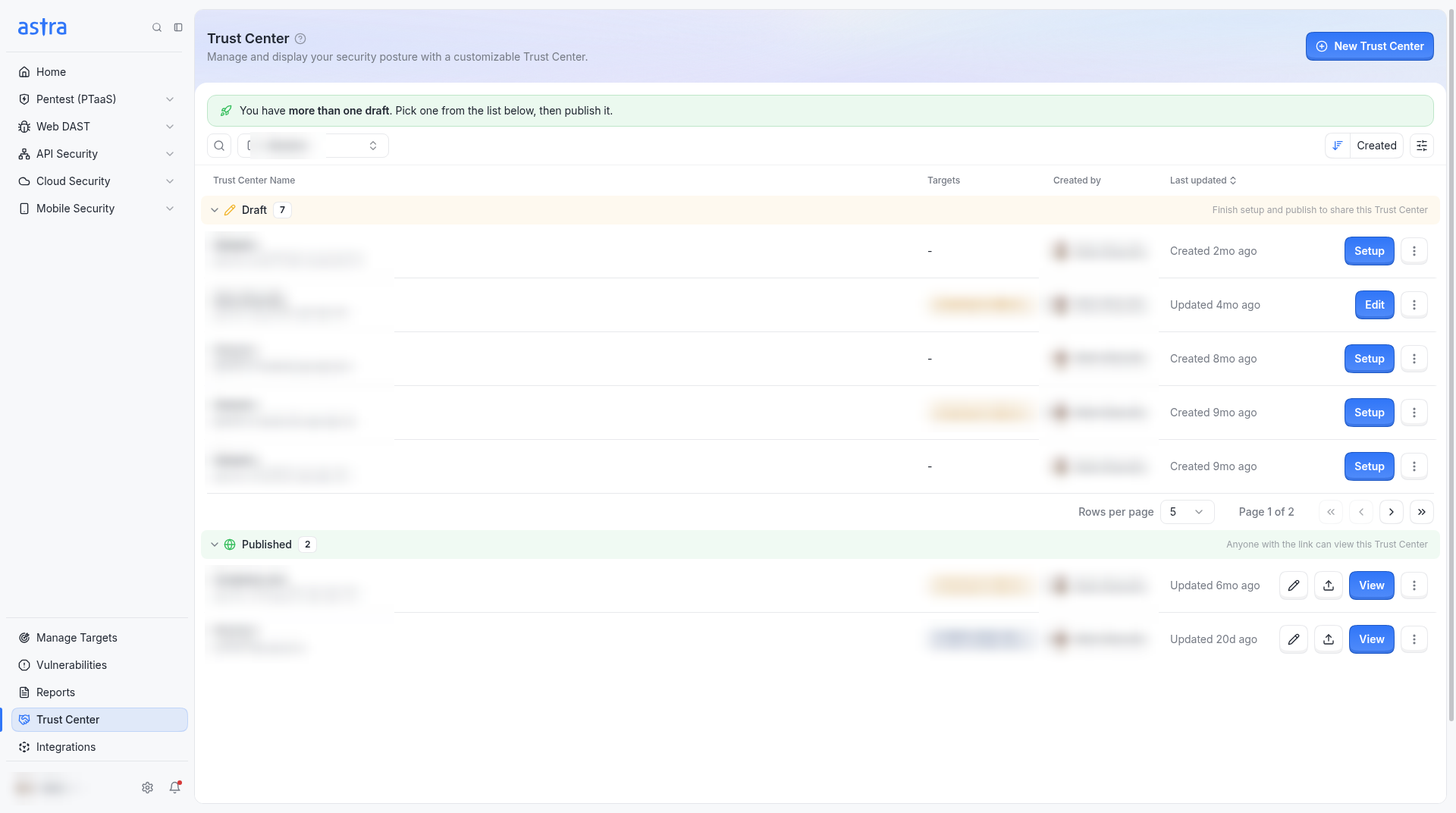
The Trust Center page lists your Trust Centers with their status. Click New Trust Center to create one.
Create a Trust Center
In the sidebar, click Trust Center. The page lists your Trust Centers with their status, Draft or Published.
Select the workspace the Trust Center is for. New Trust Center is available only when a single workspace is selected.
Click New Trust Center, enter a name under Enter a unique name for your trust center, and click Create Trust Center.
Under Workspace & Targets, the workspace is fixed. To use a different one, go back to the list page. Select Select All Targets, or click Select Targets and choose the targets to include.
Under Company Website, enter your company's domain, for example
company.com. Astra uses it to fill in your company details with AI.Click Generate Trust Center.
In Confirm Trust Center Details, check and edit the generated details: Company Name, Company Overview, Brand Color, Industry, Headquarters, Current Location, Founded Year, Contact Email and Privacy Policy Link. The content is generated by AI and may contain mistakes. If Astra can't read your website, fill in the details yourself.
Click Confirm Details. The Trust Center is created as a draft, and its settings open.
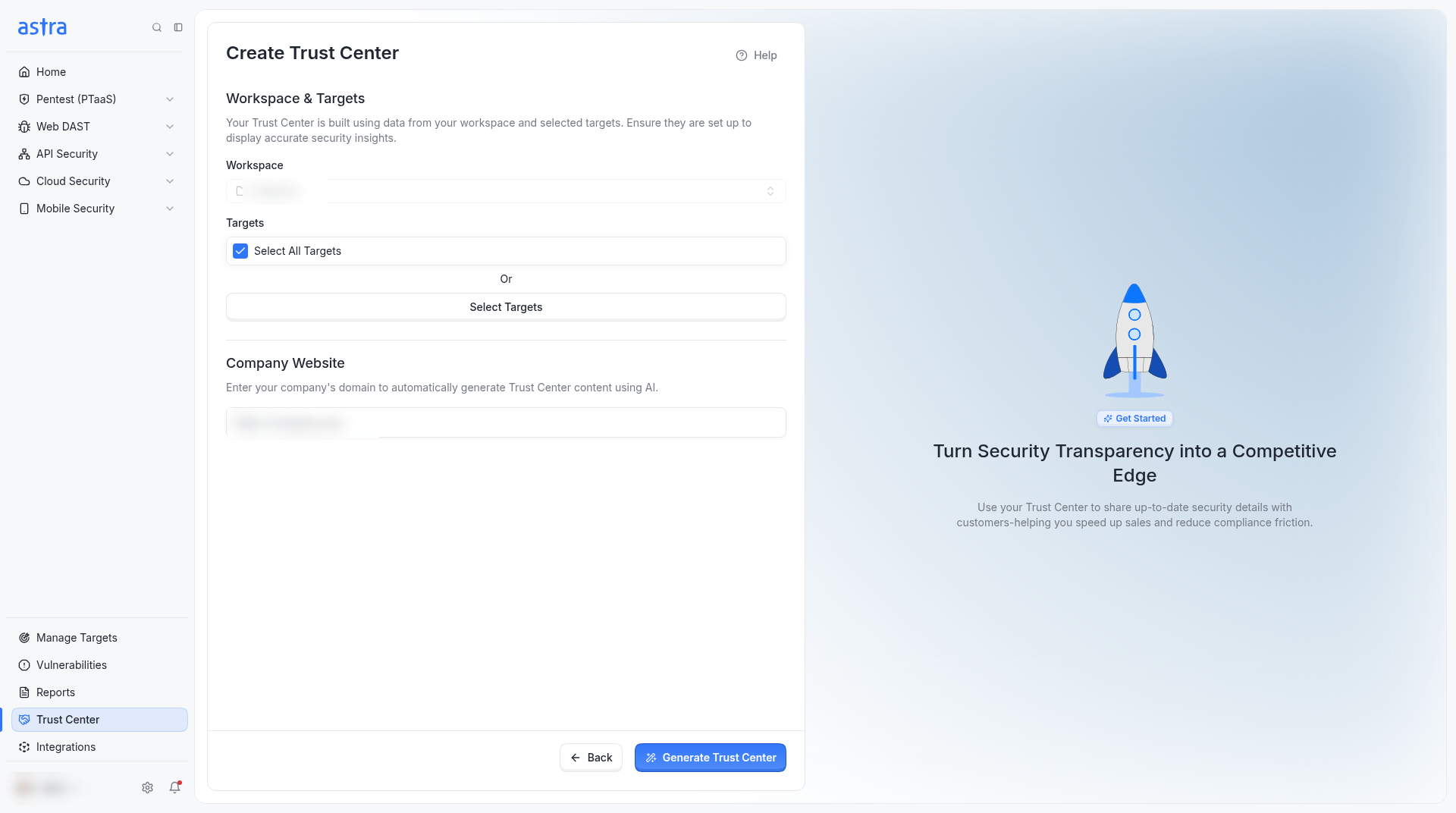
Choose the targets and enter your company website, and then click Generate Trust Center.
Configure the Trust Center
The settings have four tabs. Changes on General Settings are saved automatically.
General Settings: change the Logo shown on the page, the Slug that appears in the Trust Center's URL, the Brand Color, and the Targets Monitored. The recommended logo size is 100 x 100 pixels. The slug can only contain lowercase letters, numbers, dashes and underscores. If you haven't set a custom domain yet, Use a custom domain opens the Custom Domain tab.
Preview: shows the Trust Center as visitors will see it, one section at a time. Use the switch on a section to show or hide it on the public page, and Edit Visually to change a section's content. The sections are:
Header Section: your company details, logo and security grade. To hide a low grade, read 📄 How to Hide the Security Grade in Your Trust Center.
Security Posture and Security Assessment: generated from your selected targets, such as continuous scanning and your latest pentests. You can't edit them, but you can hide them. To change what they cover, change the targets on General Settings.
Compliance Mappings: the frameworks your security work maps to.
Endpoints Monitored: API endpoints monitored by Astra.
Responsible Disclosure: how visitors can report a vulnerability to you.
Frequently Asked Questions (FAQs).
The footer, which is always shown.
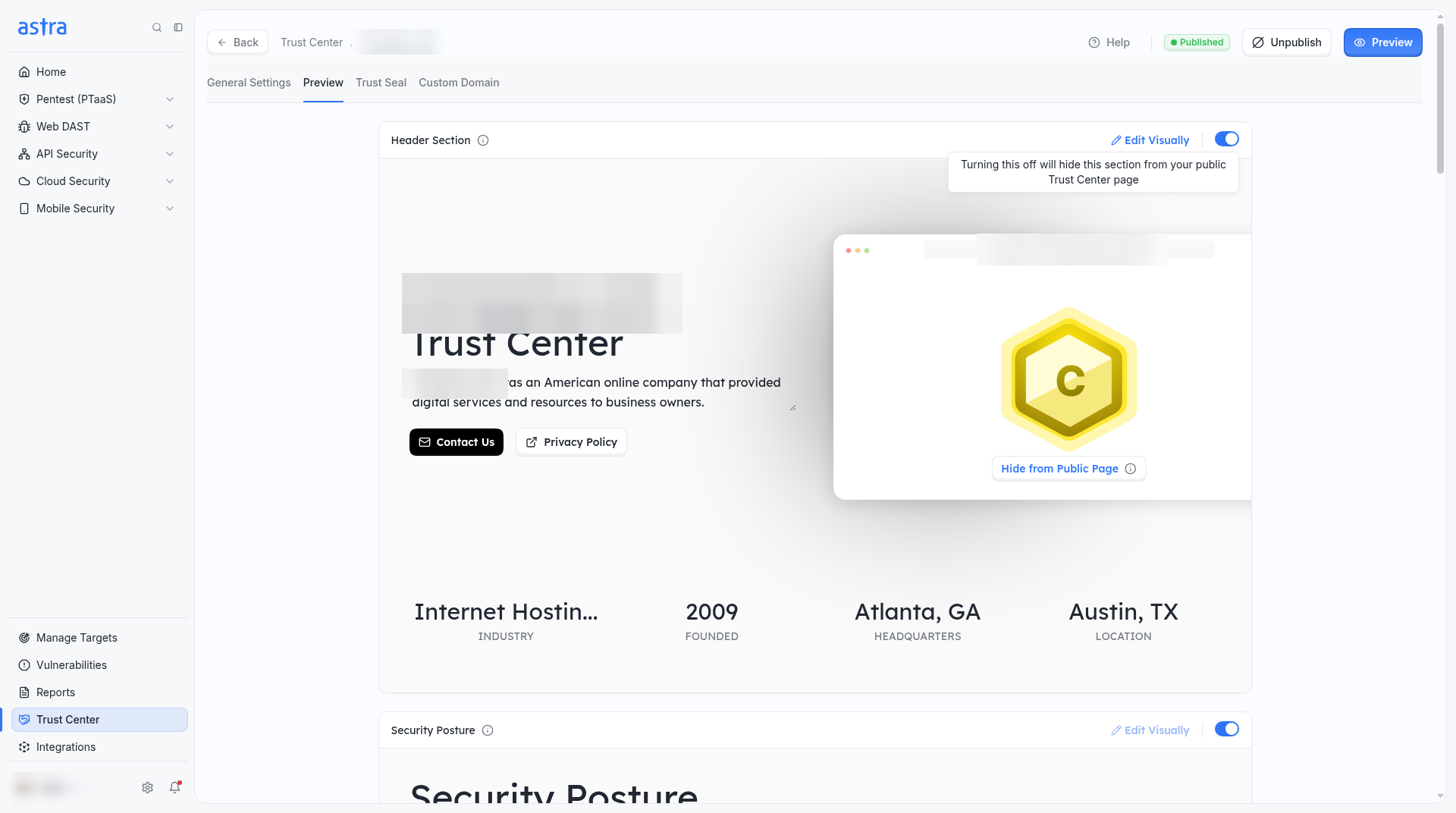
Each section on the Preview tab has Edit Visually and a switch to show or hide it on the public page.
Trust Seal: a badge for your website that links to your Trust Center. Read 📄 How to Add the Astra Trust Seal to Your Web Application.
Custom Domain: serve the Trust Center from your own domain, such as trust.example.com. Read 📄 How to Host Your Trust Center on a Custom Domain.
Publish the Trust Center
On the Trust Center's settings, click Publish.
Check the Page URL. It works only after the Trust Center is published.
Under Access Type, keep Public, so anyone with the link can see the page.
Click Publish Trust Center.
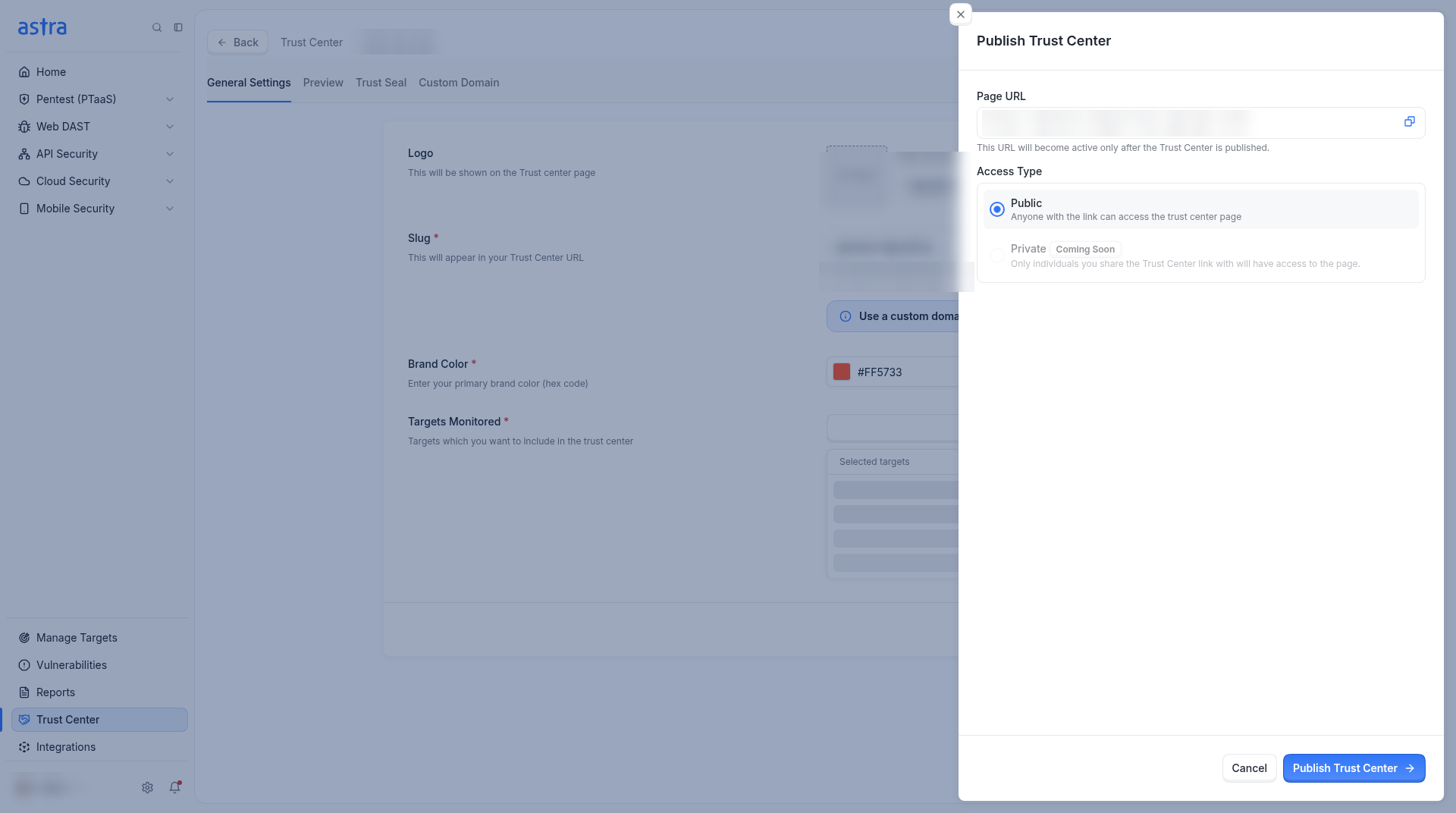
Check the Page URL and the Access Type, and then click Publish Trust Center.
When it's published, the status changes to Published, and Preview opens the live page. Its address is the slug on Astra's Trust Center domain, or your custom domain once it's verified.
Manage your Trust Centers
On the Trust Center list page, use the menu on a row to:
Edit the Trust Center.
Copy public link or Share Trust Center.
Unpublish Trust Center, which moves it back to draft and takes the public page offline.
Delete Trust Center, which permanently removes its configuration, customizations and shared links.
Recommendations
Choose targets you scan regularly. The Trust Center shows live data, so targets with recent scans and pentests give the best picture.
Review the AI-generated details before you confirm them, especially contact details and links.
Check every section in Preview before you publish, and hide the ones that don't apply to you.
Add the Trust Seal and a custom domain so customers can find the page from your website.
Troubleshooting
The Trust Center or custom domain shows that the page doesn't exist. The Trust Center is still a draft. Publish it to make the page live.
The Trust Seal doesn't link to the Trust Center. Publish the Trust Center. The seal only links to a published page.
My targets don't appear when I select targets. Check that the right workspace was selected on the list page before you clicked New Trust Center. The workspace can't be changed afterwards.
If you have questions about your Trust Center, contact support from your Astra dashboard or reach out to your CSM.