How to Host Your Trust Center on a Custom Domain
Last updated: August 4, 2026
Introduction
A custom domain lets you make your Trust Center publicly accessible at an address like trust.example.com. This gives your security portal a branded, professional appearance that is consistent with your organization's existing online presence and immediately recognizable to customers and stakeholders.
Instructions
1. Go to Custom Domain Settings
In your Trust Center dashboard, open Settings.
Select the Custom Domain tab.
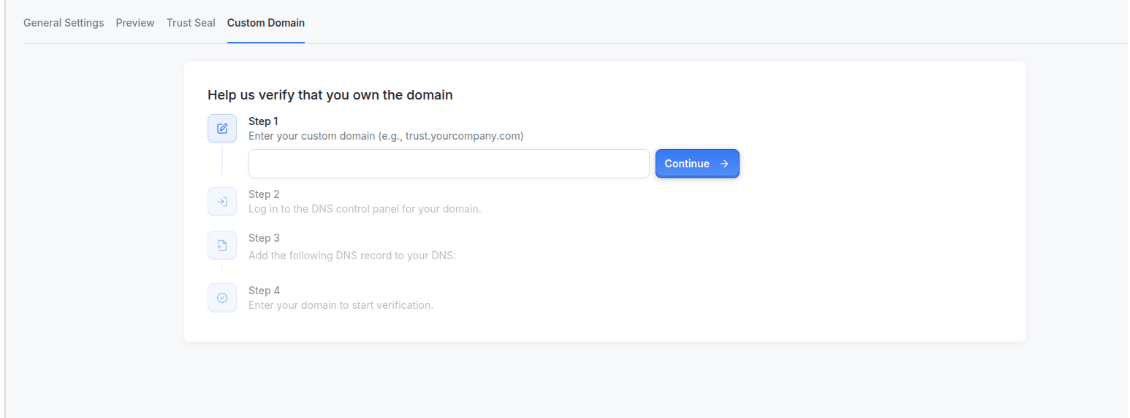
2. Enter Your Custom Domain
Type in the domain you’d like to use (e.g., trust.example.com).
3. Create Your Trust Center
Click Continue to start the Trust Center creation process.
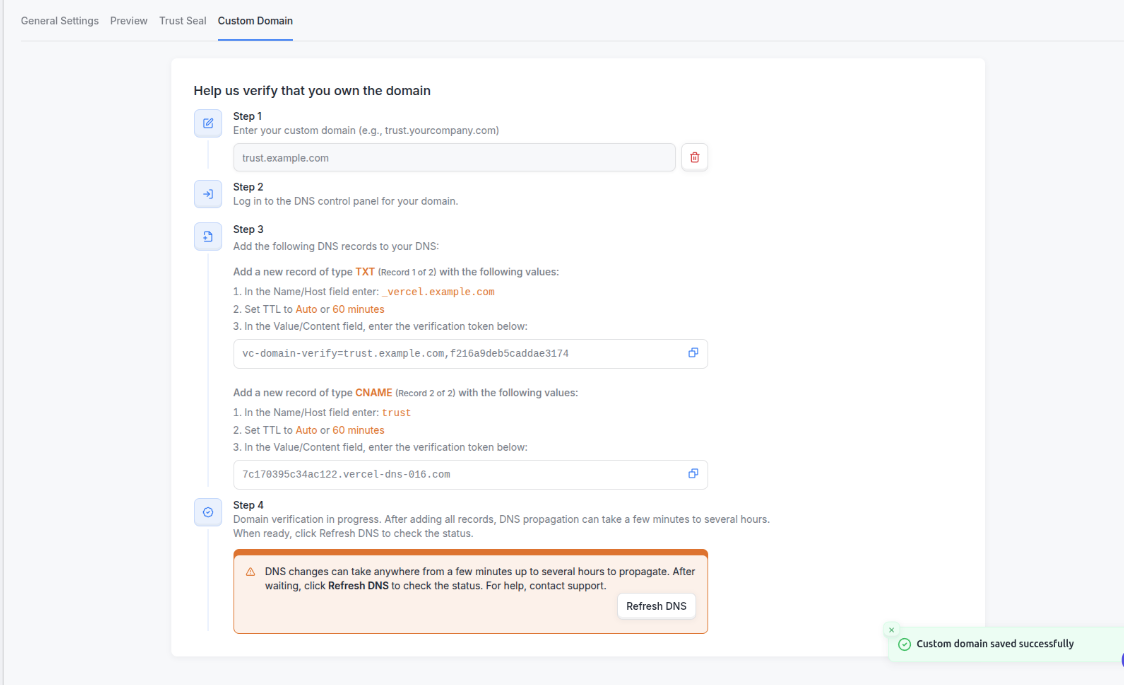
4. Verify Domain Ownership
Follow the instructions shown in your dashboard.
You’ll need to add DNS records to your domain provider’s settings.
Tip: Verification requires DNS changes. Make sure your DNS provider supports custom records.
5. Check Verification Status
Once records are added, a banner will display your verification status.
The system checks automatically, but you can also click Refresh to check manually.
Note: DNS verification may take 1–24 hours to complete.
6. Domain Goes Live
After successful verification, your Trust Center will be live on your custom domain within 10–15 minutes.
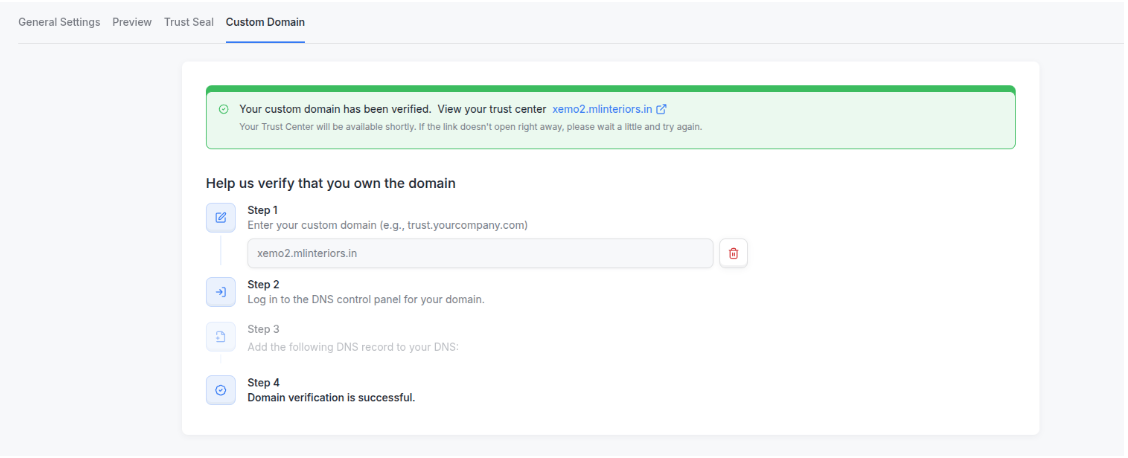
Deleting a custom domain
To remove an existing domain:
Go to the Custom Domain tab in your dashboard.
Click the delete icon next to your custom domain

Best Practices
Double-check your domain name and DNS entries before saving
A single typo in your domain name or DNS record values will cause verification to fail. Review both carefully before submitting.
Allow sufficient time for DNS propagation before retrying
DNS changes can take up to 24 hours to propagate globally. Retrying verification too early may show a failed status even when the records are correctly configured. Wait at least a few hours before troubleshooting.
Keep your DNS records intact after verification
Removing or modifying the DNS records added during verification can cause your custom domain to go offline. Only update these records if you are intentionally removing the custom domain from your Trust Center.