How to Add the Astra Trust Seal to Your Web Application
Last updated: November 24, 2026
The Trust Seal is a badge you add to your website. It shows visitors that your security is tested by Astra, and clicking it opens your public Trust Center. This article explains how to configure the seal, add it to a plain HTML site, and add it to React, Vue and Angular apps.
Before you start
A Trust Center for the targets you want to show. Read 📄 How to Create and Configure Trust Center for your Targets.
Publish the Trust Center. The seal only links to a published Trust Center.
Configure the seal
In the sidebar, click Trust Center, and open your Trust Center.
Open the Trust Seal tab.
Under Configuration, choose:
Seal Position: Bottom Left, Bottom Right or Manual. Bottom Left and Bottom Right pin the seal to that corner of the browser window. Manual shows the seal where you place its code on the page.
Seal Size: Small, Medium, Large or X large.
Color Theme: Light Mode or Dark Mode.
Display trust center name on the seal: shows your Trust Center's name on the seal. The seal shows up to the first 15 characters.
Check the result in Seal Preview.
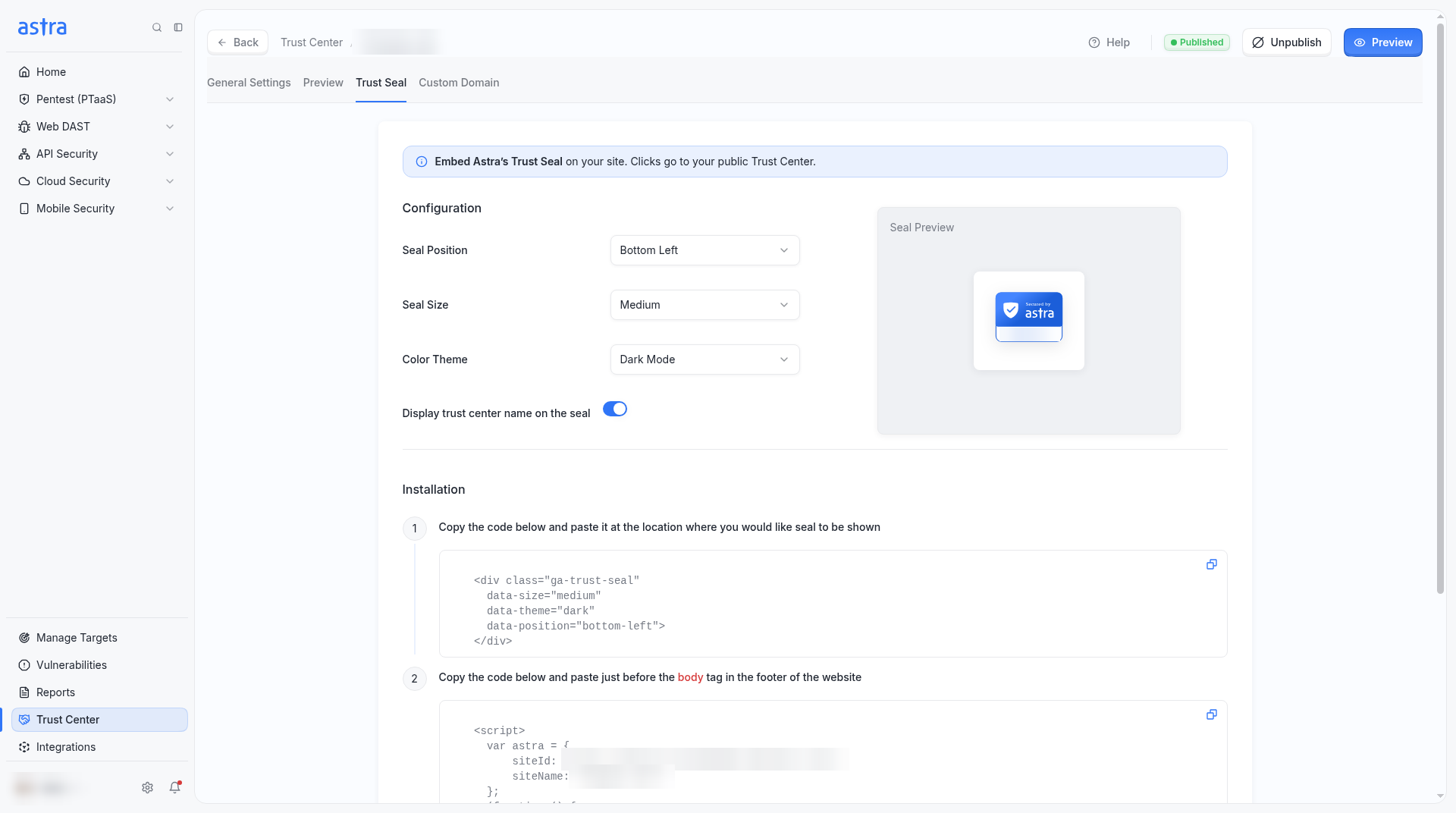
Configure the seal, check the preview, and copy the two installation snippets.
The defaults are Bottom Left, Medium, Dark Mode, with the name shown.
Add the seal
Under Installation, the tab shows two snippets that already contain your settings:
Copy the first snippet, a
div, and paste it where you want the seal on the page. With Bottom Left or Bottom Right, it can go anywhere in the page body.Copy the second snippet, a
script, and paste it just before the closingbodytag in your site's footer.
Add both snippets to every page where the seal should appear. The seal doesn't show if only one of them is on the page.
Add the seal to a React, Vue or Angular app
In single-page apps, load the script from a component instead of pasting it into the HTML. The examples below do this. In each one, replace:
https://YOUR_SLUG.YOUR_TRUST_CENTER_DOMAINwith thesiteIdvalue from the script snippet on the Trust Seal tab. It's your Trust Center's address.YOUR_SITE_NAMEwith thesiteNamevalue from the same snippet.The
data-size,data-themeanddata-positionvalues with the ones from yourdivsnippet.
Check that the script URL in the examples matches the src in your snippet.
React
Create a file called AstraTrustSeal.tsx:
import { useEffect } from "react"

declare global {
  interface Window {
    astra?: {
      siteId: string
      siteName: string
    }
    astraSDK?: {
      setSeal: () => void
    }
  }
}

export default function AstraTrustSeal() {
  useEffect(() => {
    window.astra = {
      siteId: "https://YOUR_SLUG.YOUR_TRUST_CENTER_DOMAIN",
      siteName: "YOUR_SITE_NAME",
    }

    const scriptId = "sdkscriptnode"
    let sdkScript = document.getElementById(scriptId) as HTMLScriptElement | null

    const handleScriptLoad = () => {
      window.astraSDK?.setSeal()
    }

    if (!sdkScript) {
      sdkScript = document.createElement("script")
      sdkScript.type = "text/javascript"
      sdkScript.async = true
      sdkScript.id = scriptId
      sdkScript.src = "https://api.getastra.com/dist/sdk.js"
      document.body.appendChild(sdkScript)
    }

    sdkScript.addEventListener("load", handleScriptLoad)

    if (window.astraSDK) {
      window.astraSDK.setSeal()
    }

    return () => {
      sdkScript?.removeEventListener("load", handleScriptLoad)
    }
  }, [])

  return (
    <div
      className="ga-trust-seal"
      data-size="medium"
      data-theme="dark"
      data-position="bottom-left"
    />
  )
}
Use the component anywhere in your app:
import AstraTrustSeal from "./components/AstraTrustSeal"

export default function Page() {
  return (
    <>
      {/* your page content */}
      <AstraTrustSeal />
    </>
  )
}
Vue
Create a file called AstraTrustSeal.vue:
<template>
  <div
    class="ga-trust-seal"
    data-size="medium"
    data-theme="dark"
    data-position="bottom-left"
  />
</template>

<script setup lang="ts">
import { onMounted, onUnmounted } from 'vue'

const handleScriptLoad = () => (window as any).astraSDK?.setSeal()

onMounted(() => {
  (window as any).astra = {
    siteId: 'https://YOUR_SLUG.YOUR_TRUST_CENTER_DOMAIN',
    siteName: 'YOUR_SITE_NAME',
  }

  const scriptId = 'sdkscriptnode'
  let sdkScript = document.getElementById(scriptId) as HTMLScriptElement | null

  if (!sdkScript) {
    sdkScript = document.createElement('script')
    sdkScript.type = 'text/javascript'
    sdkScript.async = true
    sdkScript.id = scriptId
    sdkScript.src = 'https://api.getastra.com/dist/sdk.js'
    document.body.appendChild(sdkScript)
  }

  sdkScript.addEventListener('load', handleScriptLoad)
  if ((window as any).astraSDK) handleScriptLoad()
})

onUnmounted(() => {
  document.getElementById('sdkscriptnode')
    ?.removeEventListener('load', handleScriptLoad)
})
</script>
Use the component anywhere in your app:
<template>
  <div>
    <!-- your page content -->
    <AstraTrustSeal />
  </div>
</template>

<script setup lang="ts">
import AstraTrustSeal from './components/AstraTrustSeal.vue'
</script>
Angular
Create a file called astra-trust-seal.component.ts:
import {
  Component,
  AfterViewInit,
  OnDestroy,
  Inject,
  PLATFORM_ID,
} from '@angular/core'
import { isPlatformBrowser } from '@angular/common'

declare global {
  interface Window {
    astra?: {
      siteId: string
      siteName: string
    }
    astraSDK?: {
      setSeal: () => void
    }
  }
}

@Component({
  selector: 'app-astra-trust-seal',
  standalone: true,
  template: `
    <div
      class="ga-trust-seal"
      data-size="medium"
      data-theme="dark"
      data-position="bottom-left">
    </div>
  `,
})
export class AstraTrustSealComponent implements AfterViewInit, OnDestroy {
  private handleScriptLoad = () => window.astraSDK?.setSeal()

  constructor(@Inject(PLATFORM_ID) private platformId: object) {}

  ngAfterViewInit(): void {
    if (!isPlatformBrowser(this.platformId)) return

    window.astra = {
      siteId: 'https://YOUR_SLUG.YOUR_TRUST_CENTER_DOMAIN',
      siteName: 'YOUR_SITE_NAME',
    }

    const scriptId = 'sdkscriptnode'
    let sdkScript = document.getElementById(scriptId) as HTMLScriptElement | null

    if (!sdkScript) {
      sdkScript = document.createElement('script')
      sdkScript.type = 'text/javascript'
      sdkScript.async = true
      sdkScript.id = scriptId
      sdkScript.src = 'https://api.getastra.com/dist/sdk.js'
      document.body.appendChild(sdkScript)
    }

    sdkScript.addEventListener('load', this.handleScriptLoad)
    if (window.astraSDK) this.handleScriptLoad()
  }

  ngOnDestroy(): void {
    document.getElementById('sdkscriptnode')
      ?.removeEventListener('load', this.handleScriptLoad)
  }
}
Import the component in a parent component and use it in the template:
import { Component } from '@angular/core'
import { AstraTrustSealComponent } from './astra-trust-seal/astra-trust-seal.component'

@Component({
  standalone: true,
  imports: [AstraTrustSealComponent],
  template: `
    <!-- your page content -->
    <app-astra-trust-seal />
  `,
})
export class SomeComponent {}
Seal attributes
The div controls how the seal looks. These attributes work the same in every framework.
Attribute | Values |
data-size | small, medium, large, xlarge |
data-theme | light, dark. With the Trust Center name turned off, light-sm or dark-sm. |
data-position | bottom-left, bottom-right, manual |
For example:
<div class="ga-trust-seal"
  data-size="medium"
  data-theme="dark"
  data-position="bottom-left">
</div>
Recommendations
Add the seal to a shared layout, so it appears on every page without loading the script more than once.
Load the script only once per page. The examples check for an existing script before adding one.
Choose a theme that contrasts with your site. Light Mode suits dark pages, and Dark Mode suits light pages.
Check the seal on mobile screens, so a corner seal doesn't cover buttons or navigation.
Troubleshooting
The seal doesn't appear on my site. Check that both snippets from the Trust Seal tab are on the page, unchanged, and that the Trust Center is published. If your site has a Content Security Policy, allow the Astra script URL. If the seal shows on one domain but not another, contact support with both addresses.
Clicking the seal doesn't open my Trust Center. Publish the Trust Center. The seal links to the published page.
If you need help adding the seal, contact support from your Astra dashboard or reach out to your CSM.