How to set up an Android or iOS target
Last updated: November 12, 2026
Mobile app targets are set up step by step. Three steps are required: Get Started, the app file (APK File for Android or IPA File for iOS) and User Roles. App Details and Payment Details are optional.
Set up a mobile app target
On the Targets page, click Setup on the target's row.
Get Started: enter the Target Name and the Business Name (For Pentest Certificate), and then click Save & Continue.
APK File or IPA File: upload the app's build file, and optionally add the Play Store or App Store link.
User Roles: add the test credentials for each user role in the app. Click Add another user role for more roles.
Optional: App Details: describe the app in Application Overview, and list its key features in Application Features.
Optional: Payment Details: add a dummy or test card that testers can use to test the app's payment features.
Click Save & Continue on each step.
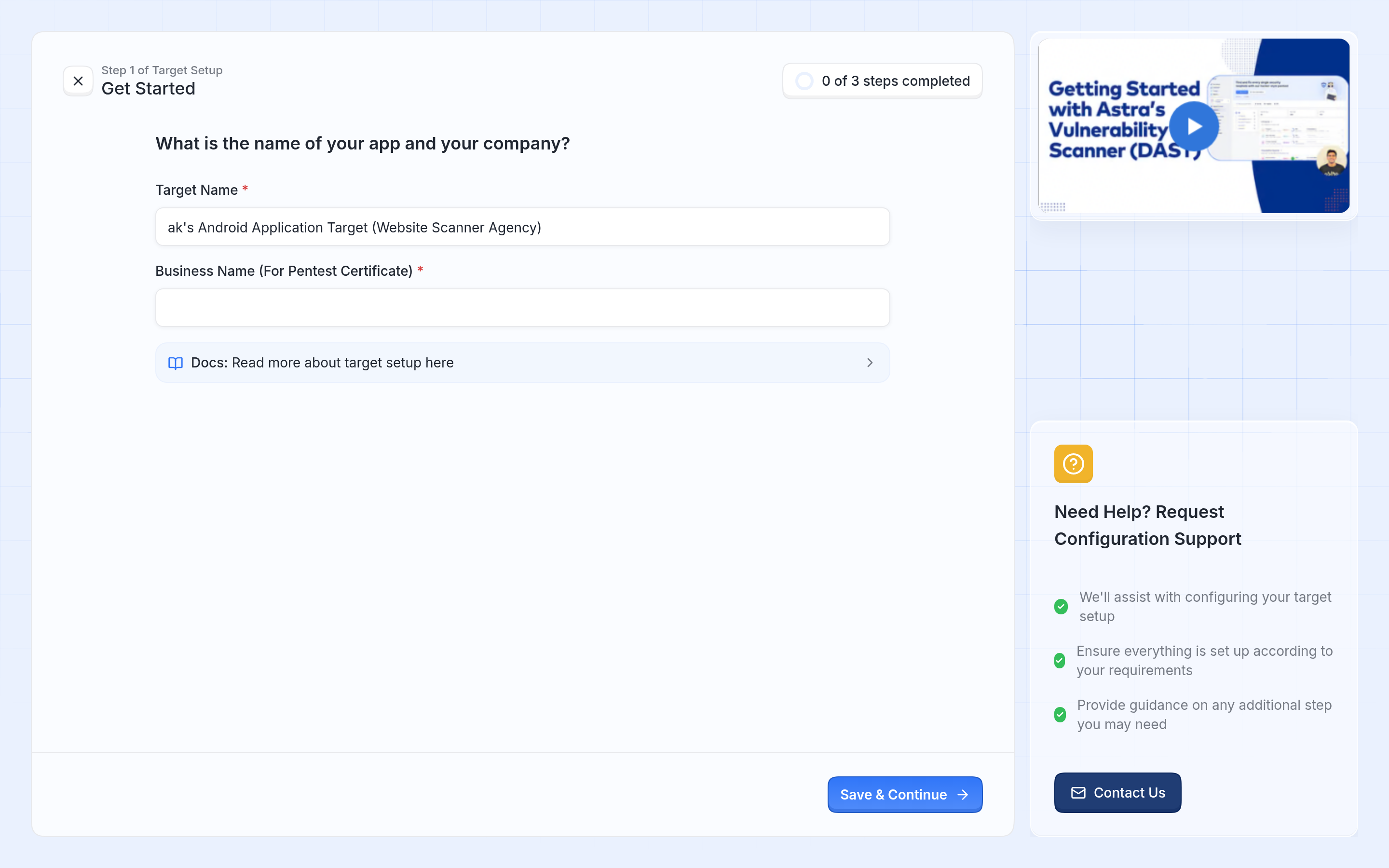
Get Started is the first step of a mobile app target's setup.
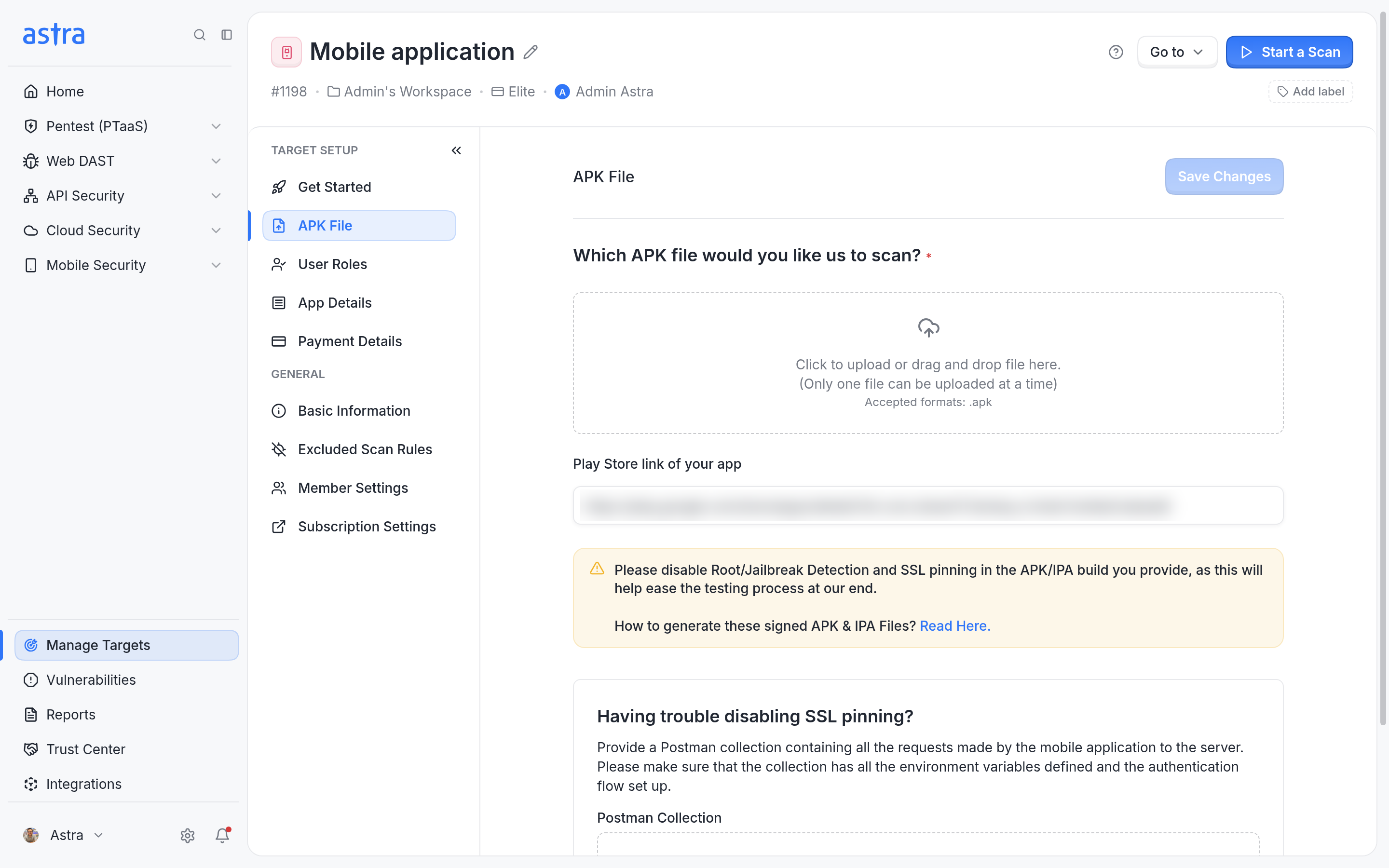
Upload the APK file and, optionally, a Postman collection of the app's API requests.
Important
Disable root and jailbreak detection and SSL pinning in the APK or IPA build you upload. This makes testing easier.
Tips for the app file
Upload one file at a time. Android accepts .apk files and iOS accepts .ipa files.
If you can't disable SSL pinning, upload a Postman Collection with all the requests the app makes to the server. Include the environment variables and the authentication flow.
Upload the latest build before each pentest or rescan. Astra tests the build that is on the target.
Tips for user roles
Share test credentials without two-factor authentication where you can.
If the app signs in with email, you can create role-based aliases, such as redteam@getastra.com and redteam+2@getastra.com. Emails from your own domain also work.
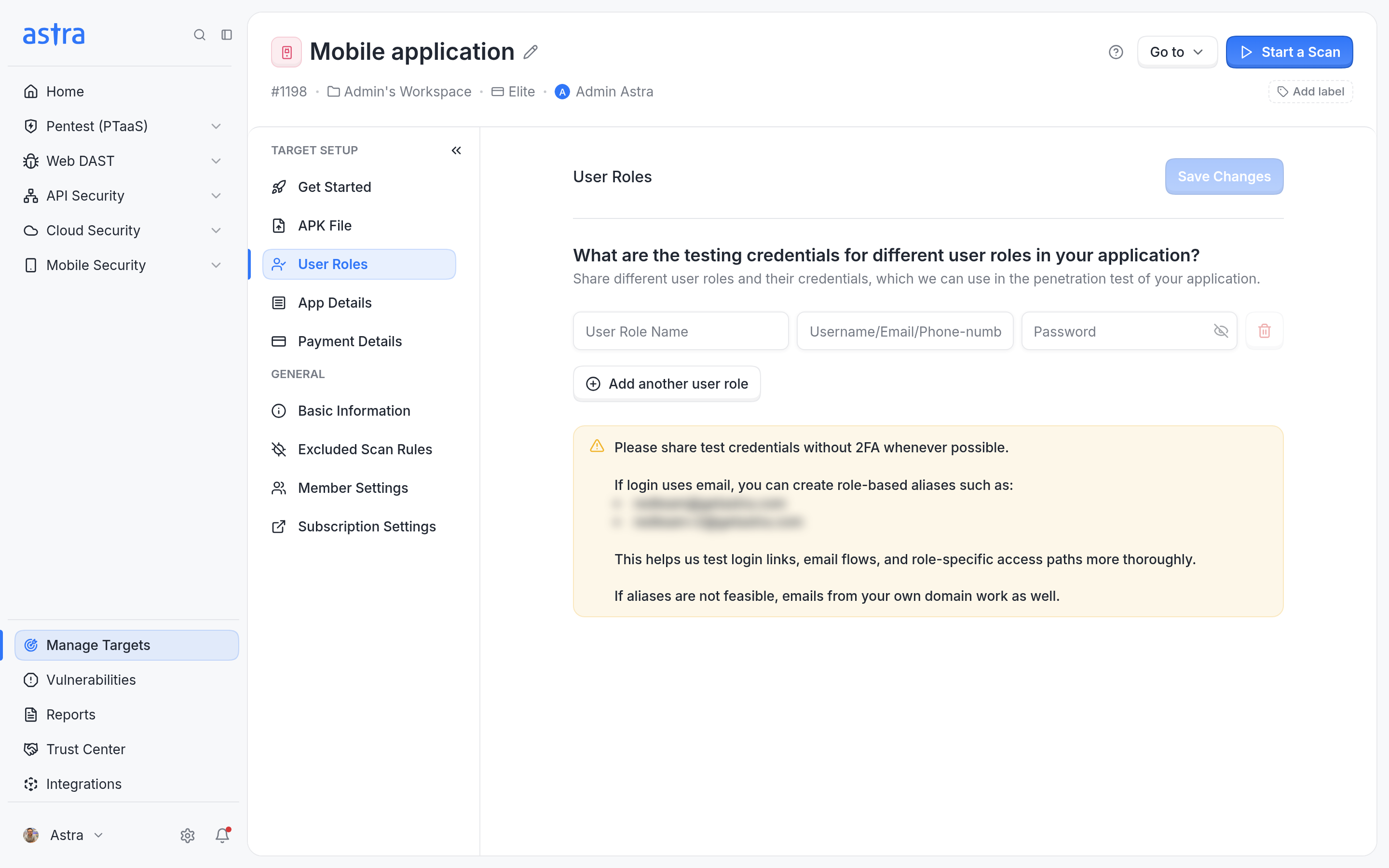
User Roles holds the test credentials for each role in the app.
Change the setup later
After setup, open the target's Settings. The setup steps are listed under Target Setup, and you can change them there. Click Save Changes after each change.
Next steps
Start a pentest or a static analysis scan. Read more in How to start a pentest or How to start a static analysis scan.