How to Verify Ownership of a Target
Last updated: August 7, 2026
Before running a vulnerability scan, you must verify ownership of the application or domain. This ensures that only authorized users can scan the application, preventing unauthorized access. Target verification protects your app by maintaining the integrity of the scanning process, ensuring that only you can identify potential vulnerabilities.
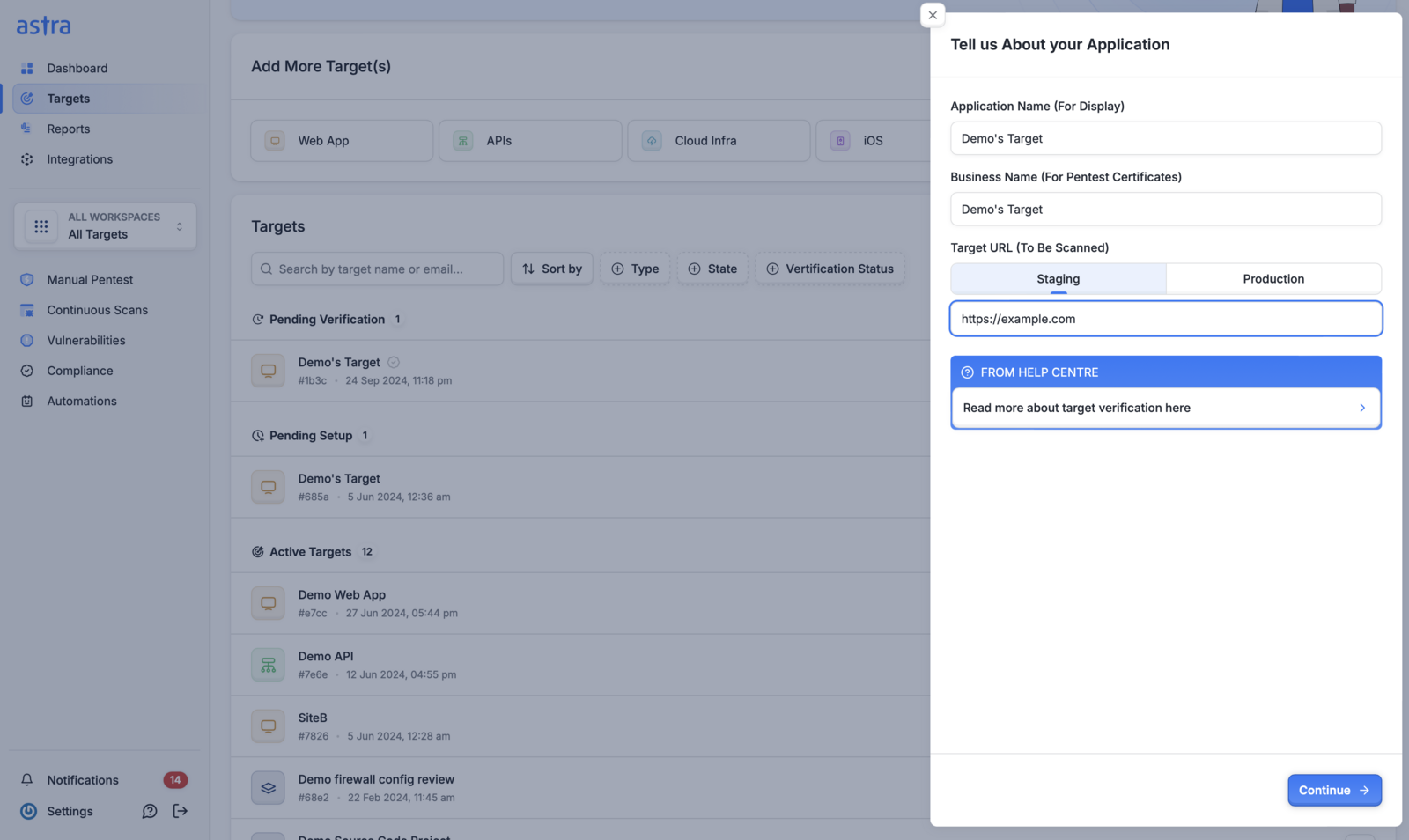
What are the steps to verify ownership of a target?
Head over to the targets page. In the Pending Verification section, click on the Start Verification button next to your target

Fill out the details like application name, business name and target URL.
Select a verification method from the options below
What are the different verification methods Astra offers?
Astra offers three distinct methods for verifying your target ownership:
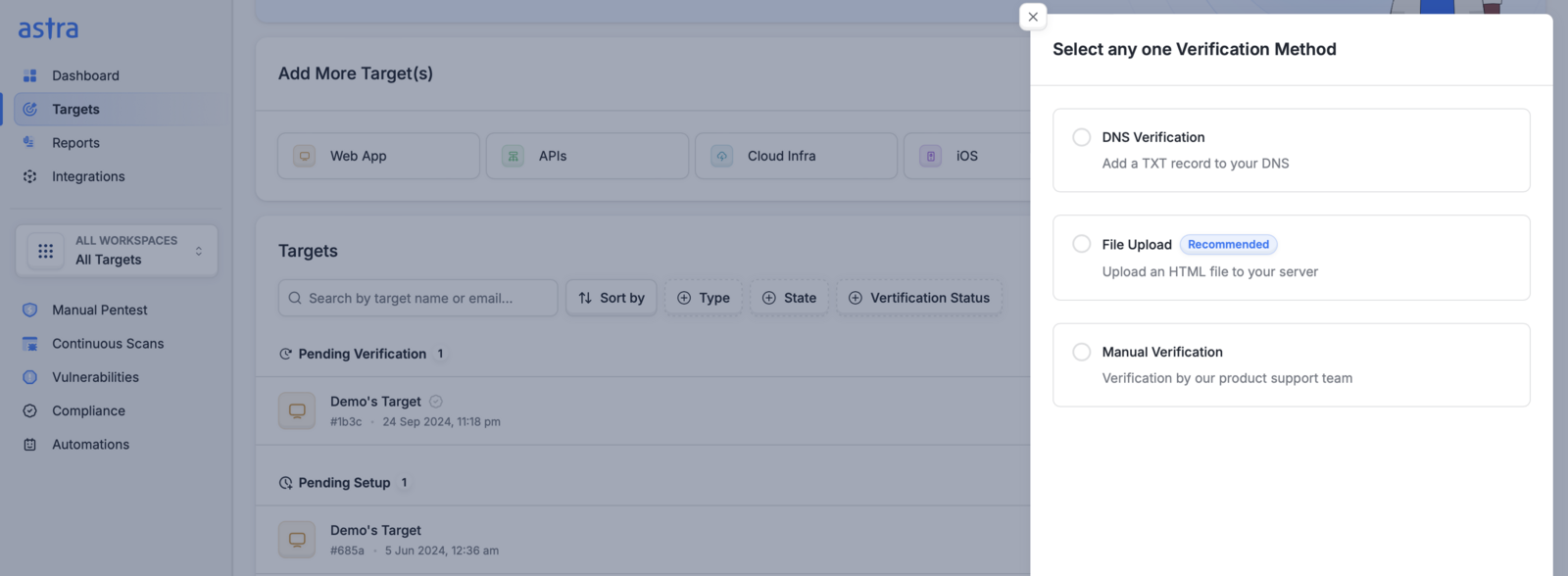
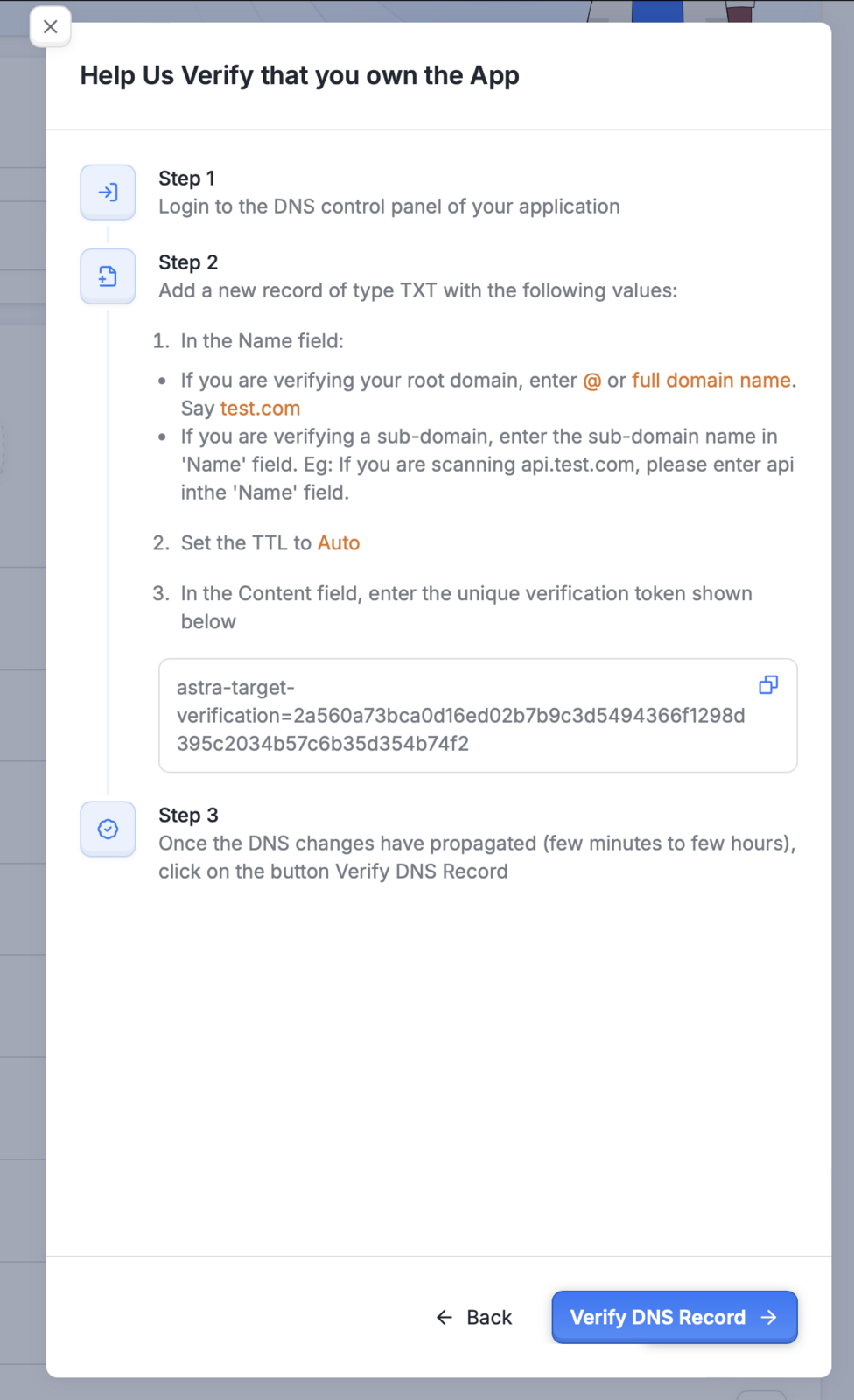
DNS Verification: DNS verification involves adding a specific TXT record to your domain's DNS settings. This method proves that you have control over the domain associated with your application.
File Upload: The file upload method requires you to upload a specific file to the root directory of your web server. This method is recommended because it's typically faster and more straightforward than DNS verification.
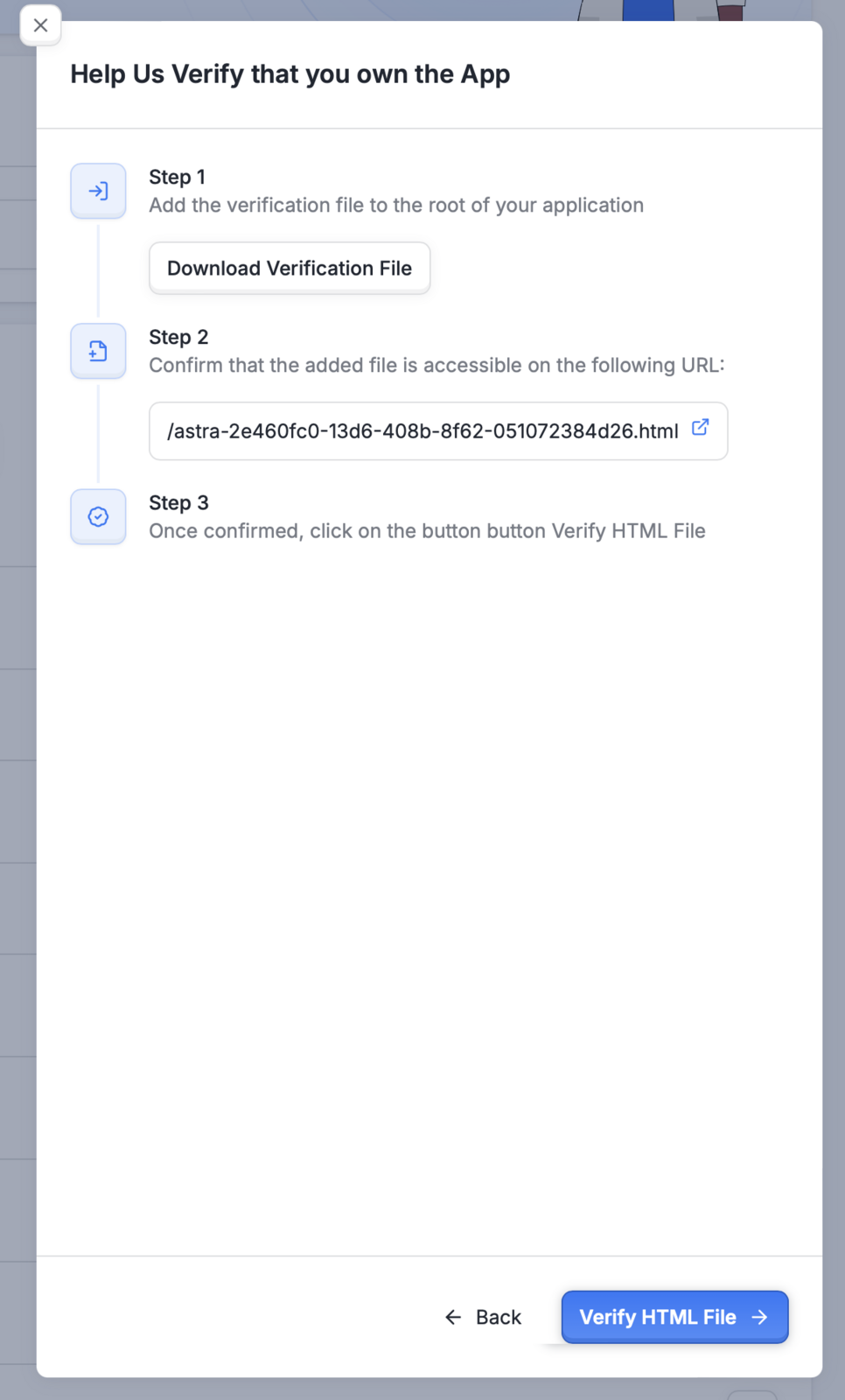
Why it's recommended:
Faster verification: DNS changes can take time to propagate, while file uploads are instant.
Easier to implement: No need to access DNS settings, which might be managed by a different team or service.
Less room for error: Simply uploading a file is generally less complex than modifying DNS records.
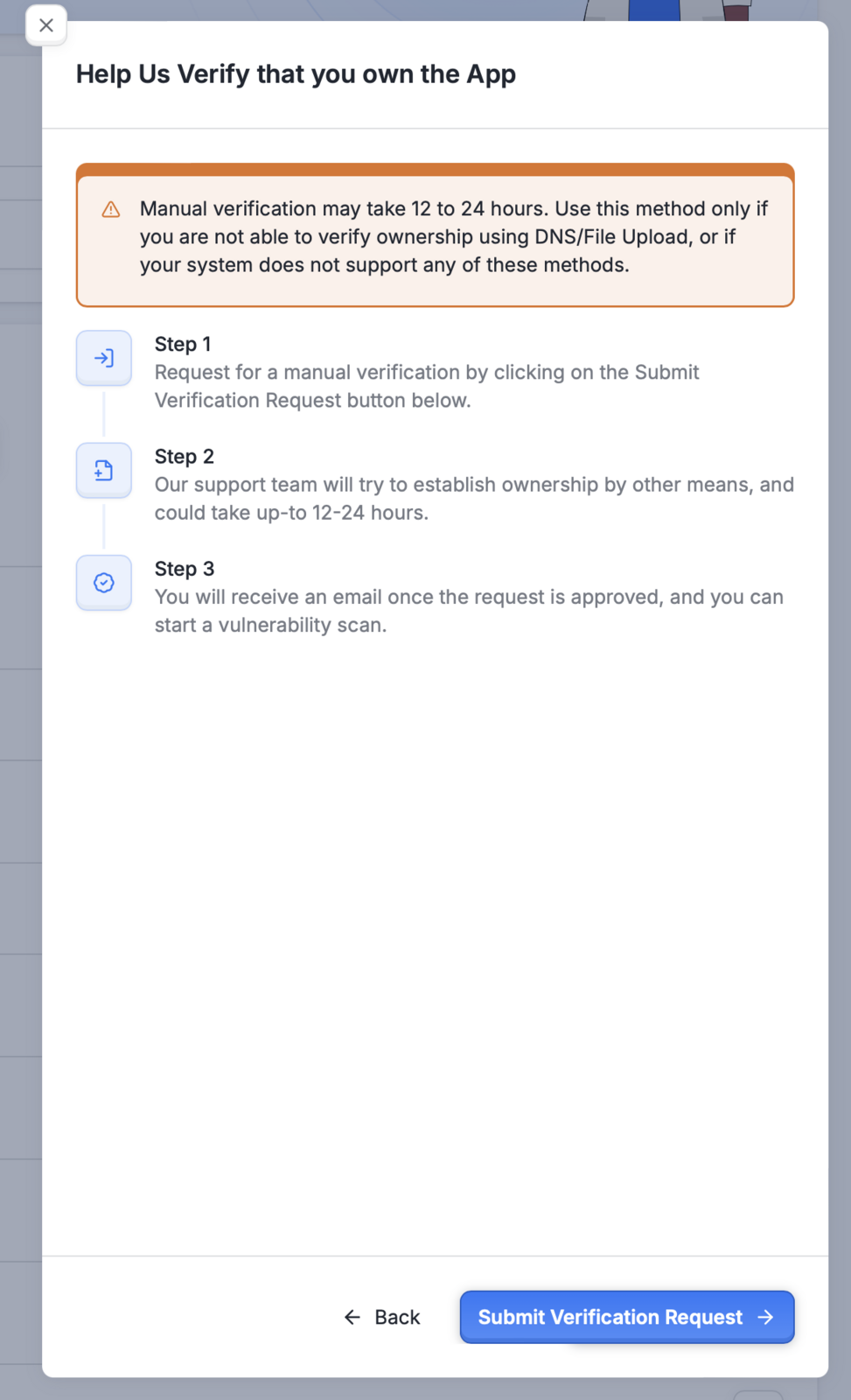
Manual Verification: If you are not able to verify ownership using DNS Verification or File Upload, or your system does not support any of these methods - you can opt for Manual Verification. When we receive the request, our support team will try manual verify that you own the target, and this could take up-to 12–24 hours. You will receive an email once the request is approved.
What happens after ownership verification?
Once the ownership verification process is complete, your target moves from Pending verification to Pending Setup stage.

Troubleshooting:
Wrong verification file uploaded: The verification file for each project is unique, so make sure you have uploaded the correct verification file
Connection to your server timed out: Make sure that your server is responding and try again.