How-To: Setting up Azure Functions Integration for Traffic Monitoring (TypeScript)
Last updated: August 4, 2026
Overview
Astra supports OpenTelemetry based instrumentation for Azure Functions, enabling request and response flow monitoring. This guide walks you through setting up instrumentation using TypeScript as the function runtime.
To monitor Azure Functions traffic with Astra:
Configure Astra Traffic Collector to receive telemetry data via OTLP/HTTP.
Install required OpenTelemetry SDKs in your function project which will be used to instrument your Azure Function.
Add the telemetry setup code using the provided boilerplate and configure it with your
sensorIdand Astra collector endpoint.
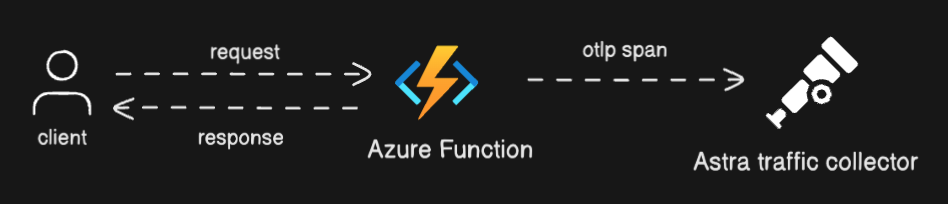
Illustration: High-level integration flow between Azure Function and, Astra Traffic Collector
Prerequisites
Access to Azure Functions in Azure cloud
The Azure Functions extension part of Visual Studio Code editor installed
Astra Traffic Collector is available and reachable.
Azure Functions integration is created and
sensorIDis copied
Quick Installation
Step 1: Set Up OTLP/HTTP Receiver in Astra Traffic Collector
You can configure Astra Traffic Collector to receive OTLP data over HTTP or HTTPS.
Step 2: Install Dependencies
Navigate to your Azure Functions project directory and install the required SDKs:
Run the below commands on your terminal in your Azure Functions project directory to install the dependencies of OpenTelemetry SDK and Azure Functions:
npm install @azure/functions
npm install @opentelemetry/exporter-trace-otlp-http
npm install @opentelemetry/sdk-trace-node
npm install @opentelemetry/resources
npm install @opentelemetry/api
Step 3: Configure Instrumentation in Code
Edit your function file (e.g.,
src/functions/function.ts) and add the following code:
After you copy the following typescript code, please replace the following variables as mentioned
Variable | Description | Example Value |
| Sensor ID from Astra dashboard. |
|
| OTLP/HTTP endpoint of the Astra Traffic Collector. |
|
import { app, HttpRequest, HttpResponseInit, InvocationContext } from "@azure/functions";
import { OTLPTraceExporter } from '@opentelemetry/exporter-trace-otlp-http';
import { NodeTracerProvider } from '@opentelemetry/sdk-trace-node';
import { SimpleSpanProcessor } from '@opentelemetry/sdk-trace-node';
import { resourceFromAttributes } from '@opentelemetry/resources';
import { SpanStatusCode } from '@opentelemetry/api';

// ====================== USER CONFIGURATION - EDIT THESE VALUES ======================
const config = {
    sensorId: '',

    collectorUrl: '', // example: https?://collector-domain:4318/v1/traces
    exporterSettings: {
        timeoutMillis: 3000,
    },
};
// ====================== END USER CONFIGURATION ====================================

// OpenTelemetry Setup
const setupTelemetry = () => {
    console.log('Starting OpenTelemetry setup...');
    const resource = resourceFromAttributes({
        'sensor.id': config.sensorId,
        'sensor.version': '1.0.0',
        'service.name': 'astra-otel-plugin'
    });

    const traceExporter = new OTLPTraceExporter({
        url: config.collectorUrl,
        timeoutMillis: config.exporterSettings.timeoutMillis
    });

    const provider = new NodeTracerProvider({
        resource: resource,
        spanProcessors: [new SimpleSpanProcessor(traceExporter as any)]
    });

    provider.register();
    return provider.getTracer('astra-otel-plugin');
};

const tracer = setupTelemetry();

// Telemetry wrapper function
const withTelemetry = async (
    request: HttpRequest,
    statusCode: number,
    responseHeaders: Record<string, string>,
    responseBody: any
) => {
    const span = tracer.startSpan('http_trigger');

    try {
        // Get request headers and body
        const headers = Object.fromEntries(request.headers.entries());
        const body = await request.text().catch(() => '');
        const url = new URL(request.url);
        const target = url.pathname + url.search;

        // Get client IP address from headers
        const clientIp = request.headers.get('x-forwarded-for') ||
                        request.headers.get('x-real-ip') ||
                        '';

        // Set request span attributes
        span.setAttribute('http.method', request.method);
        span.setAttribute('http.status_code', statusCode);
        span.setAttribute('http.target', target);
        span.setAttribute('http.host', url.host);
        span.setAttribute('http.flavor', '1.1');
        span.setAttribute('http.scheme', url.protocol.replace(':', ''));
        span.setAttribute('http.request.headers', JSON.stringify(headers));
        span.setAttribute('http.request.body', body);
        span.setAttribute('net.sock.peer.addr', clientIp);

        // Set response span attributes
        span.setAttribute('http.response.headers', JSON.stringify(responseHeaders));
        span.setAttribute('http.response.body', JSON.stringify(responseBody));
        span.setStatus({ code: SpanStatusCode.OK });
    } catch (error) {
        span.setStatus({
            code: SpanStatusCode.ERROR,
            message: error instanceof Error ? error.message : 'Unknown error'
        });
        throw error;
    } finally {
        span.end();
    }
};

app.http('httpTrigger1', {
    methods: ['GET', 'POST'],
    authLevel: 'anonymous',
    handler: async (request: HttpRequest, context: InvocationContext): Promise<HttpResponseInit> => {

        // First, execute business logic and get response

        const responseBody = {
            // 'message': 'ok'
        }
        const statusCode = 200;
        const responseHeaders = {
            // 'content-type': 'application/json',
            // 'x-custom-header': 'custom-value'
        };

        // Start telemetry operations without awaiting them
        withTelemetry(
            request,
            statusCode,
            responseHeaders,
            responseBody
        ).catch(error => console.error('Telemetry error:', error));

        // return response to user
        return {
            status: statusCode,
            headers: responseHeaders,
            body: JSON.stringify(responseBody)
        };
    }
});
Key Configuration Instructions
Write your business logic before
withTelemetry()is called
Use the
responseBody,statusCode, andresponseHeadersvariables to format your HTTP responseAfter configuration, deploy your updated function to Azure.
Avoid modifying the telemetry setup section — any incorrect changes may break observability.
Step 4: Test Your Instrumented Azure Function
Click the Get function URL button in Azure portal
Paste the URL into a browser or use curl/Postman
You should see the JSON response defined in
responseBodyYou should be able to see the traces in astra-traffic-collector
Best Practices to Follow
Keep business and telemetry logic modular and separate
Use HTTPS for production collectors to ensure secure telemetry transfer