Integrations Overview
Last updated: August 7, 2026
Introduction
The Integrations page on Astra OrbitX lets you connect your existing tools and platforms directly to your security workflow. By linking tools like Slack, Jira, and your CI/CD pipeline, you can manage vulnerabilities more effectively, automate scan triggers, and keep your team informed — all without leaving OrbitX.
Integration Scopes
Before setting up an integration, it helps to understand how integrations are scoped on OrbitX:
Workspace-level integrations — Slack and Jira are configured once per workspace and apply to all projects within it.
Target-level integrations — CI/CD and other integrations are configured individually per target.
Available Integrations Types
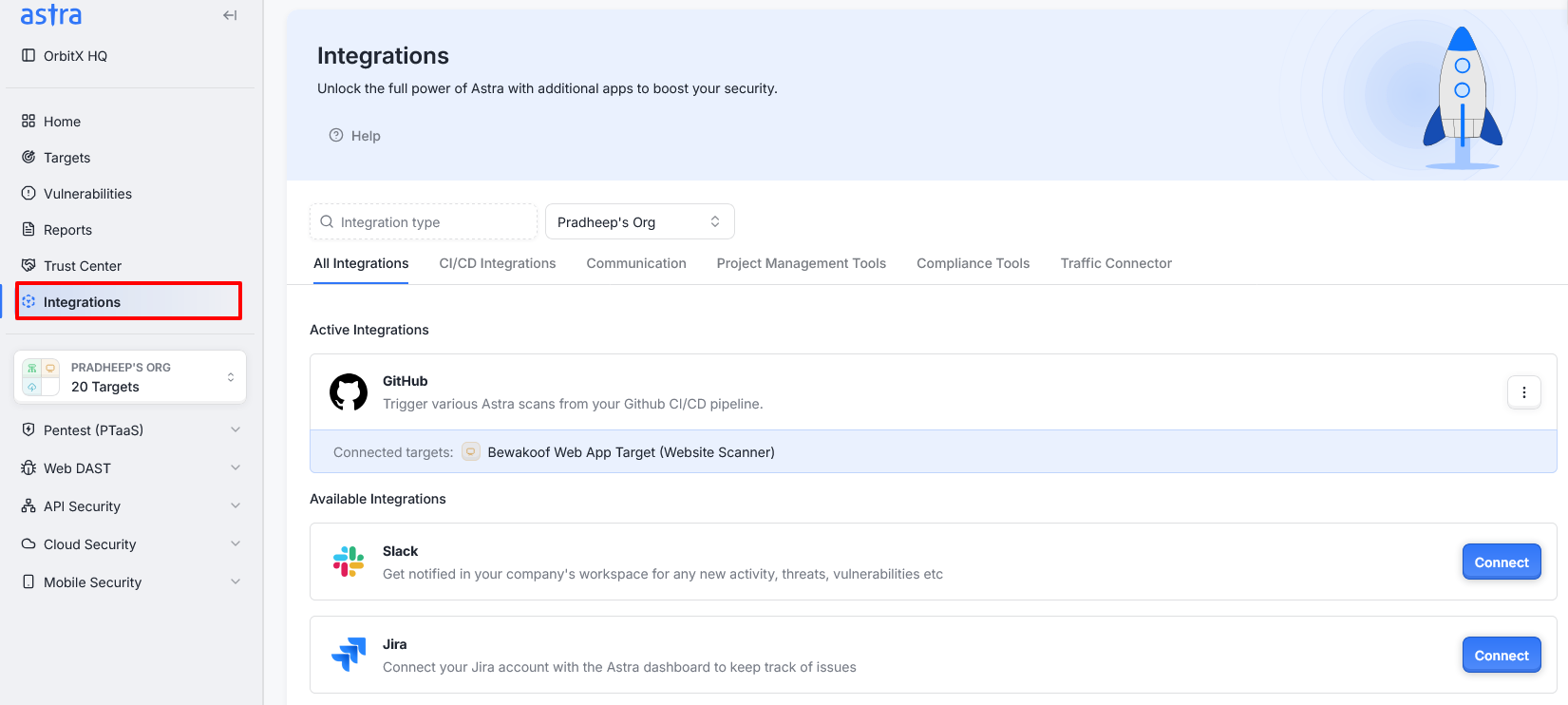
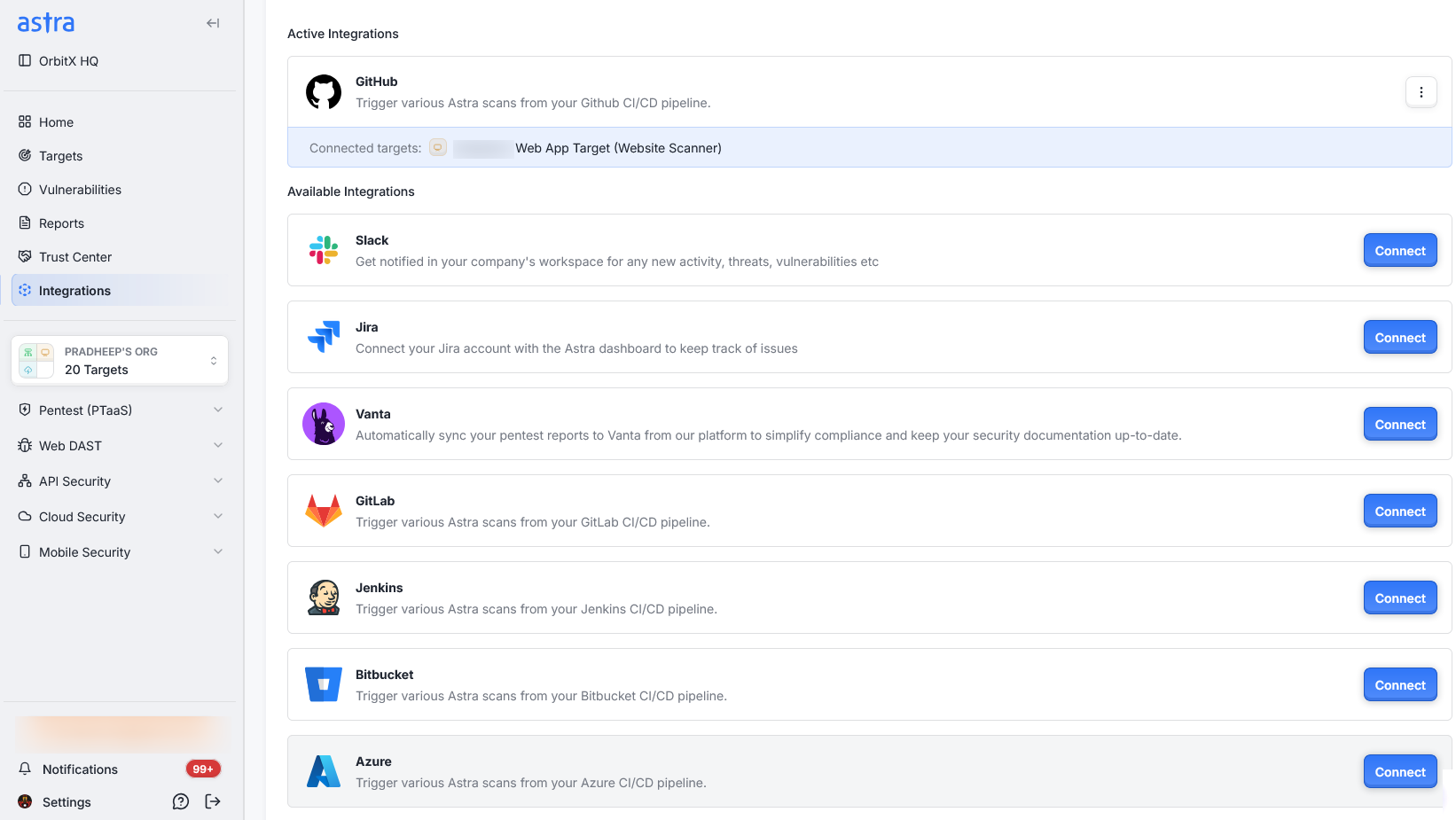
Astra OrbitX offers different integration types to streamline your workflow and enhance your security operations. The available integration types are:
Project Management: Tools to manage and track your projects effectively.
Communication: Platforms that facilitate real-time communication and collaboration.
CI/CD: Continuous Integration and Continuous Deployment tools that automate the software development process.
|| Note: Slack and JIRA are workspace-level integrations. This means once you activate these integrations for your workspace, they will be available for all the projects within that workspace. Other integrations are per target basis, meaning you need to configure them individually for each target.
Supported Integrations
Communication: Slack
Project Management: JIRA
Compliance: Vanta
CI/CD: GitLab, Jenkins, Bitbucket, Azure, Circle CI, Other CI, Secrets Scanning (Beta)
Pause or Delete an Integration
You can easily manage integrations in Astra by either pausing or deleting them:

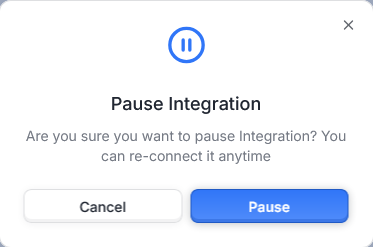
To pause an integration:
Click the three-dot menu next to the integration and select Pause.
Click Pause in the confirmation dialog to temporarily disable it. Your settings are preserved and the integration can be reactivated at any time
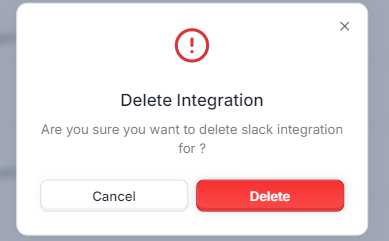
To delete an integration:
Click the three-dot menu next to the integration and select Delete.
Click Delete in the confirmation dialog to permanently remove it. You will need to reconfigure the integration from scratch if you want to reconnect it later.
Frequently Asked Questions (FAQs)
Can I use the same integration across multiple projects?
For Slack and JIRA (workspace-level integrations), once activated for a workspace, they are available for all projects. Other integrations need to be set up individually per target.