How to Integrate Vanta with Astra's OrbitX
Last updated: June 15, 2026
Introduction
Integrating Vanta with Astra OrbitX lets you automatically sync your pentest reports from OrbitX directly to your Vanta account. This eliminates the need to manually upload reports and keeps your compliance documentation up to date.
Once connected, you can push finalized pentest reports to Vanta in one click, and track sync history from the Integrations page on OrbitX.
Prerequisites
Before you begin, make sure you have:
An active Astra OrbitX account with at least one workspace set up
An active Vanta account with permission to install and authorize integrations
Admin or Owner-level access on OrbitX to manage integrations
Instructions
Step 1: Connect Vanta to Astra OrbitX
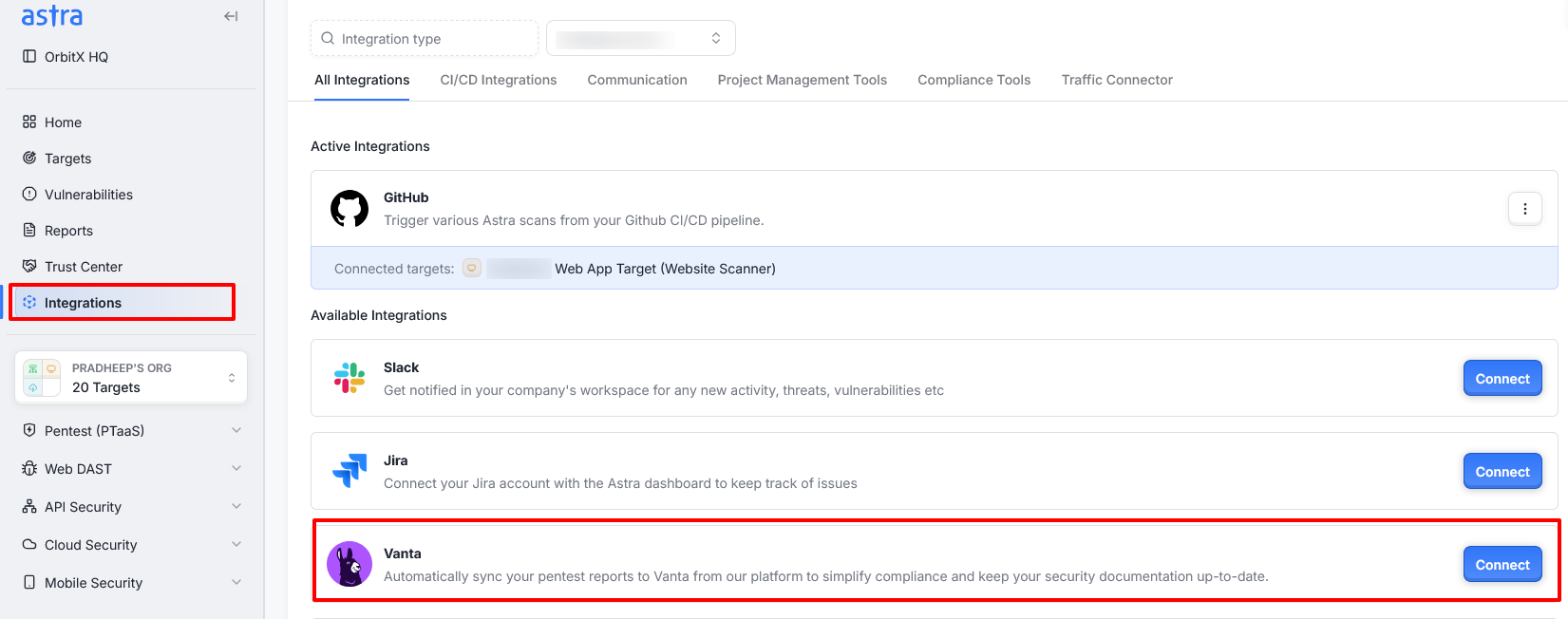
Navigate to the Integrations page on OrbitX. Use the workspace switcher at the top to select the workspace you want to connect to Vanta. You can also reach this page directly from Vanta's marketplace.
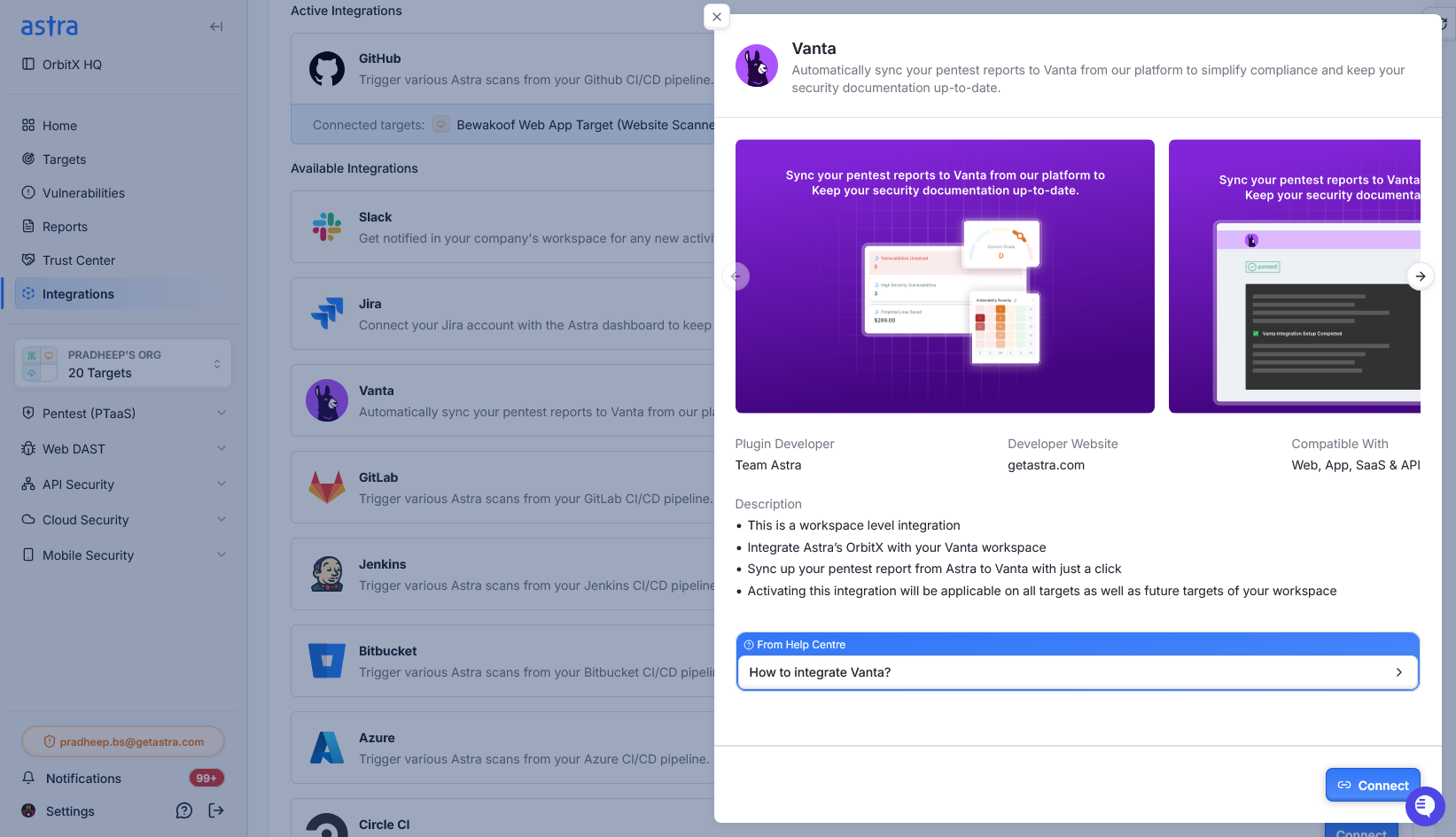
Click Connect on the Vanta integration card, then click Connect again in the details fly-out.
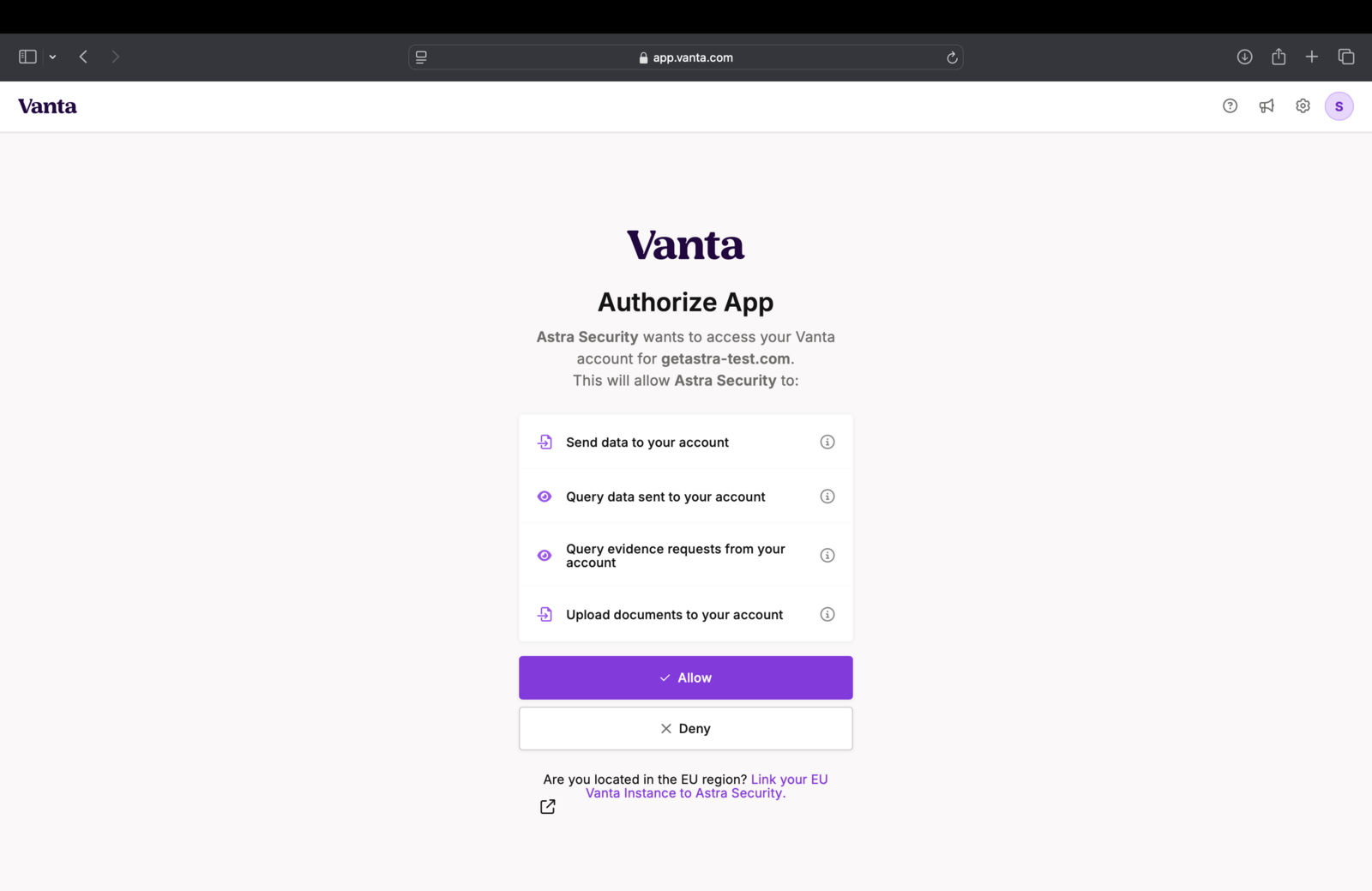
On the next screen, log in to your Vanta account and authorize Astra to connect and sync with it.
Once authorized, you will be redirected back to Astra OrbitX. Your Vanta integration is now active.
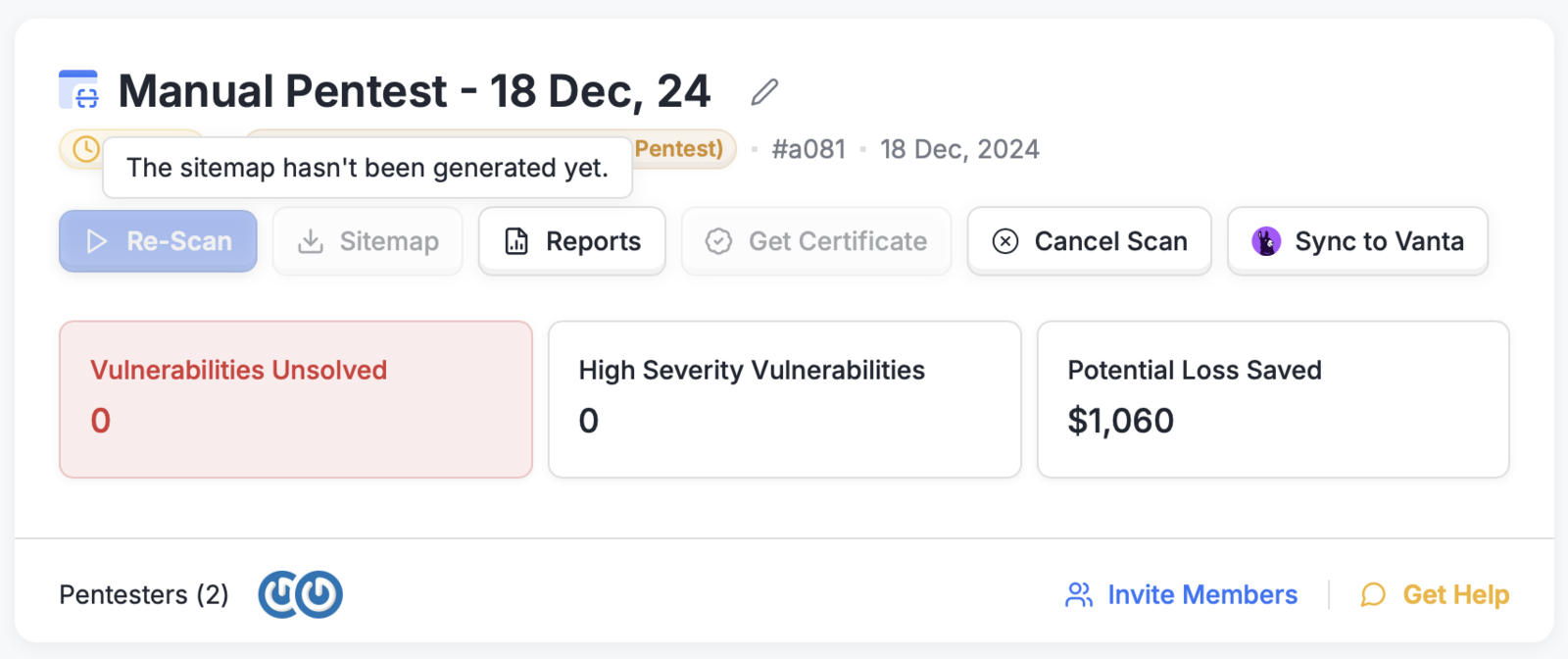
Step 2: Sync a Pentest Report to Vanta
Note: The Sync to Vanta button is only enabled when the pentest is in the Re-Scan or Certificate Awarded stage. This ensures only updated or verified reports are synced.
Open the relevant pentest on OrbitX and click Sync to Vanta.
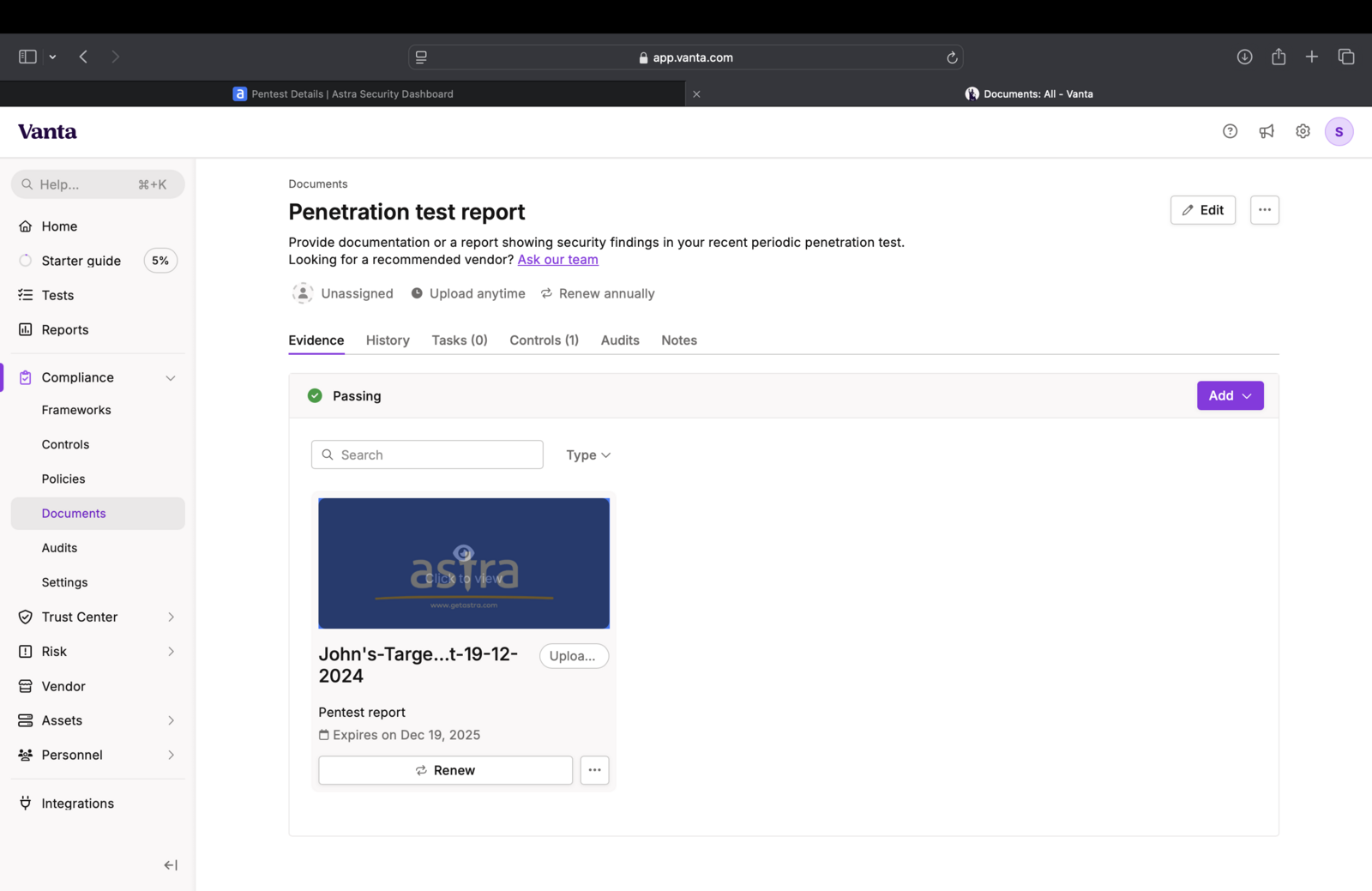
A full PDF report is generated and uploaded to Vanta automatically.
To view all uploaded reports, go to your Vanta Documents page.
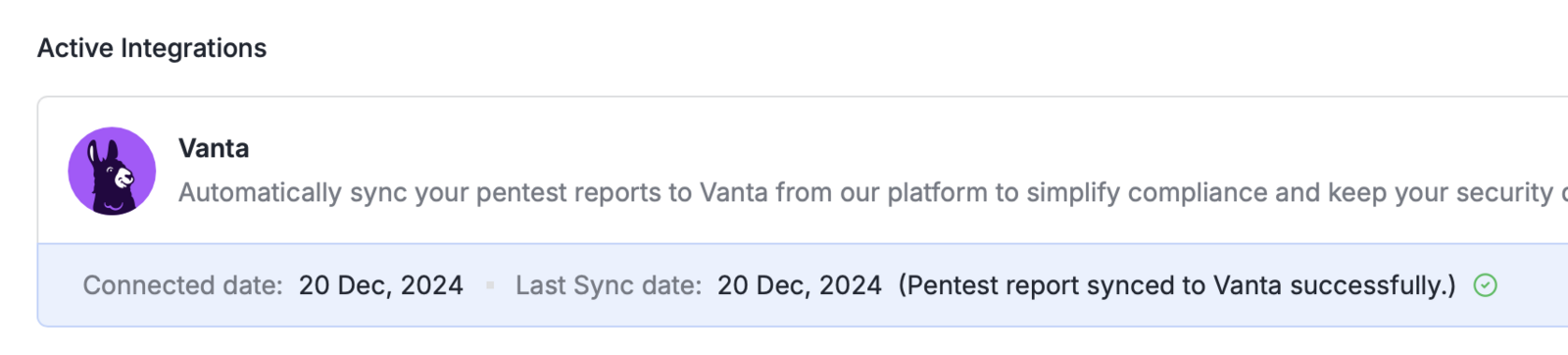
To check when the last sync was performed, go to the Integrations page on OrbitX.
Step 3: Troubleshoot Integration Errors
Navigate to the Integrations page on OrbitX and check the status of the Vanta integration.
If the integration shows a Failed status due to an authentication error, reconfigure it by following these steps:
On the Integrations page in Astra OrbitX, delete the Vanta integration.
In your Vanta account, delete the Astra integration.
Reconnect by following the steps in Step 1: Connect Vanta to Astra OrbitX above.
Expected Outcome
Once the integration is active and a sync is triggered:
A full PDF pentest report is generated and uploaded to your Vanta account automatically.
The report appears under the Pen Test tab on your Vanta Documents page.
The Integrations page on OrbitX displays the timestamp of the most recent successful sync.
Best Practices
Connect only the relevant workspace. The Vanta integration is workspace-specific. Make sure the workspace you connect contains the pentests you want to sync to Vanta.
Sync only completed reports. The Sync to Vanta button is intentionally restricted to the Re-Scan or Certificate Awarded stage. Avoid attempting to trigger syncs before a pentest reaches this stage.
Verify reports in Vanta after syncing. After each sync, confirm the report appears correctly on your Vanta Documents page before closing out the pentest.
Reconfigure promptly on failure. If the integration shows a Failed status, reconfigure it as soon as possible to avoid gaps in your compliance records.
Avoid duplicate integrations. When reconfiguring, always delete the existing integration from both OrbitX and Vanta before reconnecting to prevent sync conflicts