How to Export Your API Definition Files
Last updated: November 20, 2026
Before Astra can import your API endpoints, you need to export your API definition files from the tool where you keep them. This article shows how to export a Postman collection and environment, a Hoppscotch collection and environment, and an OpenAPI document. For a HAR file, read 📄 How to generate a HAR file.
If some application URLs are missing from your scan results, read Why certain URLs may not appear in the scan sitemap to understand the common causes and how to improve coverage.
Which files to export
Tool | Files to export | Upload them in |
|---|---|---|
Postman | The collection, and the environment if the collection uses variables | API definitions (setup) or Definition Files (settings), on the Postman tab |
Hoppscotch | The collection, and the environment if the collection uses variables | The same place, on the Hoppscotch tab |
OpenAPI | The spec as a | The same place, under OpenAPI Document |
Export your files
Follow the steps for your tool.
Postman collection
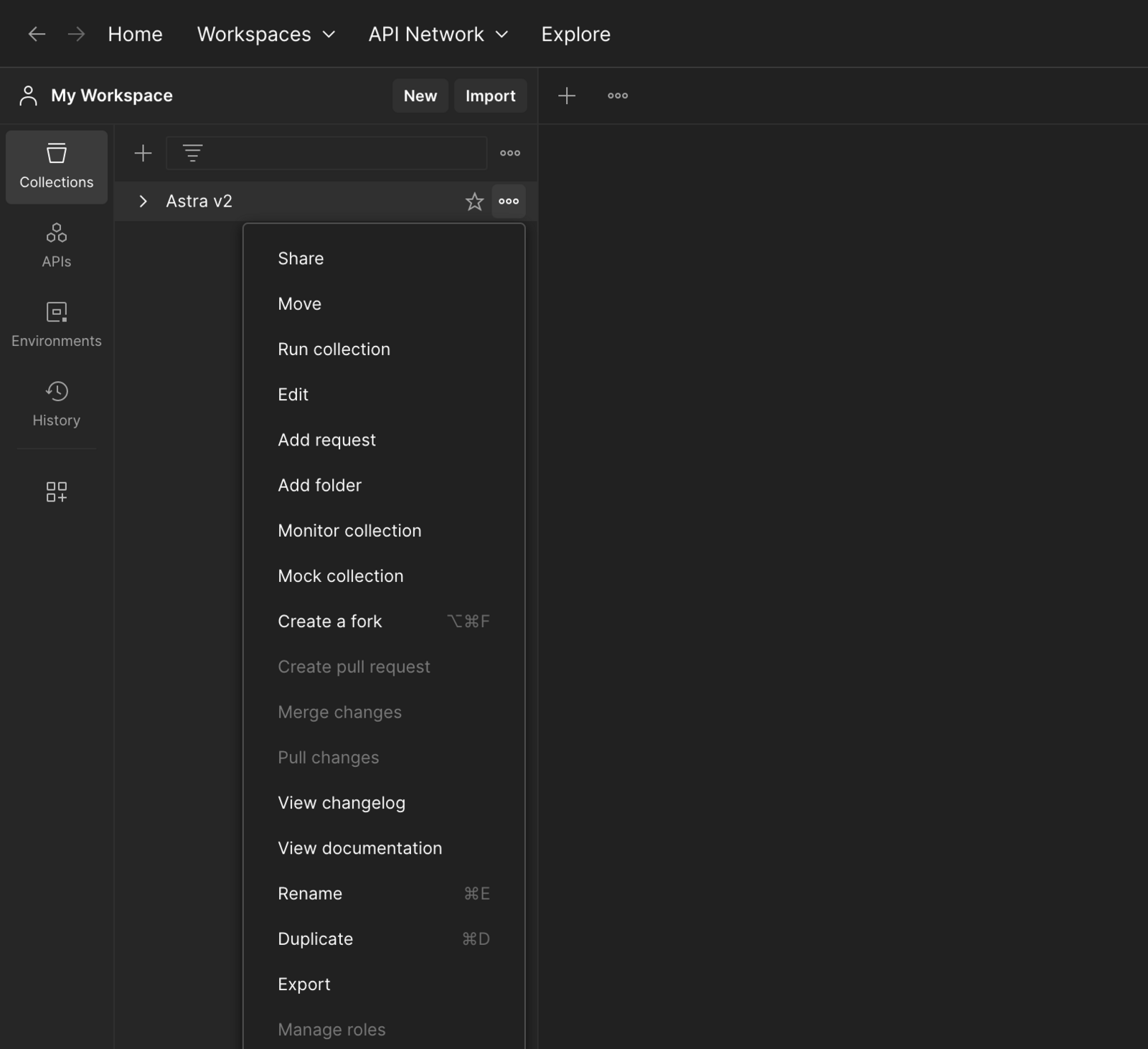
Click the options menu next to your API collection in Postman.
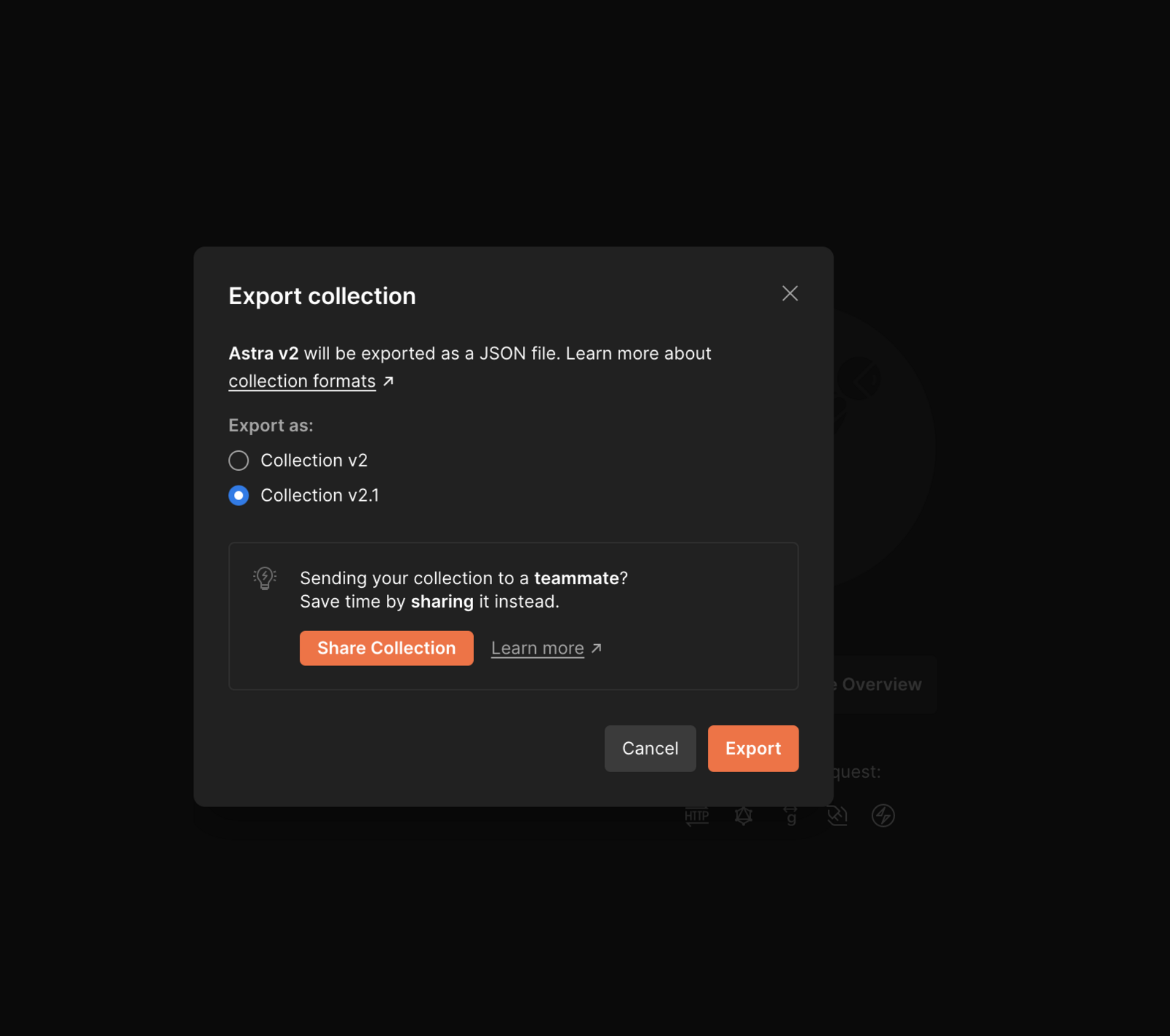
Choose Export, and then click Export in the dialog that opens.
Choose where to save the file and click Save.
Postman environment variables
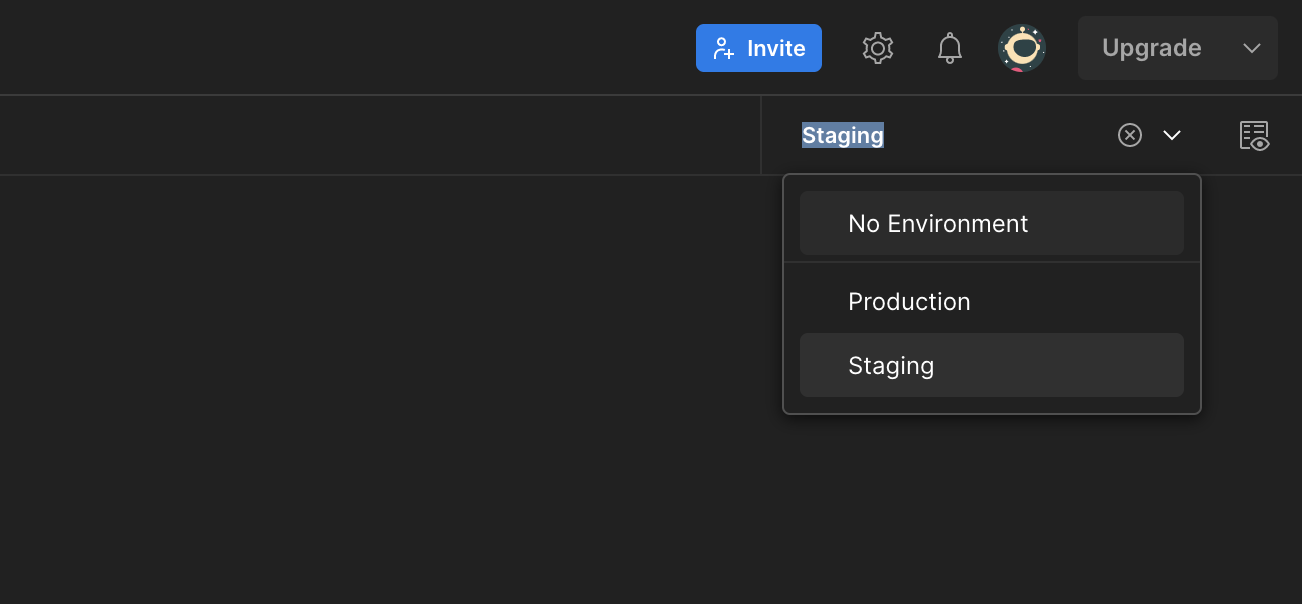
Select the environment you want to share from the selector in the top right corner.
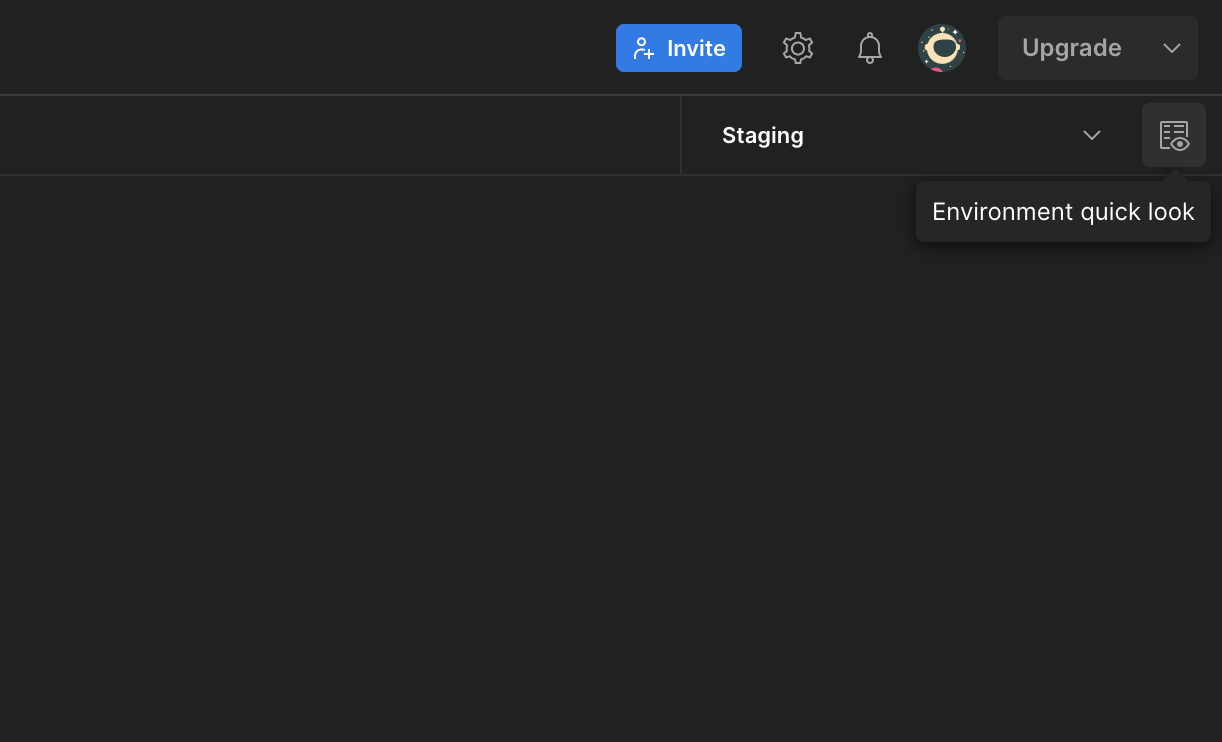
Click the environment quick look button.
Click Edit.
Click the options menu and choose Export.
Choose where to save the file and click Save.
Hoppscotch collection and environment
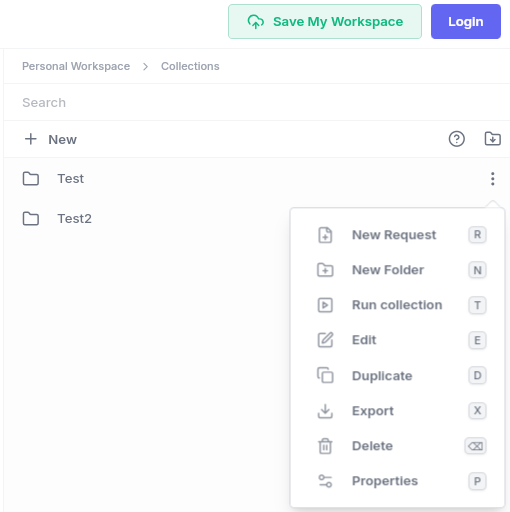
In Hoppscotch, click the more icon next to the collection or the environment.
Click Export.
Choose where to save the file and click Save.
Astra accepts the exported Hoppscotch files directly, so you don't need to convert them.
OpenAPI document
Sign in to your Swagger or OpenAPI platform.
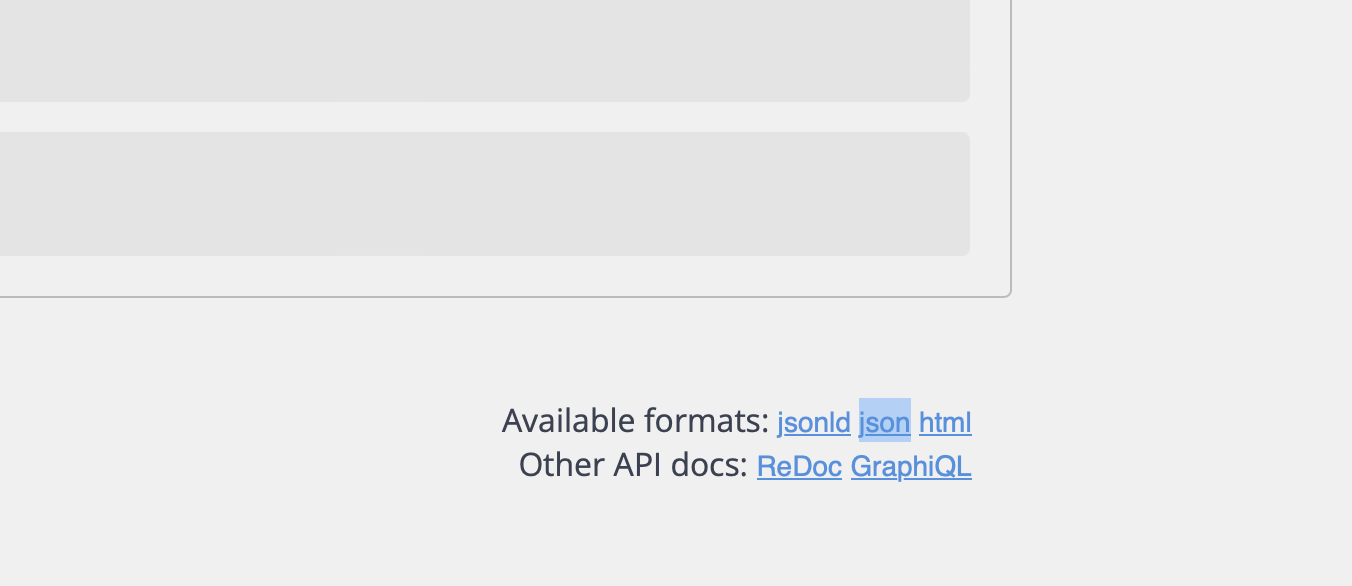
Scroll to the export section at the bottom of the page.
Right-click json and choose Download Linked File.
Upload the files to Astra
Open the Targets page. For a target that is still being set up, click Setup on its row. For an active target, click the settings icon on its row and open Definition Files.
Open the tab for your tool and drop each file on the upload area, or click the area to browse.
Read more in 📄 How to import your API endpoints.
Best practices
Export the collection and its environment file together. A collection often can't run without the variables it uses.
Make sure the collection runs before you export it. In Postman, use Run Collection and confirm every request returns a valid response.
Give each file a name that includes the date or version, so you can tell which one you uploaded.
Troubleshooting
The environment file wasn't uploaded with the collection
What you see: The collection imported, but its requests fail.
What to do: Upload the environment file in the same tab as the collection.
You opened the menu of a single request
What you see: Export isn't in the Postman menu.
What to do: Use the options menu next to the collection itself.
Your browser handles the download link differently
What you see: The OpenAPI JSON file doesn't download.
What to do: Open the export section in another browser, or right-click the link and choose Save link as.