How to Generate a HAR File
Last updated: November 20, 2026
A HAR (HTTP Archive) file is a recording of the network requests your browser makes while you use an application. You can upload a HAR file to Astra so that Astra learns the endpoints your application really uses, or you can send it to the Astra support team to help investigate an issue.
When to use a HAR file
To add endpoints Astra can't find on its own. Upload the recording to the target, and Astra imports the endpoints it contains.
When scan results are missing pages or API calls. Record the workflows that are missing. Read more in Why certain URLs may not appear in the scan sitemap.
When support asks for one. A recording helps the team see the requests and responses behind an error or a feature that isn't working.
Before you record
Use a test account and a test environment. A HAR file can contain cookies, tokens and personal data.
Decide which workflows to record: sign in, and every page or action you want Astra to cover. If different roles see different features, record one HAR file for each role.
Close other tabs so the recording holds only your application's traffic.
Record a HAR file
The steps depend on your browser.
Google Chrome
Open your application, then open the menu in the top right corner and go to More tools, then Developer tools.
Open the Network tab.

Make sure the record button is red. Click it if it is not.
Tick Preserve log, and tick Disable cache.
Click the Clear button to remove old requests.
Use your application and complete the workflows. Keep the Network tab open.
To keep the credentials your application sends, turn on Allow to generate HAR with sensitive data: click the settings icon, open Preferences, and under Network, tick the option.
Press and hold the download button (Export HAR), and choose Export HAR (with sensitive data). Save the file.
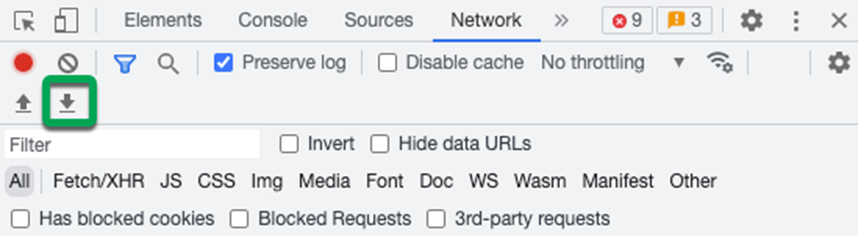
By default, Chrome exports a sanitized HAR file that leaves out cookies and authorization headers. Requests in a sanitized file reach your API without credentials, so authenticated requests fail when Astra replays them. Export with sensitive data when you want Astra to import authenticated endpoints.
Microsoft Edge
Open your application and press F12 to open the developer tools.
Open the Network tab and make sure recording is on. Tick Preserve log.
Complete your workflows.
Click Export HAR and save the file. If Edge offers an option to include sensitive data, choose it.
Mozilla Firefox
Open your application and press F12 to open the developer tools.
Open the Network tab.
Complete your workflows while the requests are recorded.
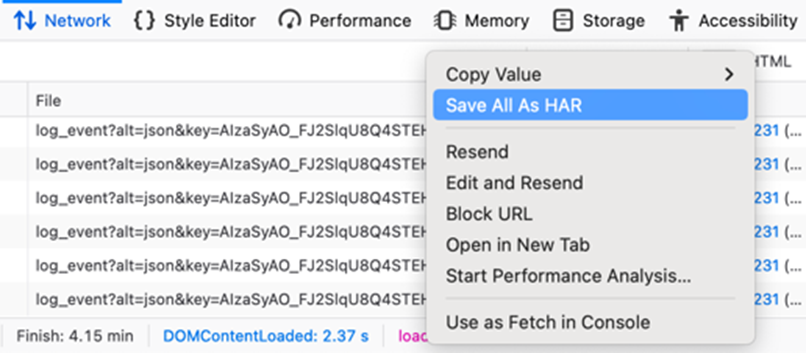
Right-click any row under the File column, choose Save All As HAR and save the file.
Safari
Turn on the Develop menu: go to Safari, then Settings, then Advanced, and tick Show Develop menu.
Open your application and choose Develop, then Show Web Inspector.
Open the Network tab and tick Preserve Log.
Complete your workflows.
Click the Export icon and save the file.

Upload the HAR file to Astra
Open the Targets page. For a target that is still being set up, click Setup on its row and open API definitions. For an active target, click the settings icon on its row and open Definition Files.
Open the HAR file tab. On the target settings it is named HAR Files.
Drop the
.harfile on the upload area, or click the area to browse. To add another recording, upload it after the first one.For an active target, click Import endpoints when Astra shows that the files are ready to import. For a target that is still being set up, the import starts from the setup page.
You can also open Import Endpoints in the left menu, click Import Endpoints and select the target. Read more in 📄 How to import your API endpoints.
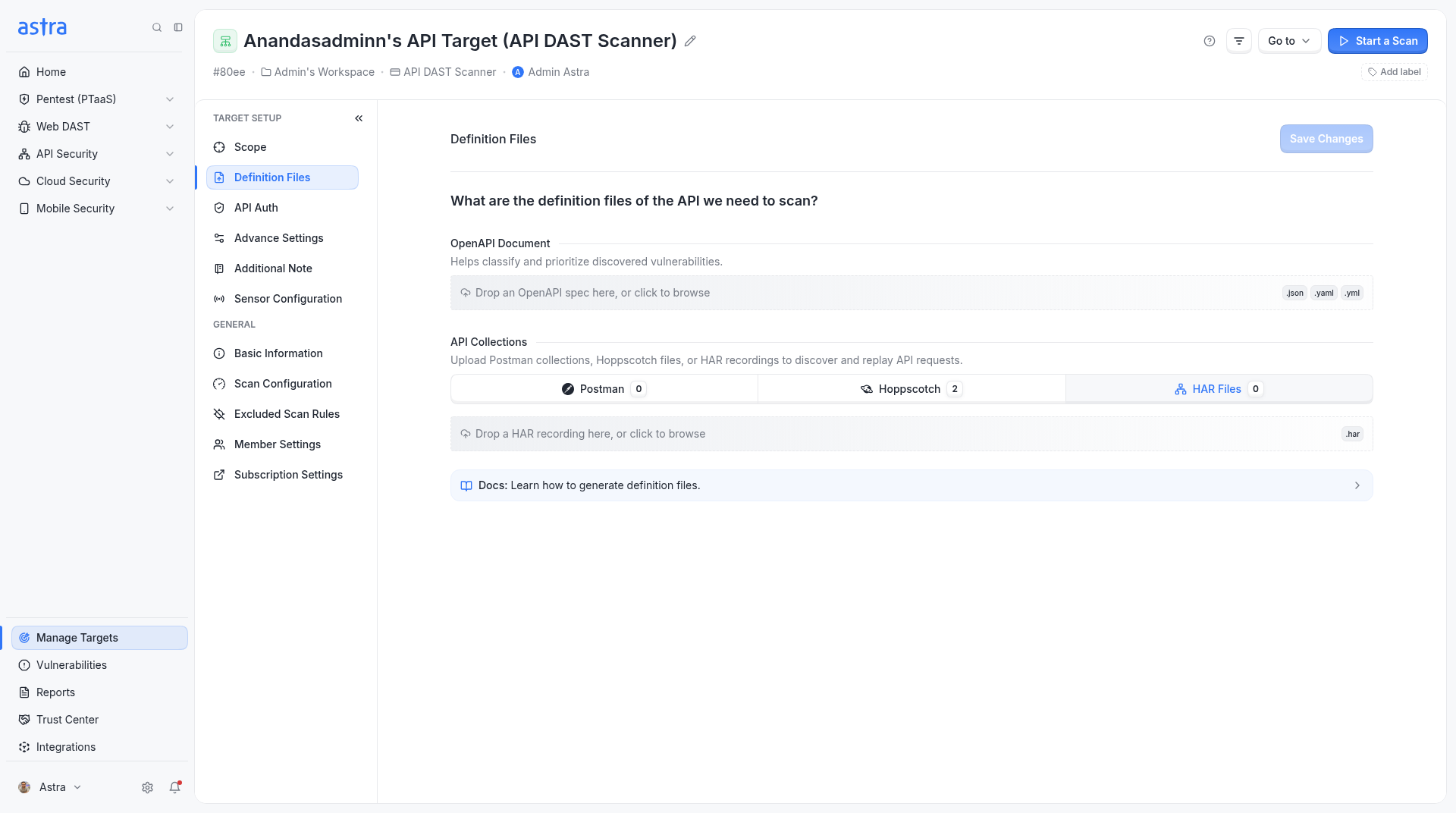
The link Docs: Learn how to generate definition files. at the bottom of the page opens this guide.
To send a HAR file to the support team, attach it to your support ticket.
Keep your HAR file safe
Review the file before you share it. A recording made with sensitive data holds cookies and tokens.
Use credentials for a test account, and change them after the recording if the file will be shared.
Don't edit the file after you export it.
Troubleshooting
The recording is incomplete, or its requests failed
What you see: Few or no endpoints were imported.
What to do: Record again from the sign-in screen with Preserve log on, complete every workflow, and export with sensitive data. Read more in 📄 Troubleshooting HAR file import issues.
The upload is in the target's settings, not on the scan pages
What you see: You can't find where to upload a HAR file.
What to do: Open Definition Files from the target's settings and choose the HAR Files tab. During setup, open API definitions and choose the HAR file tab.