Inventory Import – Populate API Inventory Using Hoppscotch Collections
Last updated: July 29, 2026
Introduction
Astra's Inventory Import feature lets you populate your API Inventory from a runnable collection file, which serves as the foundation for DAST scanning. Astra does not currently support importing Hoppscotch collections directly, but you can achieve the same result by converting your Hoppscotch collection into a Postman collection and importing that into Astra.
This guide walks you through the full conversion process — exporting your collection from Hoppscotch, migrating it to Postman, and importing the result into Astra.
Note: If some API endpoints or application URLs are missing from your scan results, review our guide on Why Certain URLs May Not Appear in the Scan Sitemap to understand common causes and how to improve scan coverage before importing your Hoppscotch collection.
Prerequisites
Hoppscotch desktop or web app with your collection ready to export
Postman desktop or web app installed — required to complete the migration step
Your Hoppscotch collection is complete, runnable, and reflects the API endpoints you want to scan
If your collection uses environment variables, have the corresponding Hoppscotch environment file ready to export alongside the collection
Instructions
Step 1 - Export Files From Hoppscotch
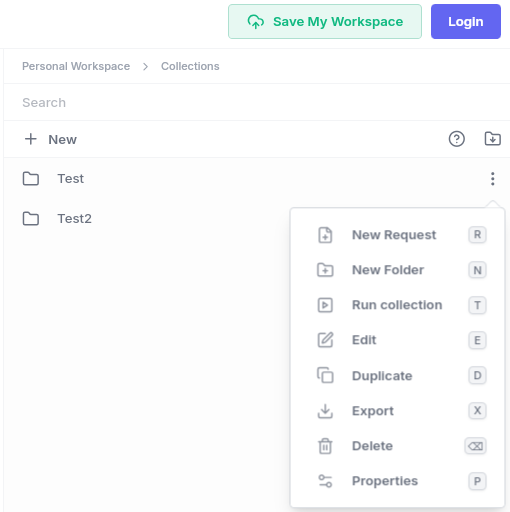
In Hoppscotch, click the more icon next to a collection or environment and click Export.
Select the location where you want to export the data and click Save.
Step 2 - Import Hoppscotch Files To Postman
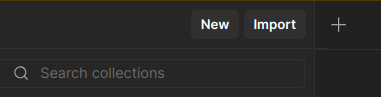
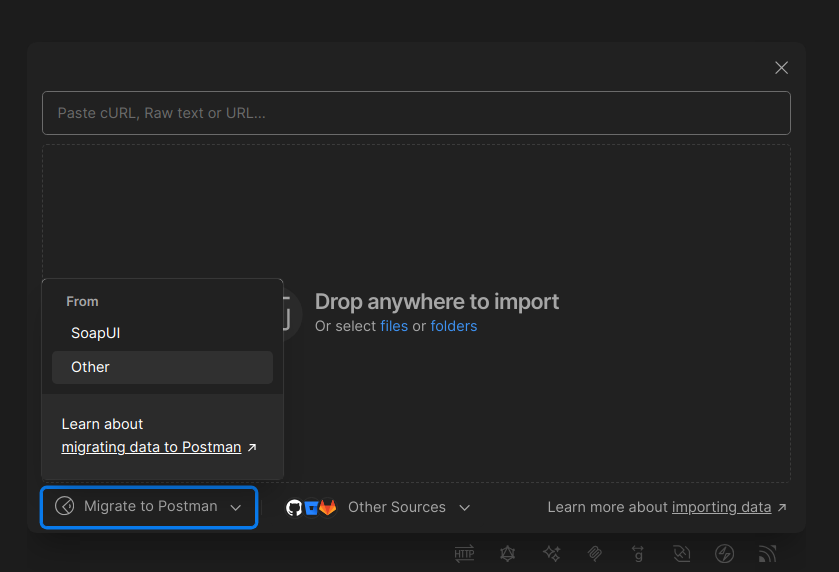
In Postman, click Import > Migrate to Postman > Other.
Select the Select data to migrate option.
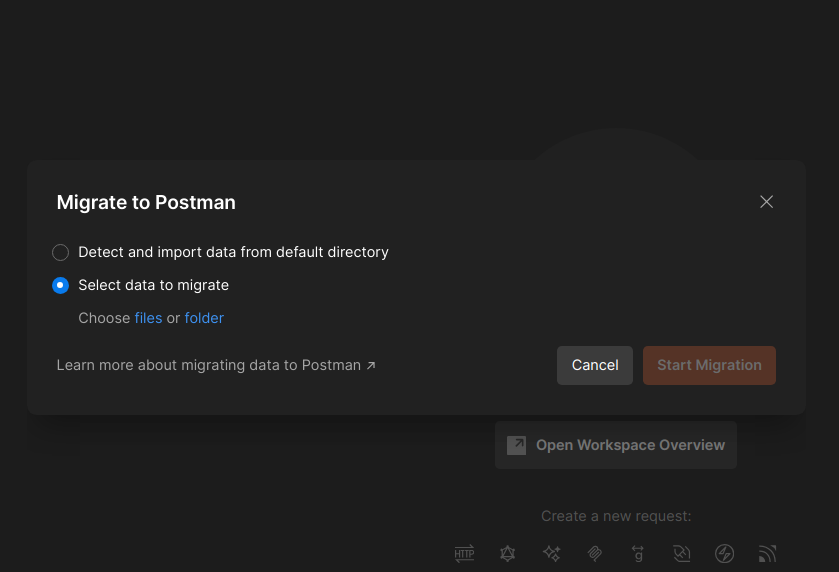
Click files or folder, then select the files or folder you want to import and click Open. If the Start Migration button isn’t enabled, make sure you’ve selected a valid Hoppscotch file.
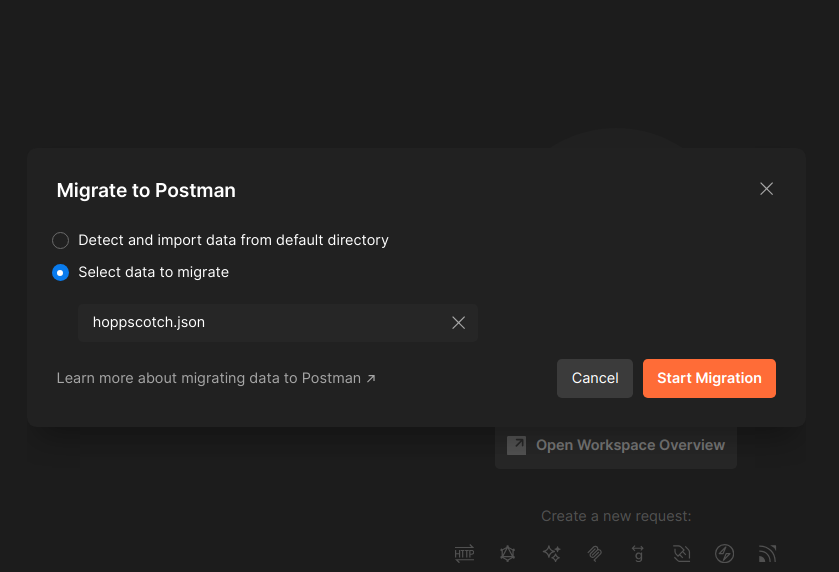
Click Start Migration. A message appears in the footer when migration is complete. Your imported collection will appear in the collection lists.

Step 3 - Export Postman Collection
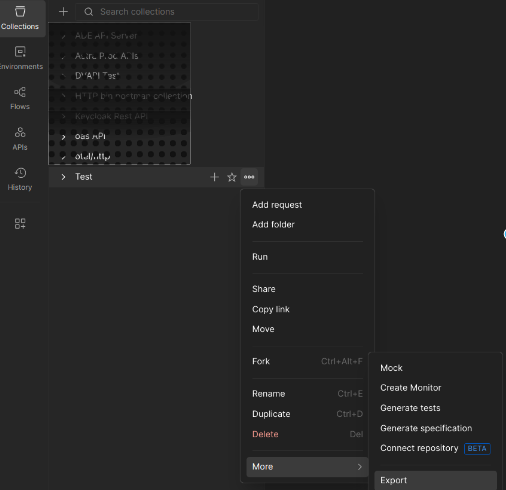
Select the Postman collection you want to Export. Click on Export and Save it to the location of your choice.
Step 4 - Import Postman Collection into Astra Dashboard
Have the exported Postman collection handy and follow the below article to start importing your inventory from the exported postman collection!
📄 Inventory Import – Populate API Inventory Using Postman Collections
Best Practices
Validate your collection in Hoppscotch before exporting
Run through your collection in Hoppscotch and confirm all requests return expected responses before exporting. Fixing authentication issues, broken URLs, or missing variables at this stage saves time compared to debugging after migration.
Export environment files alongside your collection
If your collection uses environment variables (base URLs, tokens, API keys), export the corresponding Hoppscotch environment file at the same time. Migrating the collection without its environment will result in unresolved variables and failing requests after import.
Verify the migrated collection in Postman before exporting
After migrating to Postman, run the collection using Run Collection to confirm all requests execute successfully. Do not export to Astra until the collection runs cleanly in Postman — failed requests will not be added to the API Inventory.
Check for variable mapping issues after migration
Hoppscotch and Postman handle environment variables differently. After migration, review the collection in Postman to confirm that variable names and scopes have transferred correctly, and update any that did not map cleanly.
Export the Postman collection in the correct format
When exporting from Postman, use Collection v2.1 format. Earlier formats may not be fully supported during import into Astra and can cause unexpected errors.
Keep your exported files versioned
Save exported Postman collection files with a version or date in the filename (e.g. api-collection-2024-06-12.json). This makes it easier to track which version of your collection was used for a given scan and re-import a previous version if needed.
Re-run the full process when your API changes
The Inventory Import reflects your API at the time of import. When new endpoints are added or existing ones change, repeat the export-migrate-import process to keep your API Inventory current before the next scan.