How to Populate API Inventory Using OpenAPI, Postman, or HAR Files Collections
Last updated: July 27, 2026
Introduction
Inventory Import lets you upload a runnable Postman collection to automatically populate your API Inventory. The system executes the collection the same way Postman's Run Collection feature does — capturing request and response data for each successful call and indexing the reachable endpoints.
This gives Astra's DAST scanner a list of known, working API endpoints that reflect real, authenticated traffic — including payloads, headers, and methods — without requiring you to manually document every endpoint.
Only 2xx and 3xx responses are added to the inventory. Failed requests (4xx/5xx) are flagged with error details so you can fix and re-run them.
Prerequisites
Before triggering an import, ensure the following:
Your Postman collection is runnable — it should execute successfully via Run Collection in the Postman desktop or web app Click here to learn how to run the postman collection
Authentication flows, variables, and environment files are correctly configured in the collection
The collection is uploaded to the relevant target in Astra
Instructions
How to Trigger Inventory Import
You can trigger an import in two ways depending on where you are in the setup process.
Option 1: During Target Setup
Upload your Postman collection and optional environment file
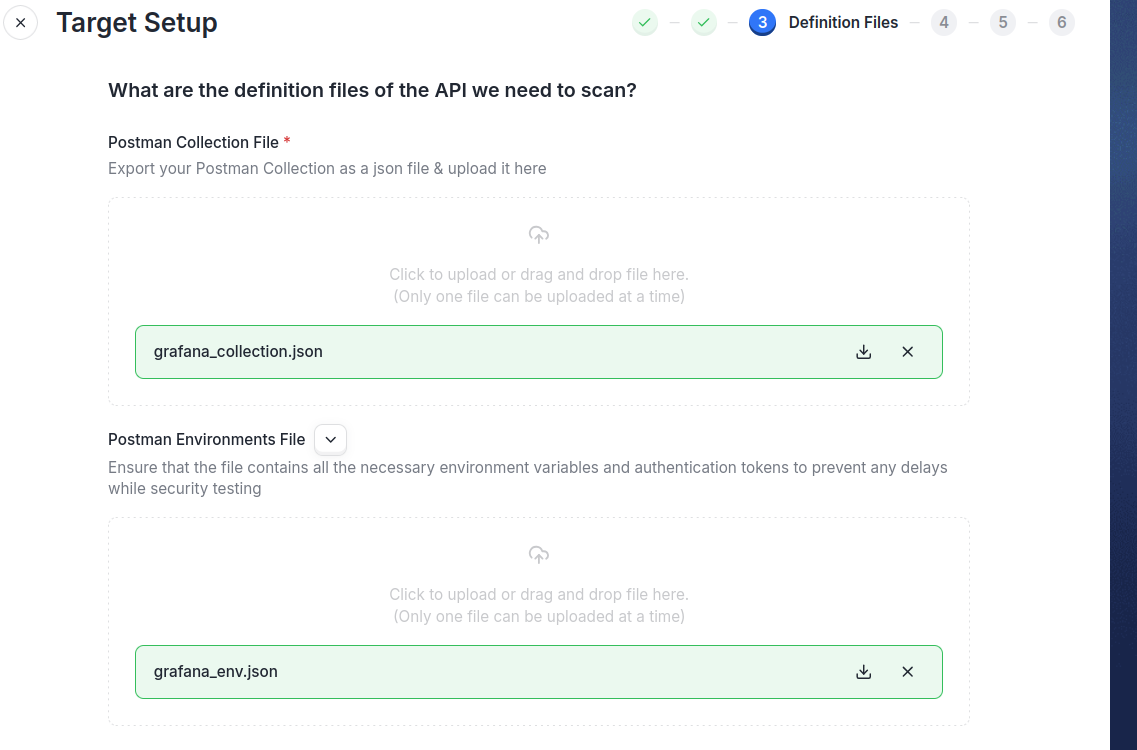
Complete the remaining target setup steps
You will now see that we are automatically importing your postman collection
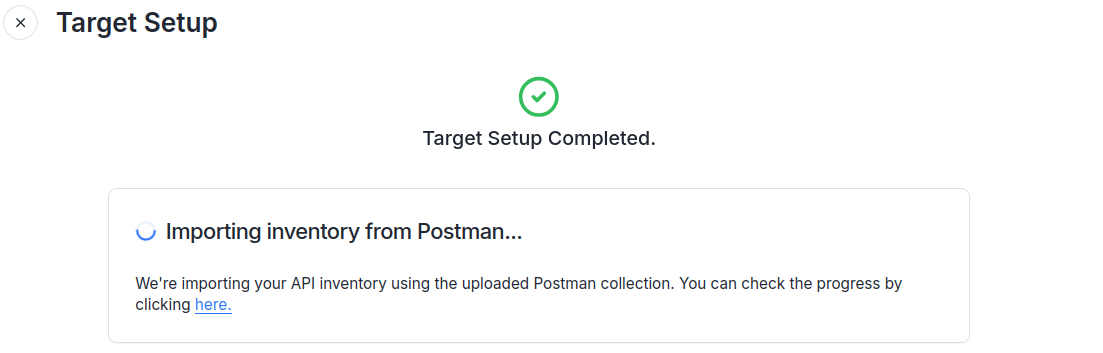
You can click the hyperlink in the message displayed to see the sitemap once inventory is imported OR you can open the Inventory Import option under API Security menu
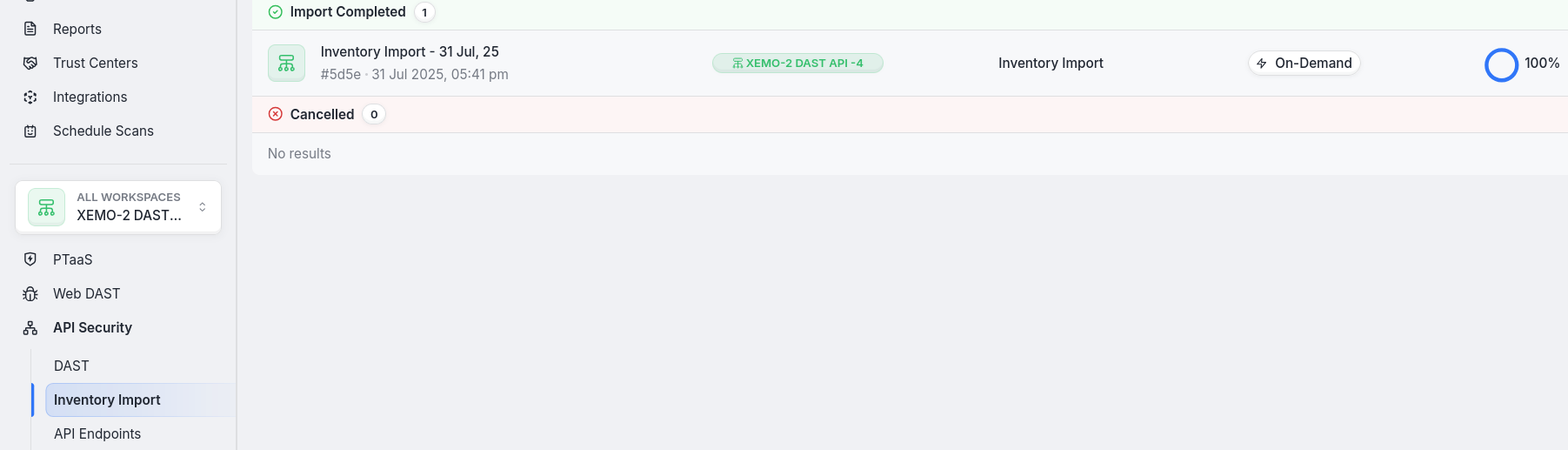
Option 2: On-Demand Inventory Import
Open the Inventory Import option under API Security menu
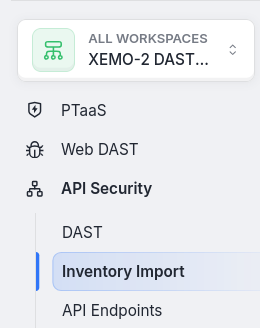
Click on Import Inventory present at the right top
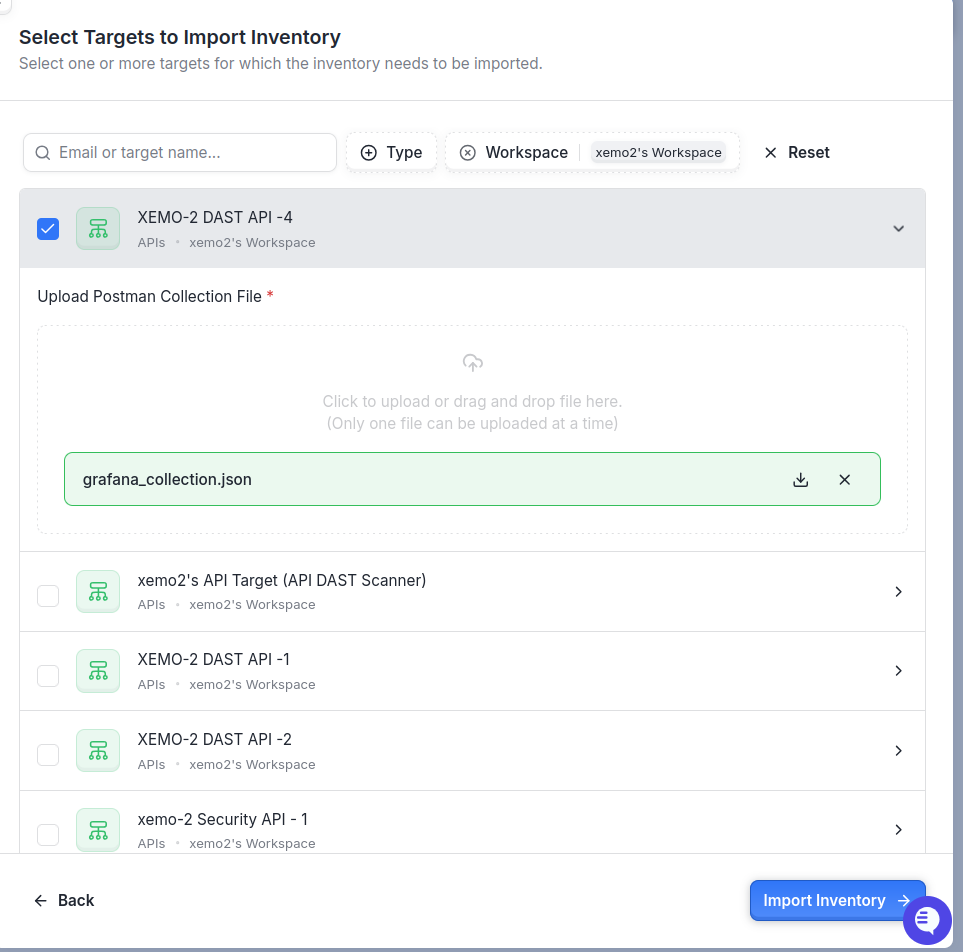
Select your workspace and target. Ensure that postman collection is uploaded. Click on Import Inventory button at the bottom right corner.
Viewing Import Progress & Errors
Where to See Import Results
In order to see Import result per request
Go to API Security > Inventory Import
You’ll see all targets with their import status:
In ProgressCompletedCancelled
Click on a target for which import is completed to view:
List of executed requests
HTTP method, URL, and status code for each


Handling 4XX / 5XX Failures
Some requests may fail due to:
Invalid tokens
Missing parameters
Incorrect environments
Action Items:
Click on failed requests
In the right-side sheet, review:
Response body
Status code
Error message
Fix these issues in your Postman collection or environment file
Re-run your collection in local Postman to validate
Re-upload fixed collection and re-trigger inventory import
Viewing Imported Endpoints
After a successful import:
Go to API Security > API Endpoints
You’ll see all 2XX-successful requests imported as endpoints
The API Endpoints page is only available in selected plans. If you don’t see it, please check your subscription tier.
Next Step
Once your API Inventory is populated, you can launch a DAST scan against the imported endpoints for that target.
Summary
Feature | Details |
Purpose | Populate API Inventory for DAST scans using runnable Postman collections |
Requirement | Postman collection must be executable via “Run Collection” |
How It Works | Executes each request and captures request/response |
Error Handling | View and fix 4XX/5XX requests, then re-run |
Next Step After Import | Launch DAST scan for the target for which API Inventory was Imported |