Overview: Subscription Management
Last updated: August 7, 2026
Summary
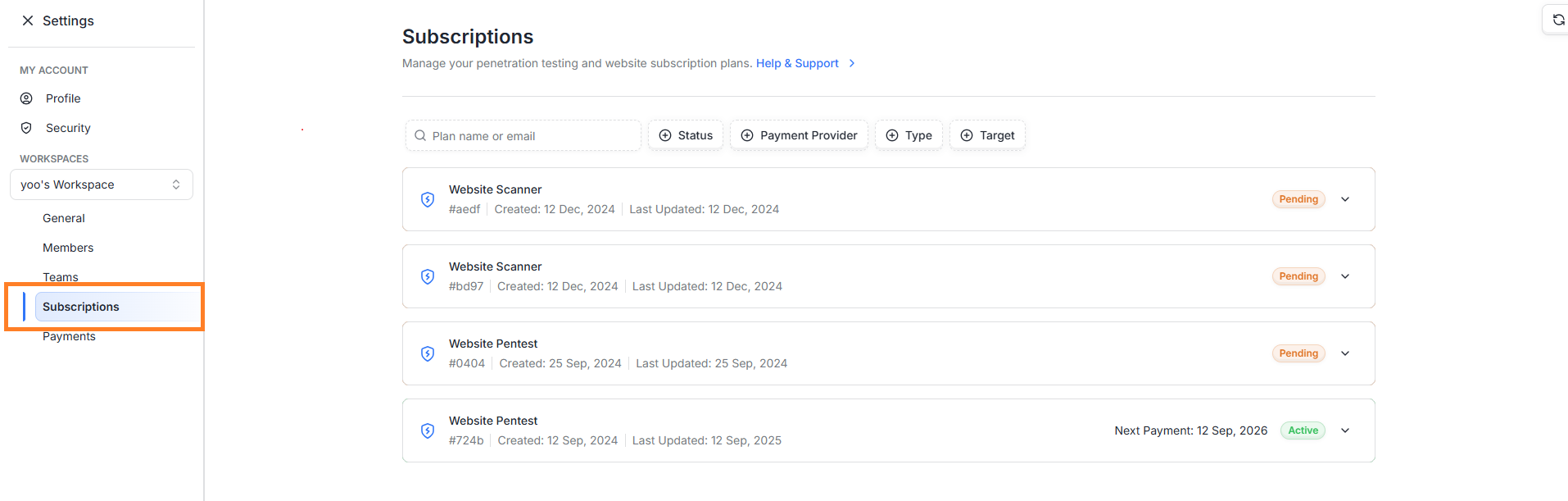
The Subscription Management section allows users to view, update, and manage their penetration testing and website scanner plans. This setting is specific to each workspace, so you must first select the desired workspace to manage the subscriptions associated with it.
Who should read this
Workspace Admins and Owners: To oversee billing cycles, upgrade plans, or manage target allocations.
Workspace Billing Members: To access invoices, update payment methods, and monitor payment history.
Finance Teams: To track security expenditures and ensure service continuity.
Key Functions: The Subscription Card
Each subscription is displayed as a subscription card. You can expand the card to view additional details.
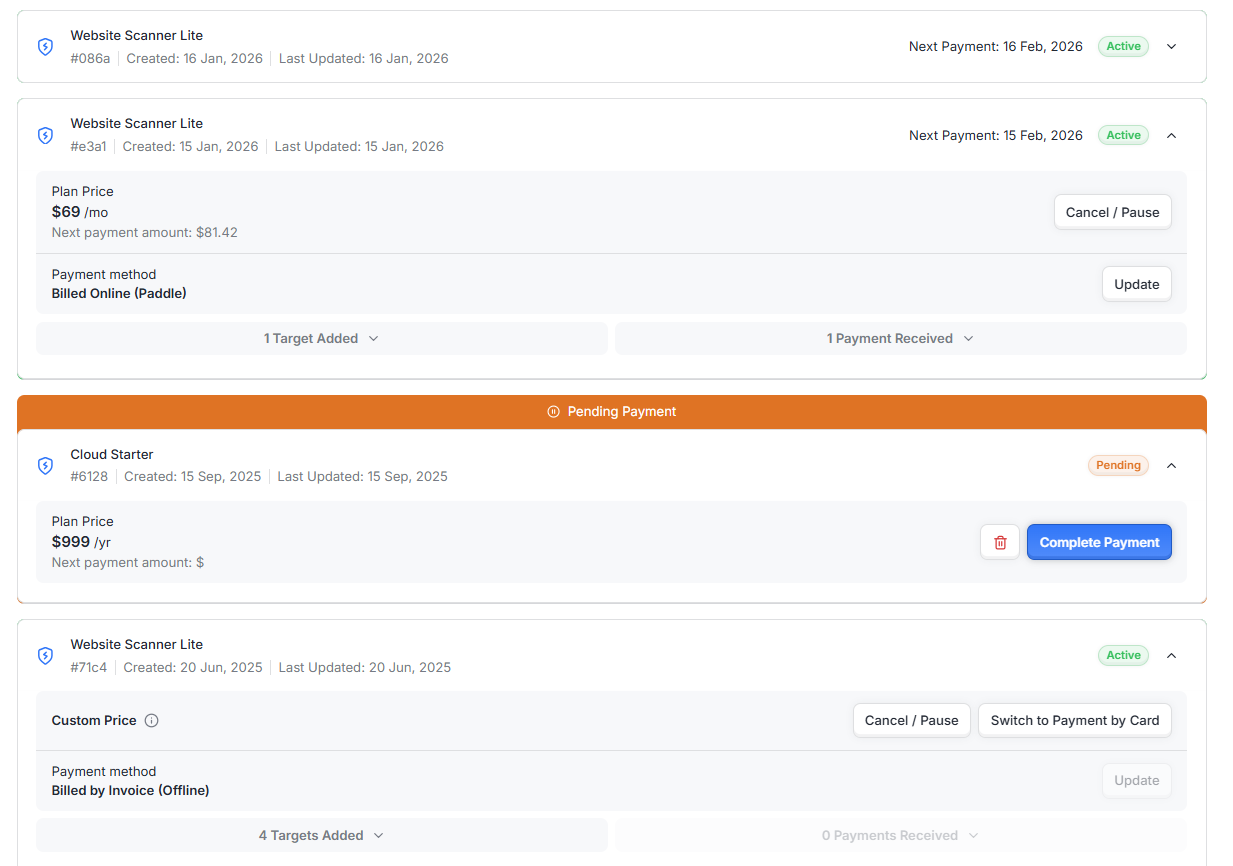
Depending on the plan and payment method, the following information may be available:
Plan Name & ID: Displays the specific service (e.g., Website Scanner Lite) and its unique ID.
Timeline: Shows the Created Date, Last Updated date, and the Next Payment Date for active plans.
Subscription Status: Indicates if a plan is Active, Pending Payment (due but not yet active), or Canceled.
Plan Price: Displays the monthly or yearly pricing structure, or "Custom Price" for enterprise accounts.
Payment Method: Shows if the plan is Billed Online (via Paddle) or Billed by Invoice (Offline).
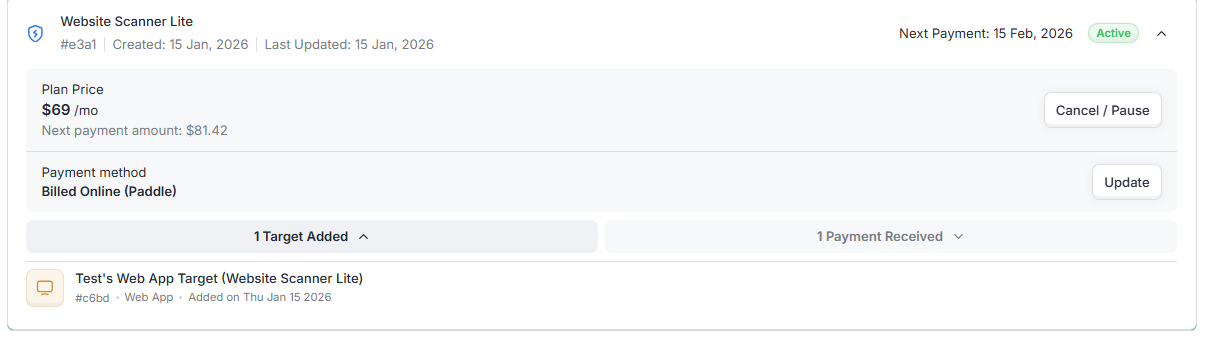
Targets Added: Lists the name, ID, and type (Web, Android, iOS, etc.) of all assets linked to that subscription.
Payment History: Provides a log of previous payments and access to downloadable invoices.
Available Actions
Cancel / Pause: Use this to stop auto-renewal; pausing is recommended if you wish to reactivate the plan later without reconfiguring products.

Update: Allows you to modify plan tiers, billing information, or payment methods via a secure Paddle window.
Complete Payment: Used to activate subscriptions currently in a "Pending" state.

Switch to Payment by Card: Available for offline/invoice-based plans to transition to automatic online billing.

Purchase New Target: Accessible via the Targets page to add additional assets to your workspace at discounted rates.
Best Practices
Pause vs. Cancel: If you need to stop services temporarily, choose Pause to avoid permanently deleting the subscription and having to re-purchase and re-configure the product later.
Verify Workspace: Always use the Target Switcher to ensure you are in the correct workspace before making billing changes, as subscriptions are not global across all workspaces.
India-Specific Compliance: If you are a customer in India, be aware that RBI regulations limit automatic payments to ₹5,000 INR per transaction; amounts above this may require manual updates in the dashboard.
Upgrading Plans: While basic updates can be done via the "Update" button, major plan upgrades often require raising a support ticket or contacting the sales team directly.
Tax Exemptions: If your business is eligible for VAT/GST exclusion, ensure you enter your tax details during the checkout process to have the amount adjusted.
If you want to upgrade your current plan, please raise a Support Ticket from the dashboard or contact us at
sales@getastra.com or help@getastra.com.