How to set up Astra Traffic Monitoring with Nginx in Cloud VM
Last updated: August 31, 2026
Overview
This guide describes how to configure Nginx with the OpenTelemetry (OTel) module to monitor HTTP traffic in cloud Virtual Machine environments (AWS, GCP, Azure, DigitalOcean, etc.).
It provides:
Step-by-step setup instructions for two scenarios:
Nginx not installed in the VM (Docker-based setup)
Nginx already installed in the VM (native setup)
Troubleshooting guidance for common operational issues
Verification tips to ensure data is flowing to Astra Traffic Collector
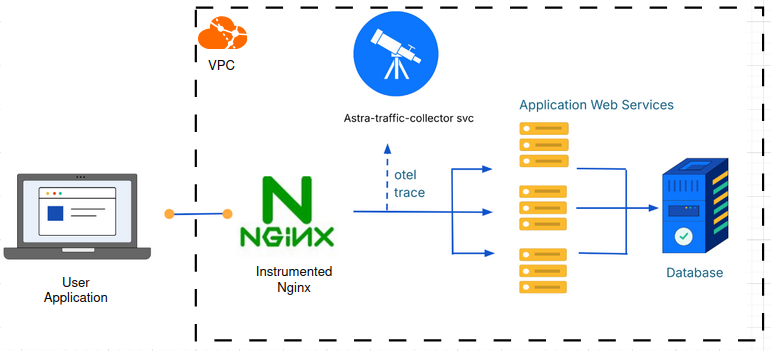
Illustration: High-level integration flow between Ingress Nginx and Astra Traffic Collector
Prerequisites
Before beginning, ensure you have:
Astra Traffic Collector is available and reachable.
📄 How to setup Astra Traffic Collector in Linux
Nginx sensor integration is created and
sensorIDis handy
📄 How to Create Sensor Integration for API Observability
Quick Installation
Case 1: Nginx not present in my VM
This section details the steps required to install and configure the Nginx load balancer to successfully instrument incoming HTTP requests.
Pre-requisite:
Set up a VM to host the Nginx load balancer.
Install Docker and Docker-Compose on the VM.
Prepare SSL certificates for the Nginx server. If you don’t have them, generate a self-signed SSL certificate .
Steps:
SSH into the VM and navigate to your working directory.
mkdir ~/astra-obs
cd ~/astra-obs
Create nginx.conf file with following content.
Replace with the integration ID displayed for your nginx integration in Integrations page in UI.
Replace with the public IP Address of the virtual machine where traffic collector is hosted.
load_module modules/ngx_http_js_module.so;
load_module modules/ngx_otel_module.so;

user nginx;
worker_processes auto;

pid /var/run/nginx.pid;
error_log /var/log/nginx/error.log;

events {
      worker_connections 1024;
      # multi_accept on;
}

http {
      # Basic Settings
      sendfile on;
      tcp_nopush on;
      types_hash_max_size 2048;

      include /etc/nginx/mime.types;
      default_type application/octet-stream;

      # SSL Settings
      ssl_protocols TLSv1 TLSv1.1 TLSv1.2 TLSv1.3; # Dropping SSLv3, ref: POODLE
      ssl_prefer_server_ciphers on;

      # Logging Settings
      access_log /var/log/nginx/access.log;

      # Gzip Settings
      gzip on;

      # Virtual Host Configs
      include /etc/nginx/conf.d/*.conf;
      include /etc/nginx/sites-enabled/*;

      js_import ga_nginx_script.js;
      js_set $req_headers ga_nginx_script.req_headers_json;
      js_set $resp_headers ga_nginx_script.resp_headers_json;
      otel_exporter {
          endpoint  :4317; # OTEL collector's gRPC endpoint

          interval    5s;
          batch_size  512;
          batch_count 4;
      }

      server {
          listen 19443 ssl;
          server_name nginx;
          ssl_certificate     /etc/nginx/server.crt;
          ssl_certificate_key /etc/nginx/server.key;

          location / {
            #...
            otel_trace on;
            otel_trace_context propagate;
            otel_span_attr sensor.version $nginx_version;

            otel_span_attr sensor.id ;

            otel_span_attr http.host $host;
            otel_span_attr http.request.headers $req_headers;
            otel_span_attr http.response.headers $resp_headers;
            otel_span_attr http.request.body $request_body;

            #...
            #proxy_pass http://backend;
            #...
        }
      }
}
** Edit the nginx.conf created in previous step to serve the incoming requests by giving the address of backend servers.**
** Create ga_nginx_script.js file with following content.**
function req_headers_json(r) {
     return JSON.stringify(r.headersIn);
}

function resp_headers_json(r) {
     return JSON.stringify(r.headersOut);
}

export default { req_headers_json, resp_headers_json };
** Create docker-compose.yaml file with following content.**
Replace
/path/to/server.crtand/path/to/server.keywith the absoulte path to your certificate and key.Replace
~/astra-obs/nginx.confand~/astra-obs/ga_nginx_script.jswith absolute path to nginx.conf and ga_nginx_script.js respectively.
version: '3.7'

services:

 otel-collector:
   image: nginx:otel
   volumes:
     - /path/to/server.crt:/etc/nginx/server.crt
     - /path/to/server.key:/etc/nginx/server.key
     - ~/astra-obs/nginx.conf:/etc/nginx/nginx.conf
     - ~/astra-obs/ga_nginx_script.js:/etc/nginx/ga_nginx_script.js
   network_mode: host
   restart: always
** Start the nginx container by executing
sudo docker compose up -dfrom working directory.**
Expect the following output when you exec:
sudo docker ps -a
CONTAINER ID IMAGE COMMAND CREATED STATUS PORTS NAMES 29f430a5ac1f nginx:otel "/docker-entrypoint.…" About a minute ago Up About a minute nginx-lb-container
** To stop the nginx container executing
sudo docker compose downfrom working directory.**
Case 2: Nginx already present in my VM
Take backup of current nginx configuration. Usually found in
/etc/nginx/nginx.confIt's essential to inject custom configuration into nginx config to have nginx successfully instrument the incoming request and response. Although these customization doesn't alter the functionality of nginx, we strongly recommend to take the backup of existing nginx configuration
Register nginx repository in your VM by following this . After registering, run following to install required modules
Run update:
sudo apt updateInstall otel module:
sudo apt install -y nginx-module-otelInstall js module:
sudo apt install -y nginx-module-njs
Create ga_nginx_script.js file with following content under /etc/nginx/
function req_headers_json(r) {
     return JSON.stringify(r.headersIn);
 }

 function resp_headers_json(r) {
     return JSON.stringify(r.headersOut);
 }

 export default { req_headers_json, resp_headers_json };
Edit the /etc/nginx/nginx.conf file with following content to instrument the incoming requests.
Replace with the integration ID displayed for your nginx integration in Integrations page in UI.
Replace with the public IP Address of the virtual machine where Traffic collector is hosted.
load_module modules/ngx_http_js_module.so;
load_module modules/ngx_otel_module.so;

user  nginx;
#...
#...events{}

http {
    include       /etc/nginx/mime.types;
    default_type  application/octet-stream;
    #...
    js_import ga_nginx_script.js;
    js_set $req_headers ga_nginx_script.req_headers_json;
    js_set $resp_headers ga_nginx_script.resp_headers_json;
    otel_exporter {
        endpoint  :4317; # OTEL collector's gRPC endpoint

        interval    5s;
        batch_size  512;
        batch_count 4;
    }
    #...
    server {
        #...

        location / {
            #...
            otel_trace on;
            otel_trace_context propagate;
            otel_span_attr sensor.version $nginx_version;

            otel_span_attr sensor.id ;

            otel_span_attr http.host $host;
            otel_span_attr http.request.body $request_body;
            otel_span_attr http.request.headers $req_headers;
            otel_span_attr http.response.headers $resp_headers;
            #...
            #proxy_pass http://backend;
            #...
        }
    }
}
Restart nginx
systemctl restart nginx
Troubleshooting
Unable to send trace from nginx to traffic collector
Symptoms
No entries in inventory/ inventory not getting updated
Following or similar error seen in nginx log
[Error] File: /tmp/build/opentelemetry-cpp/exporters/otlp/src/otlp_grpc_exporter.cc:66 [OTLP TRACE GRPC Exporter] Export() failed with status_code: "UNAVAILABLE" error_message: "DNS resolution failed for ...
Cause
Nginx is unable to resolve traffic-collector address
Solution
If Address of the traffic collector given in
nginx.confis incorrect, locate thehttpblock innginx.conffile, find theotel_exporter {...}block, updateIPAddressOfTrafficCollectoras shown belowotel_exporter { endpoint IPAddressOfTrafficCollector:4317 ... }IPAddressOfTrafficCollector should be the your publicIP of the Astra Traffic Collector server instance
Restart nginx by running
nginx -s reload
FAQ (Frequently Asked Questions)
Can I see what trace are sent from my environment?
How to get IP Address Of Traffic Collector in Non Kubernetes environment?
As container network is the same network as host network, the IP of the container would be the same as the Virtual Machine IP.