How-To: Purchase a New Target
Last updated: August 7, 2026
Introduction
The checkout flow begins after you've selected a target for security testing. In this process, you'll define the scope, choose a plan, and complete payment. Once finished, your target will be queued for security testing after verification.
Prerequisites
You must have an active Astra workspace.
You must have the necessary permissions to add targets and make purchases within your workspace.
Instructions
Step 1: Select Scope
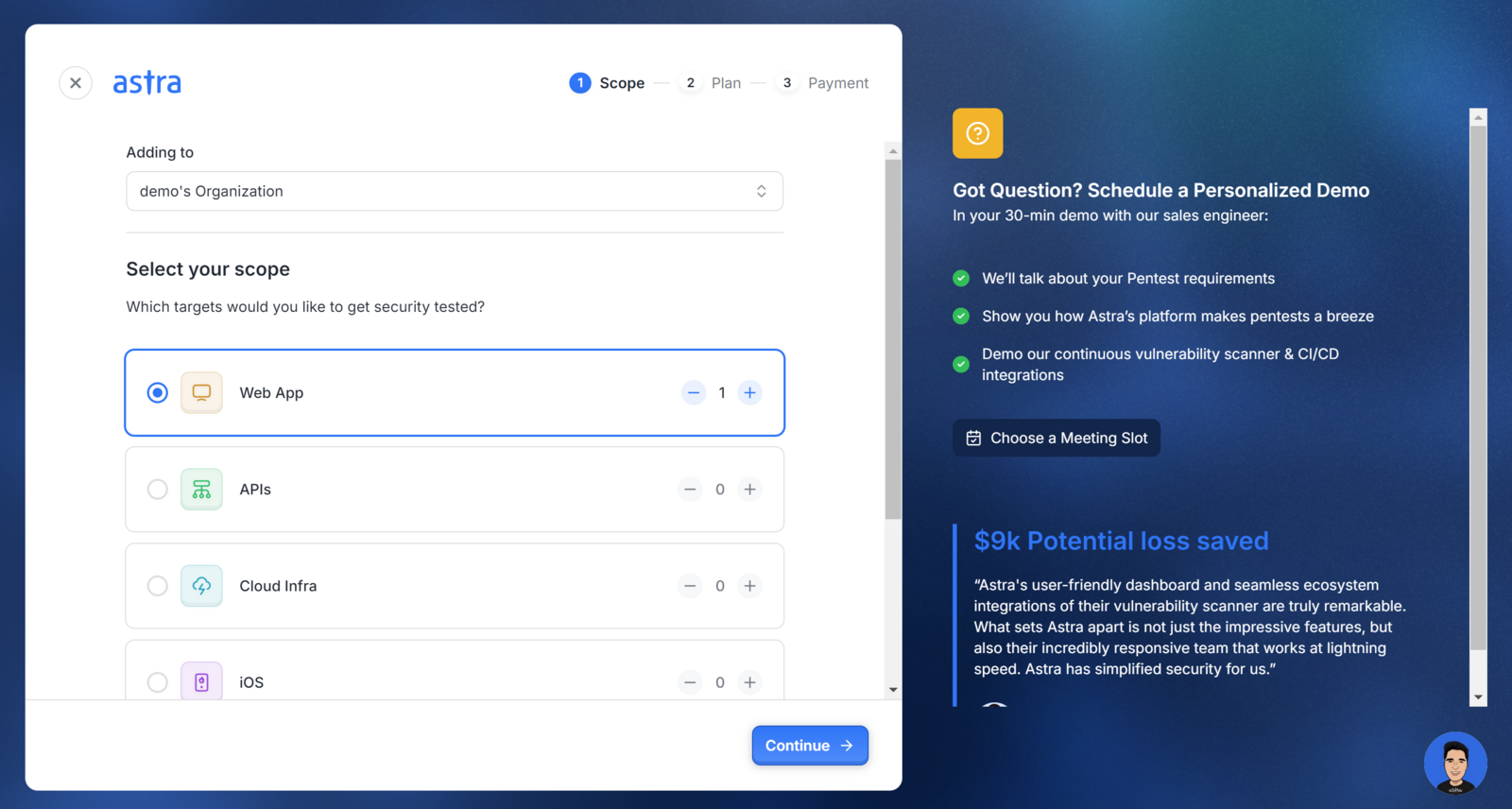
Navigate to the Targets page in your Astra dashboard and click Add More Targets.
Select a Workspace - choose the workspace to which the new target will be added.
Select Target Type - choose the type of target you want to test (e.g., Web App, APIs, Cloud Infra, iOS, Android).
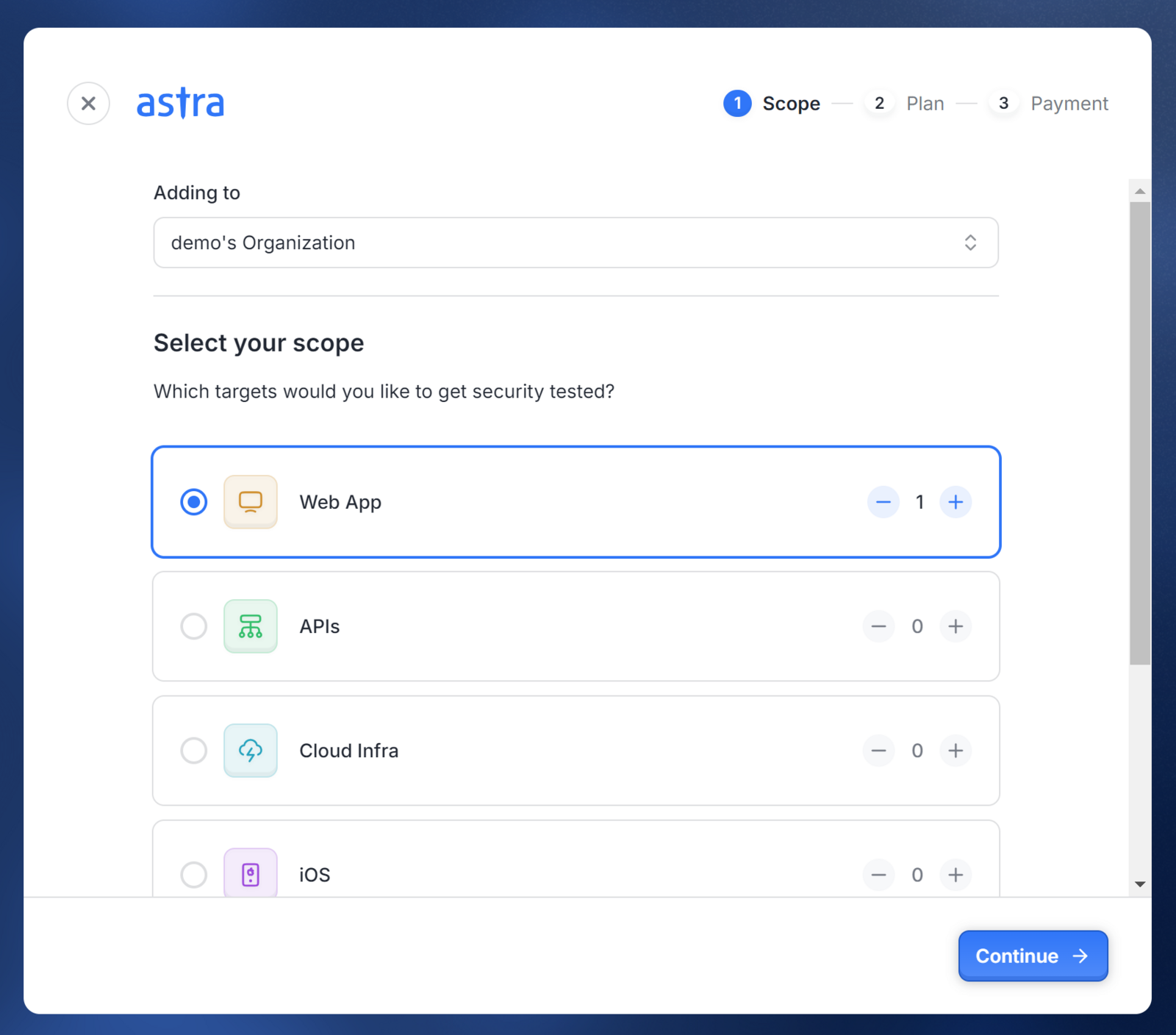
Set Quantity - adjust the number of targets if you need to purchase more than one.
Click Continue to proceed to the next step.
Step 2: Choose a Plan
Review the features included in each available plan (e.g., Website Pentest or Website Scanner).
Select the plan that best fits your needs.

Use the Yearly/Monthly toggle to switch between billing cycles.
Click Pay Now to proceed to payment.
Note: The monthly payment option is only available for the Scanner plan.
Step 3: Complete Payment
A Paddle payment window will appear.
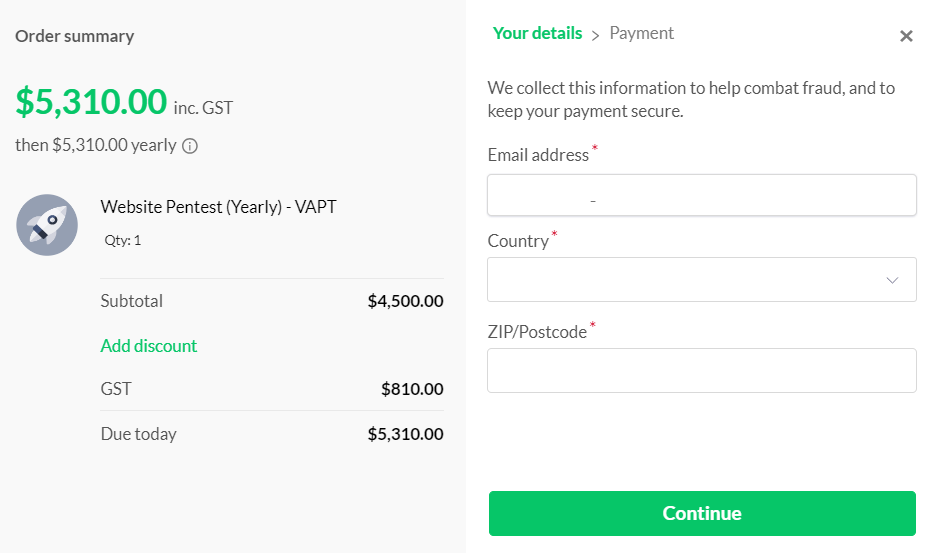
Enter your payment details including your email address, country, ZIP/postcode, and credit card information.
Complete the payment to finalize your purchase.
A success message will appear once your payment has been processed successfully.
Expected Outcome
Once the purchase is completed, you will be redirected back to the Targets page, where your newly purchased target will appear in a Pending Verification state, ready for the next steps in setup.
Related Tasks
How can I activate an offline subscription? Offline subscriptions cannot be activated directly from the dashboard. As a customer, you do not have the ability to activate an offline subscription on your own. Please reach out to the support team and they will assist you in setting up the subscription based on your requirements.
How can I get a payment link? To receive a payment link, please contact your support team or account manager. They will generate the payment link for you, which you can then use to complete your payment.
Need Help? If you have any questions or encounter any issues during the checkout process, raise a support ticket from your Astra dashboard or email help@getastra.com.