Getting Started with Jira Integration on Astra OrbitX
Last updated: August 6, 2026
Introduction
Connecting Jira to Astra's OrbitX lets you manage security vulnerabilities directly from your existing issue-tracking workflow. Once integrated, you can create Jira issues for detected vulnerabilities without leaving the Astra dashboard.
Instructions
Jira is a workspace-level integration, meaning it applies to all projects within your workspace once configured.
Go to the Integrations section in your Astra dashboard.
Find the Jira integration card and click Connect.
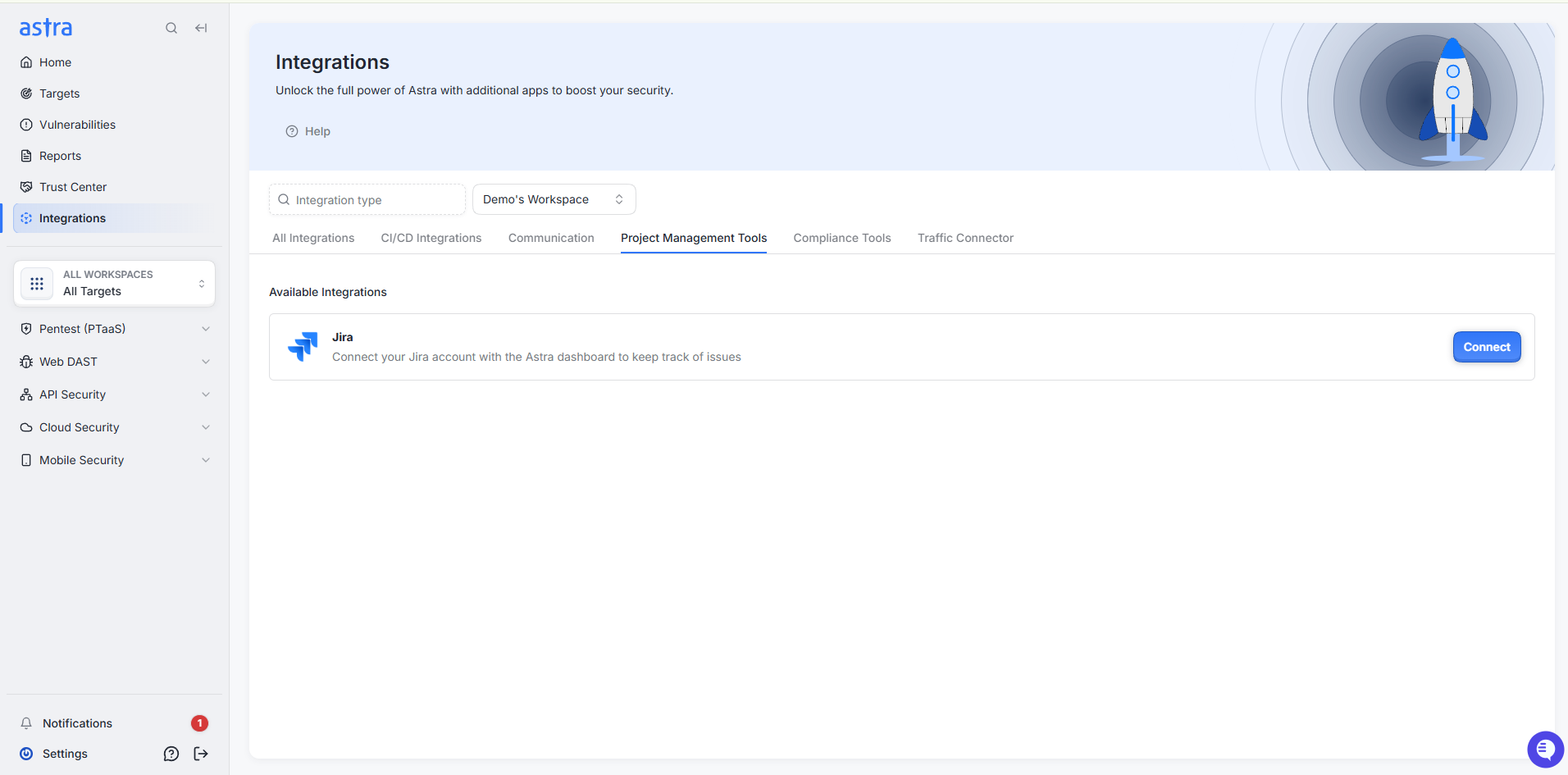
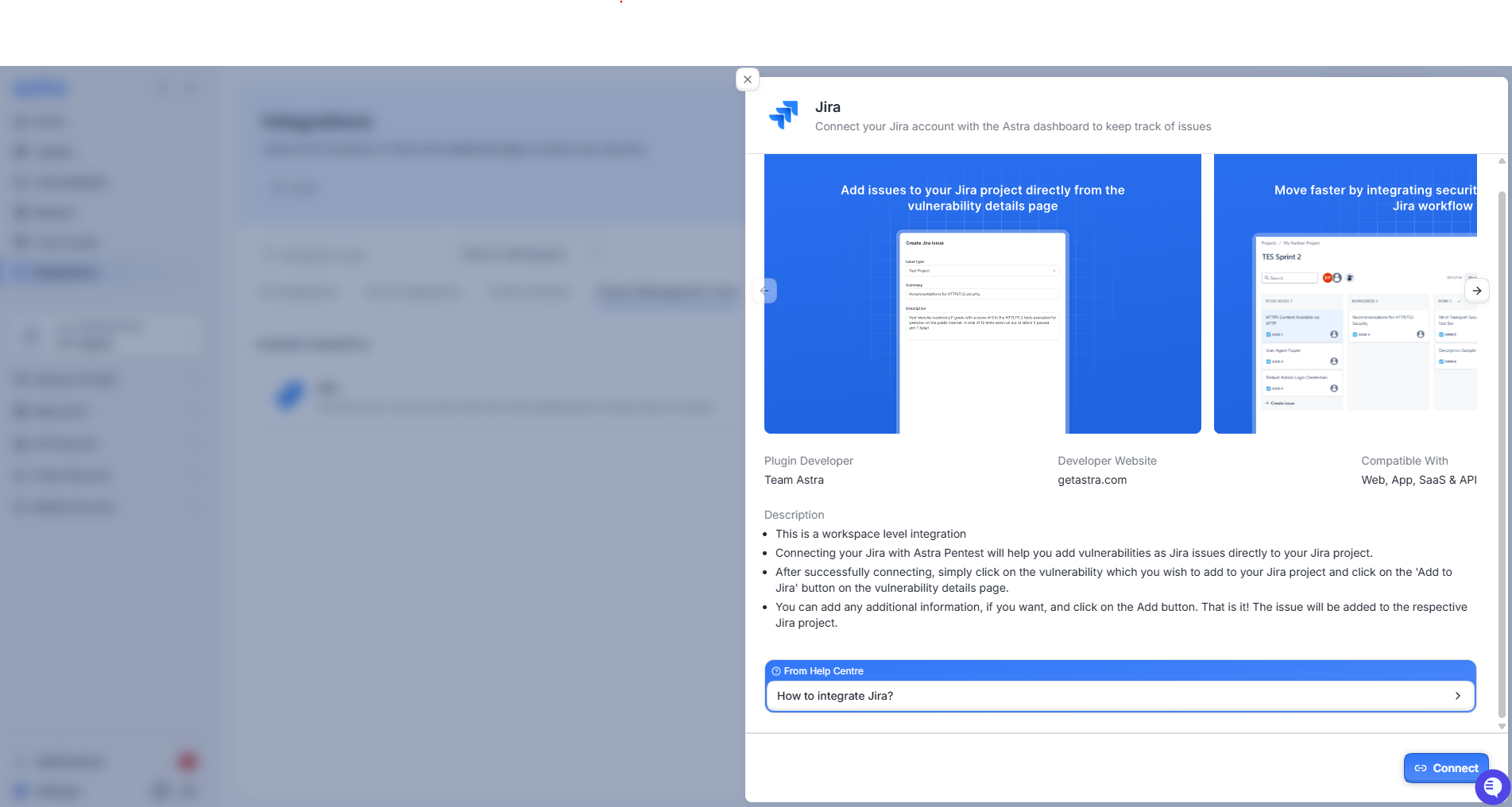
In the side sheet that opens, fill in the following details:
Jira Instance URL — the base URL of your Jira instance (e.g., https://yourcompany.atlassian.net)
Email Address — the email associated with your Jira account
API Token — a security token used for authentication
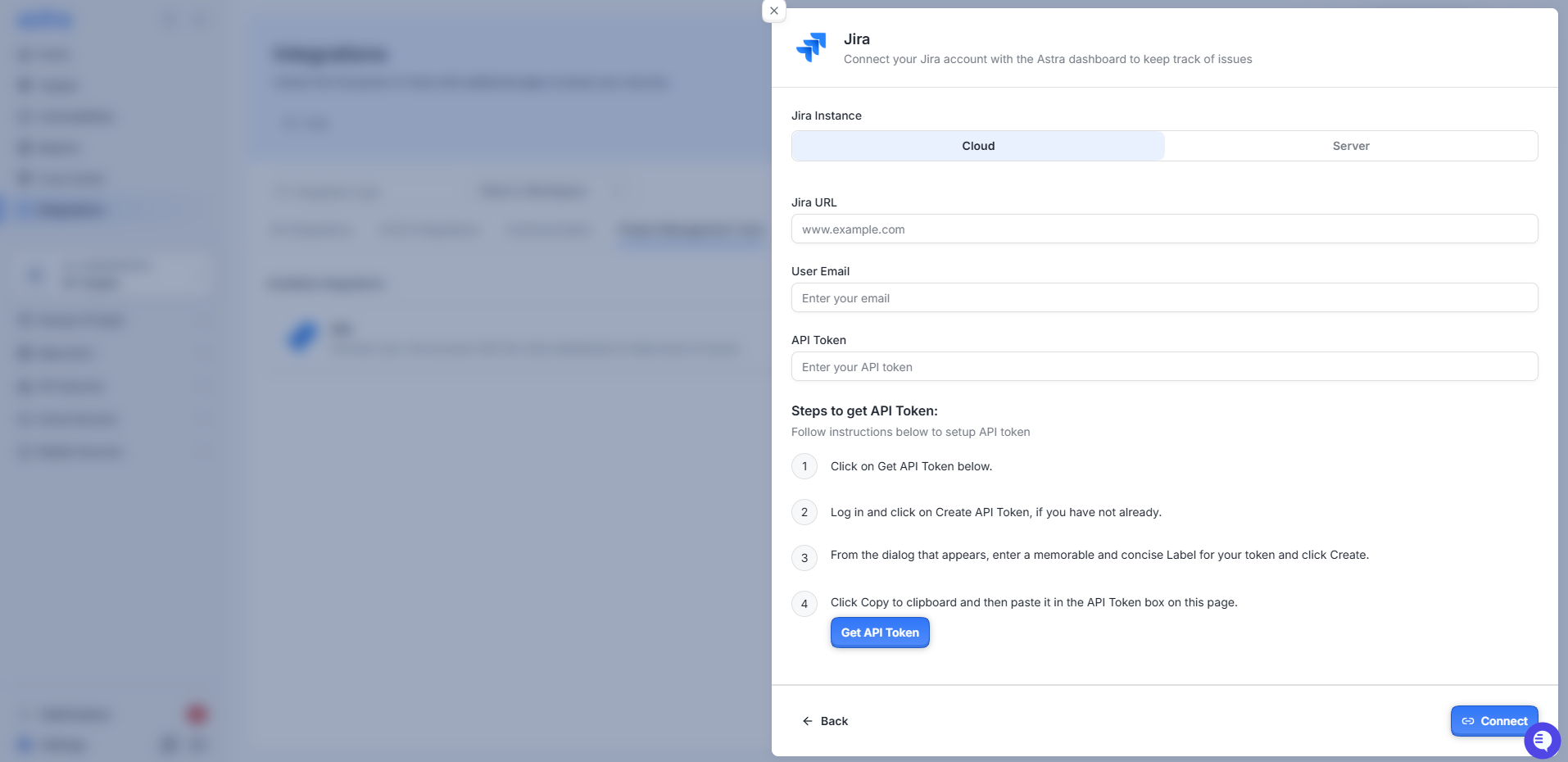
To generate an API token:
Log in to atlassian dashboard if you have not already.
Click on Get API Token button on the page or go to “https://id.atlassian.com/manage-profile/security/api-tokens”.
From the dialog that appears, enter a memorable and concise Label for your token and click Create.
Click Copy to clipboard and then paste it in the API Token box on this page.
First Action - Creating Jira Issues for Vulnerabilities
Once connected, you can raise Jira issues directly from any vulnerability in OrbitX.
Navigate to the Vulnerabilities page or open a specific scan's details page.
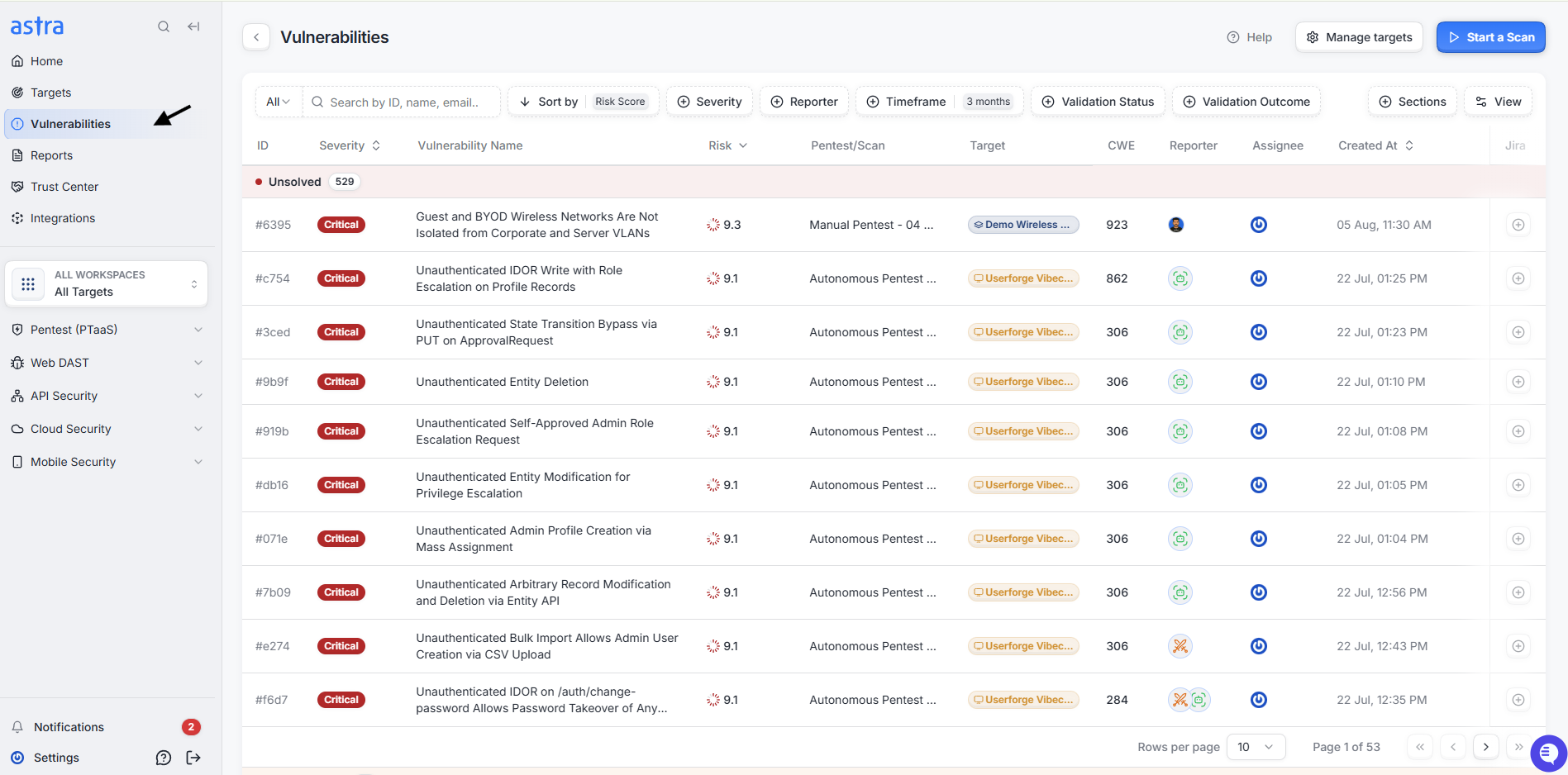
Click on the vulnerability you want to track.
In the vulnerability details sheet, click Create Jira Issue (this button changes to Open in Jira after an issue is created).
A side sheet will open — fill in:
Project — the Jira project where the issue will be created
Issue Type — e.g., Bug or Task
Any additional details relevant to the issue
Click Add to Jira. You'll see a confirmation once the issue is created, and it will link back to the vulnerability in OrbitX.
Frequently asked questions
Why is my Jira integration showing an authentication error or failed status?
This usually means the connection between Astra and Jira has broken and needs to be reset. To fix it, delete the integration from Astra, then delete it from Jira, and reconnect using the original setup steps. If the error persists after reconnecting, raise a support ticket from your Astra dashboard or write to help@getastra.com.