How to update a payment method and download invoices
Last updated: November 3, 2026
Online payments are handled by Paddle, Astra's billing provider. This article covers updating the card or payment method, moving an invoice-billed plan to card payments, and finding invoices.
Update the card or payment method
The new method is used from the next renewal.
- Open Settings, pick the workspace under Workspaces, then click Subscriptions.
- Expand the subscription.
- Next to Payment method, click Update.
- Enter the new details in the Paddle window.
If a renewal payment fails, update the payment method here.
Note
Update isn't shown for plans billed by invoice.
Move an invoice-billed plan to card payments
A plan that's Billed by Invoice (Offline) shows Switch to Payment by Card when expanded. Click it to open the checkout in a new tab and complete the payment there. The plan then renews automatically through Paddle.
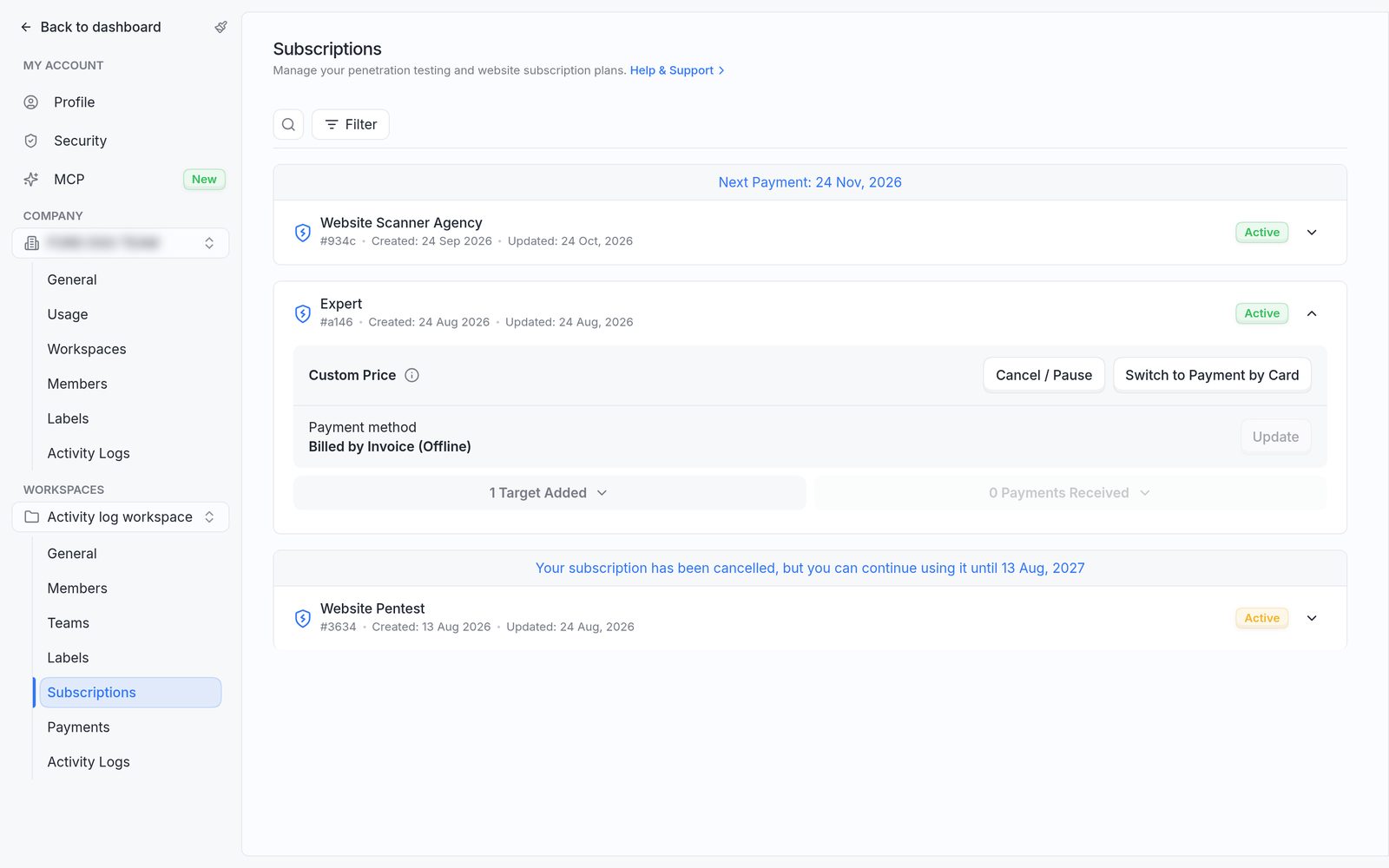
An invoice-billed plan, with Custom Price and Switch to Payment by Card.
Find and download invoices
Every online payment has an invoice, available in two places.
- Payments in the workspace's settings lists every payment, with its plan, Issue Date, Status and Amount. Search by plan name or email, or use Filter to narrow by date.
- Payments Received in an expanded subscription lists that plan's payments only.
Click Open invoice to open the invoice in a new tab, where it can be downloaded or printed.
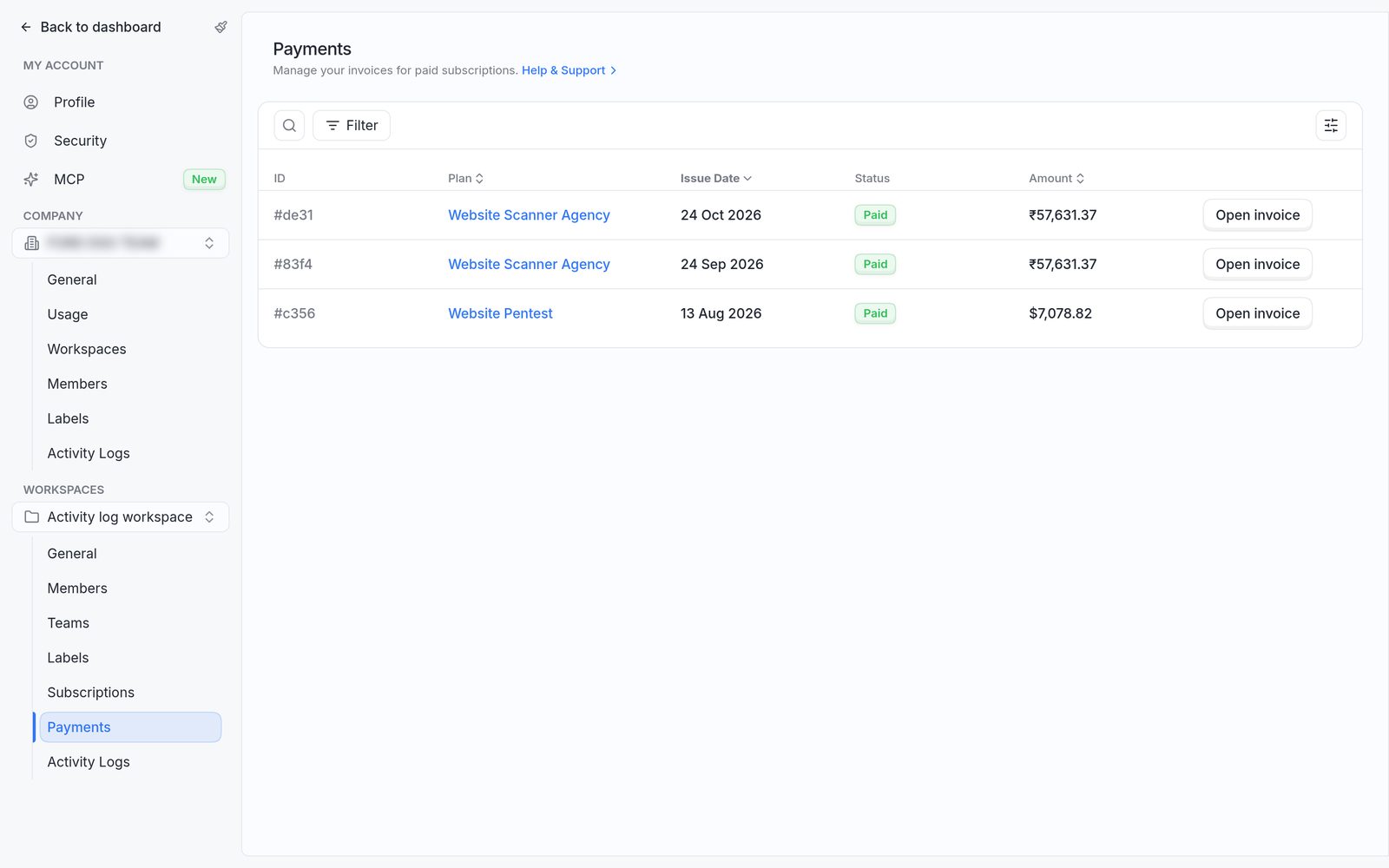
The Payments page, with Open invoice on each payment.
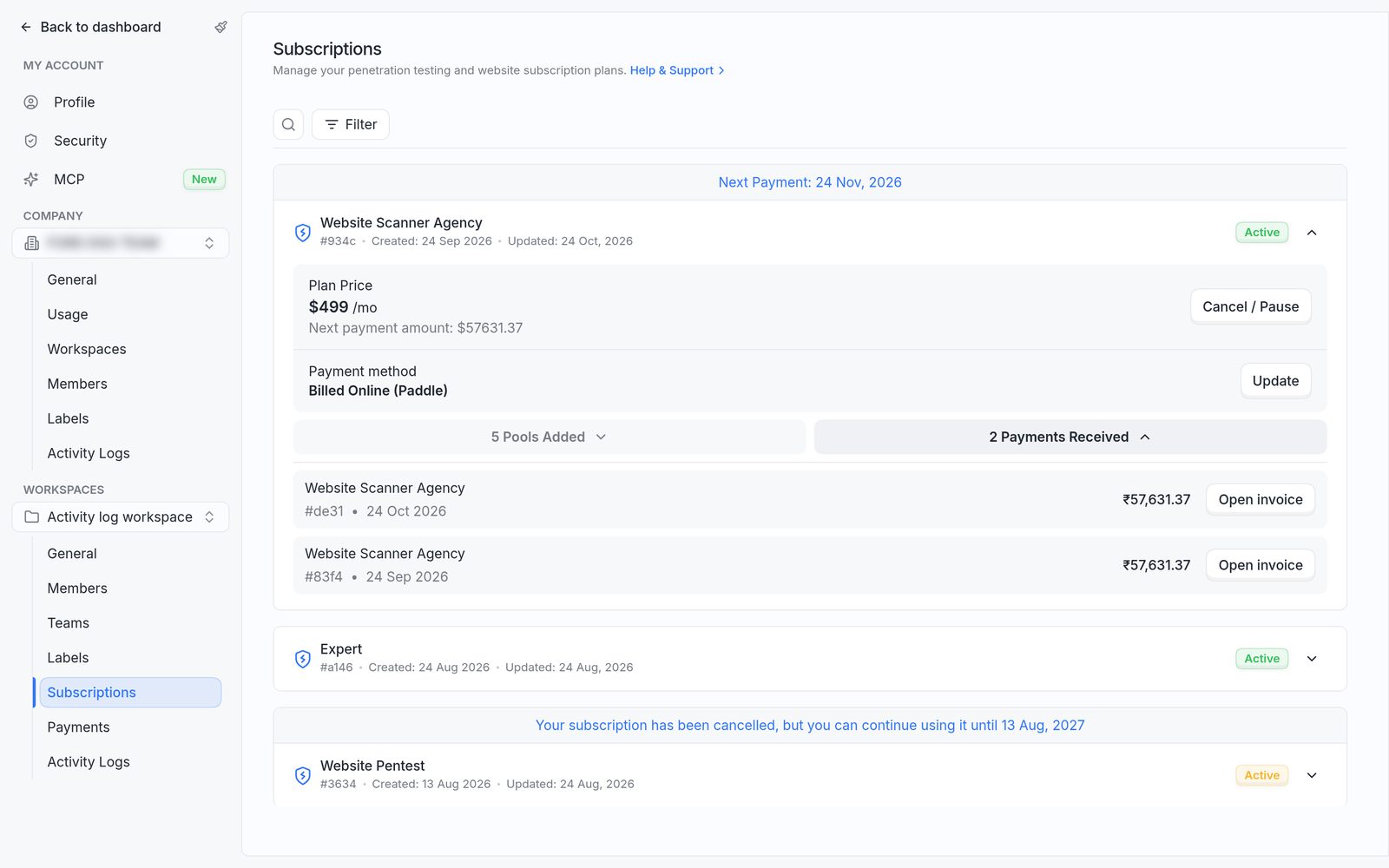
Payments Received on an expanded subscription.
Note
Payments made by wire transfer don't appear on the Payments page. For those invoices, contact the Astra sales representative.
FAQ
A payment failed. What should be done?
Expand the subscription and click Update next to Payment method to add a working payment method.