How to Provide JWT Configuration for Automated Authentication?
Last updated: June 10, 2026
Introduction
Astra supports automated API authentication using JSON Web Tokens (JWTs). By configuring JWT authentication, Astra can automatically generate valid authentication headers during scans, eliminating the need for manual token generation and reducing authentication failures.
This guide explains the information required to configure JWT-based authentication for your API target
Prerequisites
Before proceeding, ensure that:
You have access to the JWT configuration used by your application.
You know the signing algorithm (HS256 or RS256).
You have the required signing secret or key.
You have access to a sample JWT payload and header configuration.
You have permission to modify authentication settings for the target in Astra.
Instructions
Step 1: Open the Target Configuration
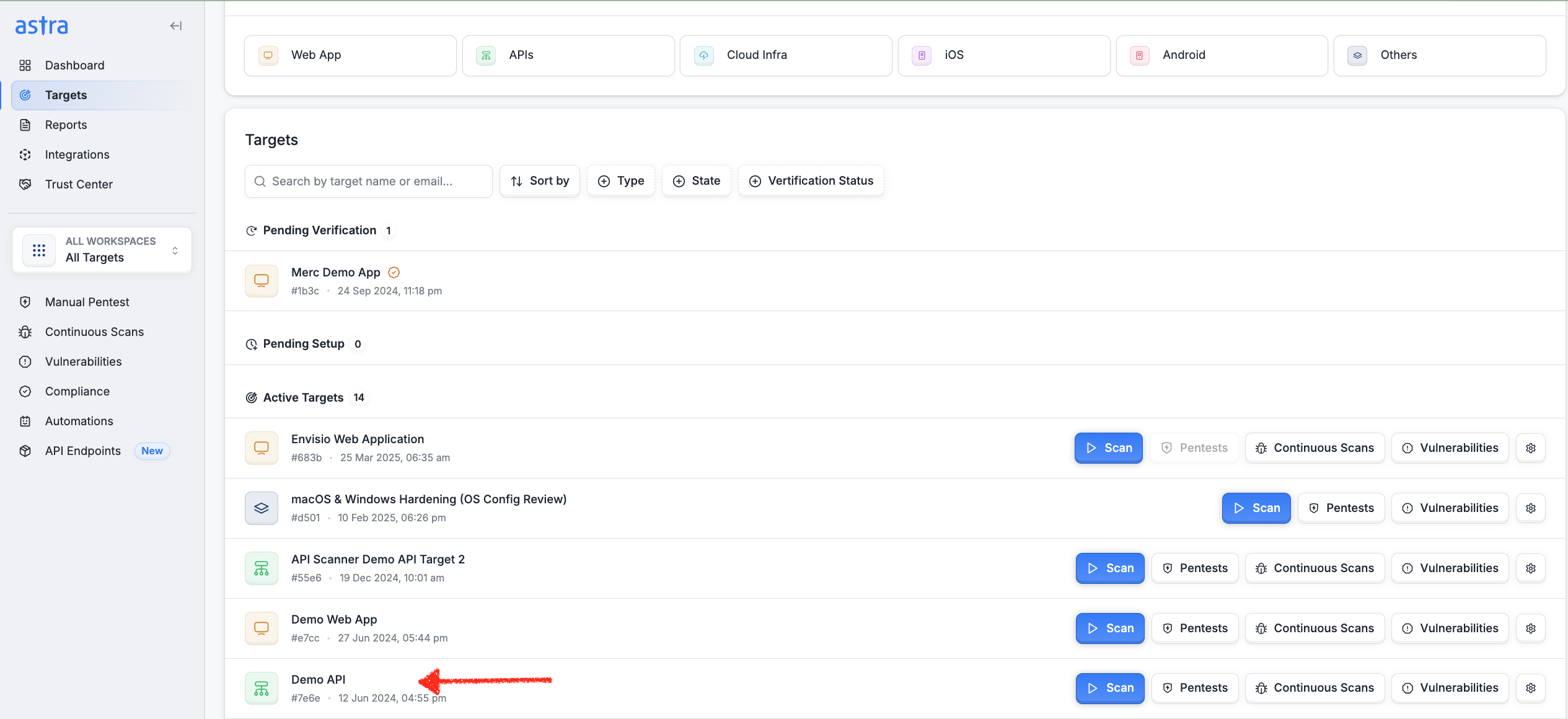
Navigate to the Targets page in Astra.
Locate your API target.
Click the Settings icon to open the target configuration.
Step 2: Configure JWT Authentication
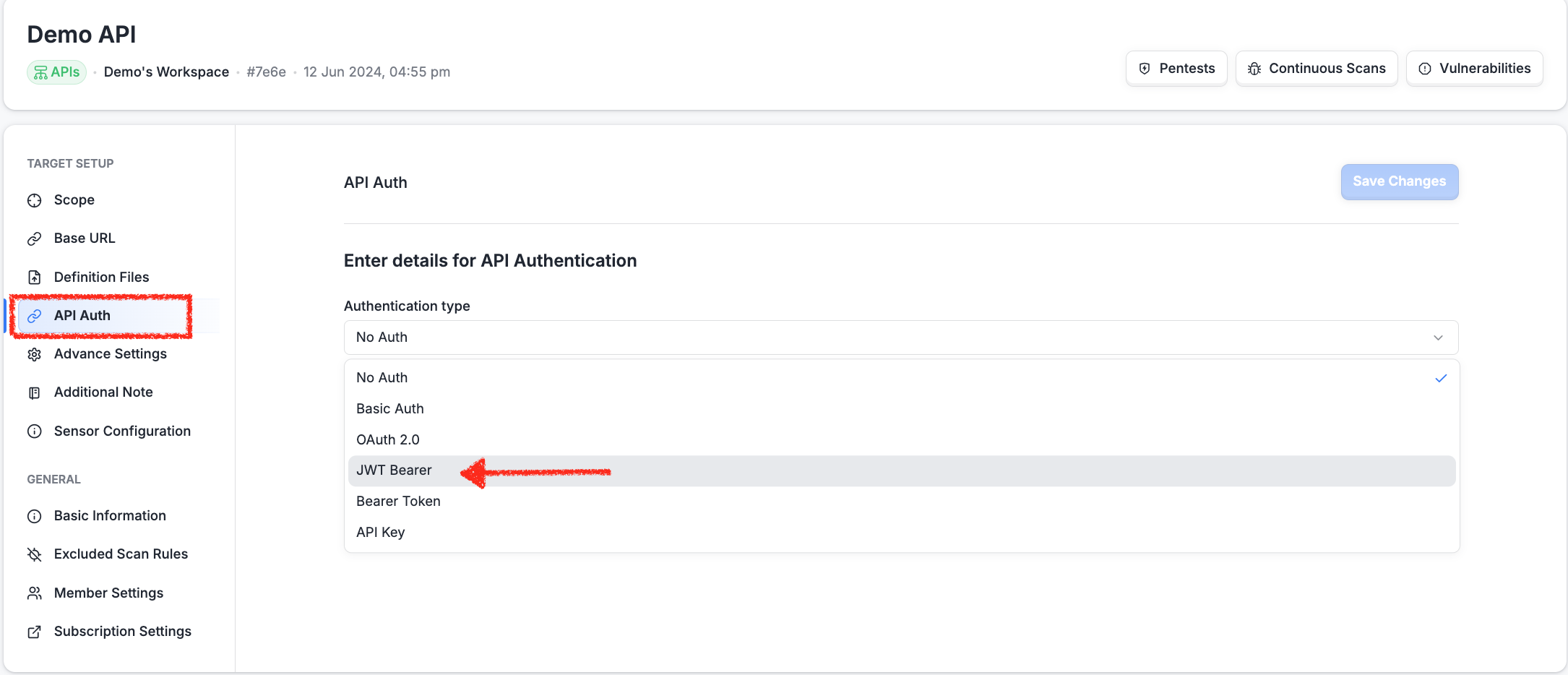
Navigate to the API Auth section.
Select JWT Bearer as the authentication type.
Step 3: Provide the JWT Algorithm
Specify the signing algorithm used to generate JWT tokens.
Supported Values
HS256
RS256
If you are unsure which algorithm is being used, consult your development team or review your application's authentication implementation.
Step 4: Provide the Secret or Key
Enter the secret or key used for JWT signing.
For HS256
Provide the shared secret used to sign and validate tokens.
Example
tu53RLzSrGFor RS256
Provide:
The private key if Astra will generate JWT tokens.
The public key if token verification is required.
If your secret or key is Base64 encoded, please indicate this during configuration.
The JWT payload contains claims used to identify the authenticated user and define token properties.
Provide a sample payload in JSON format.
json{
"sub":
"user@example.com",
"exp": 1714675200,
"role": "admin"
}Common payload fields include:
User identifiers
Roles and permissions
Expiration timestamps
Custom application claims
Step 6: Provide the JWT Header
The JWT header defines the token type and signing algorithm.
Provide a sample header if your implementation uses custom values.
Example
{
  "alg": "HS256",
  "typ": "JWT"
}
Step 7: Specify the Header Prefix
Provide the prefix used when sending the JWT in the authentication header.
Default Value
BearerExample request header:
Authorization: Bearer <jwt-token>Only change this value if your API uses a custom authentication scheme.
Step 8: Specify the Header Name
Provide the HTTP header used to transmit the JWT token.
Default Value
AuthorizationExample:
Authorization: Bearer <jwt-token>Only modify this field if your application expects a custom header name.
Expected Outcome
Once the JWT configuration is completed:
Astra can automatically generate JWT tokens during scans.
Authentication headers are added to requests automatically.
Authenticated API endpoints remain accessible throughout testing.
Scans continue without requiring manual token refreshes.
Security assessments achieve broader authenticated coverage.
Troubleshooting
Authentication Requests Are Failing
Verify that:
The correct algorithm (HS256 or RS256) has been selected.
The provided secret, public key, or private key is valid.
The key format matches your application's implementation.
Base64-encoded secrets have been identified correctly.
Generated Tokens Are Being Rejected
Check that:
The JWT payload contains all required claims.
Required custom claims are included.
User identifiers are valid.
The expiration (
exp) value is generated correctly.
Receiving "Invalid Signature" Errors
Verify that:
The correct signing secret is being used for HS256.
The correct private key is configured for RS256 token generation.
No extra spaces or formatting changes were introduced when copying the secret or key.
Authentication Header Is Missing or Invalid
Confirm that:
The correct header name is configured.
The correct header prefix is specified.
The application expects the token in the configured header.
Example:
Authorization: Bearer <jwt-token>Scans Lose Authentication Midway
Check that:
Token expiration times are not too short.
The payload contains a valid
expclaim.Astra can generate new tokens when required.
The provided secret or key has not been rotated or revoked.