How to Configure OAuth 2.0 Authentication for an API Target
Last updated: June 10, 2026
Introduction
Configuring OAuth 2.0 authentication allows Astra's scanner to automatically acquire and renew tokens when testing your API — without requiring repeated manual credential sharing. This guide walks you through setting it up on your API target.
Prerequisites
An active API target in the Astra dashboard
OAuth 2.0 credentials from your identity provider:
Access Token URL
Client ID
Client Secret
Username and Password (only if using Resource Owner Password grant)
Instructions
1. Open Target Settings
Go to the Targets page and click the Settings icon on your API target to open the target setup.
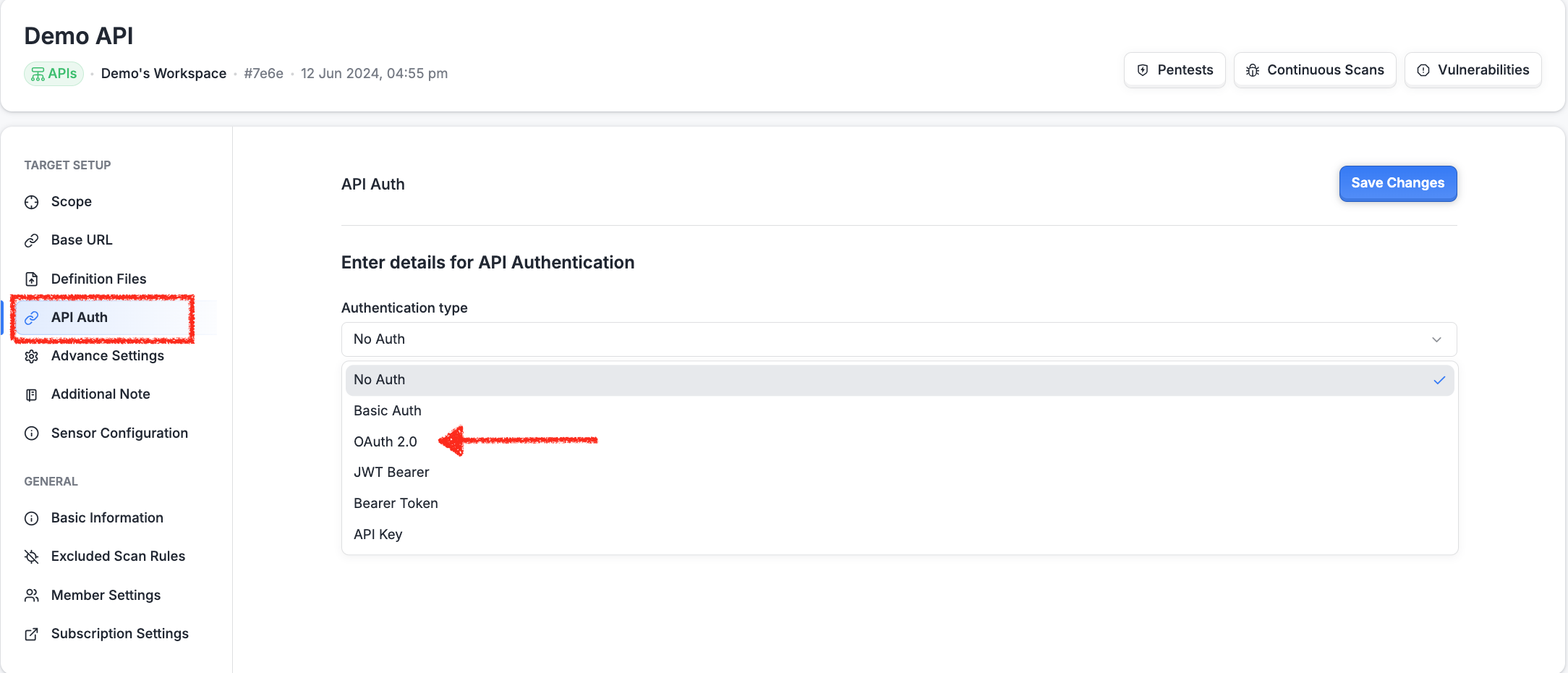
2. Navigate to API Authentication
Within the target setup, select API Auth. From the Authentication Type dropdown, select OAuth 2.0.
3. Select the Grant Type
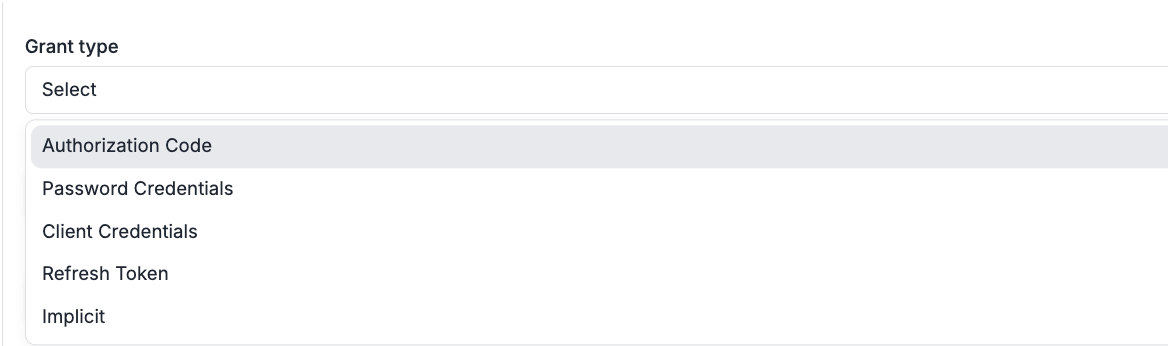
Choose the OAuth 2.0 flow that matches your system. The two supported options are:
Client Credentials — used when the application authenticates directly without a user context
Resource Owner Password — used when authenticating on behalf of a specific user with a username and password
4. Enter the Access Token URL
Provide the endpoint your identity provider uses to issue OAuth tokens.
Example: https://example.com/login/oauth/access_token
Ensure this URL is publicly accessible or reachable from Astra's environment.
5. Enter the Client ID
Provide the unique identifier for your application as registered with your identity provider.
Example: 7a45b9fd-12c3-4e56-a789-0123456789ab
6. Enter the Client Secret
Provide the secret key associated with your Client ID. Only share this through secure channels.
Example: tu53RLzSrG
7. Enter Username and Password (Resource Owner Password grant only)
If you selected the Resource Owner Password grant type, also provide:
Username — the user account used for authentication. Example:
john.doePassword — the password for that account. Example:
Password@123
These fields are not required for the Client Credentials grant type.
8. Save the configuration
Once all required fields are filled, save your authentication settings.
Expected Outcome
Astra's scanner will use the provided credentials to automatically obtain and refresh OAuth tokens during scanning. You will not need to manually supply tokens for each scan.
Troubleshooting
Scanner failing to authenticate — Verify the Access Token URL is reachable from Astra's environment and that the Client ID and Client Secret are correct.
Token endpoint returning errors for Resource Owner Password grant — Confirm the username and password are valid and that the Resource Owner Password flow is enabled on your identity provider.
Unsure which grant type to use — Check your identity provider's documentation or contact your internal engineering team. Use Client Credentials if no user context is needed, and Resource Owner Password if a specific user account must be authenticated.