Sign In, Sign Up and Reset Password
Last updated: November 24, 2026
You can sign in to Astra with Google, Microsoft or your work email and password. This article covers signing in, creating an account and resetting a forgotten password.
Sign in
Go to my.getastra.com.
Click Sign in with Google or Sign in with Microsoft, or enter your Work email and Password and click Sign in.
If your account uses multi-factor authentication (MFA), choose a method under Choose a 2FA method (Email OTP, Google Authenticator or TOTP Authenticator), then enter the code. Email codes have 8 digits. Google Authenticator codes have 6 digits, and codes from other authenticator apps have 8.
If you can't use your usual method, click Use a backup code and enter one of the backup codes you saved when you set up your authenticator app.
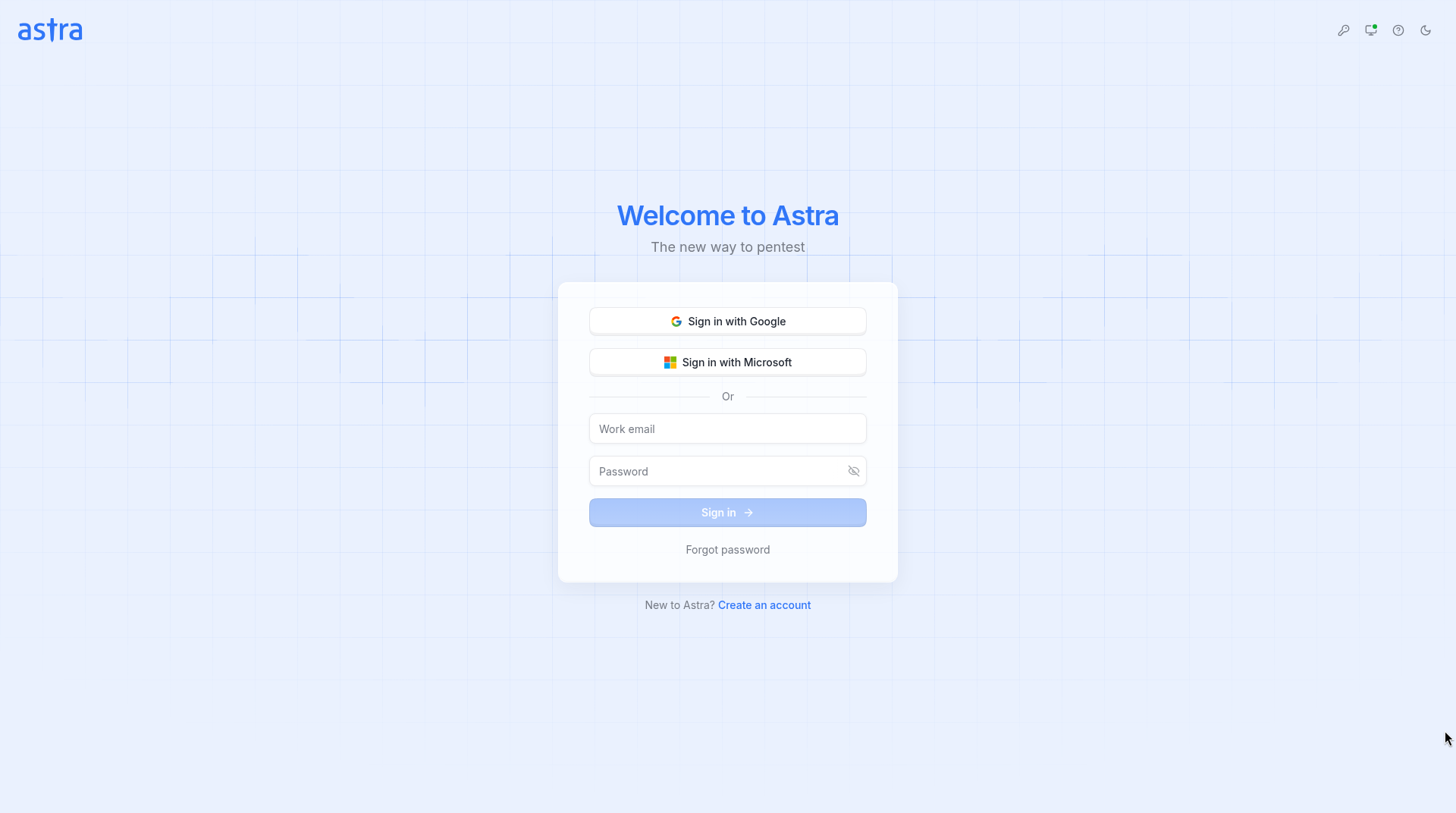
The sign-in page, with Google and Microsoft sign-in above the email and password fields.
If the email code doesn't arrive, read 📄 Why am I not receiving the OTP for Astra Login?.
Create an account
On the sign-in page, click Create an account next to New to Astra?.
Click Sign up with Google or Sign up with Microsoft to sign up with that account. Or enter your Full name, Work email and Password.
Tick I agree to the Terms & Privacy policy and complete the security check.
Click Create account.
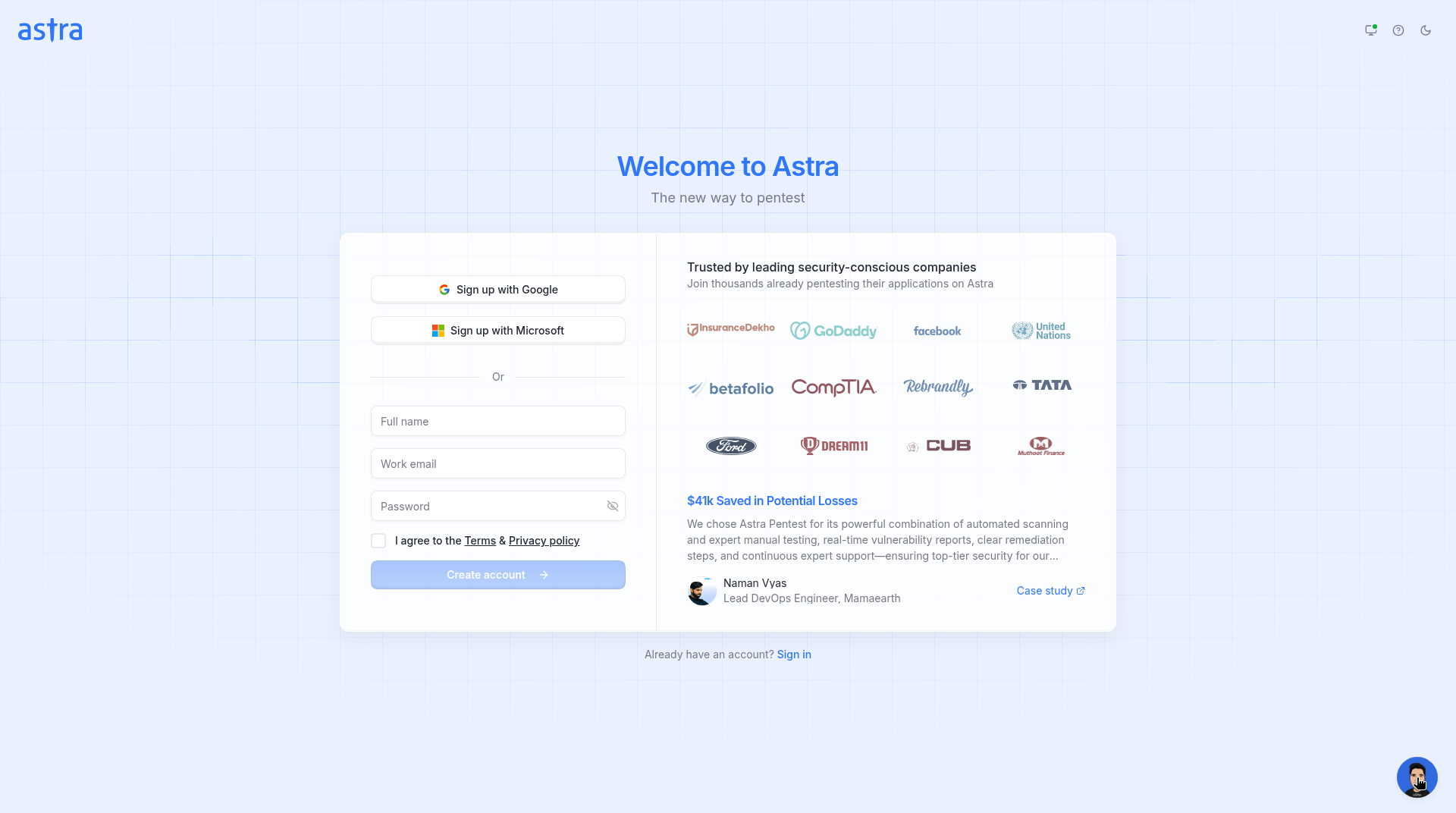
The sign-up page. Enter your full name, work email and password, then click Create account.
Email-based MFA is on by default for new accounts, so the first sign-in asks for a code sent to your email.
Your password must:
Be at least 10 characters long.
Not contain your first name, last name or email address.
Not be one of your last five passwords.
Not appear in a known data breach.
We recommend a long passphrase that you don't use anywhere else.
Reset your password
On the sign-in page, click Forgot password.
Under Reset your password ("Enter your work ID. We'll email a reset link."), enter your work email in Email address and click Send reset link.
Open the reset link in the email. Links expire after a short time, so use it soon.
Under Set a new password, enter the New password and Confirm new password, then click Save password.
Sign in with your new password.
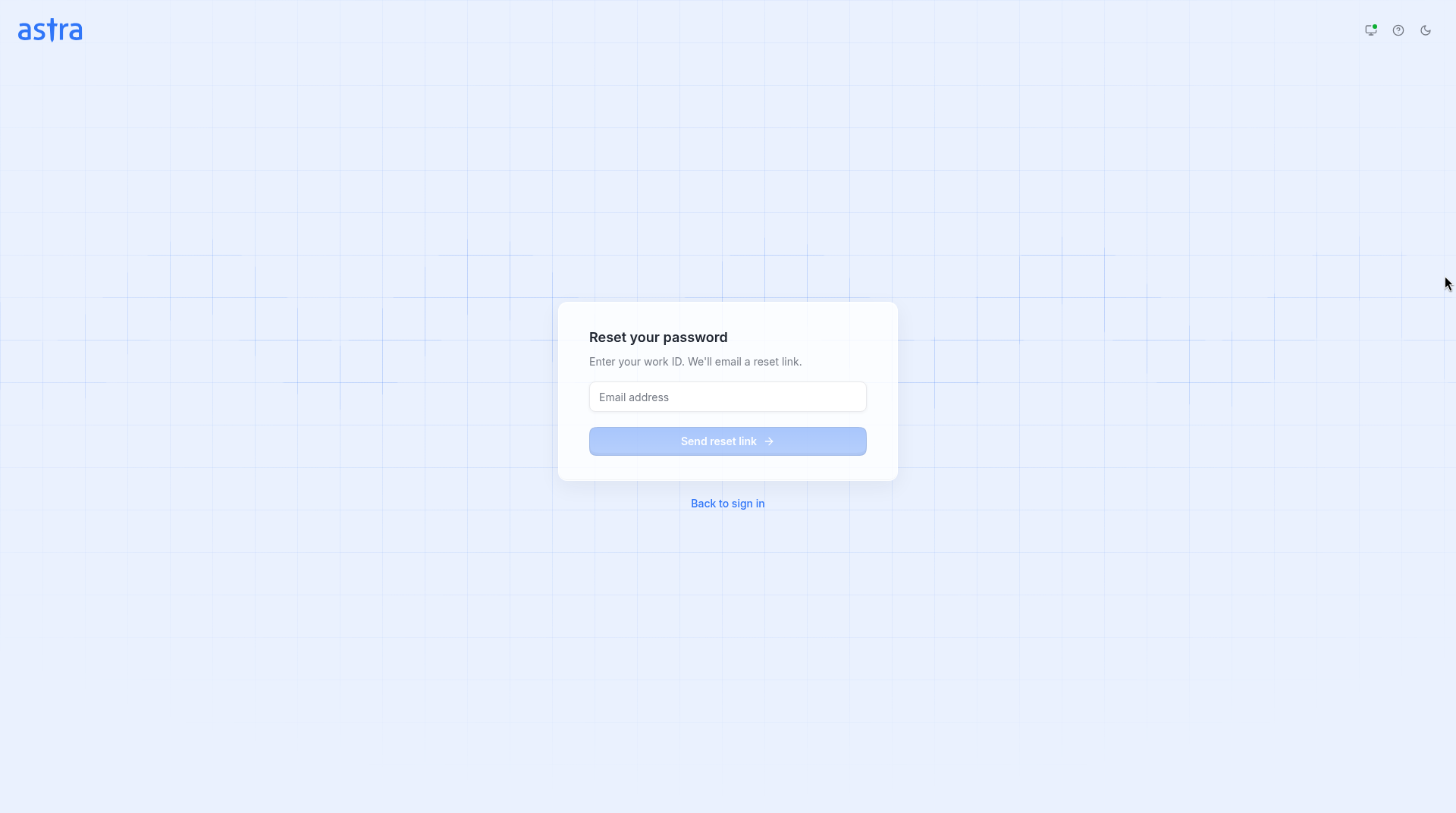
Enter your work email and click Send reset link.
If the link has expired or was already used, the page shows "This reset link has expired" or "This reset link is invalid". Request a new link.
To change your password while signed in, open Settings, click Security under My Account, and click Update Password. Read more in 📄 How-To: Managing Your Account Security Settings.
FAQ
The password reset email doesn't arrive. What should I do?
Check your spam or junk folder. If you use a work email, ask your IT team to allowlist emails from the getastra.com domain, because a company mail server that blocks Astra emails also blocks reset links. If you signed up with Google or Microsoft, sign in with that button instead.
I didn't set a password because I use Google or Microsoft. How do I sign in?
Use Sign in with Google or Sign in with Microsoft. If you're already signed in to that account in your browser, it won't ask for a password.
If you still can't sign in, contact Astra support at help@getastra.com.