How-To: Managing Your Account Security Settings
Last updated: November 24, 2026
The Security page is where you choose how you sign in to Astra, turn on multi-factor authentication (MFA) and change your password. To open it, click Settings in the sidebar, then Security under My Account.
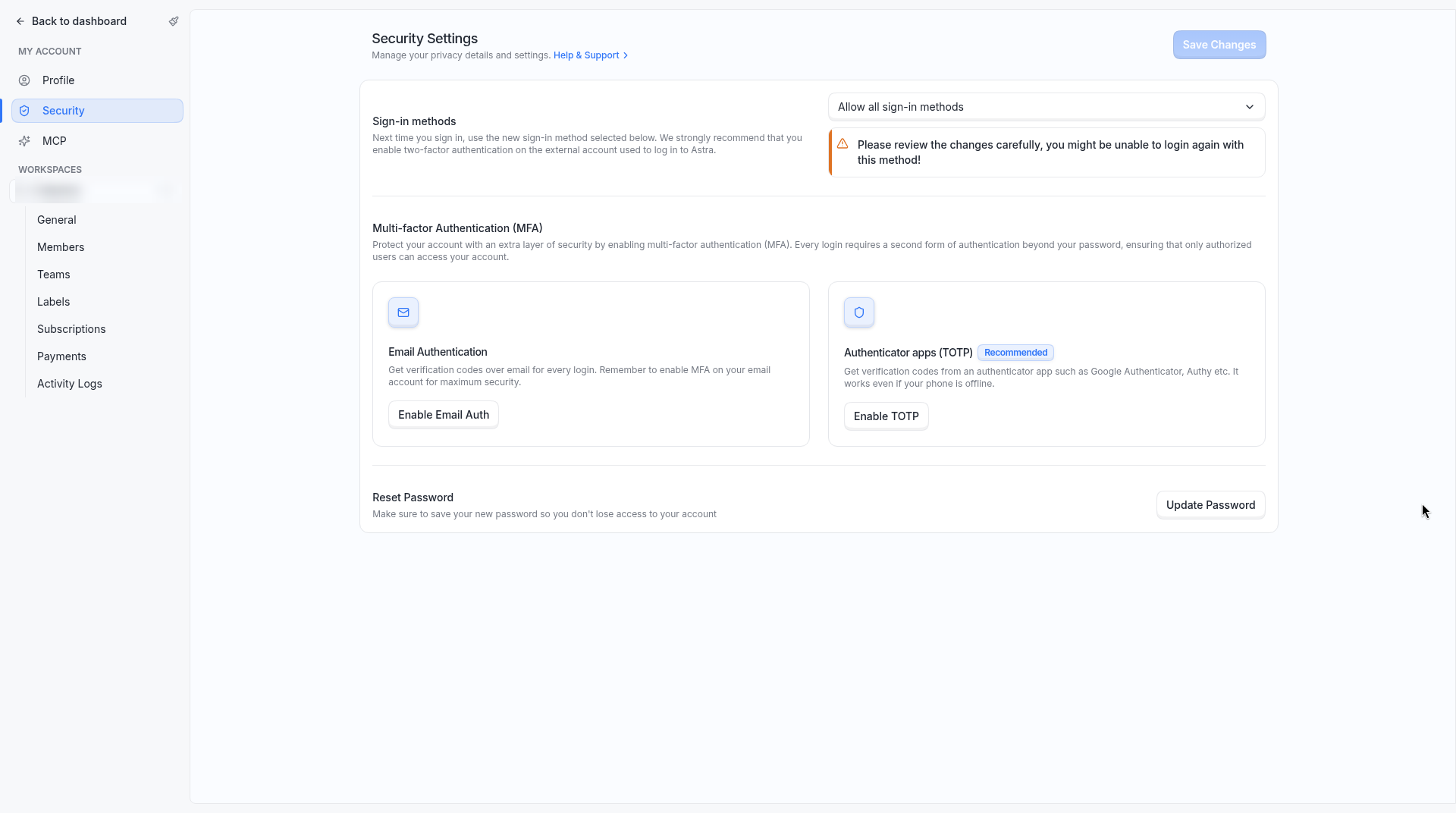
Security settings, with the sign-in method, multi-factor authentication options and password.
Choose your sign-in methods
Under Sign-in methods, open the dropdown and choose Allow all sign-in methods, or pick one or more of Use email and password, Use Google account and Use Microsoft account. Click Save Changes at the top of the page.
The new choice applies the next time you sign in. A warning under the dropdown reminds you: "Please review the changes carefully, you might be unable to login again with this method!" You can't sign in with a method you've turned off. If you sign in with Google or Microsoft, we recommend turning on two-factor authentication for that account too.
Turn on email authentication
When no MFA method is on, the page shows only Enable Email Auth and Enable TOTP. Once a method is on, its button changes to Disable.
Email authentication sends a code to your email each time you sign in. It's on by default for new accounts.
Under Email Authentication, click Enable Email Auth.
Enter your password and the code sent to your email.
Click Continue.
The message "Email authentication is on" confirms it.
Turn on an authenticator app
Authenticator apps (TOTP) are the recommended option because they work even when your phone is offline.
Under Authenticator apps (TOTP), click Enable TOTP.
Choose Google Authenticator or Other Authenticator Apps, and click Continue.
Enter your password and click Continue.
Scan the QR code in your app, or enter the code shown under it manually, and click Continue.
Click Copy Codes or Download Codes to save your backup codes, and click Continue. Each backup code works only once. Keep them somewhere safe that you can reach without your phone.
Enter the code from your app and click Continue.
The message "Authenticator app is on" confirms it.
Turn off an MFA method
Click Disable next to the method, then Continue.
Enter your password and a code from that method. If you've lost your device, click Click here to use a backup code instead.
Click Disable.
We recommend keeping at least one MFA method on.
Change your password
Under Reset Password, click Update Password. A reset page opens with your email filled in. Click Send reset link, then follow the link in the email. Read more in 📄 Sign In, Sign Up and Reset Password.
FAQ
I'm not receiving the email code. What should I do?
Read 📄 Why am I not receiving the OTP for Astra Login?.
If you're locked out and have no backup codes, contact Astra support at help@getastra.com. Support may need to verify your identity before restoring access.