Overview: Workspace Members Management
Last updated: August 7, 2026
Introduction
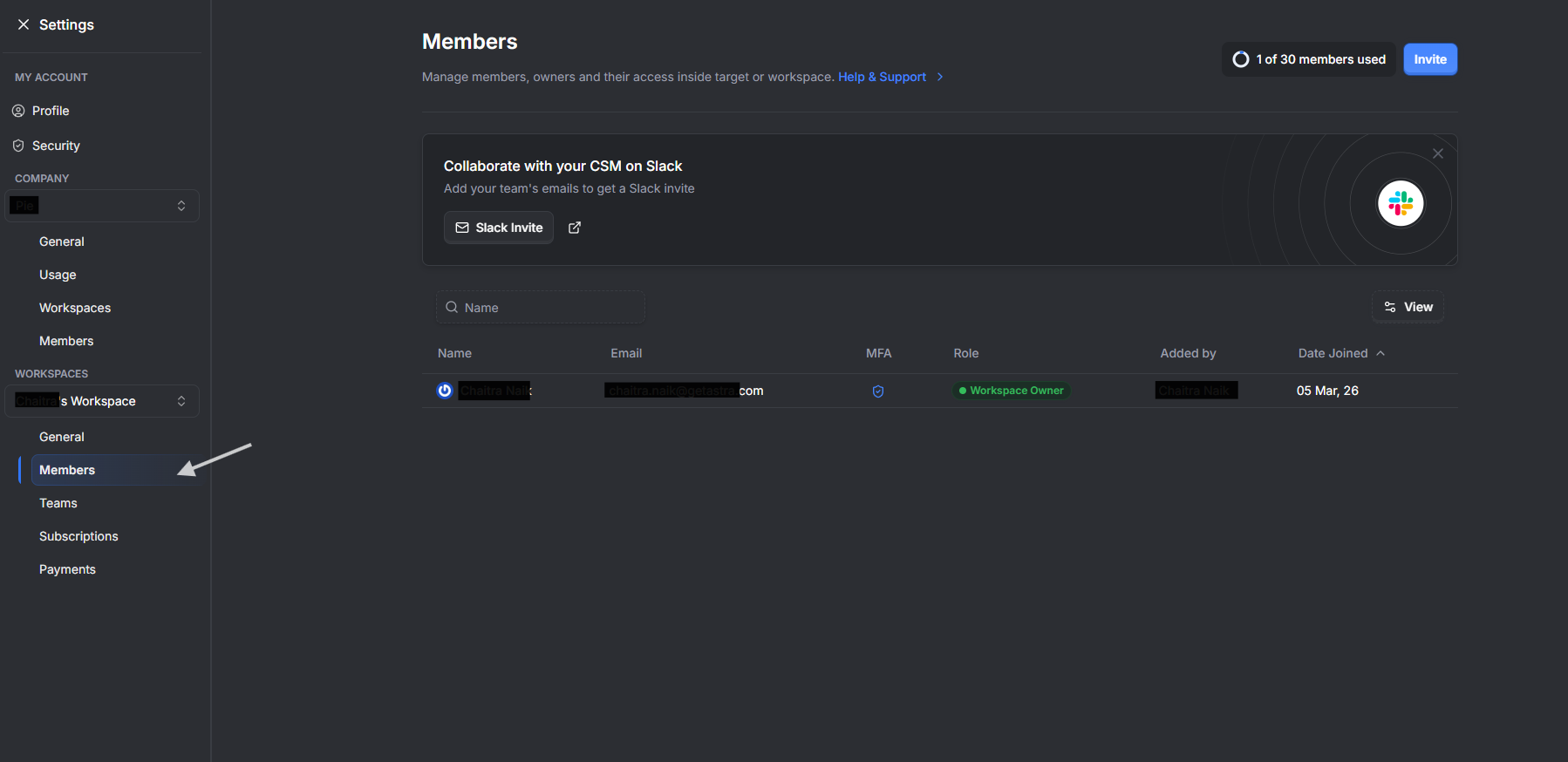
The Members settings provides a centralized view for managing team members and their specific access levels within a workspace on the Astra OrbitX platform. It allows organizations to invite colleagues to collaborate on pentest products and manage security findings based on defined user roles.
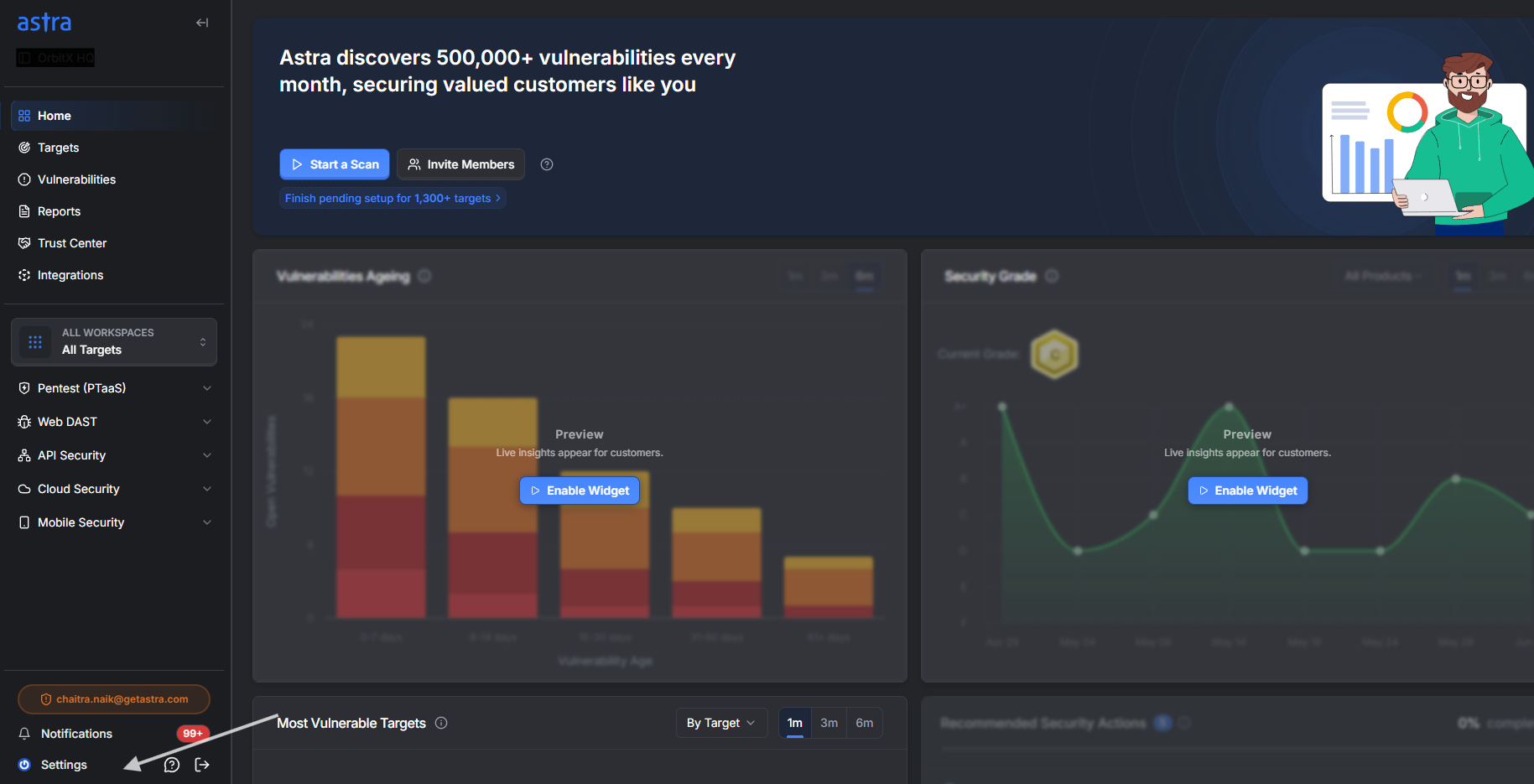
Access the members section by clicking "settings" on left bottom. Please ensure to select your workspace.
Who should read this
Workspace Owners and Admins: To onboard team members, delegate permissions, and manage overall workspace security.
Team Leaders: To ensure their staff have the appropriate access to targets and teams for efficient remediation.
Compliance Officers: To audit user access levels and verify that Multi-Factor Authentication (MFA) is active across the team.
Available Actions
Invite Members: Located at the right top, Under workspace ->members, this allows you to send invitations to one or more email addresses while pre-selecting their initial role.
Edit Member Details: Clicking any user name opens a side sheet where you can view member info and update their role via a dropdown menu.
Assign to Team/Target: Within the workspace section, use the Teams to specifically scope what sections of the infrastructure the user can interact with.
Delete Member: Click on the user you want to delete, A button at the bottom left of the edit sheet that permanently revokes all access for that user (this action cannot be undone).
Best Practices
Principle of Least Privilege: Assign the Workspace Restricted Member role to external collaborators or temporary staff to limit their view to only shared targets.
Auditor Oversight: Use the Workspace Read-Only Admin role for supervisors or auditors who need full visibility without the ability to modify security data.
Temporary Restrictions: If you are unsure about removing a member permanently, consider temporarily restricting their role instead of using the Delete Member action.
Monitor Security: Periodically review the MFA column and encourage any members with it disabled to activate it in their account settings.
Common Issues and Troubleshooting
Invitation Delivery Errors: If you receive a "Message cannot be delivered" error, it may be due to temporary network delays or strict enterprise email filters.
Verification Blocks: Some email security systems (like Proofpoint) block automated verification; if an invite fails repeatedly, wait 7 minutes before retrying or contact Astra support to add the user manually.
Typos and Caching: Double-check the email for extra spaces and try clearing your application cache via the Command Menu (Cmd/Ctrl + K) if the dashboard data appears out of sync.