How to setup Authentication in API targets
Last updated: August 26, 2025
The API Auth step allows you to configure authentication credentials that the scanner will use when sending requests to your target APIs.
Since many APIs are secured, it is critical to provide the correct authentication method; otherwise, the scanner will fail to access endpoints.
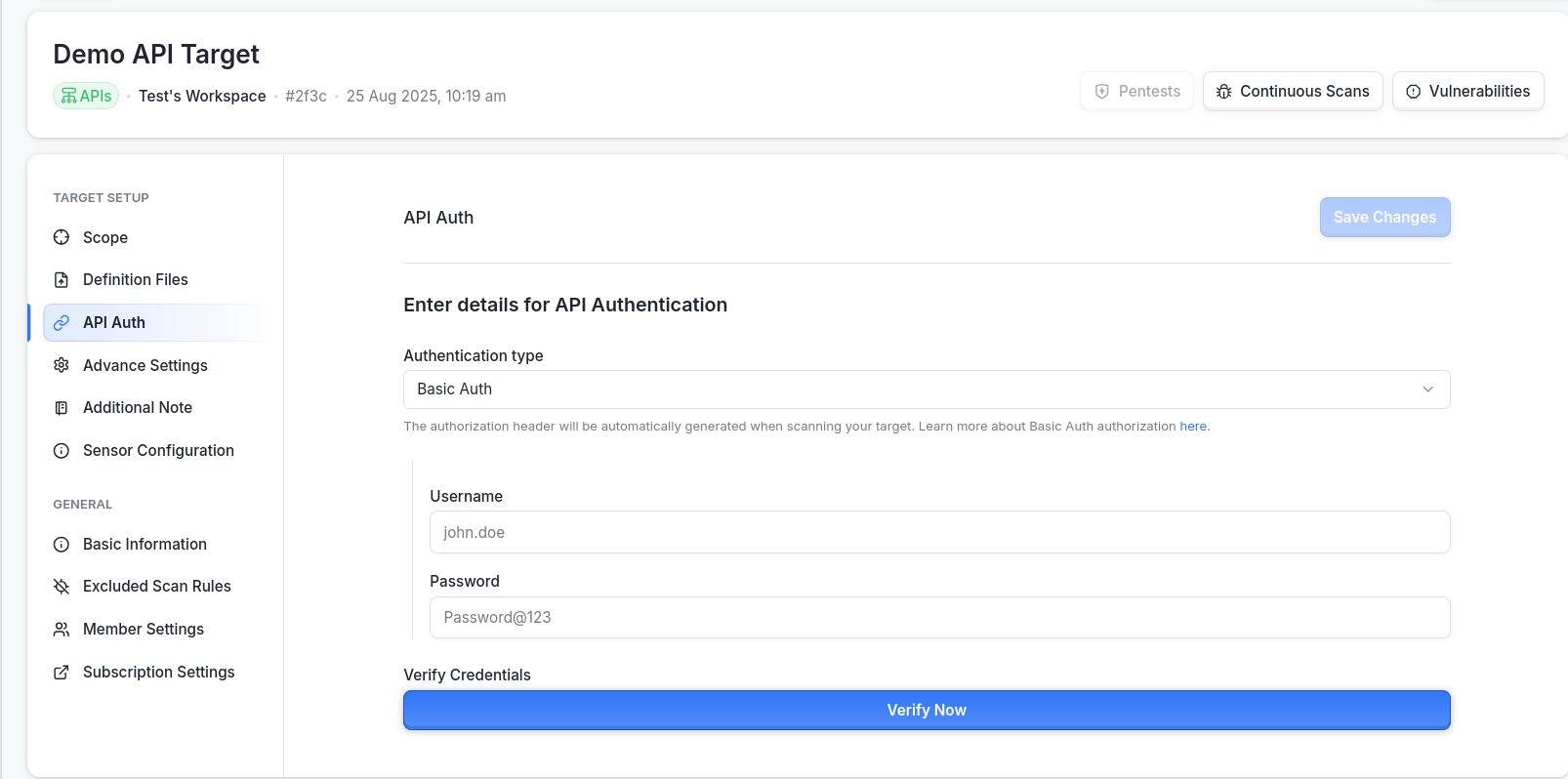
You can configure the API Authentication either in API Target Setup or in API Target Settings
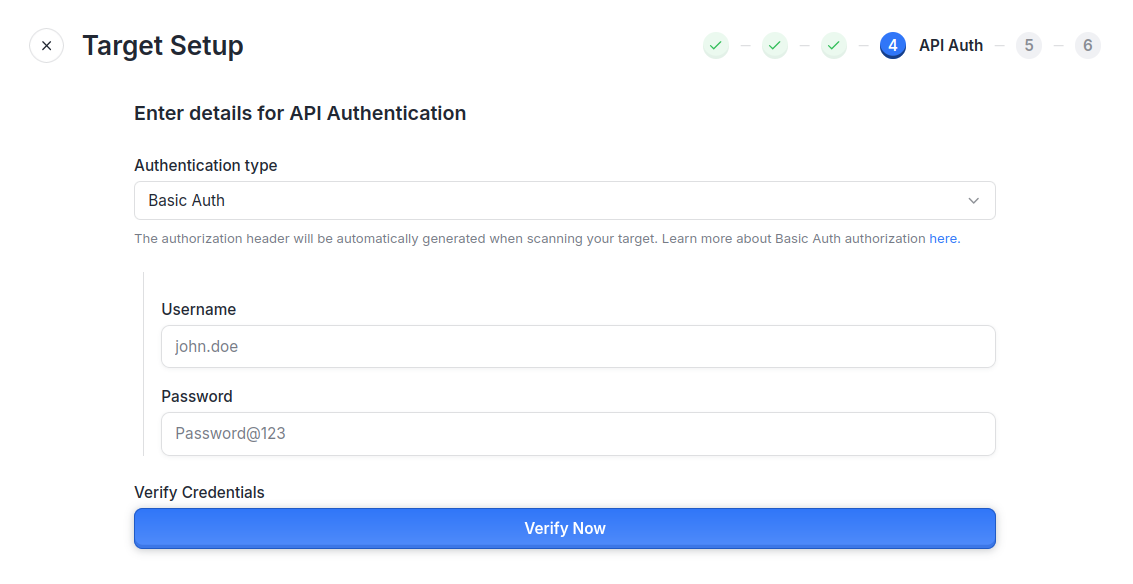
Here is the screen where you can configure API Auth during API Target Setup
Here is the screen where you can configure API Auth during API Target Settings page
Workflow
Choose Authentication Type from the dropdown menu.
Fill in the required details for that authentication type (the form fields change based on your selection).
Verify the Credentials by clicking the Verify Credential button.
The system will attempt a test request using the provided details.
A success response (2XX HTTP code) confirms that the credentials are valid.
Save the Credentials using the Save button.
Credentials are not stored until you explicitly click Save.
Even if verification is successful, the configuration will be lost unless you save it.
Supported Authentication Types
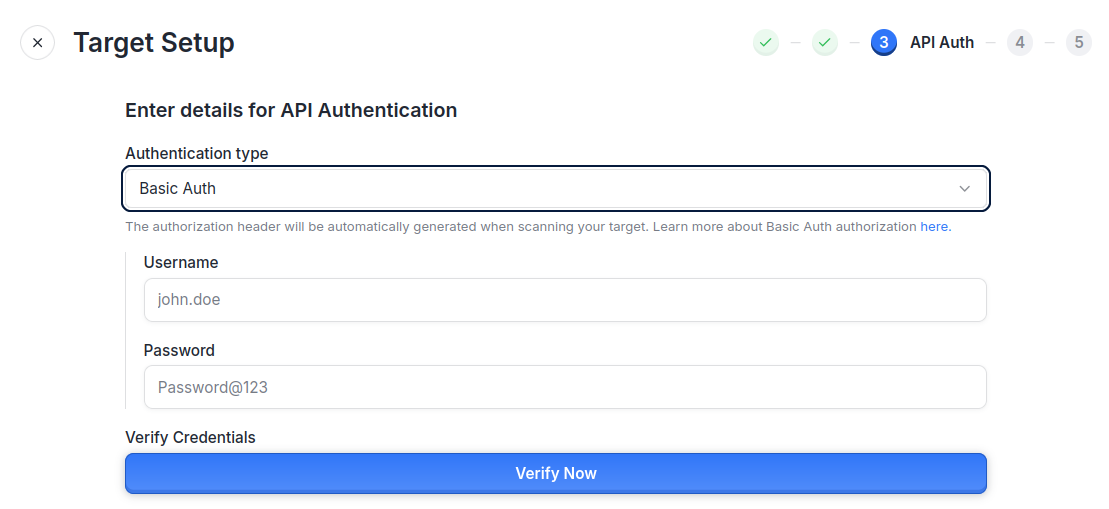
a. Basic Auth
Inputs Required:
Username
Password
Example cURL Request:
curl -v -u "username:password" -X POST https://api.example.com/secure
b. OAuth 2.0
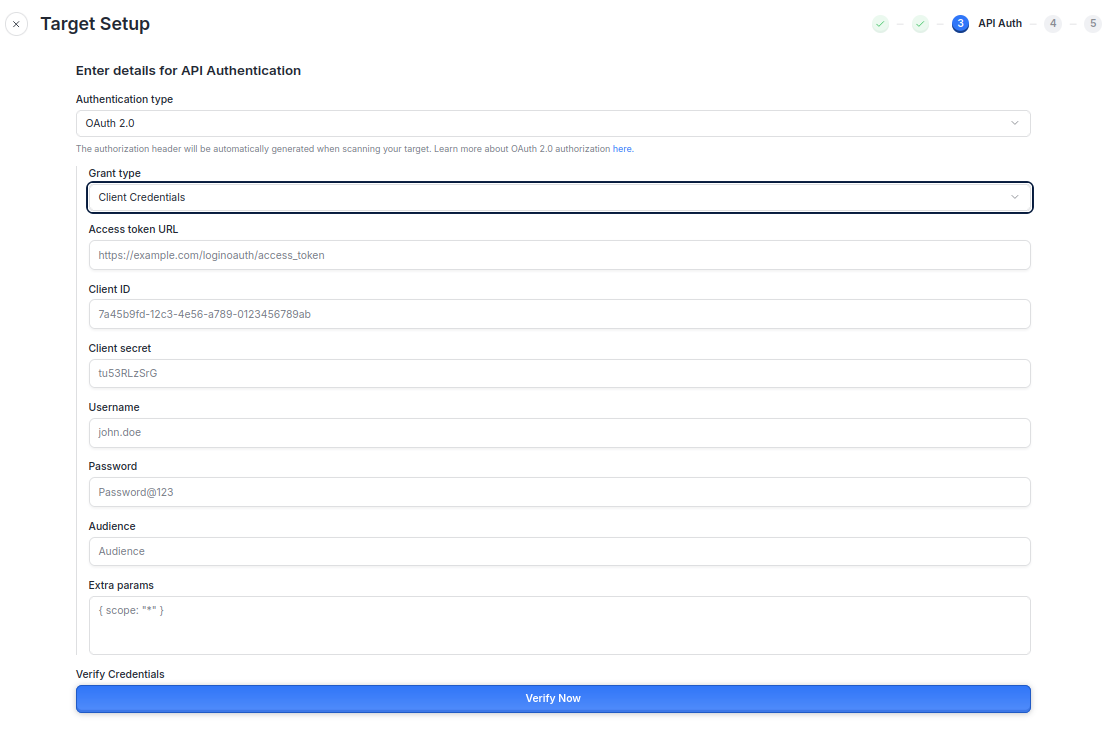
The scanner supports two grant types: Client Credentials and Password Credentials.
1. Client Credential Grant
Inputs Required:
Access Token URL
Client ID
Client Secret
Example cURL Request:
curl -v -X POST https://auth.example.com/token \
  -d "grant_type=client_credentials" \
  -d "client_id=abc123" \
  -d "client_secret=xyz789"
2. Password Credential Grant
Inputs Required:
Access Token URL
Client ID
Client Secret
Username
Password
Example cURL Request:
curl -v -X POST https://auth.example.com/token \
  -d "grant_type=password" \
  -d "client_id=abc123" \
  -d "client_secret=xyz789" \
  -d "username=john" \
  -d "password=doe"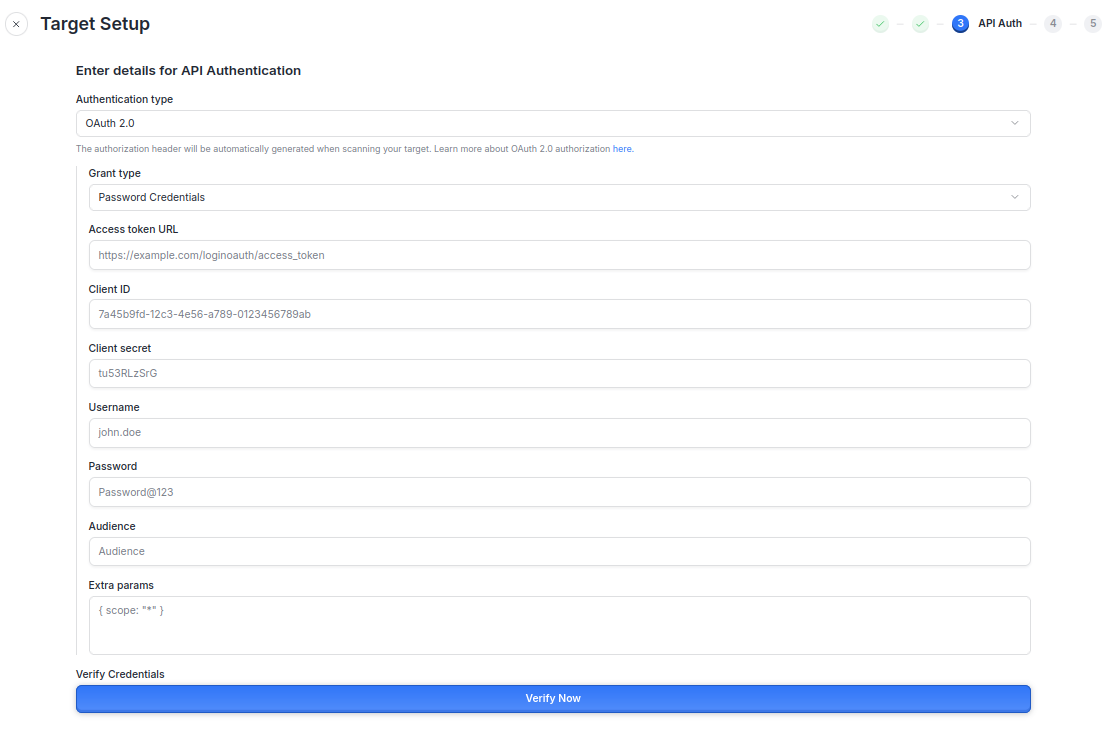
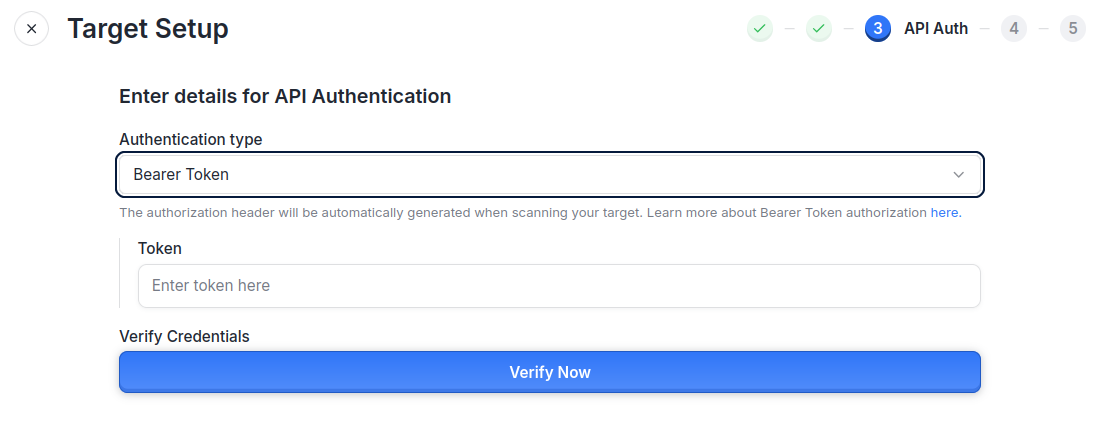
3. Bearer Token (Static Token)
Inputs Required:
Static token string
Example cURL Request:
curl -v -H "Authorization: Bearer YOUR_TOKEN_HERE" \
  -X POST https://api.example.com/resource
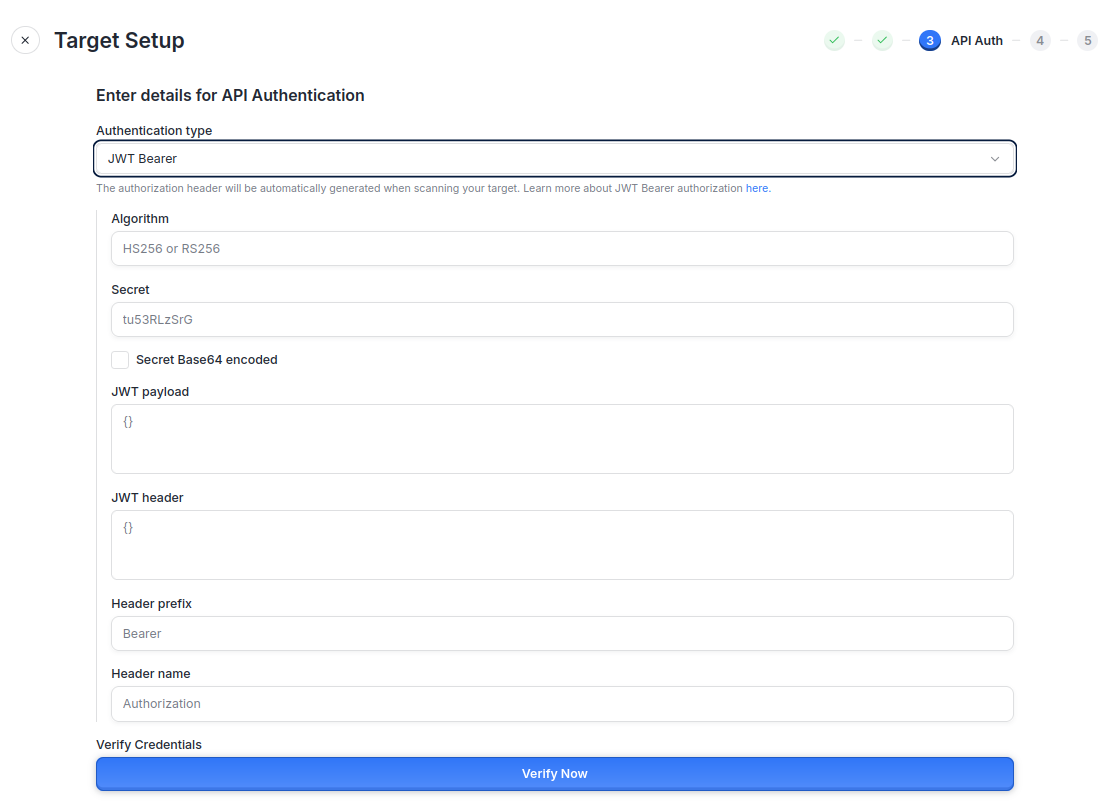
4. JWT Bearer
Inputs Required:
Algorithm (HS256 or RS256)
Secret (base64 encoded)
JWT Payload & Header
Header Prefix (e.g.,
Bearer)Header Name (e.g.,
Authorization)
Example cURL Request:
curl -v -H "Authorization: Bearer <JWT_TOKEN>" \
  -X POST https://api.example.com/data
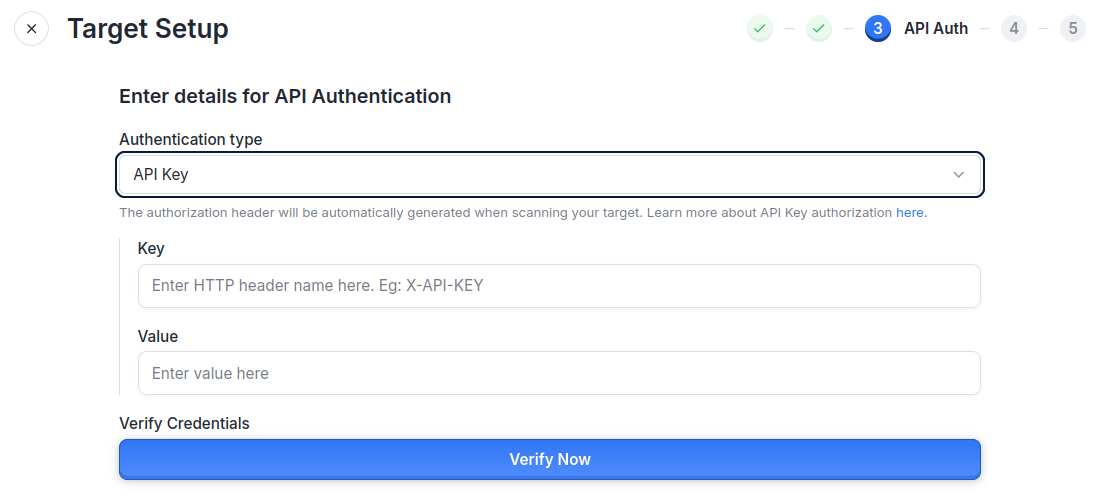
5. Custom API Key
Inputs Required:
Header Name (e.g.,
x-api-key)Header Value (e.g.,
abc123)
Example cURL Request:
curl -v -H "x-api-key: abc123" \
  -X POST https://api.example.com/secure
Verifying Credentials
After filling in the details:
Click Verify Credential.
The system makes a live request to validate credentials.
On success, you will see a success message (2XX response).
Once verified, click Save Credential to persist your settings.
If you skip saving, your credentials will not be stored.
