How to setup Azure Functions Integration for Traffic Monitoring
Last updated: August 4, 2026
Overview
This guide explains how to set up Azure Function Instrumentation to instrument request and response flows with Typescript as the language.
Setting up Azure Function Instrumentation
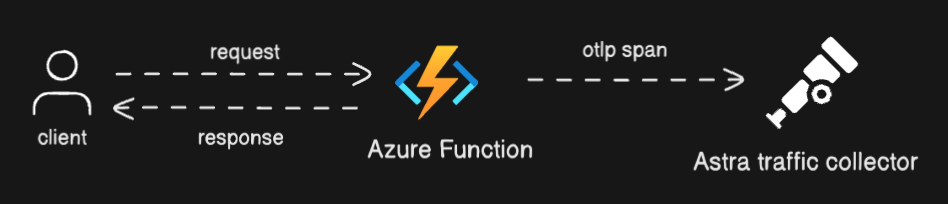
Prerequisites
Access to Azure Functions in Azure cloud
The Azure Functions extension part of Visual Studio Code editor installed
Instructions
Step 1: Setting up OTLP/HTTP Receiver in Astra Traffic Collector
You can configure the Astra Traffic Collector to receive data over HTTP or HTTPS. For production environments, HTTPS is recommended for secure data transmission
Option 1: HTTP Configuration (Development/Testing)
Open config_custom.yaml in your traffic collector's instance and update the receivers section
receivers:
  otlp:
    protocols:
      http:
        endpoint: "0.0.0.0:4318"  # HTTP receiver on port 4318

processors:
 #...
save the file once edited and restart the collector using systemctl restart astra-traffic-collector.service
Option 2: HTTPS Configuration (Recommended for Production)
Update the same config_custom.yaml to use HTTPS with your cert and key files from the trusted authority:
receivers:
  otlp:
    protocols:
      http:
        endpoint: "0.0.0.0:4318"  # HTTP receiver on port 4318
        tls:
          cert_file: "/etc/otelcol-contrib/"
          key_file: "/etc/otelcol-contrib/"
The third field is ca_file, which is used when the certificate is self-signed or from an untrusted CA. If your certificate is issued by a trusted CA (e.g., Let's Encrypt), you don’t need to specify ca_file.
|| Ensure the certificate files are correctly placed in /etc/otelcol-contrib/ and have proper permissions. The private key should be readable only by the owner (for security reasons) & The certificate can be readable by others but should not be writable:
Next, modify your volume section in the docker-compose.yaml by adding the following lines in your Astra Traffic Collector to include volume mounts for the certificates:
volumes:
      - /:/etc/otelcol-contrib/:ro
      - /:/etc/otelcol-contrib/:ro
save the file once edited and restart the collector using systemctl restart astra-traffic-collector.service
Step 2: Install Dependencies
|| The following code reference and package names are for typescript.
Navigate to your local directory where your function is initialised using the azure functions extension.
Run the below commands on your terminal in your Azure Functions project directory to install the dependencies of opentelemetry sdk and azure functions
npm install @azure/functions
npm install @opentelemetry/exporter-trace-otlp-http
npm install @opentelemetry/sdk-trace-node
npm install @opentelemetry/resources
npm install @opentelemetry/api
Step 3: Configure your Instrumentation in code for typescript
Navigate to
/src/functions/function.tsCopy and paste the code from the below code snippet to your local code editor that has your function.ts
import { app, HttpRequest, HttpResponseInit, InvocationContext } from "@azure/functions";
import { OTLPTraceExporter } from '@opentelemetry/exporter-trace-otlp-http';
import { NodeTracerProvider } from '@opentelemetry/sdk-trace-node';
import { SimpleSpanProcessor } from '@opentelemetry/sdk-trace-node';
import { resourceFromAttributes } from '@opentelemetry/resources';
import { SpanStatusCode } from '@opentelemetry/api';

// ====================== USER CONFIGURATION - EDIT THESE VALUES ======================
const config = {
    sensorId: '',

    collectorUrl: '', // example: https?://collector-domain:4318/v1/traces
    exporterSettings: {
        timeoutMillis: 3000,
    },
};
// ====================== END USER CONFIGURATION ====================================

// OpenTelemetry Setup
const setupTelemetry = () => {
    console.log('Starting OpenTelemetry setup...');
    const resource = resourceFromAttributes({
        'sensor.id': config.sensorId,
        'sensor.version': '1.0.0',
        'service.name': 'astra-otel-plugin'
    });

    const traceExporter = new OTLPTraceExporter({
        url: config.collectorUrl,
        timeoutMillis: config.exporterSettings.timeoutMillis
    });

    const provider = new NodeTracerProvider({
        resource: resource,
        spanProcessors: [new SimpleSpanProcessor(traceExporter as any)]
    });

    provider.register();
    return provider.getTracer('astra-otel-plugin');
};

const tracer = setupTelemetry();

// Telemetry wrapper function
const withTelemetry = async (
    request: HttpRequest,
    statusCode: number,
    responseHeaders: Record,
    responseBody: any
) => {
    const span = tracer.startSpan('http_trigger');

    try {
        // Get request headers and body
        const headers = Object.fromEntries(request.headers.entries());
        const body = await request.text().catch(() => '');
        const url = new URL(request.url);
        const target = url.pathname + url.search;

        // Get client IP address from headers
        const clientIp = request.headers.get('x-forwarded-for') ||
                        request.headers.get('x-real-ip') ||
                        '';

        // Set request span attributes
        span.setAttribute('http.method', request.method);
        span.setAttribute('http.status_code', statusCode);
        span.setAttribute('http.target', target);
        span.setAttribute('http.host', url.host);
        span.setAttribute('http.flavor', '1.1');
        span.setAttribute('http.scheme', url.protocol.replace(':', ''));
        span.setAttribute('http.request.headers', JSON.stringify(headers));
        span.setAttribute('http.request.body', body);
        span.setAttribute('net.sock.peer.addr', clientIp);

        // Set response span attributes
        span.setAttribute('http.response.headers', JSON.stringify(responseHeaders));
        span.setAttribute('http.response.body', JSON.stringify(responseBody));
        span.setStatus({ code: SpanStatusCode.OK });
    } catch (error) {
        span.setStatus({
            code: SpanStatusCode.ERROR,
            message: error instanceof Error ? error.message : 'Unknown error'
        });
        throw error;
    } finally {
        span.end();
    }
};

app.http('httpTrigger1', {
    methods: ['GET', 'POST'],
    authLevel: 'anonymous',
    handler: async (request: HttpRequest, context: InvocationContext): Promise => {

        // First, execute business logic and get response

        const responseBody = {
            // 'message': 'ok'
        }
        const statusCode = 200;
        const responseHeaders = {
            // 'content-type': 'application/json',
            // 'x-custom-header': 'custom-value'
        };

        // Start telemetry operations without awaiting them
        withTelemetry(
            request,
            statusCode,
            responseHeaders,
            responseBody
        ).catch(error => console.error('Telemetry error:', error));

        // return response to user
        return {
            status: statusCode,
            headers: responseHeaders,
            body: JSON.stringify(responseBody)
        };
    }
});
Update the following values in the script given.
Sensor ID: Set using the value provided at the time of creating the Azure Functions Integration. Keep the value within double quotes.
Astra Traffic Collector Endpoint: Change to the appropriate Astra's OpenTelemetry collector URL. Keep the value within double quotes.
app.http()is your main Azure Function handler where all your API logic goes and is the entry point for HTTP requests and in the .
Set your response data in the
responseBodyvariable. This should contain the actual content you want to send back to the client, formatted appropriately for your API's needs.Assign the appropriate HTTP status code to the
statusCodevariable based on your function's execution result. Choose the code that best represents the outcome of the operation.Configure your
responseHeadersvariable with any necessary HTTP response headers, particularly the Content-Type header to indicate the format of your response data.
These three components will form your function's complete HTTP response, ensuring clients receive properly formatted data with the correct status and headers.
Write your code logic before the
withTelemetry()call, and the final return statement in the handler function will automatically send your response back to anyone calling your API.
The telemetry setup part of code is carefully configured to track and monitor your API's performance, requests, and responses in a standardized way. Modifying it could break the monitoring system and lead to missing or incorrect data in the observability.
Deploy the function's directory to your remote Azure Functions in order for the code to be updated from local to remote
Step 4: Test your Azure Function
Click on "Get function URL" button (🔗) in the top menu bar and copy the generated URL
Use this URL to test your function via browser or a cURL like client
The response you'll see will be exactly what you defined in your handler function's responseBody
Best Practices to follow
Keep business logic separate from telemetry logic just like the boilterplate code provided
Configure your Astra Traffic Collector with https so that secure communication is established