How to scan web applications protected with CAPTCHA
Last updated: August 5, 2026
Introduction
CAPTCHA services are designed to block automated bots — which means they can also interfere with Astra's vulnerability scanner if not configured correctly. When a CAPTCHA challenge blocks scanner requests, the result is an incomplete scan with missed vulnerabilities and inaccurate results. This article explains why this happens and walks you through the recommended solutions for ensuring your CAPTCHA-protected application can be scanned thoroughly and accurately.
Who Should Read This
This article is for developers, security engineers, and system administrators who are attempting to scan web applications that use CAPTCHA protection — including Google reCAPTCHA, Auth0 Bot Detection, or similar services — and are experiencing incomplete scan results or connectivity issues.
Why CAPTCHA Blocks Security Scanners
CAPTCHA implementations are specifically designed to identify and stop automated traffic. Because Astra's vulnerability scanner simulates automated user and attacker behaviour to probe your application, CAPTCHA services may treat scanner requests as bot activity and block or challenge them.
When this happens, the consequences for your scan are significant:
Impact | Description |
Incomplete scans | The scanner cannot access protected pages or endpoints |
Missed vulnerabilities | Critical security flaws behind CAPTCHA-protected areas go undetected |
False-negative results | The scan reports no vulnerabilities in areas it could not reach |
Failed login recordings | Authenticated scans cannot complete if CAPTCHA blocks the login flow |
The most effective and recommended solution in all cases is to allowlist Astra's scanner IP addresses so that CAPTCHA challenges are bypassed for scanner traffic while remaining fully active for all other users.
Prerequisites
Before configuring CAPTCHA bypass for Astra's scanner, ensure that:
You have admin access to your CAPTCHA provider's dashboard (Google reCAPTCHA, Auth0, or equivalent).
You have the Astra scanner IP ranges available. See [Astra IP Ranges] for the full and current list.
You have confirmed that CAPTCHA is the cause of scan issues by checking the scan progress and connectivity status in your Astra dashboard.
Solution 1: Allowlist Astra's Scanner IPs in Google reCAPTCHA
Google reCAPTCHA v3 and reCAPTCHA Enterprise both support IP allowlisting, which exempts trusted sources from CAPTCHA enforcement entirely.
Log in to the Google reCAPTCHA Admin Console.
Select the site for which you want to configure the allowlist.
Navigate to the Settings section for that site.
Locate the IP allowlist or trusted IP configuration option.
Add each of Astra's scanner IP addresses from the [Astra IP Ranges] list.
Save your changes.
Once saved, requests from Astra's scanner IPs will bypass CAPTCHA challenges entirely while all other traffic continues to be evaluated normally.
For detailed instructions specific to your reCAPTCHA version, refer to Google's official documentation: Allowlist IP addresses for reCAPTCHA.
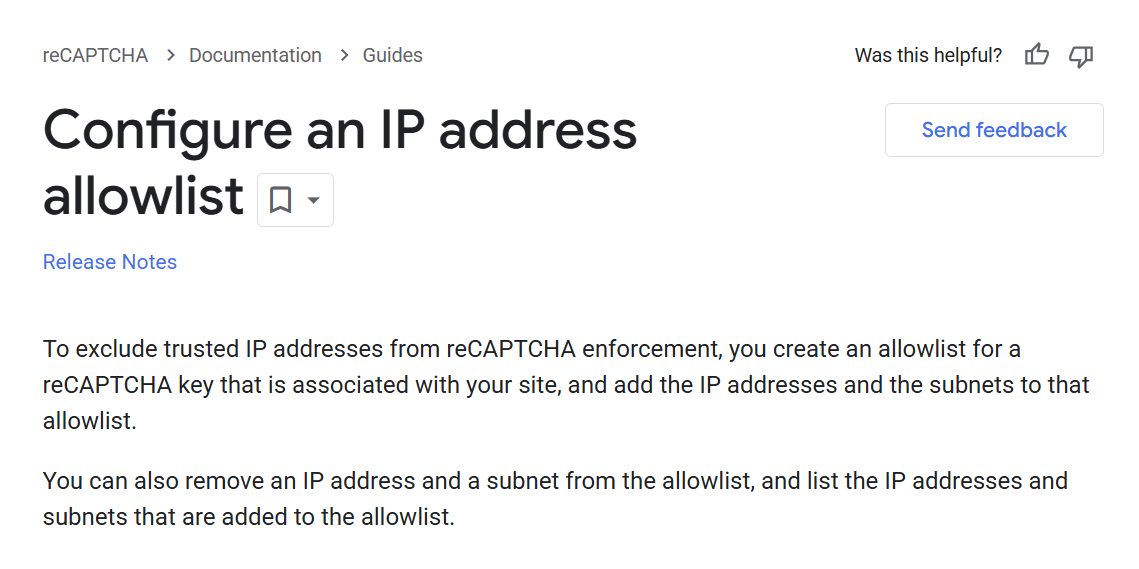
Once you’ve added Astra’s scanner IPs to the allowlist, CAPTCHA will no longer block or interfere with scans from our engine.
Solution 2: Allowlist Astra's Scanner IPs in Auth0
Auth0's Attack Protection suite — which includes Bot Detection, Brute-force Protection, and Suspicious IP Throttling — is designed to block automated traffic. These protections can prevent Astra's scanner from completing login flows or accessing protected areas of your application.
Follow these steps to allowlist Astra's scanner IPs within Auth0:
Log in to the Auth0 Dashboard.
From the left sidebar, navigate to Security → Attack Protection.
Select the specific protection feature you want to configure. For scanner access issues, Bot Detection is the most common culprit — start there.
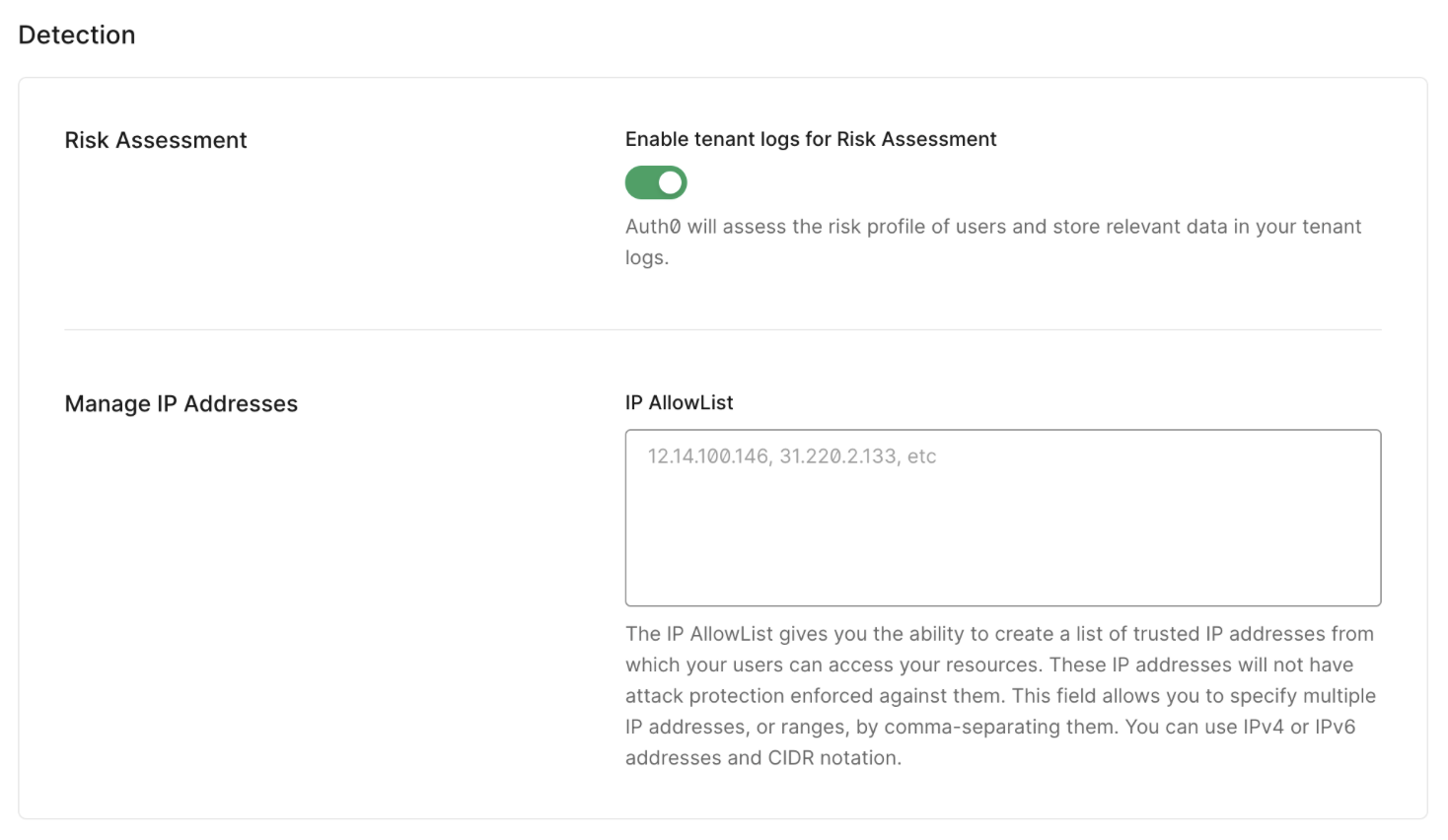
Scroll down to the Manage IP Addresses (IP AllowList) section.
Add each of Astra's scanner IP addresses from the [Astra IP Ranges] list.
Click Save to apply the changes.
Repeat this process for Brute-force Protection and Suspicious IP Throttling if your scan involves repeated login attempts across multiple user roles.
Solution 3: Disable CAPTCHA for Test Accounts (Non-Production Only)
If allowlisting IPs is not feasible in your environment, an alternative is to disable CAPTCHA verification server-side for the specific test accounts used during the scan. This approach should only be used on non-production or staging environments.
Identify the test user accounts configured in your Astra target settings under User Roles.
In your application's backend or identity provider settings, disable CAPTCHA verification for those specific accounts.
Alternatively, disable CAPTCHA entirely on your staging environment for the duration of the scan.
Re-enable CAPTCHA after the scan is complete.
Important: Never disable CAPTCHA on a production environment, even temporarily. This exposes your application to real bot activity and abuse during the window it is turned off.
Solution 4: Use Authentication Headers as a Workaround
If neither IP allowlisting nor disabling CAPTCHA is possible, you can provide Astra's scanner with pre-authenticated session tokens via the Extra Headers configuration. This allows the scanner to bypass the login flow — and therefore the CAPTCHA — by presenting a valid session directly.
Log in to your application manually using a browser.
Open Browser DevTools → Network tab.
Copy the Authorization header or authentication cookies from a successful authenticated request.
In your Astra dashboard, go to Target Settings → Advanced Settings → Extra HTTP Headers.
Add the copied header name and value.
Limitation: Session tokens and cookies expire over time. This approach is not suitable for scheduled or recurring scans as it requires manual token refresh. It is best used for one-off manual scans only.
Choosing the Right Solution
Solution | Best For | Production Safe | Automation Friendly |
IP Allowlisting (Google reCAPTCHA) | All environments | Yes | Yes |
IP Allowlisting (Auth0) | All environments | Yes | Yes |
Disable CAPTCHA for test accounts | Staging only | No | Yes |
Authentication headers | One-off scans | Yes | No |
IP allowlisting is the recommended approach in all cases. It is the most secure, requires no ongoing maintenance, and works reliably across all scan types including scheduled and CI/CD-triggered scans.
Best Practices
Allowlist all Astra IP ranges, not just a subset. Using a partial list risks scan requests being blocked if they originate from an IP you did not include. See [Astra IP Ranges] for the complete and up-to-date list.
Apply allowlisting to all relevant protection layers. If you use multiple security tools — for example, both Google reCAPTCHA and a WAF — ensure Astra's IPs are allowlisted in each one independently.
Test your configuration before starting a full scan. Use the Test Connectivity feature in your target's Scope settings to confirm the scanner can reach your application after applying the allowlist.
Keep your allowlist updated. If Astra updates its IP ranges, update your allowlist accordingly to avoid scan interruptions. Check [Astra IP Ranges] periodically or raise a support ticket to be notified of changes.
Use staging environments for initial scan configuration and testing. Once you have confirmed the setup works correctly on staging, replicate the allowlist configuration on production before running a full assessment there.
Troubleshooting
My scan is still failing after allowlisting Astra's IPs in reCAPTCHA. Confirm that all IP addresses from the [Astra IP Ranges] list have been added — missing even one can result in blocked requests. Also check whether your application has additional security layers such as a WAF or Cloudflare that may be independently blocking scanner traffic. Each layer needs to be configured separately.
The connectivity check passes but the scan still fails to access authenticated areas. CAPTCHA may be appearing specifically on the login page rather than blocking general access. Check your login recording for errors and confirm that CAPTCHA is bypassed for the login flow specifically. See [How to fix Scan Behind Login errors?] for a detailed troubleshooting guide.
I am using a CAPTCHA provider not listed in this article. The general approach is the same — locate the IP allowlist or trusted sources configuration in your CAPTCHA provider's admin settings and add Astra's scanner IPs. If your provider does not support IP allowlisting, contact Astra's support team for advice on alternative approaches.
I cannot add individual IPs — my CAPTCHA provider only accepts CIDR ranges. Contact Astra's support team via your dashboard. Our team can provide the IP ranges in CIDR notation to make configuration easier in your specific provider.
Disabling CAPTCHA on staging is not possible due to environment parity requirements. In this case, IP allowlisting is the only viable option. If your CAPTCHA provider does not support allowlisting in your environment configuration, raise a support ticket and our team will work with you to find a suitable approach.