How-To: Fixing Scan Behind Login (SBL) Errors
Last updated: August 5, 2026
This guide helps you resolve common issues when using the Scan Behind Login feature. If you're experiencing login recording errors, here are the most common problems and their solutions.
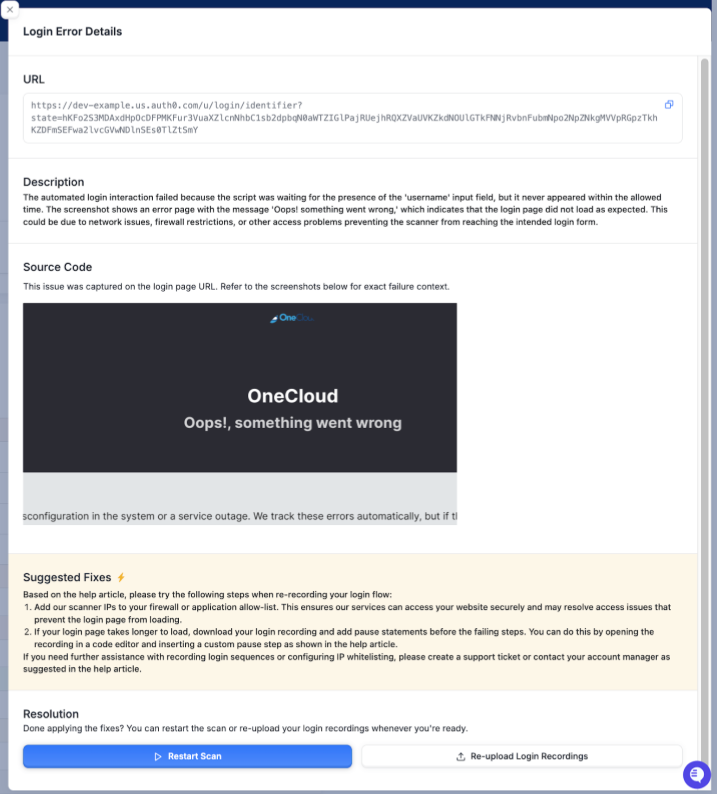
If the application encounters any error when logging in, you will see an RCA similar to the one below.
Common Issues and Solutions
1. Website Not Reachable
Problem: The website is behind a firewall or not accessible.
Solutions:
1. IP Whitelisting (Recommended)
Add our scanner IPs to your firewall allow-list
This allows our services to access your website securely
All scanner requests use static IPs: here
Add these IPs to your:
Application firewall
Login system
CAPTCHA
MFA system
2. Element Not Interactable / Expected condition failed: waiting for presence of element located by / Element is not clickable at point
Problem: Website takes longer than usual to load due to network latency or other factors.
Solutions:
1. IP Whitelisting
Add scanner IPs to your allow-list to improve connection speed
This can reduce latency issues
2. Add Pause Statements
Download the login recording from Astra dashboard
Open in a code editor
Add pause statements before failing steps:
{
    "type": "customStep",
    "name": "pause",
    "parameters": {
        "target": "20000"
    }
}
Adjust the target value (in milliseconds) based on your needs
Please refer the video attached for more information about how to recreate the login recording with custom pause statements.
3. CAPTCHA Protection
Problem: Login page is protected by CAPTCHA, blocking automated scanners.
Solutions:
1. IP Whitelisting (Recommended)
Add scanner IPs to bypass CAPTCHA
Most secure and recommended approach
2. Disable CAPTCHA (Non-Production Only)
Disable server-side CAPTCHA verification
Only recommended for non-production environments
Can be disabled entirely or just for Astra Scanner
3. HTTP Header Method
Capture authenticated cookie from browser
Add to Extra Headers in Scanner Setup
4. Two-Factor Authentication (2FA)
Problem: Login requires 2FA, preventing automated scanning.
Solutions:
1. IP Whitelisting (Recommended)
Add scanner IPs to bypass 2FA
Most secure approach for production environments
2. Static 2FA Code (Non-Production Only)
Set a static 2FA code for non-production environments
Requires code-level changes in your application
Need Help?
If you need assistance with:
Recording login sequences
Configuring IP whitelisting
Any other issues
Please:
Create a support ticket
Contact your account manager
Check our documentation
Best Practices
Always use IP whitelisting as your first solution
Test login flows manually before recording
Use appropriate pause times in recordings
Keep credentials secure and up-to-date