How to setup Astra Traffic Monitoring with AWS API Gateway
Last updated: August 5, 2026
Introduction
This guide walks you through connecting AWS API Gateway to Astra for API traffic monitoring using the Astra Log Parser. The Log Parser reads access logs from AWS CloudWatch and forwards them to Astra Traffic Collector.
Supported gateway types:
REST API Gateway — full visibility including request/response headers and body
HTTP API Gateway — limited visibility (URL path, status code, domain, and protocol only; headers and body are not available)
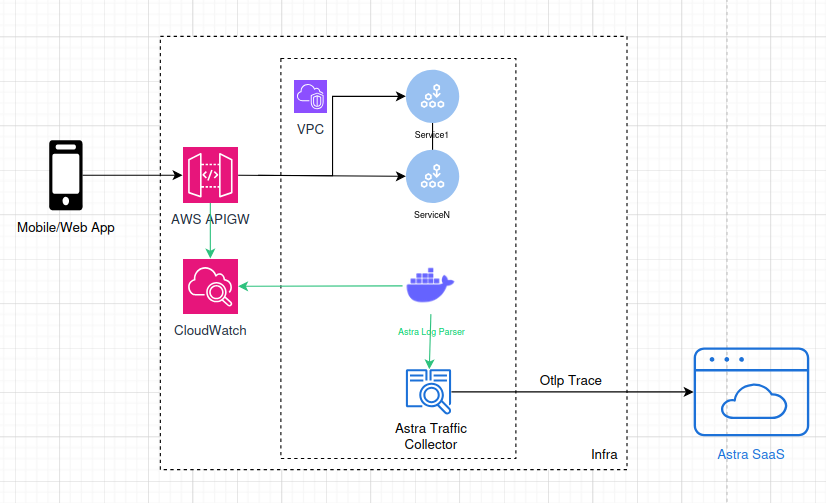
Illustration: High-level integration flow between AWS API gateway, Astra Log Parser and Astra Traffic Collector
Prerequisites
Before starting, ensure the following are in place:
Astra Traffic Collector is installed and reachable.
An AWS API Gateway sensor has been created and you have the Sensor ID ready.
Access logging and detailed tracing are enabled in AWS API Gateway.
An EC2 or equivalent VM is available to run Astra Log Parser with at least 2GB RAM, 2 CPU, and 10GB disk, with Docker and Docker Compose installed.
This VM must be in the same VPC as your Astra Traffic Collector.
Installation Steps
Step 1: Create a working directory
Create the logs folder and assign the correct user permissions for volume mounting.
mkdir -p /opt/astra-log-parser/logs && chown -R 10001:10001 /opt/astra-log-parser/logs && cd /opt/astra-log-parserStep 2: Create the docker-compose.yaml file
This file defines the Astra Log Parser container configuration.
version: '3.3'
services:
  astra-log-parser:
    image: getastra/log-parser
    container_name: astra-log-parser
    volumes:
      - /opt/astra-log-parser/logs:/astra/logs
    network_mode: host
    env_file:
      - astra.env
    restart: always
Step 3: Create the astra.env file
This file holds the secrets and configuration required by the Log Parser. Populate it with the following variables:
SENSOR_ID — Integration ID created when the AWS API Gateway sensor was created in Astra Dashboard
OTLP_ENDPOINT — Host:Port of Astra Traffic Collector. Do not include the https:// prefix. Example: localhost:4317
AWS_ACCESS_KEY_ID — AWS Access Key ID for CloudWatch access
AWS_SECRET_ACCESS_KEY — Secret Key for CloudWatch access
AWS_REGION — AWS region of the CloudWatch log group
LOG_GROUP_NAME — Name of the CloudWatch log group
Variable | Description | Example value |
| IntegrationID created when AWS API Gateway integration is created in Astra Dashboard |
|
|
|
|
| AWS Access Key ID for Astra Log Parser to access Cloudwatch Log group via SDK |
|
| Secret Key for Astra Log Parser to access Cloudwatch Log group via SDK |
|
| AWS Region of Cloudwatch Log group for Astra Log Parser to access Cloudwatch Log group via SDK |
|
| Log Group Name for Astra Log Parser to access Cloudwatch Log group via SDK |
|
SENSOR_ID=mySensorID
OTLP_ENDPOINT=localhost:4317
AWS_ACCESS_KEY_ID=AWSAccessKeyID
AWS_SECRET_ACCESS_KEY=AWSSecretKey
AWS_REGION=AWSRegion
LOG_GROUP_NAME=AWSCloudWatchLogGroupName
Step 4: Create a systemd service file
Create the service file at /etc/systemd/system/astra-log-parser.service to manage the Log Parser as a system service.
[Unit]
Description=Start Astra Log Parser
After=docker.service
Requires=docker.service

[Service]
Type=simple
ExecStart=/bin/bash -c "docker compose -f /opt/astra-log-parser/docker-compose.yaml up"
ExecStop=/bin/bash -c "docker compose -f /opt/astra-log-parser/docker-compose.yaml down"
Restart=always

[Install]
WantedBy=multi-user.target
5: Start and manage the service
Use systemctl to enable, start, restart, and check the status of the service.
# Enable the service to start on boot
sudo systemctl enable astra-log-parser

# Manage the service
sudo systemctl start astra-log-parser

# To restart the service
sudo systemctl restart astra-log-parser

# To check the status of service
sudo systemctl status astra-log-parser
Upgrade
To upgrade the Astra Log Parser to the latest image, stop the service, pull the latest image, and restart.
systemctl stop astra-log-parser
cd /opt/astra-log-parser/
docker-compose pull
systemctl start astra-log-parser
Troubleshooting
Astra Log Parser is not running
If systemctl status shows an error, or docker logs shows messages like "Error parsing UUID SENSOR_ID: invalid UUID length: 0" or empty variable warnings, the astra.env file is missing required values.
Edit /opt/astra-log-parser/astra.env, fill in all required variables, then restart the service.
astra-log-parser   | Error parsing UUID SENSOR_ID: invalid UUID length: 0
astra-log-parser   | LOG_GROUP_NAME empty
astra-log-parser   | AWS_ACCESS_KEY_ID empty
astra-log-parser   | AWS_SECRET_ACCESS_KEY empty
astra-log-parser   | AWS_REGION empty
Cause
lack of required env variables
Solution
Edit
/opt/astra-log-parser/astra.envand update it with right information.Restart astra-log-parser
sudo systemctl stop astra-log-parser
sudo systemctl start astra-log-parser
No entries appearing in inventory
If there are no errors in the logs but the inventory is not updating, the hostname is likely not registered under the Scope URI of your target. Verify the target's Scope URI in the Astra Dashboard and ensure the hostname matches.