Payment methods and how checkout works
Last updated: November 16, 2026
You buy an Astra plan through the in-product checkout. Checkout has three steps: Scope, Plan and Payment. When an existing plan is upgraded or downgraded, checkout has two steps instead: Plan and Summary. Online payments are handled by Paddle, Astra's payment provider. Subscriptions can also be billed by invoice.
Buy a plan
Open the checkout.
Scope: under Select your scope, pick a target type, such as Web App, APIs, Cloud Infra, iOS, Android, Network Device or Others, and how many targets you need. Then click Continue.
Plan: choose Monthly or Yearly, and then choose a plan. Check the workspace shown in These targets go to.
Click Start subscription.
Payment: complete the payment in the secure payment window. Enter your VAT or GST ID there if you have one.
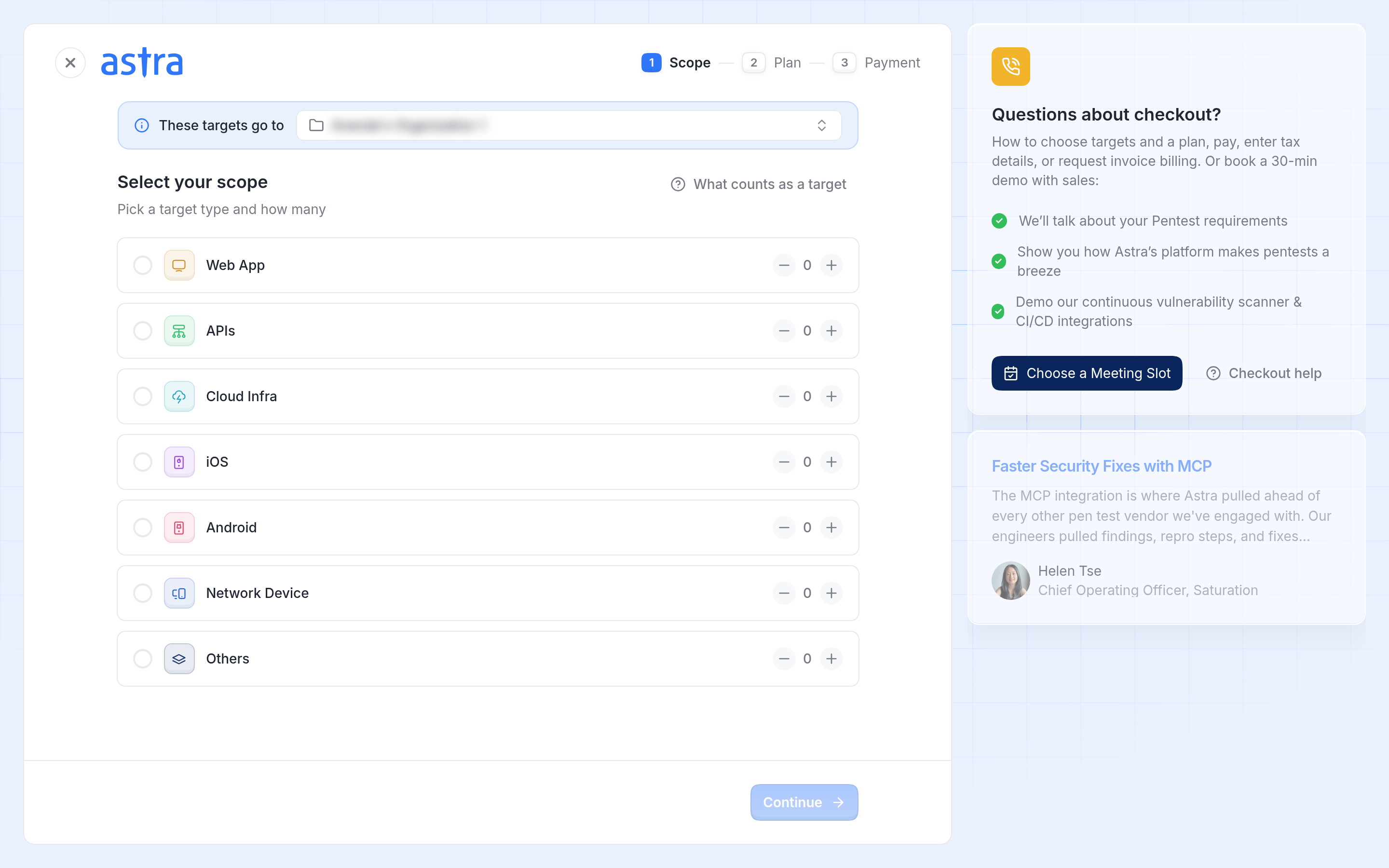
Pick a target type and how many targets you need.
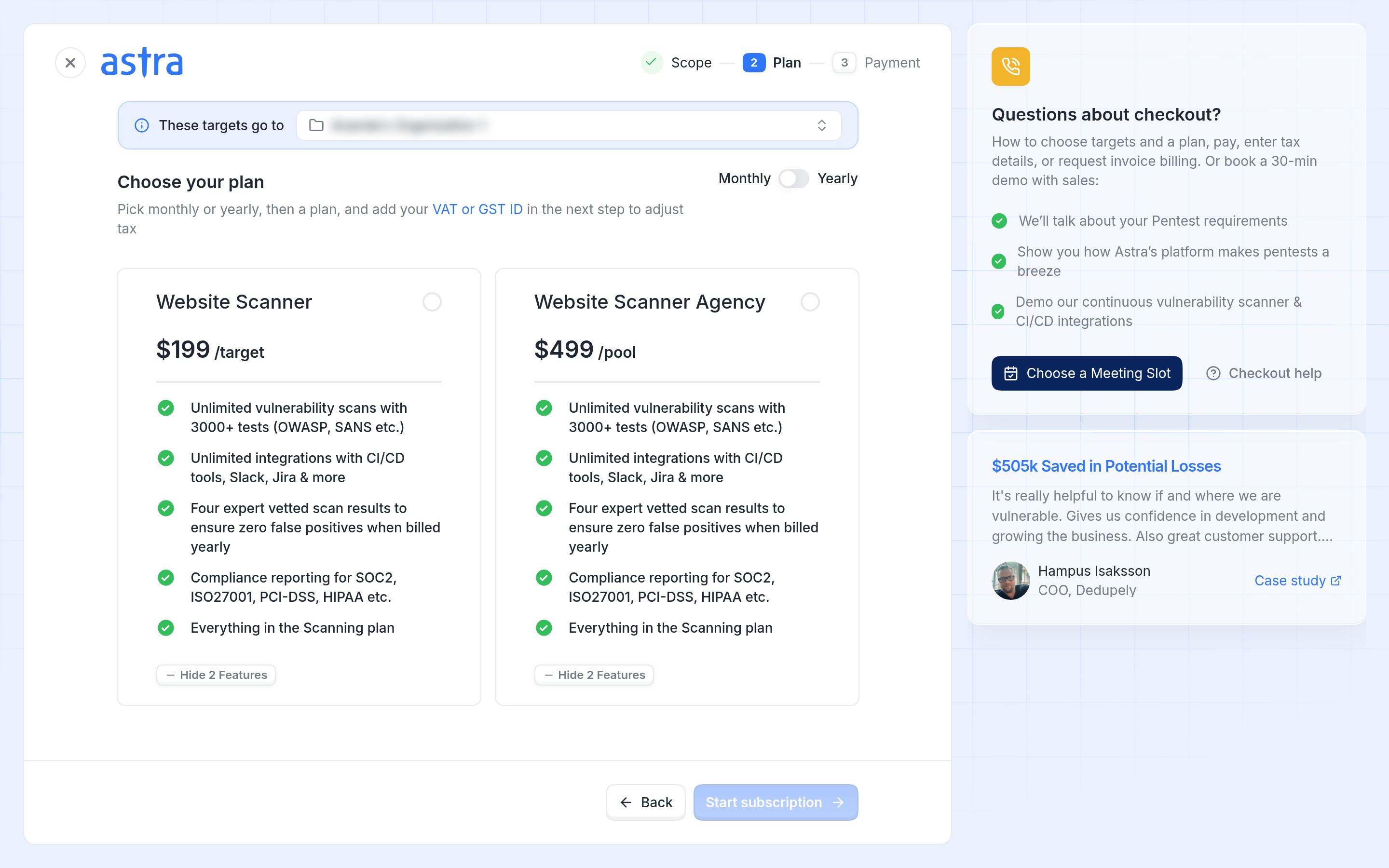
Choose monthly or yearly billing, and then a plan.
After you pay, the subscription and its targets are created in the selected workspace. A subscription that is waiting for payment shows Pending Payment on the Subscriptions page.
Note
If the payment window can't open, Astra shows "Payment couldn't start. Try again, or contact support with your workspace name."
Payment methods
How you pay | What it means |
|---|---|
Online | You pay in the Paddle payment window by card, PayPal or Apple Pay. The payment window shows which of these methods are available for the purchase. The subscription shows Billed Online (Paddle). |
By invoice | Astra bills you by invoice, for example for a wire transfer. The subscription shows Billed by Invoice followed by how it is billed, for example Billed by Invoice (Offline). Contact Astra to set up invoice billing. |
To move an active subscription that shows Billed by Invoice (Offline) to online payment, open it on the Subscriptions page and click Switch to Payment by Card. Astra opens the checkout at the Plan step, with the same plan and number of targets.
Add tax details
Add your VAT or GST ID during checkout to adjust the tax on your invoice. Read more in How to Update VAT/GST Information on Your Invoice.
Find your invoices
Open Payments in your workspace settings. Each payment shows its plan, issue date, status and amount. Click Open invoice to view an invoice.
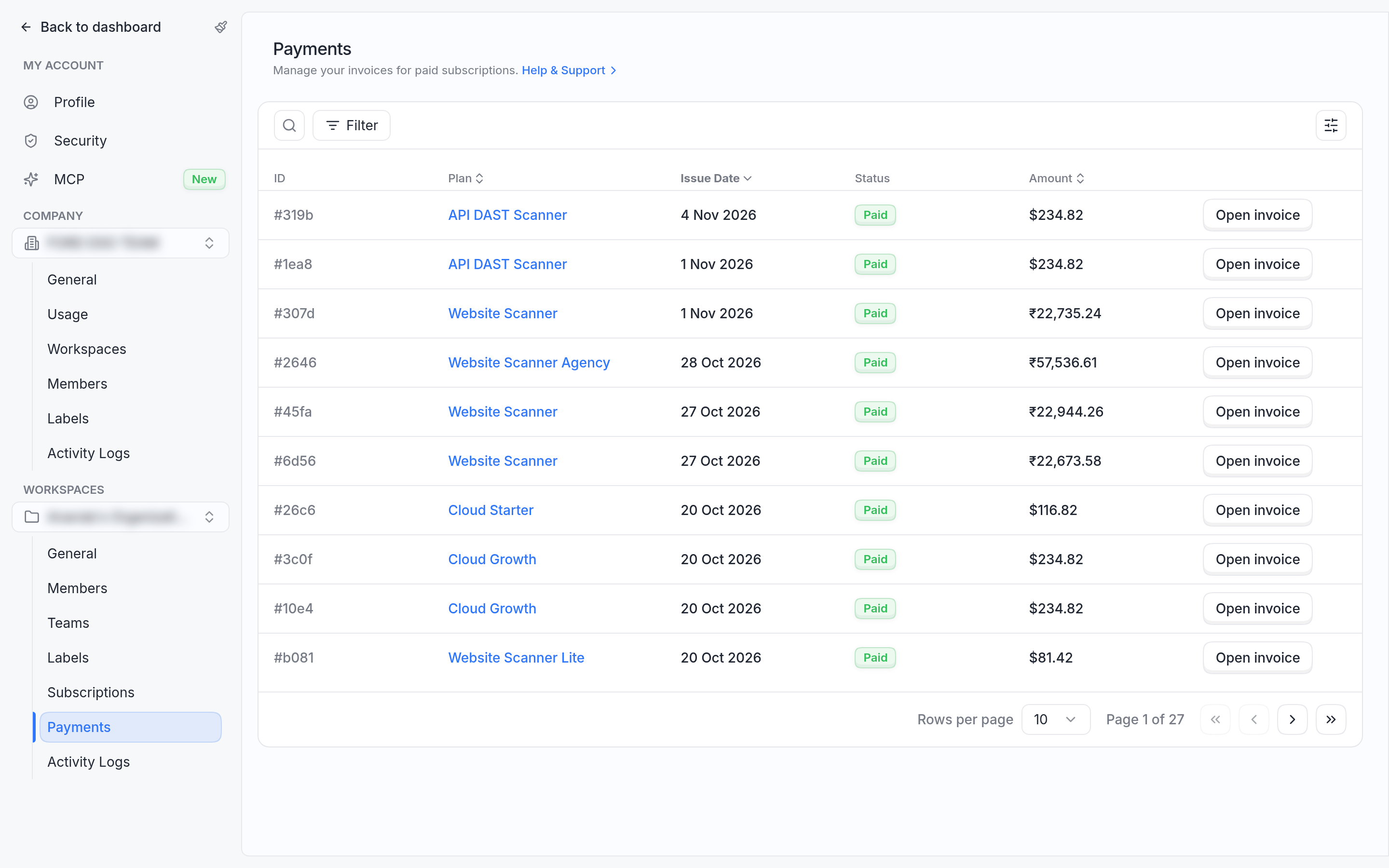
The Payments page lists the invoices for paid subscriptions.
To change the card on a subscription, read How to update a payment method and download invoices.