How to Access Invoices from the Astra Dashboard
Last updated: August 4, 2026
Summary
The Payments section allows users to view completed payments and access invoices for their Astra subscriptions directly from the Astra dashboard.
Users can access invoices from the Payments section or through the Subscription details based on their billing method.
Who should read this
Workspace Owners and Admins: To manage subscription payments and access invoices.
Workspace Billing Members: To view payment history and retrieve invoices.
Finance Teams: To access invoices for accounting and compliance purposes.
Steps to Access an Invoice
1. Log in to the Astra Dashboard
Log in using your Astra account credentials.
2. Open Payments
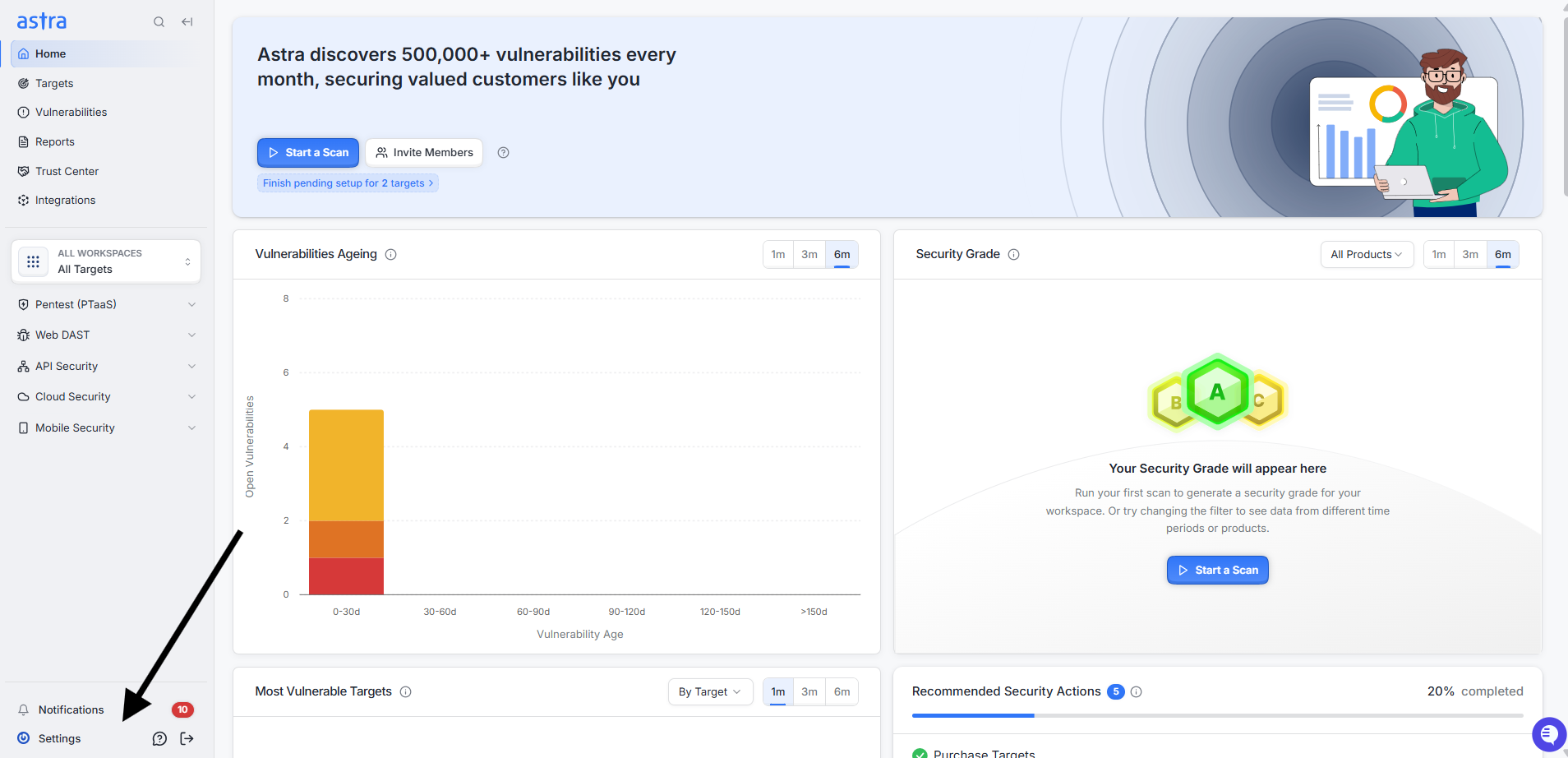
From the left navigation panel, click on Settings and select Payments.
3. Locate the Payment Section
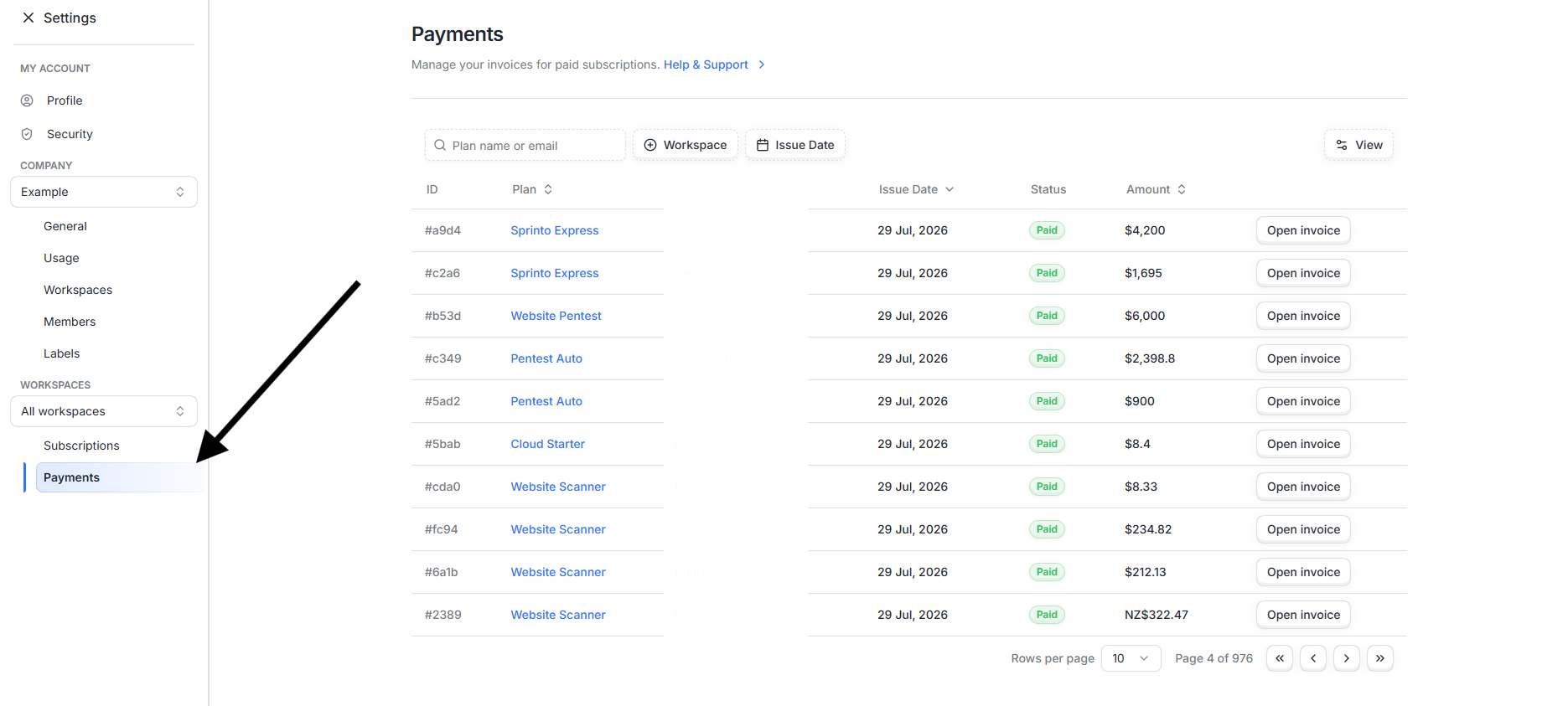
In the Payments section, you can view your completed payments along with details such as:
Payment ID
Plan
Workspace
Issue Date
Payment Status
Amount
Alternative Method: Access Invoice from Subscription
You can also access the invoice from the Subscriptions section:
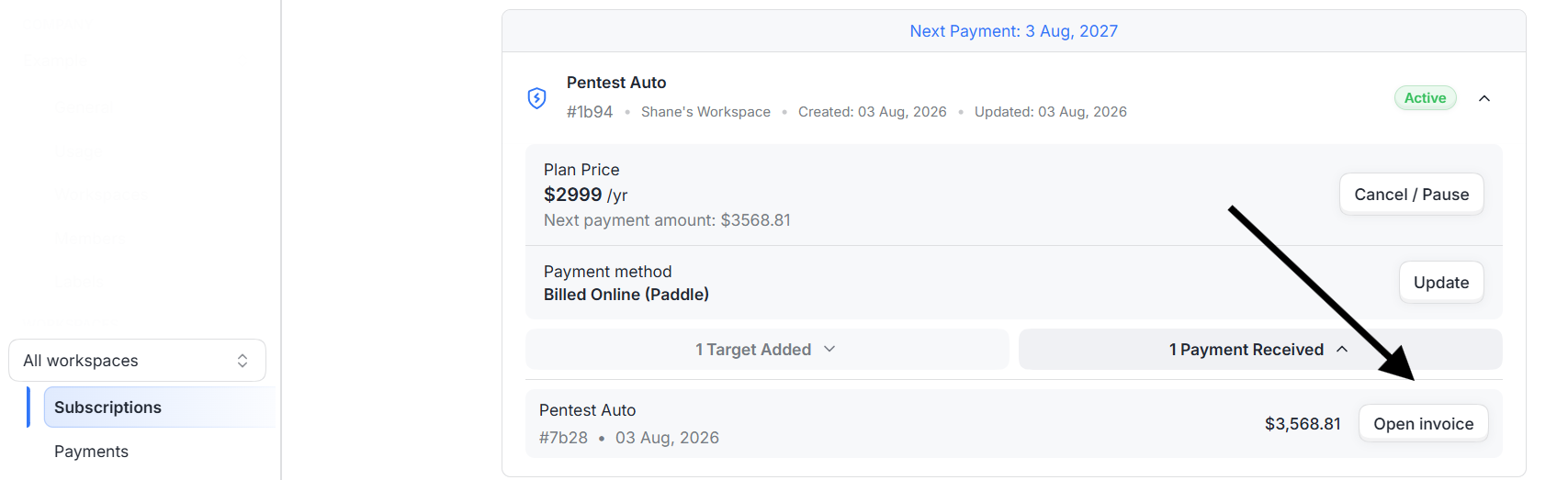
Go to Settings → Subscriptions.
Open the required subscription card.
Expand the subscription details.
Click Open Invoice from the available payment details.
Important Notes
The Open Invoice option is available only for subscriptions billed through online payments.
For subscriptions billed through offline invoices, invoices will not be available in the Astra dashboard.
If you require an invoice for an offline purchase, please contact Astra Support.
Need Help?
If you are unable to access your invoice or need assistance with billing-related queries, please contact us at: