How-To: Integrate Jira with Astra (Two-Way Sync)
Last updated: August 6, 2026
Introduction
Astra's Jira integration supports two-way synchronization between Astra vulnerabilities and Jira issues. Changes made in either system automatically sync based on your configured mappings, covering vulnerabilities, findings, risks, and custom issue types.
Prerequisites
You must have an active Jira account with admin permissions to create webhooks.
Ensure you have access to the Integrations section in your Astra dashboard.
Each Jira project can be linked to only one Astra target - plan your project-to-target mapping before starting.
Instructions
Step 1: Open the Jira Integration
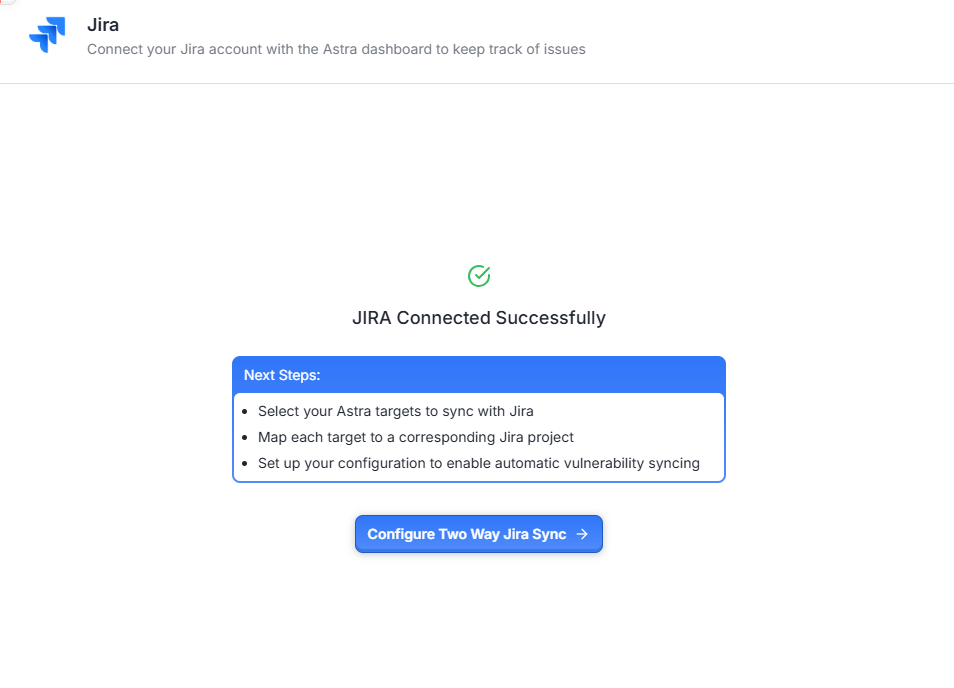
In your Astra dashboard, navigate to Integrations → Jira → Connect.
Follow the connection flow to authenticate your Jira account.
Once the integration is complete, go to Targets and select Configure Two-Way Jira Sync.
For detailed setup guidance, refer to the Jira integration help article.
Step 2: Add or Remove Jira Targets
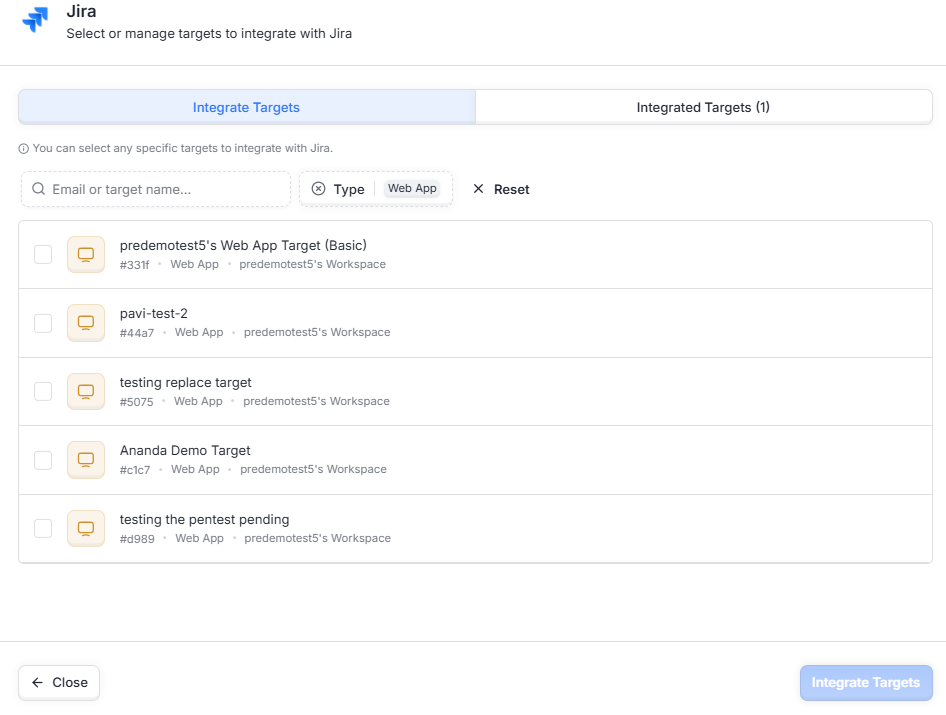
Select the target(s) you want to sync with Jira
Click Integrate Target
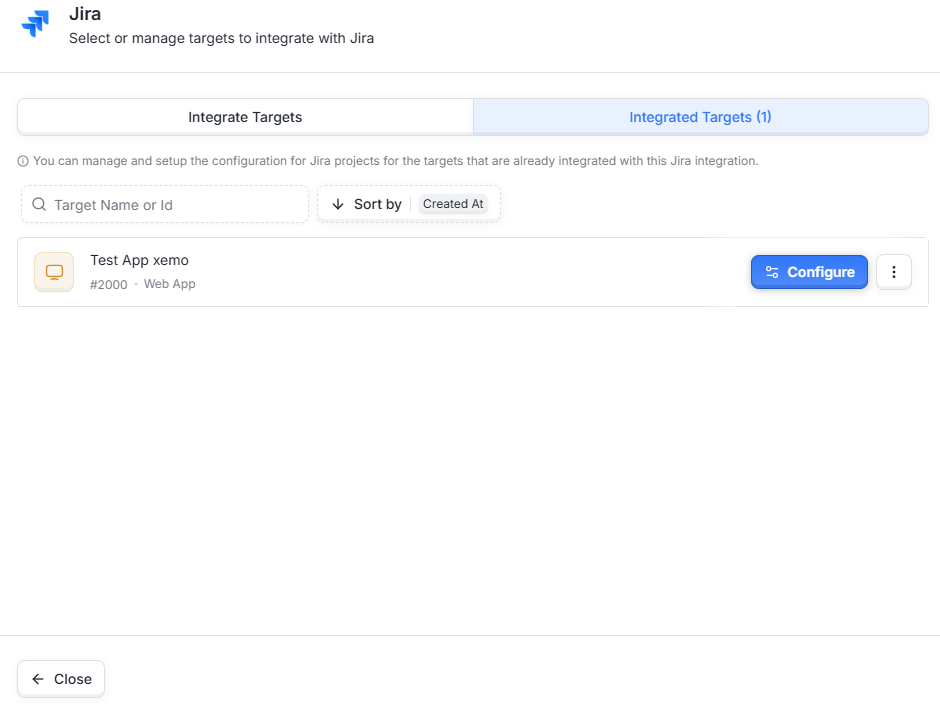
View the integrated target in the Integrated Target List
This creates a per-target Integration Project linking your Astra target to a Jira project.
Step 3: Configure Project Mapping (Per Target)
Open Configure Jira Project Mappings
Click Configure on the added target
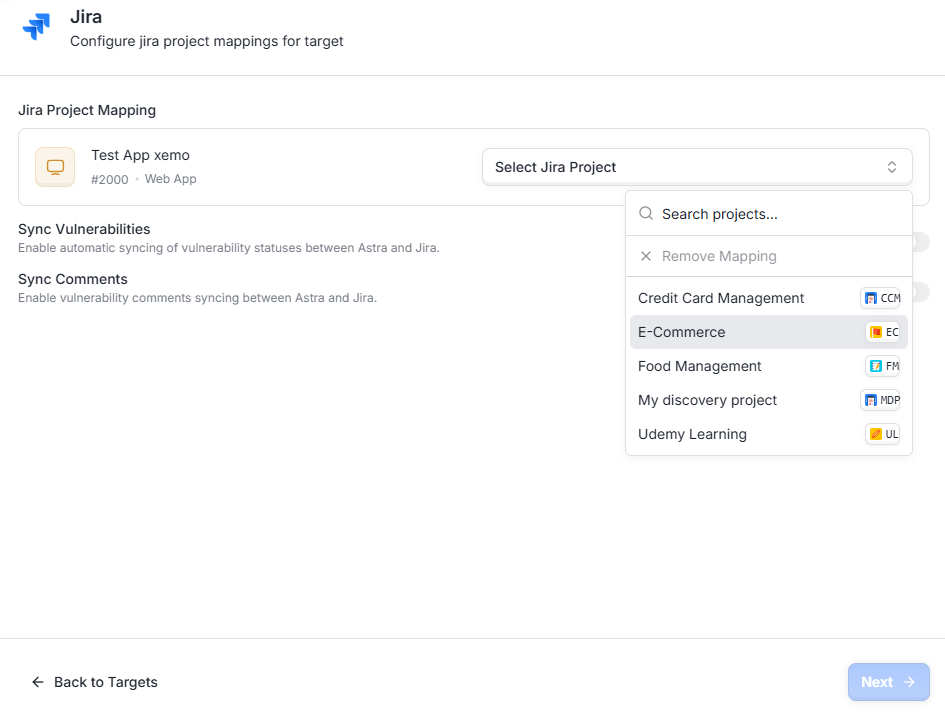
Select the Jira project for the integrated target
Confirm that the Jira Project and Astra Target are displayed
Note: Each Jira project can be linked to only one Astra target.
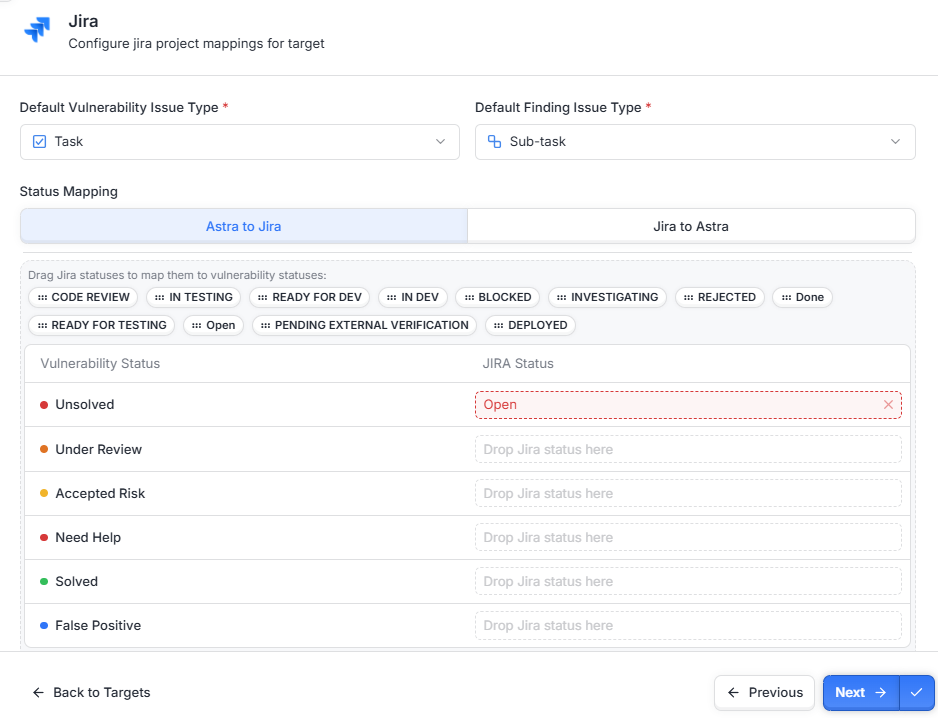
Step 4: Issue Type & Status Mapping
Issue Type Selection
Vulnerabilities: Choose Jira issue type (e.g., Bug, Task, Story)
Findings: Choose Jira issue type (e.g., Sub-task, Task)
This determines which Jira fields are available for mapping.
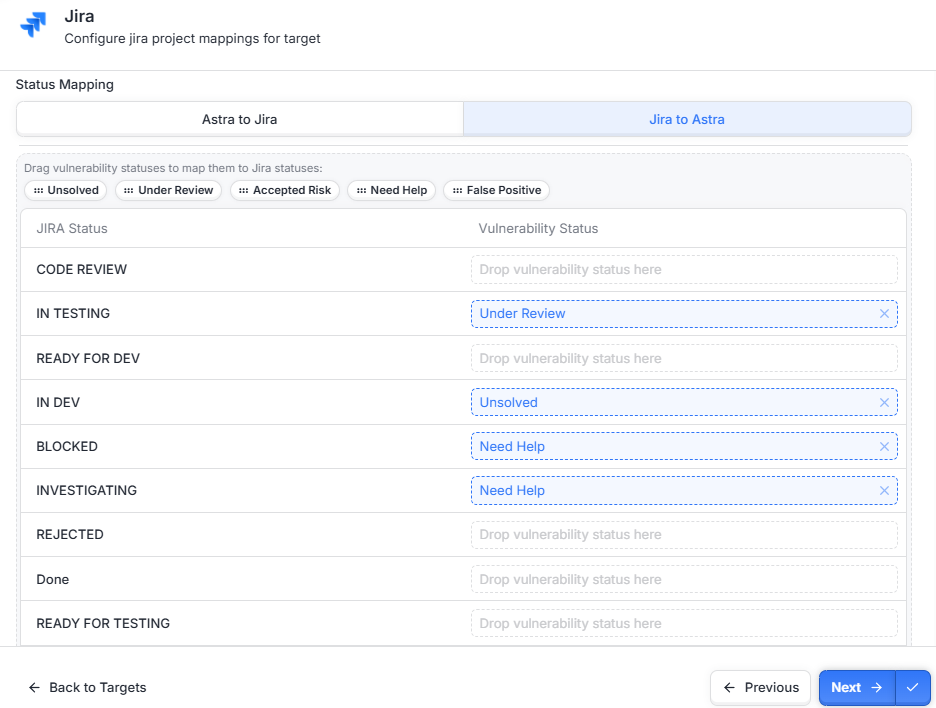
Issue Status Mapping
Astra → Jira: Map Astra vulnerability status to Jira issue status (e.g., Open → In Progress → Done)
Jira → Astra: Map Jira issue status to Astra vulnerability status
Step 5: Severity → Priority Mapping
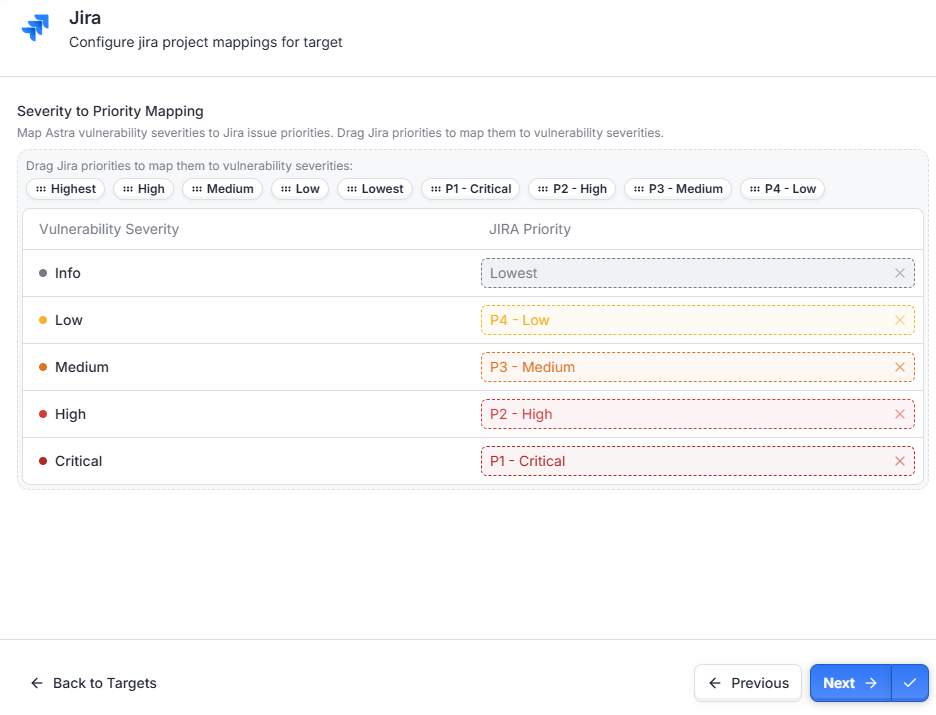
Align Astra severity levels to Jira priority levels:
Astra Severity | Jira Priority |
Critical | Highest |
High | High |
Medium | Medium |
Low | Low |
Informational | Lowest |
Note: Ensure every Astra severity has a Jira priority fallback. For unmapped values, set a default in the Defaults section.
Step 6: Map Jira Custom Fields
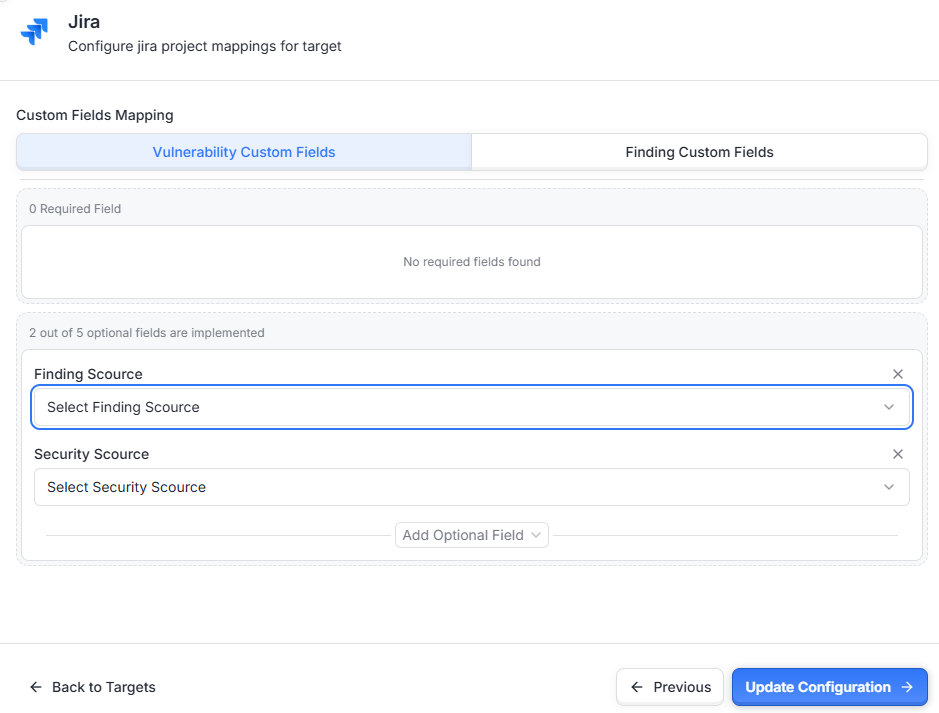
Map Astra fields to Jira custom fields (single/multi-select, text, number, URL)
Supports required and optional fields during Jira issue creation
Keep Summary and Description set to Astra → Jira only to avoid formatting loss. Use Jira custom fields to carry unique Astra metadata such as CVSS scores or Asset IDs.
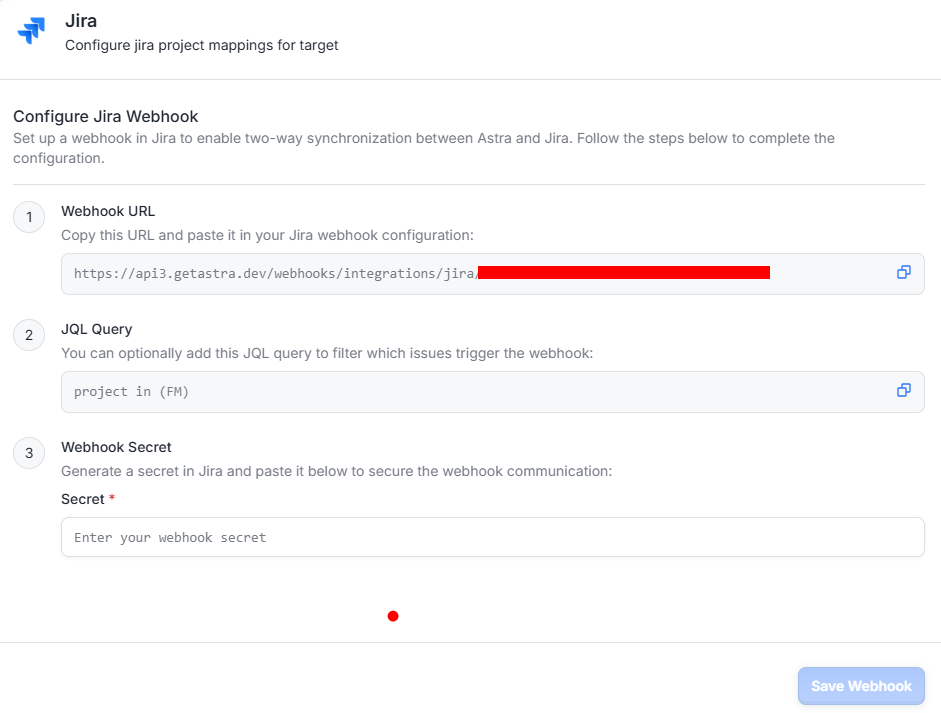
Step 7: Configure Webhooks (Jira → Astra)
In Astra, generate the Webhook URL from the integration settings.
In Jira, go to System → Webhooks → Create Webhook.
Fill in the following details:
Name: Astra OrbitX Webhook
URL: Paste the webhook URL copied from Astra
Events: Select Issue created, updated, transitioned, commented, and deleted as needed
Scope: Limit to the mapped Jira project(s) only
Save the webhook, then copy the webhook secret back into your Astra configuration.
Limiting the webhook scope to mapped projects reduces noise and prevents unintended syncs. Astra validates the payload and signature for security.
Expected Outcome
Once configured, changes made in Astra will reflect in Jira and vice versa in real time, based on your mapping rules. Specifically:
Field direction controls whether Astra, Jira, or both can overwrite a field. In bi-directional mode, the newest change wins unless locked in config.
Comments sync from Astra to Jira as key event updates, and from Jira to Astra with author and timestamp.
Attachments added by Astra appear on issue creation; back-sync from Jira depends on API limits and file size.
Unmapped fields are ignored during sync.
De-duplication is handled automatically - Astra links once per finding per target and prevents repeated issue creation.